

How to Target a Notification to a Segment (Pro)
Segments cost you nothing in setup and quite a lot in delivery time, so it is worth knowing what each one actually selects before you use it.
Step 1: Look at who you have
Section titled “Step 1: Look at who you have”Go to DevDiggers Plugins → Progressive Web App → Subscribers.

Three numbers, and the gaps between them are the point. Devices is everything that has opened your site. Push subscribed is the part you can actually reach. App installed is the part that comes back without being reminded.
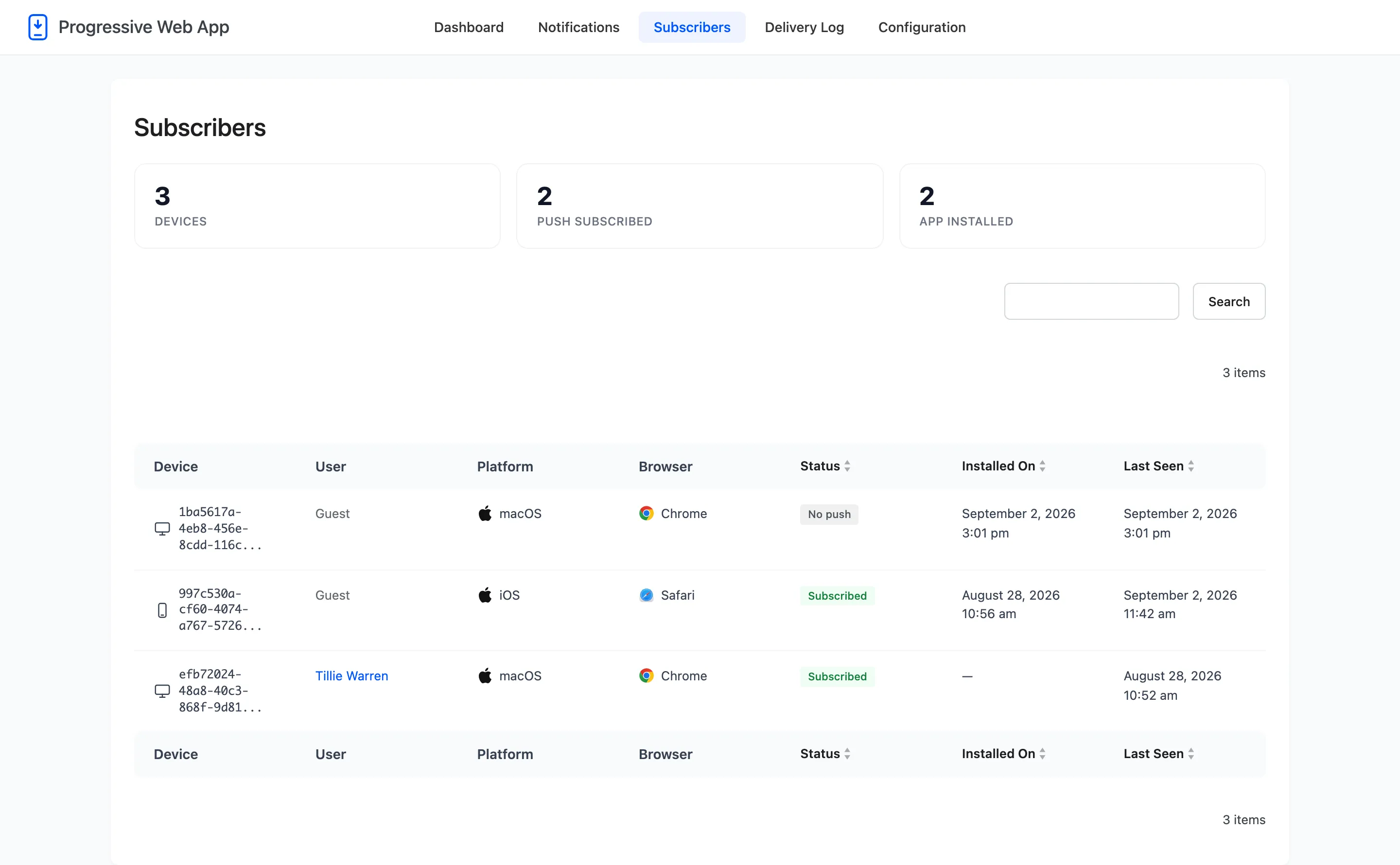
The User column is what the logged-in and guest segments read. Scan it before you send: on a site where almost nobody signs in, a logged-in send reaches almost nobody.
Step 2: Open the notification form
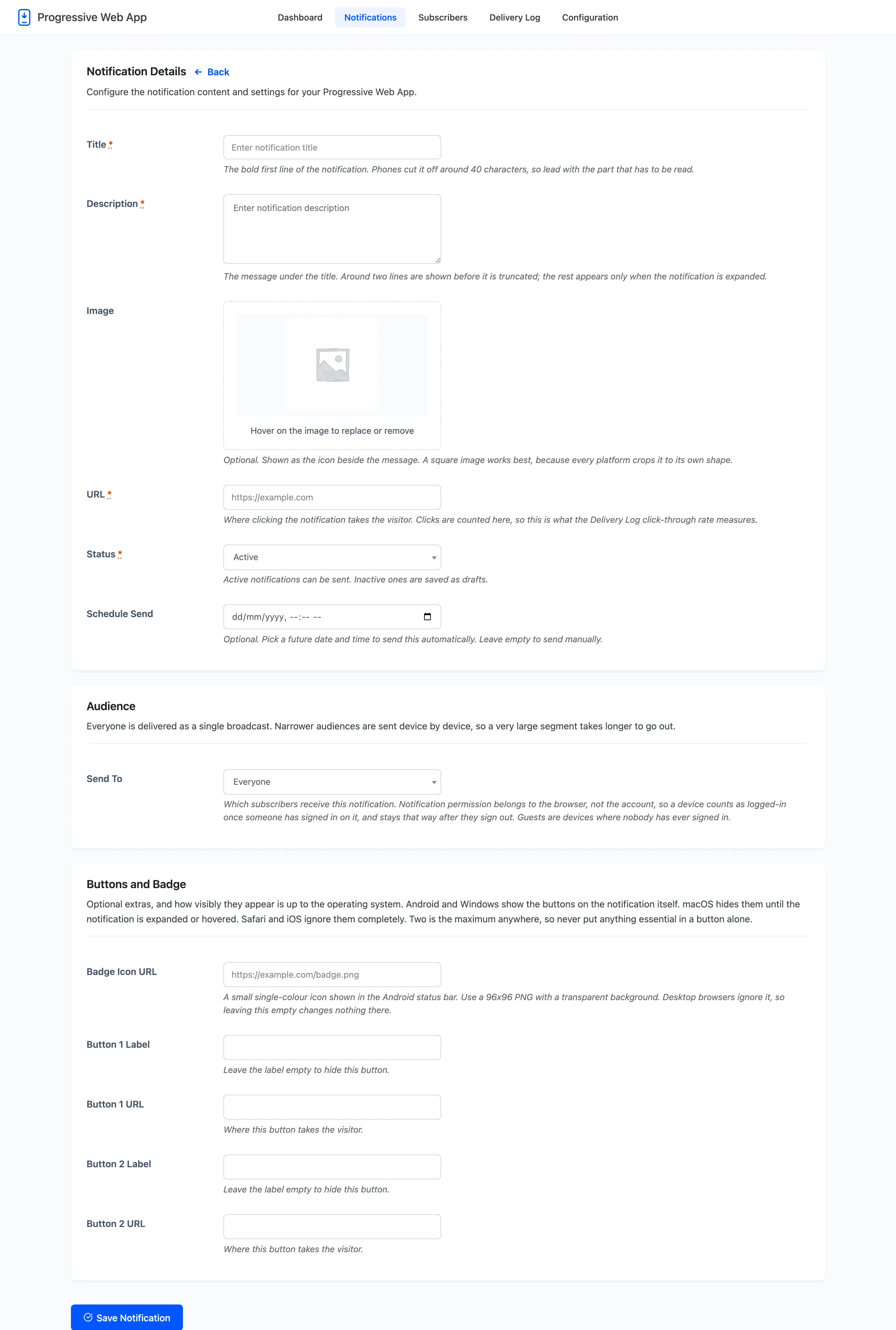
Section titled “Step 2: Open the notification form”Go to Notifications, press Add New, and write the title, message, image and URL.
Step 3: Choose the audience
Section titled “Step 3: Choose the audience”Under the Audience heading is one field.
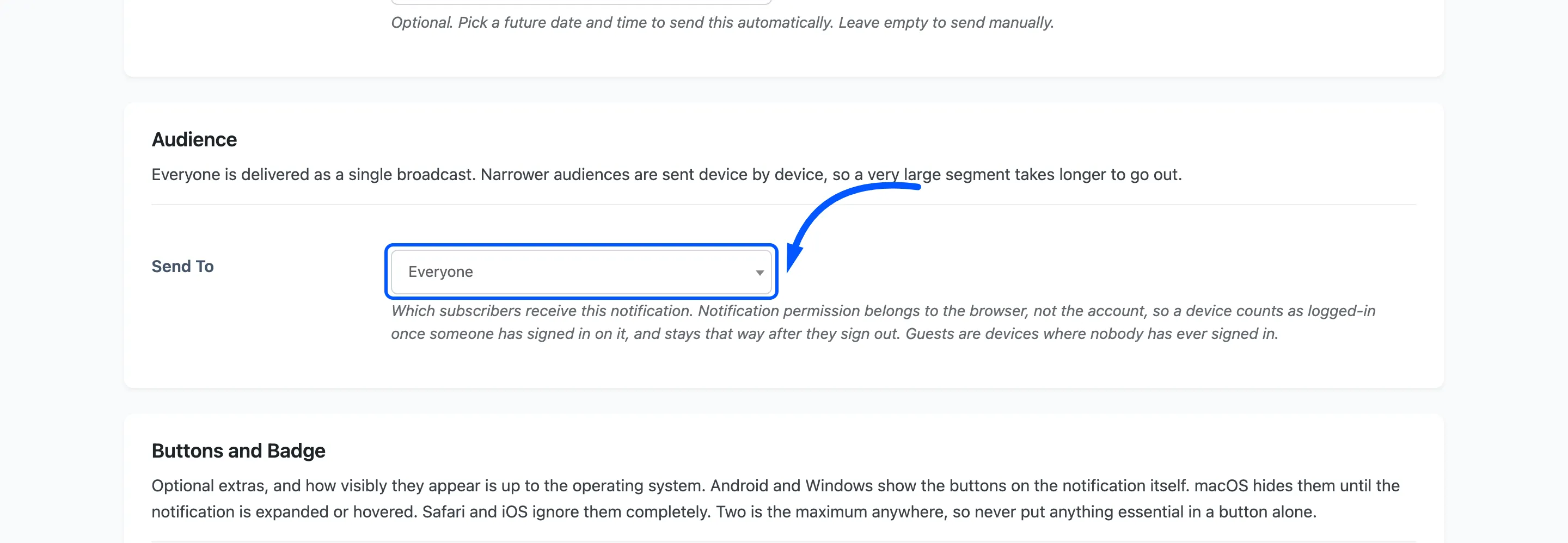
Everyone: The default. Delivered as a single broadcast, which is one request however many devices you have.
Logged-in users: Devices where somebody has signed in. Read the next section before using this one.
Guests: Devices where nobody has ever signed in.
Installed app users: Devices flagged as having installed the app. The smallest and usually the most engaged group.
Customers: Only offered with WooCommerce active. Devices belonging to accounts that have placed an order.
Step 4: Know what logged-in really means
Section titled “Step 4: Know what logged-in really means”This is the one that surprises people, and it is worth a paragraph before you plan a campaign around it.
Notification permission belongs to the browser, not to the account. A device counts as logged in once somebody has signed in on it. It stays that way after they sign out. Nothing about signing out revokes a notification permission, so nothing about it can revoke the label either.
The plugin re-registers the token whenever the signed-in user changes. That is the only way a device which subscribed as a guest ever becomes reachable through the logged-in segment, because the browser asks for permission once and never again.
So read Guests as “devices nobody has ever signed in on”. It does not mean “people who are not logged in right now”, which no push service can know.
Step 5: Save and send
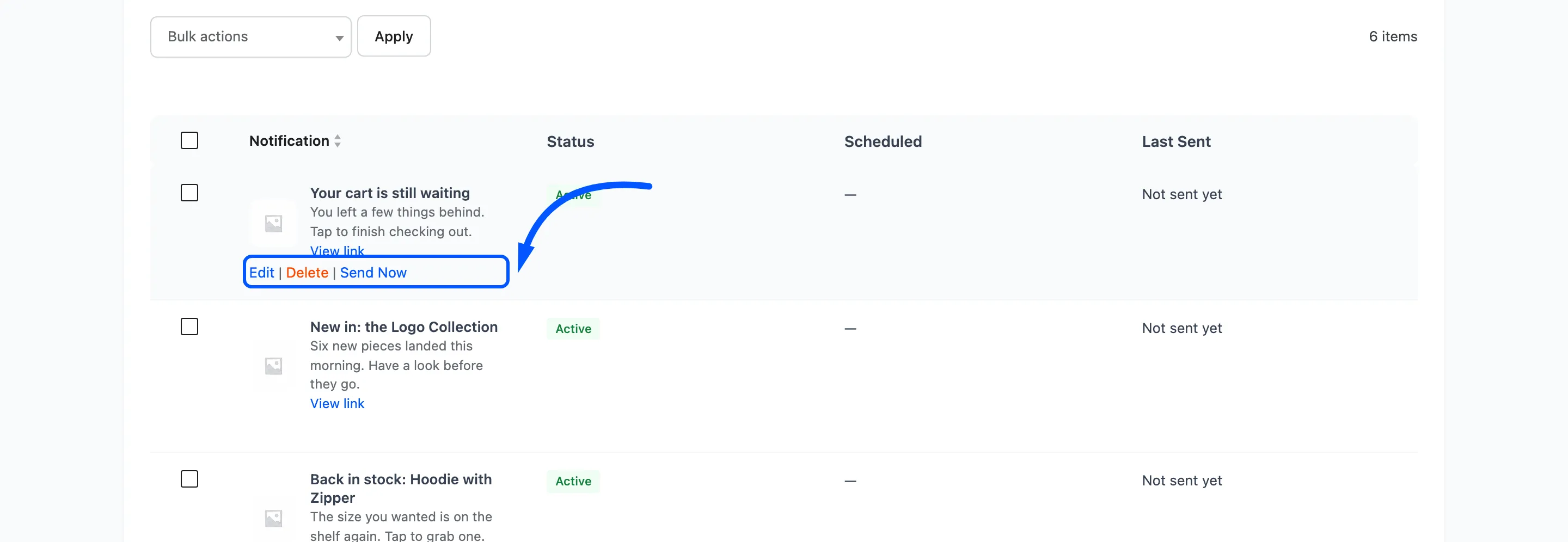
Section titled “Step 5: Save and send”Set Status to Active, save, then hover the row and press Send Now.
Step 6: Check the reach
Section titled “Step 6: Check the reach”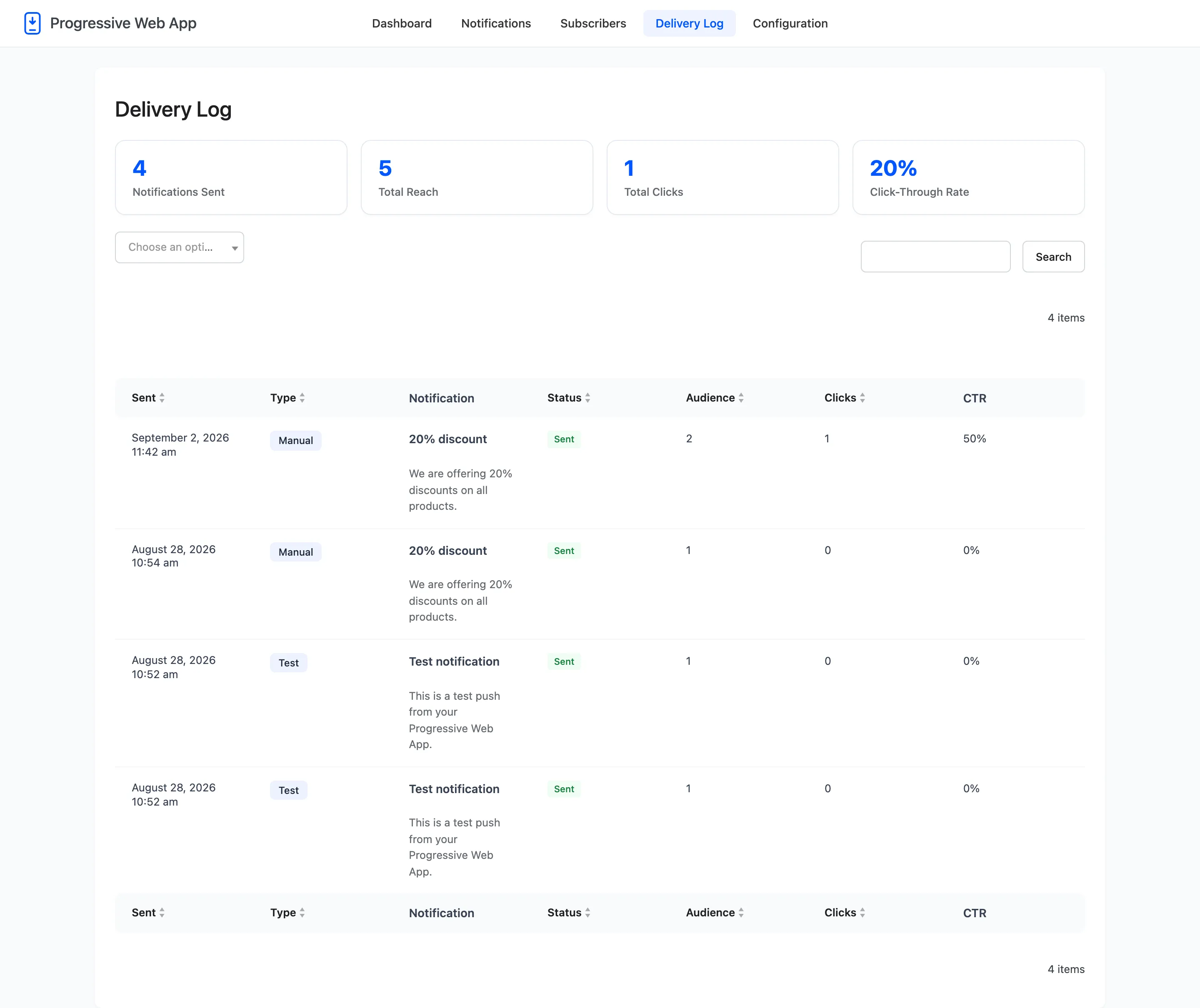
The Audience column is the honest number: how many devices the send actually reached, not how many you have.
A segment send takes longer than a broadcast, because Everyone goes out as one topic message while a segment is delivered device by device. On a large list the row can sit at Pending for a while before it settles.
Choosing between them
Section titled “Choosing between them”- A sale or an announcement goes to Everyone. Narrowing it only reduces reach.
- Anything about an account goes to Logged-in users, because guests cannot act on it.
- An app-only perk goes to Installed app users, and it is the group most likely to tap.
- A restock or a shipping change goes to Customers on a store.