

How to Set Up Offline Browsing
Offline browsing is the half of a progressive web app that nobody notices until it works. A page the visitor has already opened keeps opening when the signal goes, and it looks exactly as it did.
Step 1: Open the Offline tab
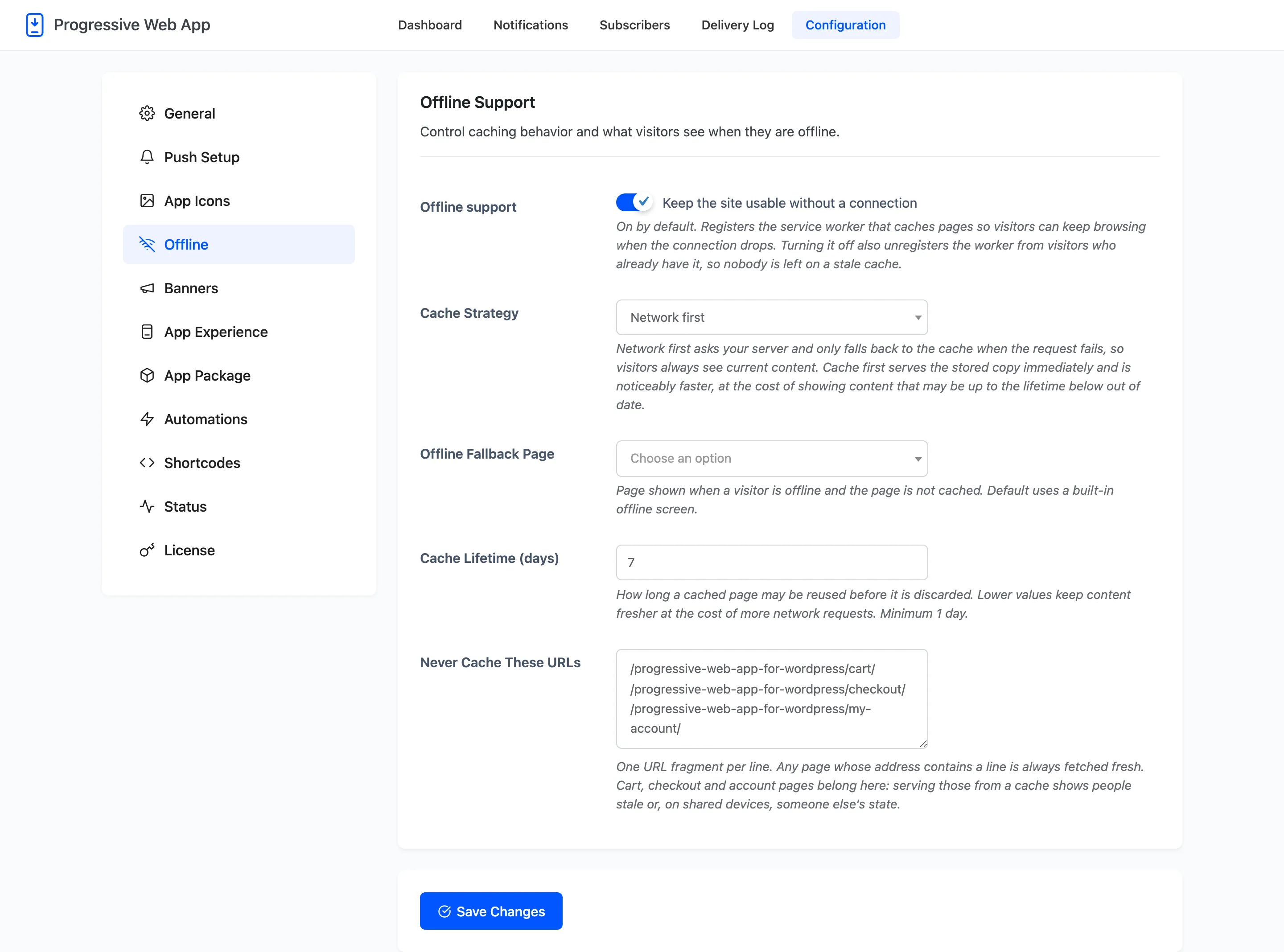
Section titled “Step 1: Open the Offline tab”Go to DevDiggers Plugins → Progressive Web App → Configuration → Offline.
Step 2: Check offline support is on
Section titled “Step 2: Check offline support is on”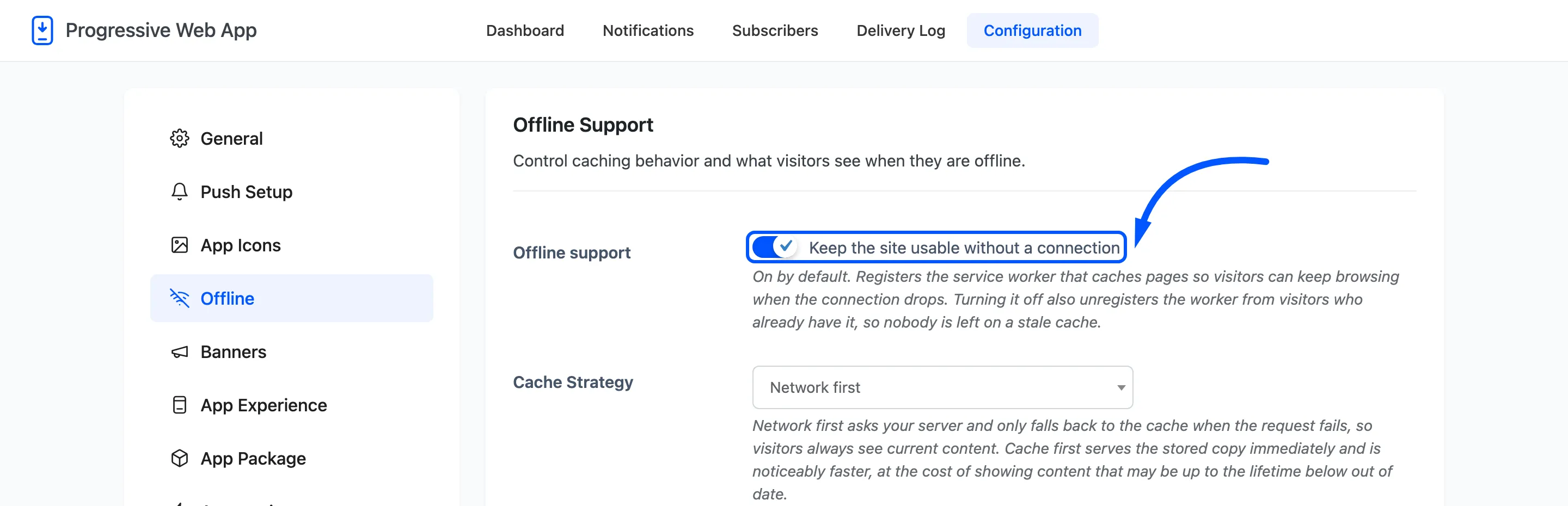
On by default. It registers the service worker, which is the script the browser keeps running beside your site.
Turning it off also unregisters the worker from visitors who already have it, so nobody is left on a stale cache. That makes this switch the first thing to try when another plugin starts behaving oddly and you suspect caching.
Step 3: Choose a caching strategy
Section titled “Step 3: Choose a caching strategy”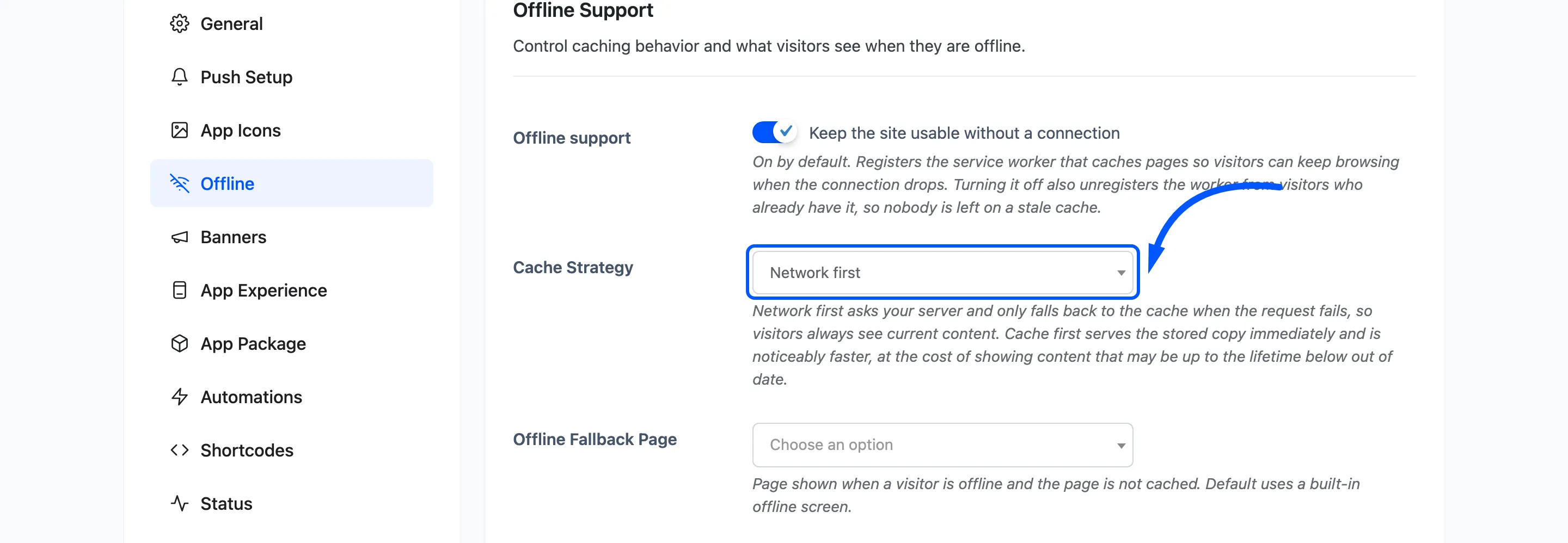
Network first asks your server for the page and only reaches for the stored copy when that request fails. Nobody is ever shown stale content while they are online, which is the right default for a store where prices and stock change.
Step 4: Pick an offline fallback page
Section titled “Step 4: Pick an offline fallback page”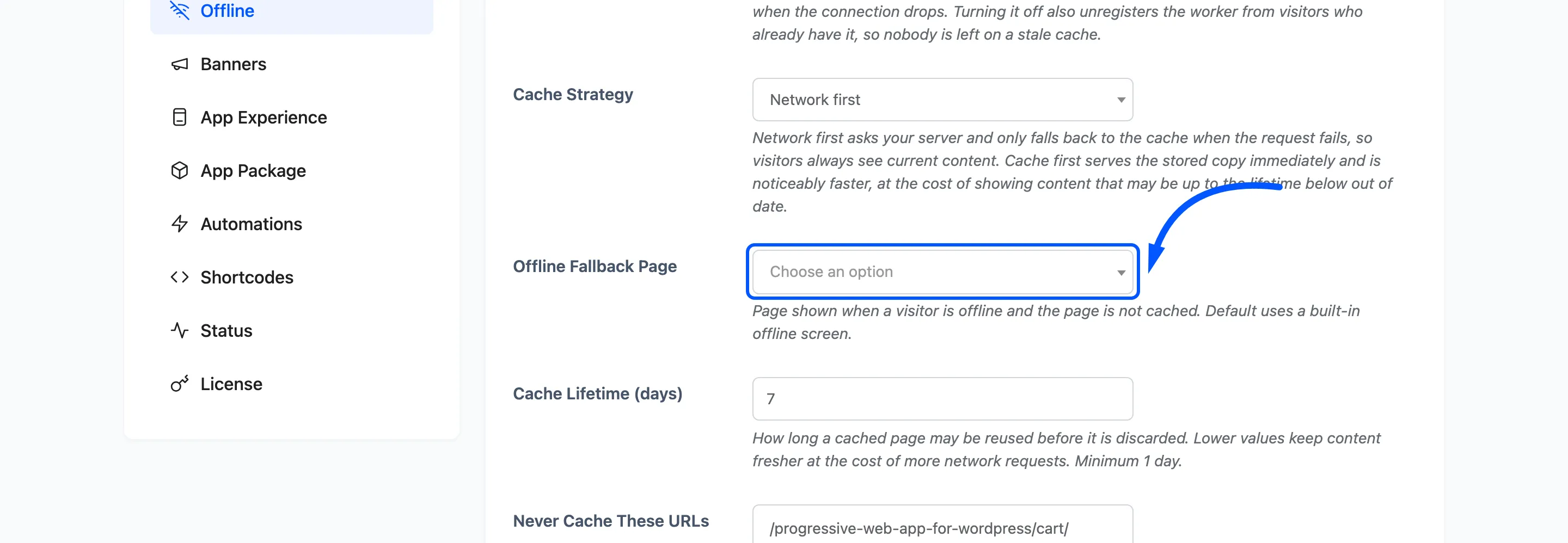
Default offline screen is a plain page the service worker draws itself. Choosing one of your own published pages instead caches that page in advance and shows it when a visitor asks for something that is not stored.
A good fallback page is short, uses no images the visitor may not already have, and says plainly that the connection is gone. A page built out of blocks that fetch things is the wrong choice, because none of those fetches will work.
Step 5: Set the cache lifetime
Section titled “Step 5: Set the cache lifetime”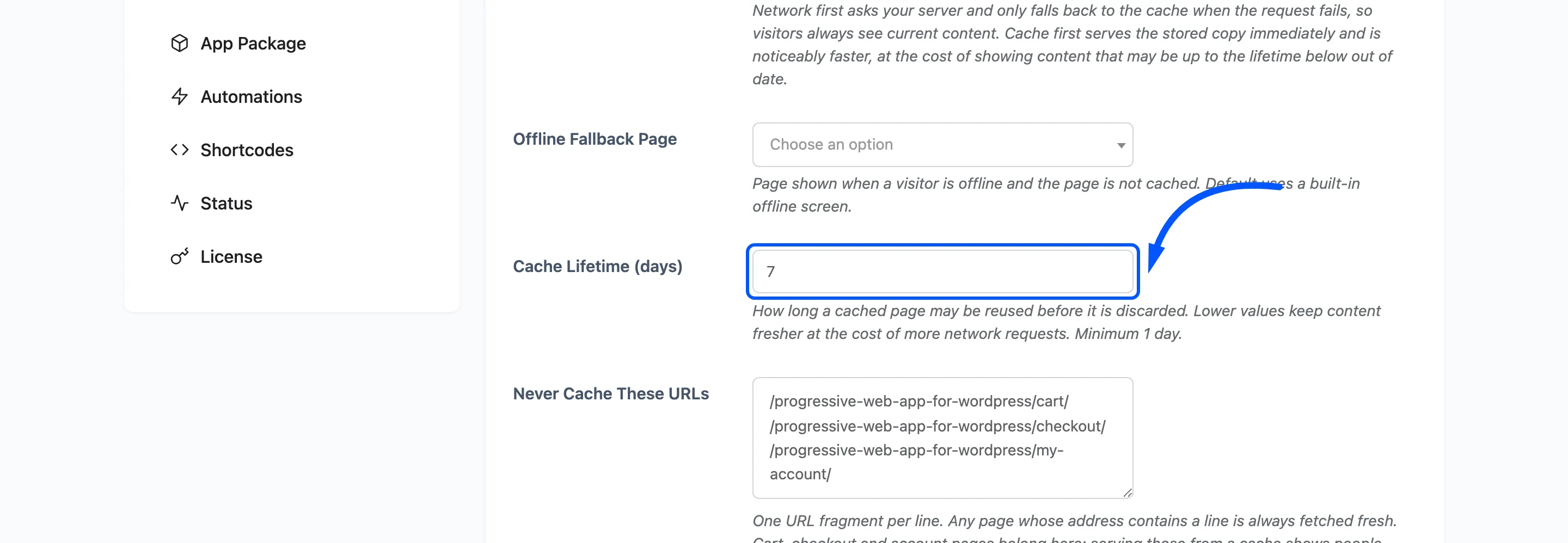
Default 7 days, minimum 1. How long a stored page may be reused before it is discarded. Lower keeps content fresher and costs more network requests. On network first this matters less than it sounds, because the stored copy is only ever the fallback.
Step 6: Exclude the per-visitor pages
Section titled “Step 6: Exclude the per-visitor pages”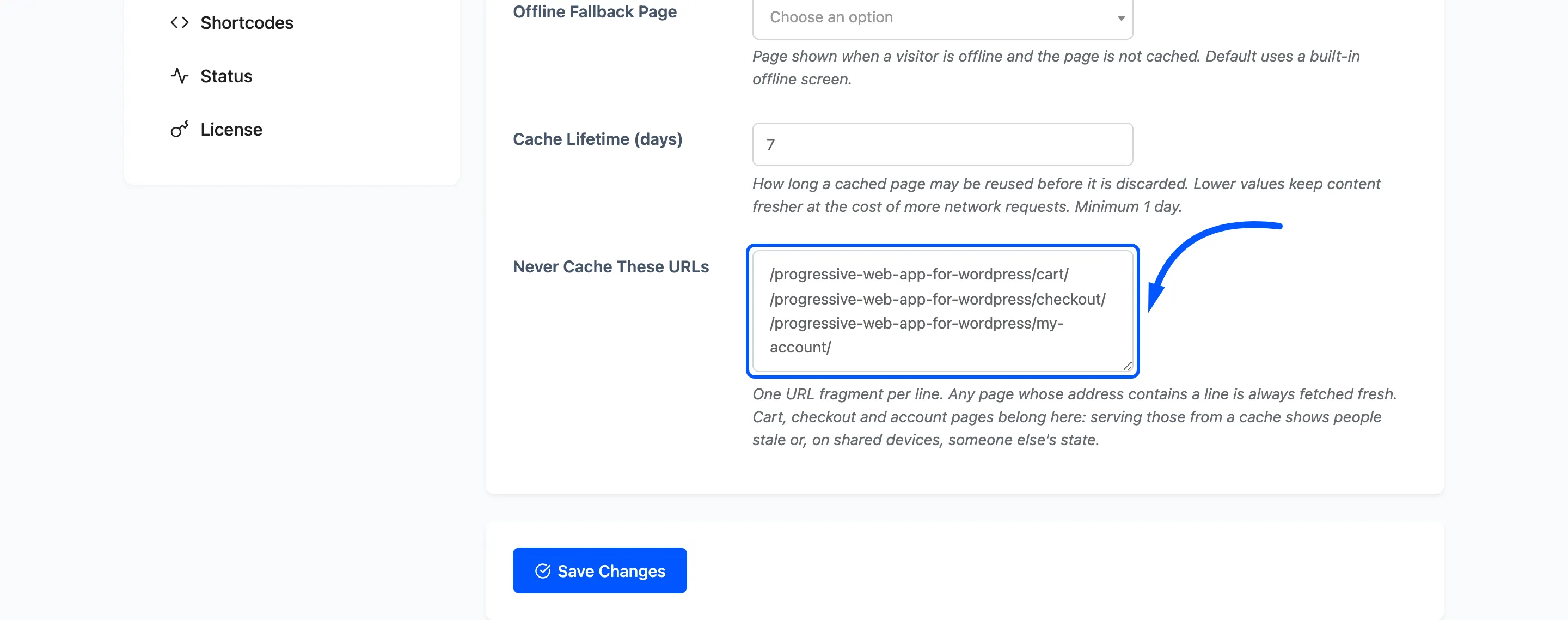
One URL fragment per line. Any page whose address contains a line is always fetched fresh.
On a WooCommerce store this arrives already holding the cart, checkout and account paths, and they belong there. Those pages are different for every visitor, and serving one from a cache shows people stale totals or, on a shared device, somebody else’s session.
Add anything else that is per-visitor: a member area, a booking form, a download page.
The plugin already leaves the WordPress admin, the login screen, the REST API and admin AJAX alone without being told, so there is no need to list those.
Step 7: Test it with the network off
Section titled “Step 7: Test it with the network off”This is worth doing properly, because the one thing that catches people is a browser rule rather than a setting.
- Open a page on your site.
- Load a second page, or reload the first. The service worker takes control on the second page view, not the first.
- Turn off wifi, or use your browser’s offline mode in developer tools.
- Go back to a page you already opened.
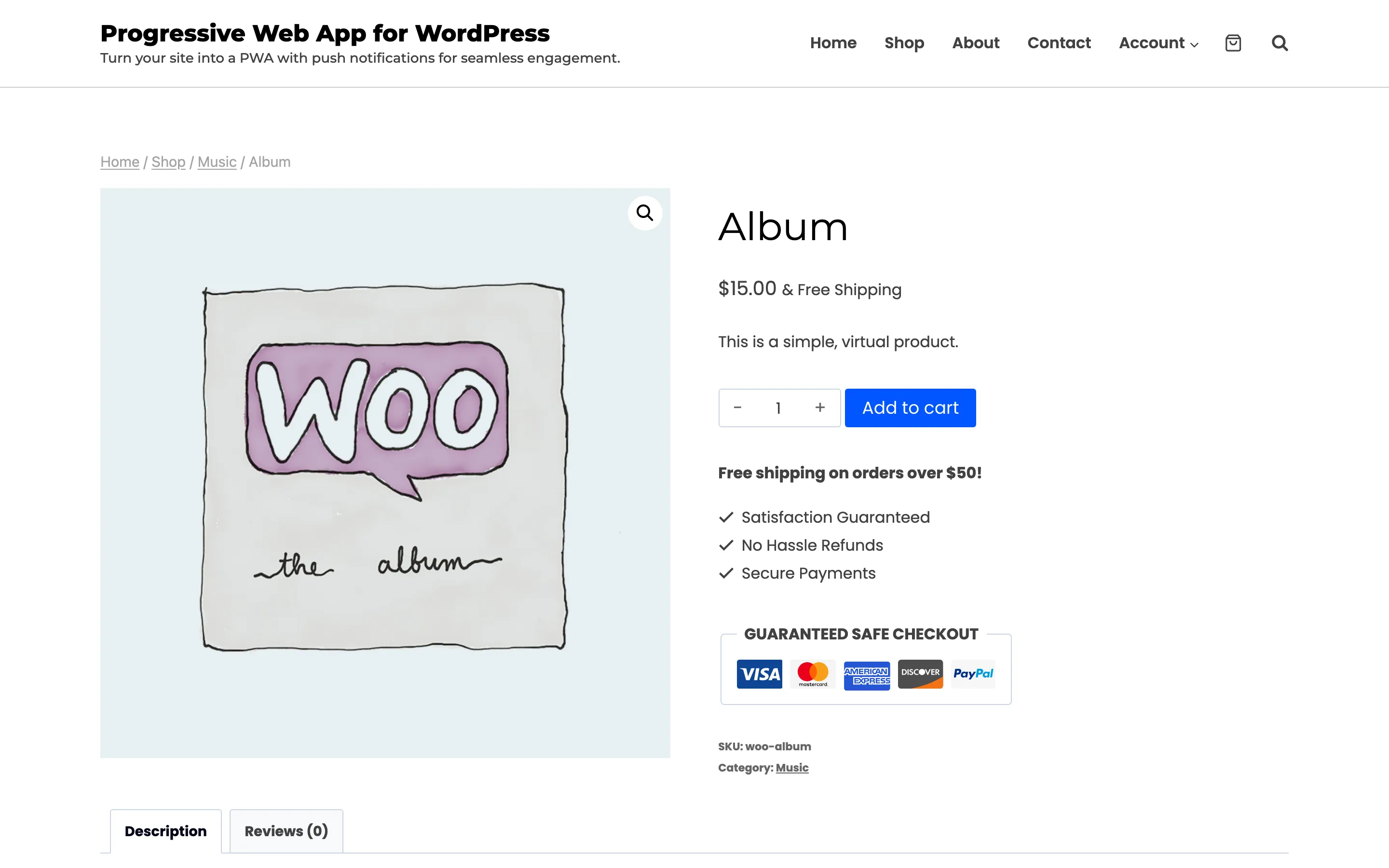
It loads, with no banner and no warning. That is the feature working: offline browsing is invisible when it succeeds.
Now ask for a page you have never opened, still offline. That one was never stored, so the fallback takes over.
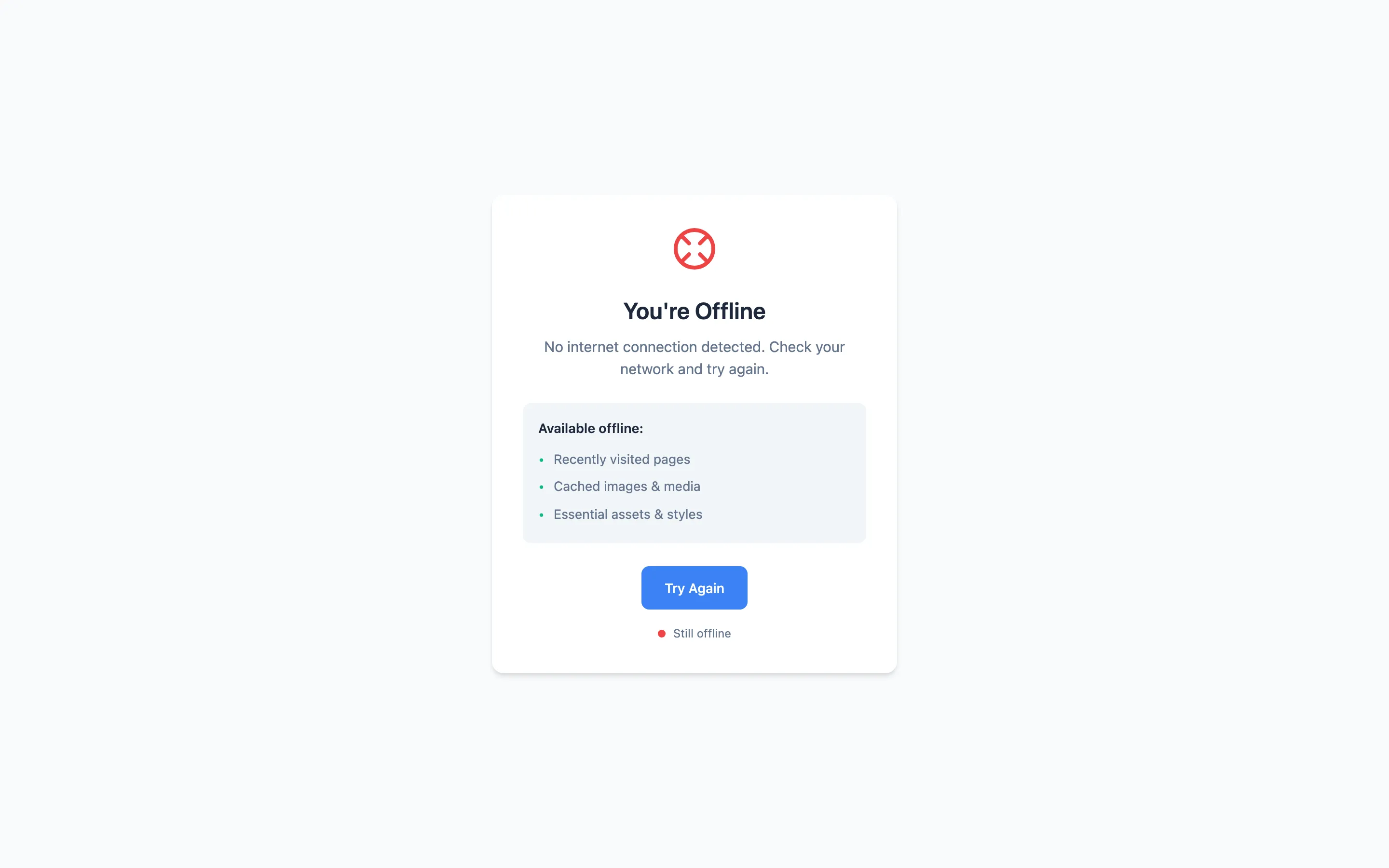
That is the Default offline screen from Step 4. It watches the connection, so the dot at the bottom turns green on its own and the page returns to what the visitor asked for the moment the signal comes back. Choose a page of your own in that field and your page is shown here instead, as long as it was cached when the worker installed.
What is and is not covered
Section titled “What is and is not covered”- Pages the visitor has opened are stored and served. This is the main case.
- Pages they have never opened are not stored, and the fallback page is what they get instead.
- The cart, the checkout and the account pages are never stored, on purpose.
- A first-time visitor who loses their connection immediately is not covered, because the worker has not taken control yet.