

App Icons
Every image on this tab ends up in the app manifest. Leave one empty and the plugin falls back to its own bundled placeholder, which means your app installs under somebody else’s artwork.
Go to DevDiggers Plugins → Progressive Web App → Configuration → App Icons.
App Icons
Section titled “App Icons”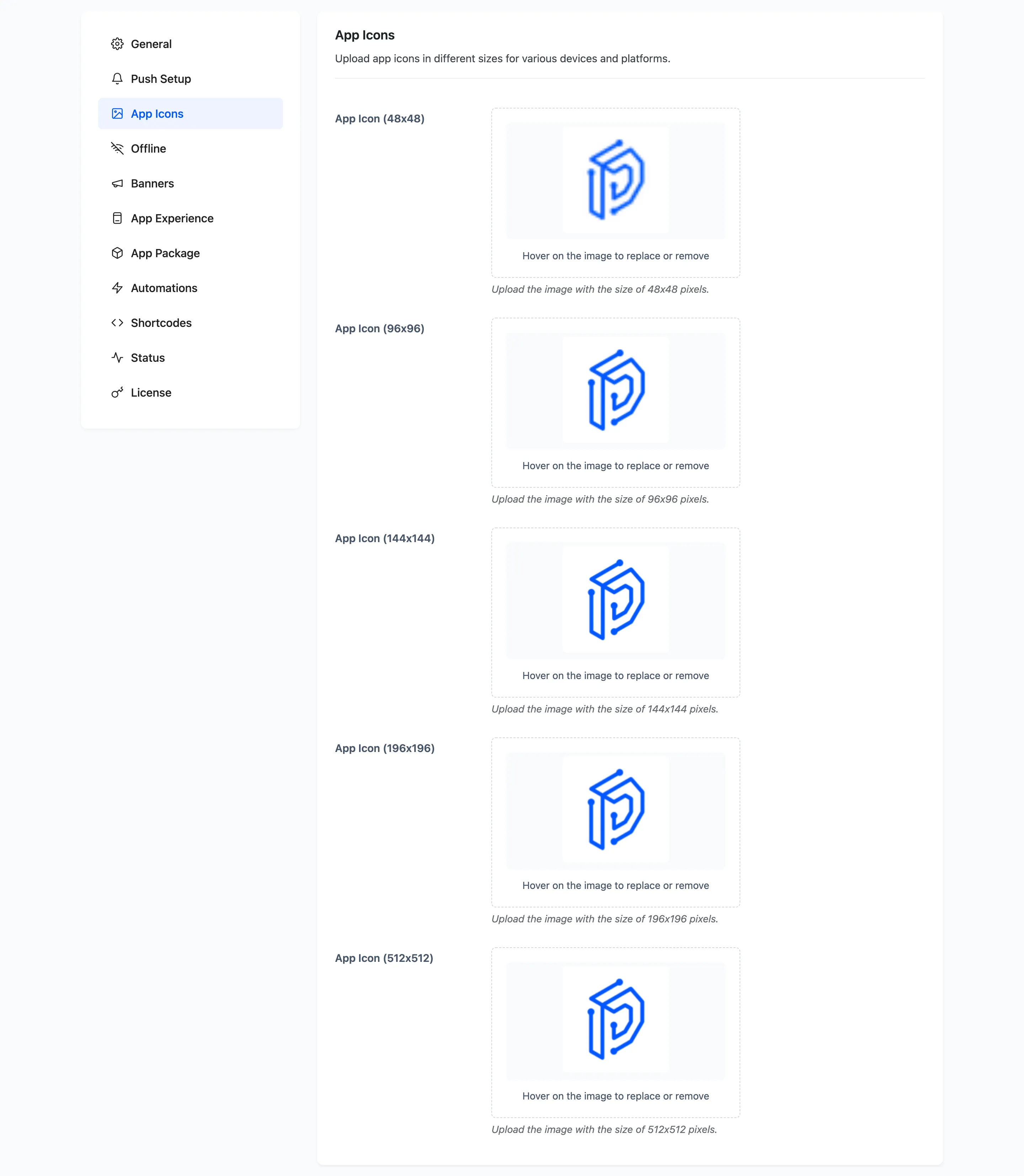
Five sizes, each its own upload: 48x48, 96x96, 144x144, 196x196 and 512x512. Different platforms pick different ones, so supply all five rather than guessing which your visitors will use.
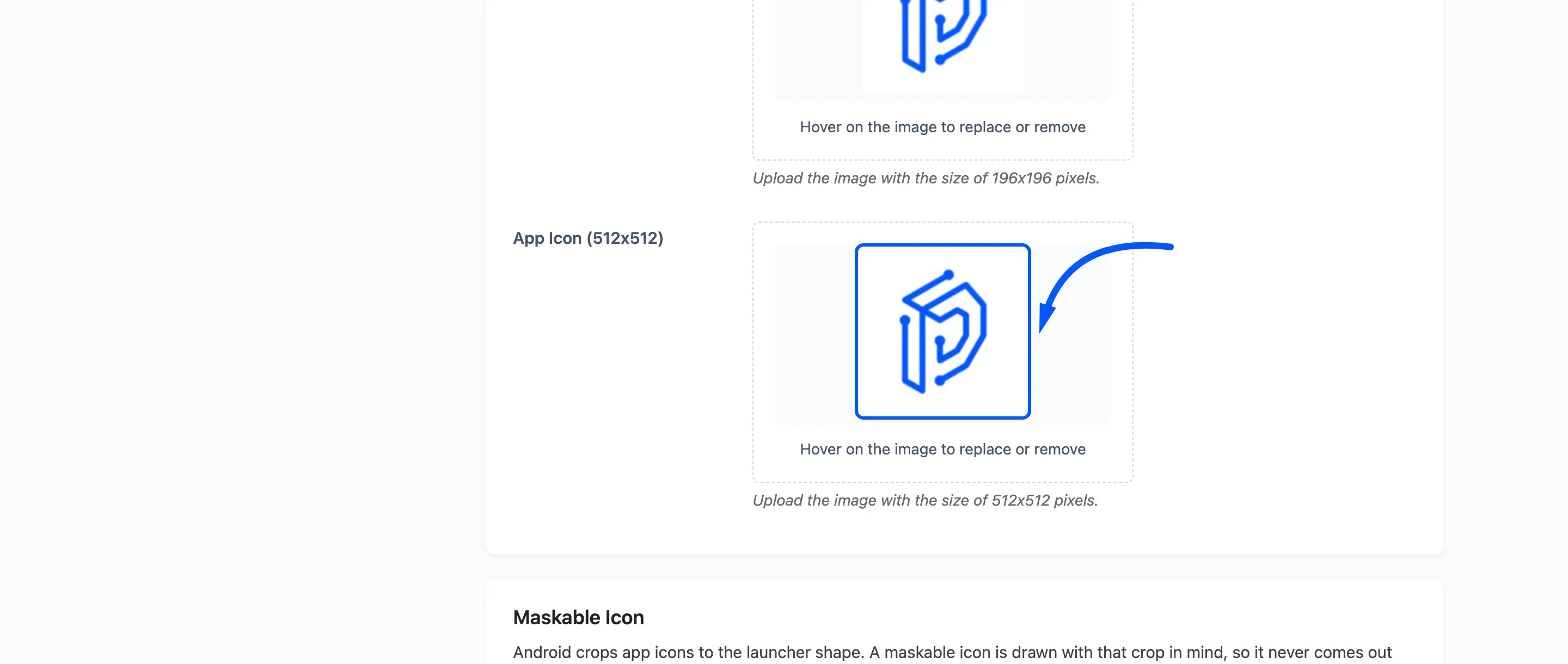
The 512 is the one that matters most. It is the icon the Android packager scales every density from, and the Status tab counts how many of the five are set.
Maskable Icon
Section titled “Maskable Icon”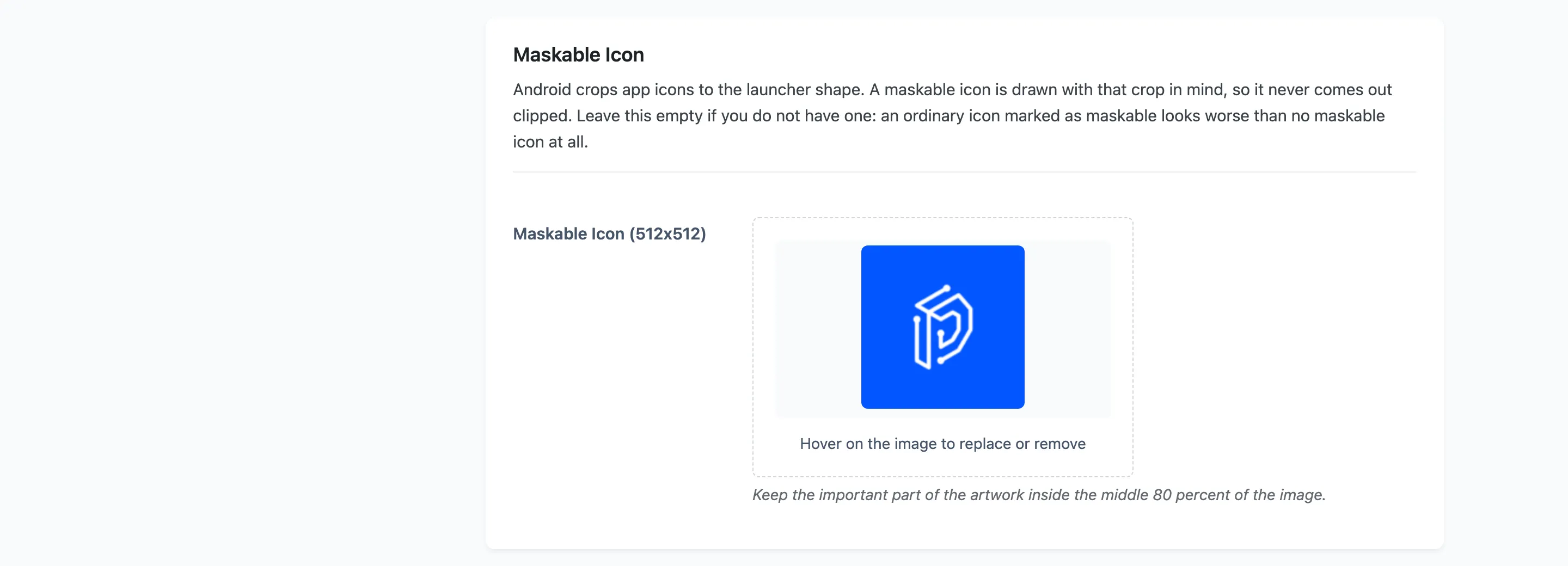
Android crops app icons to the launcher shape, which differs by device. A maskable icon is drawn with that crop in mind, so it never comes out clipped. Keep the important part of the artwork inside the middle 80 percent of the image.
Leave it empty if you do not have one. An ordinary icon marked as maskable looks worse than no maskable icon at all, because Android will crop into your logo.
Splash Screen
Section titled “Splash Screen”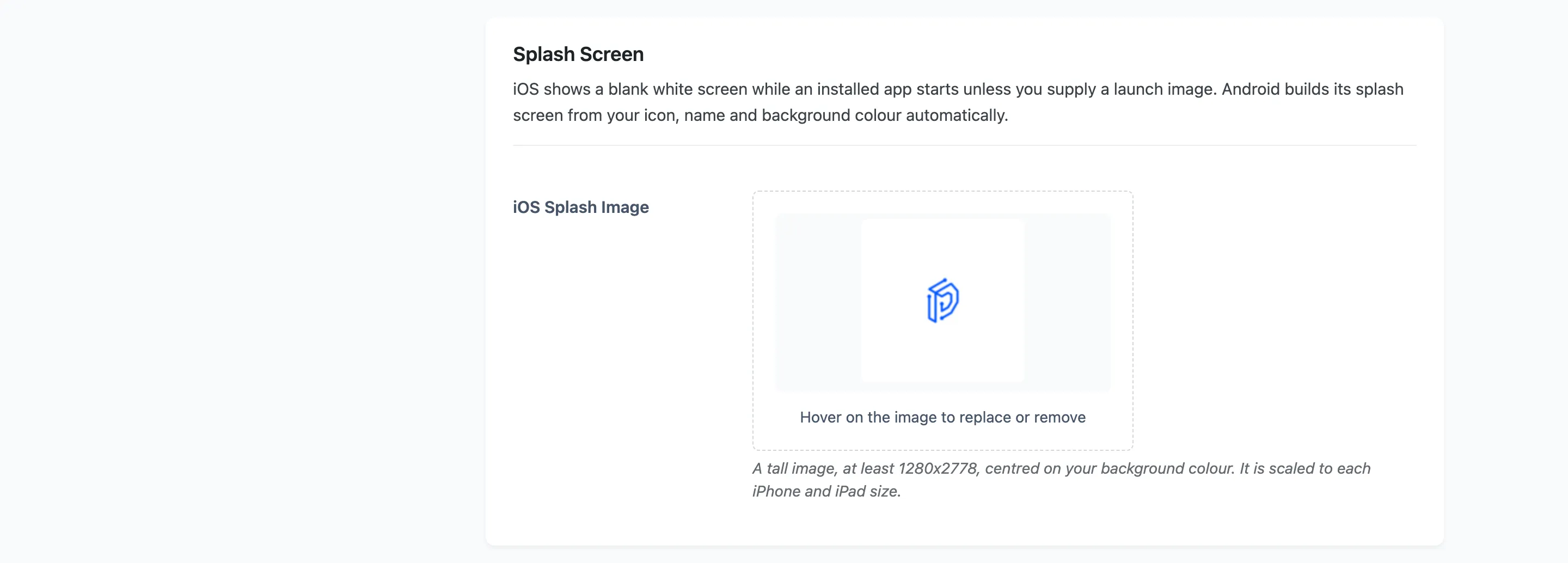
iOS Splash Image: iOS shows a blank white screen while an installed app starts unless you supply a launch image. A tall image, at least 1280x2778, centred on your background colour. It is scaled to each iPhone and iPad size.
Android needs nothing here. It builds its splash screen from your icon, your app name and your background colour automatically.
Store Screenshots
Section titled “Store Screenshots”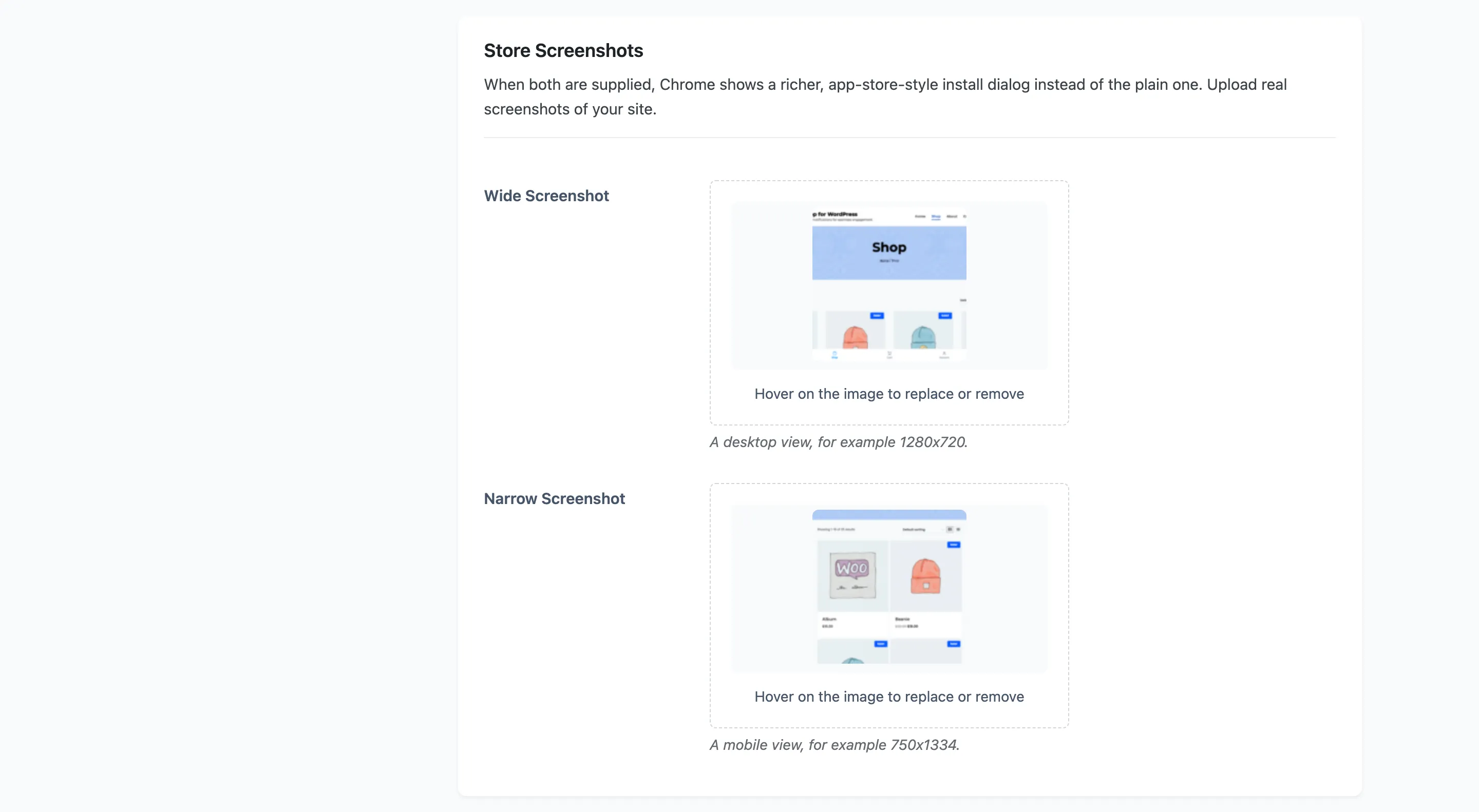
When both are supplied, Chrome shows a richer install dialog with your screenshots in it instead of the plain one. Upload real screenshots of your own site.
- Wide Screenshot: A desktop view, for example 1280x720.
- Narrow Screenshot: A mobile view, for example 750x1334.
Both are needed for the richer dialog. One on its own changes nothing.