

How to Set Up Back in Stock Alerts (Pro)
There are two ways to tell people a product has returned, and the plugin ships both because they suit different stores. One tells everybody. The other tells only the people who asked.
WooCommerce has to be active, and push has to be working.
Step 1: Open the Automations tab
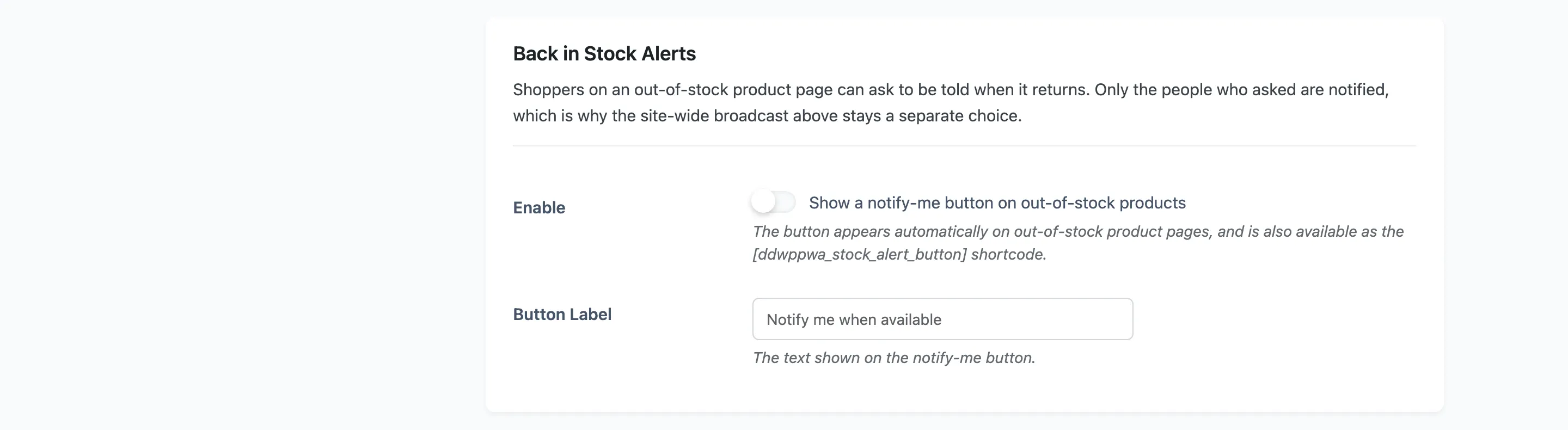
Section titled “Step 1: Open the Automations tab”Go to DevDiggers Plugins → Progressive Web App → Configuration → Automations and scroll to Back in Stock Alerts.
Step 2: Switch the waiting list on
Section titled “Step 2: Switch the waiting list on”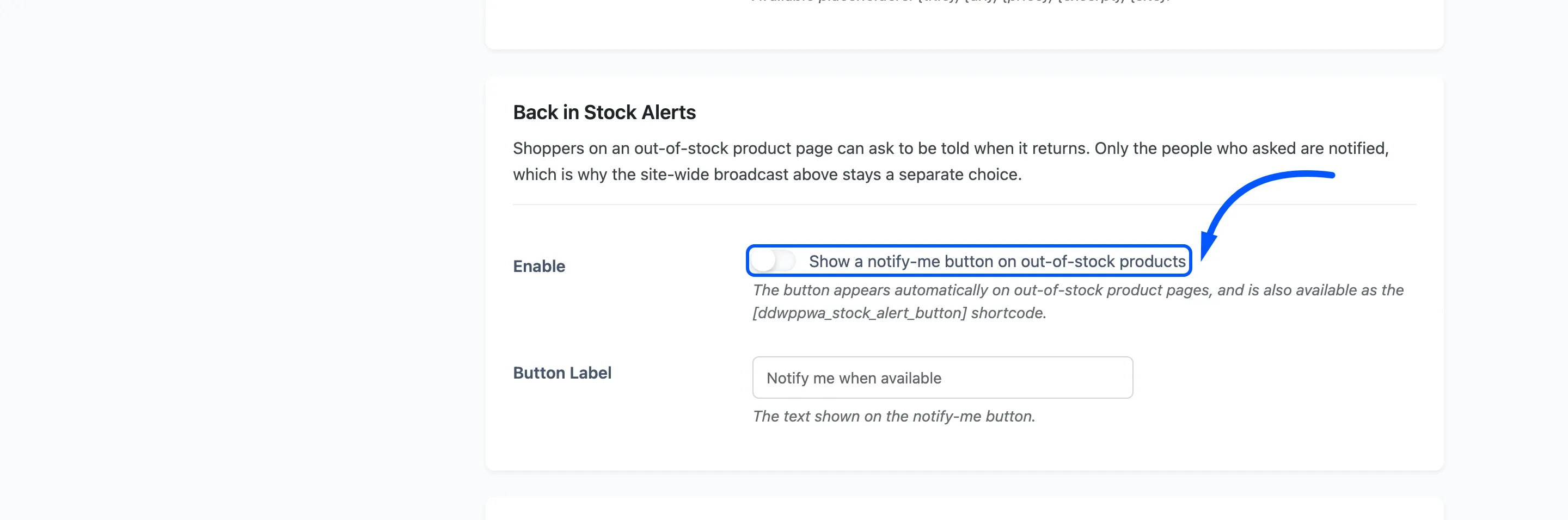
A notify-me button appears automatically on out-of-stock product pages. A shopper presses it, the plugin records that they are waiting for that one product, and only those shoppers are notified when it returns.
The shopper needs an allowed notification permission for it to mean anything, so the button asks for permission if they have not granted it yet.
Step 3: Set the button label
Section titled “Step 3: Set the button label”Default Notify me when available. Keep it a promise rather than an instruction. Tell me when it is back does the same job in fewer characters.
The same label is used by the [ddwppwa_stock_alert_button] shortcode, so changing it changes both.
Step 4: Decide about the broadcast as well
Section titled “Step 4: Decide about the broadcast as well”Directly above is the WooCommerce Alerts section, and it carries its own Back in Stock switch.
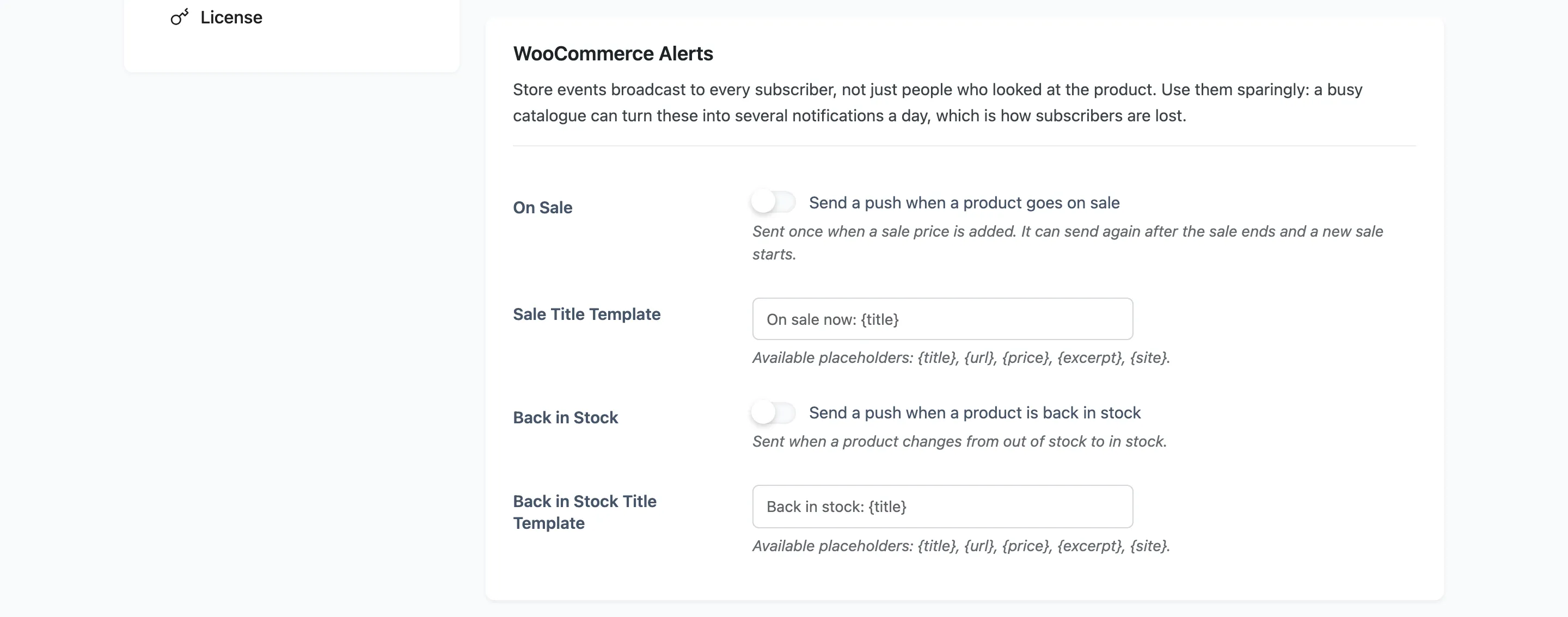
That one sends to every subscriber when a product goes from out of stock to in stock, whether or
not they ever looked at it. Its template defaults to Back in stock: {title} and accepts {title},
{url}, {price}, {excerpt} and {site}.
The two are kept separate on purpose, and the choice is about your catalogue.
- A small catalogue where one product is the reason people visit suits the broadcast. Everybody wants to know.
- A large catalogue does not. A dozen restocks a week becomes a dozen notifications a week to people who wanted none of them, and that is how a subscriber list shrinks.
- Both on means a waiting shopper gets two notifications about the same product.
Most stores want the waiting list on and the broadcast off. Press Save Changes when you have decided.
Step 5: Placing the button somewhere else
Section titled “Step 5: Placing the button somewhere else”The button appears on out-of-stock product pages by itself, so most stores never need this step and there is no new screen in it. To put the button elsewhere, use the shortcode with a product id.
[ddwppwa_stock_alert_button product_id="123" label="Tell me when it is back"]Outside a single product page the product_id is required, because there is no current product to
infer.
Step 6: Confirm it fires
Section titled “Step 6: Confirm it fires”Restock the product in Products, then go to Delivery Log and set the type filter.
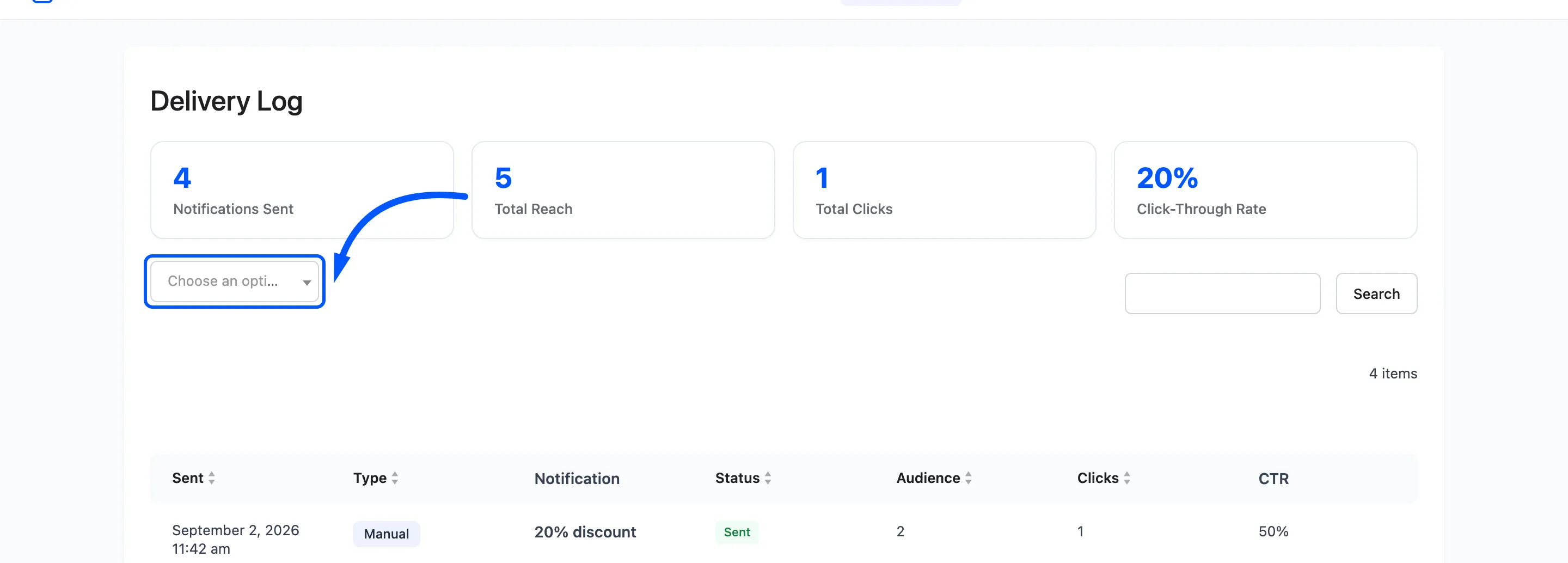
- Stock Alert is the waiting list. Its audience is however many people asked.
- Back in Stock is the broadcast. Its audience is your whole subscriber list.
If Stock Alert shows nothing, either nobody pressed the button while the product was out, or those shoppers never allowed notifications.