How the Installable App Works
An installable app is not a build or an upload. It is three files your site serves and a browser that reads them. This page follows that chain from end to end, because every setting on every tab plugs into one of these steps.
Step 1: Your site publishes a manifest
Section titled “Step 1: Your site publishes a manifest”Saving any configuration tab writes an app manifest into your site root and links it from every page. It carries the name, the short name, the two colours, the display mode, the scope, the start URL and the icons.
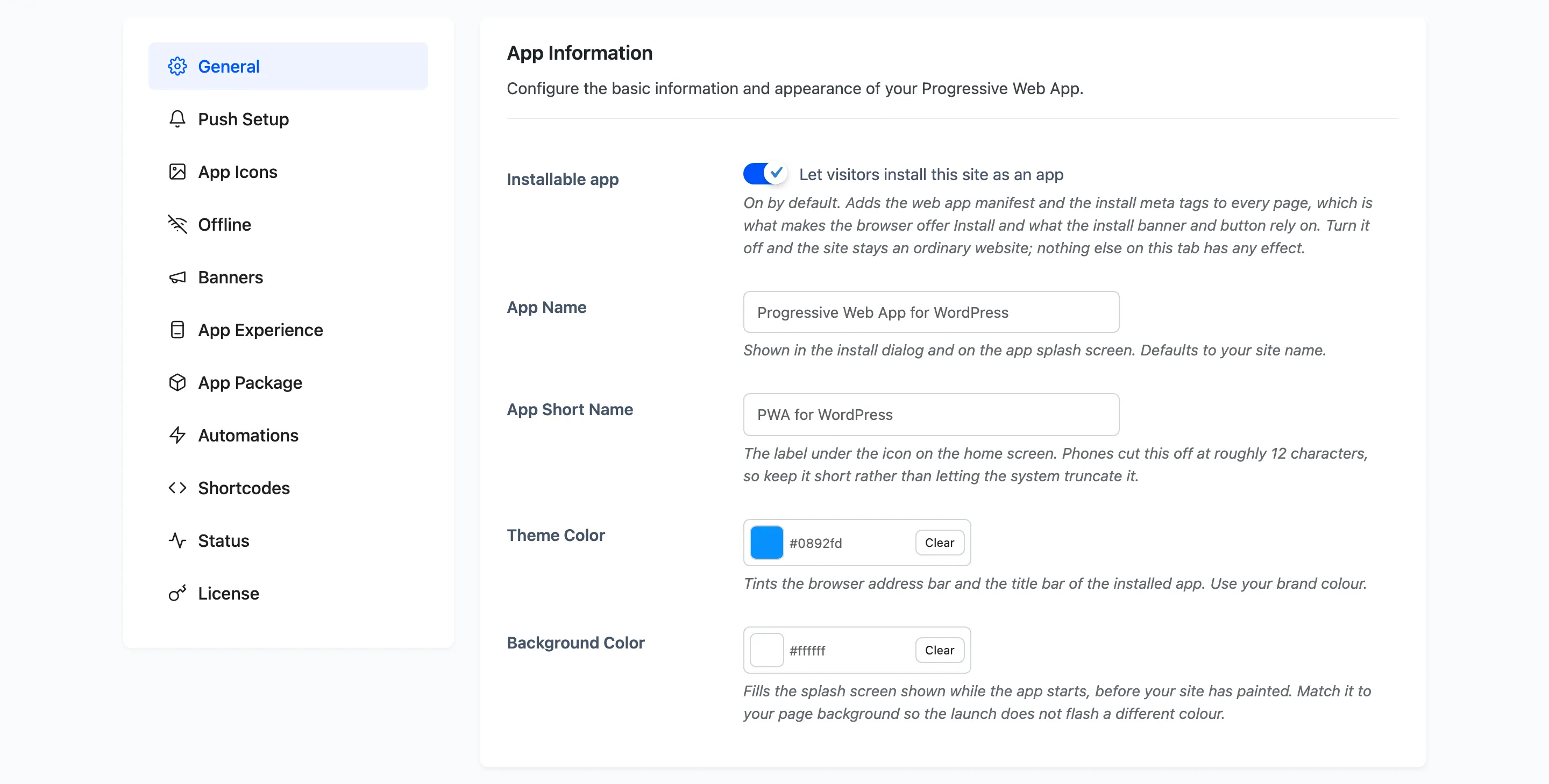
That file is what a browser reads to decide whether the site is installable at all, and what to show in the install dialog when it is. Everything on the General tab and the App Icons tab ends up in it.
Step 2: A service worker registers in the visitor’s browser
Section titled “Step 2: A service worker registers in the visitor’s browser”On the first page view the plugin registers a service worker. It is a small script the browser keeps running beside your site, and it is the piece that makes the app work offline.
The worker takes control on the second page view, not the first. That is a browser rule, not a plugin setting, and it is why a brand new visitor is not yet covered by the cache.
Step 3: Every page they open is cached
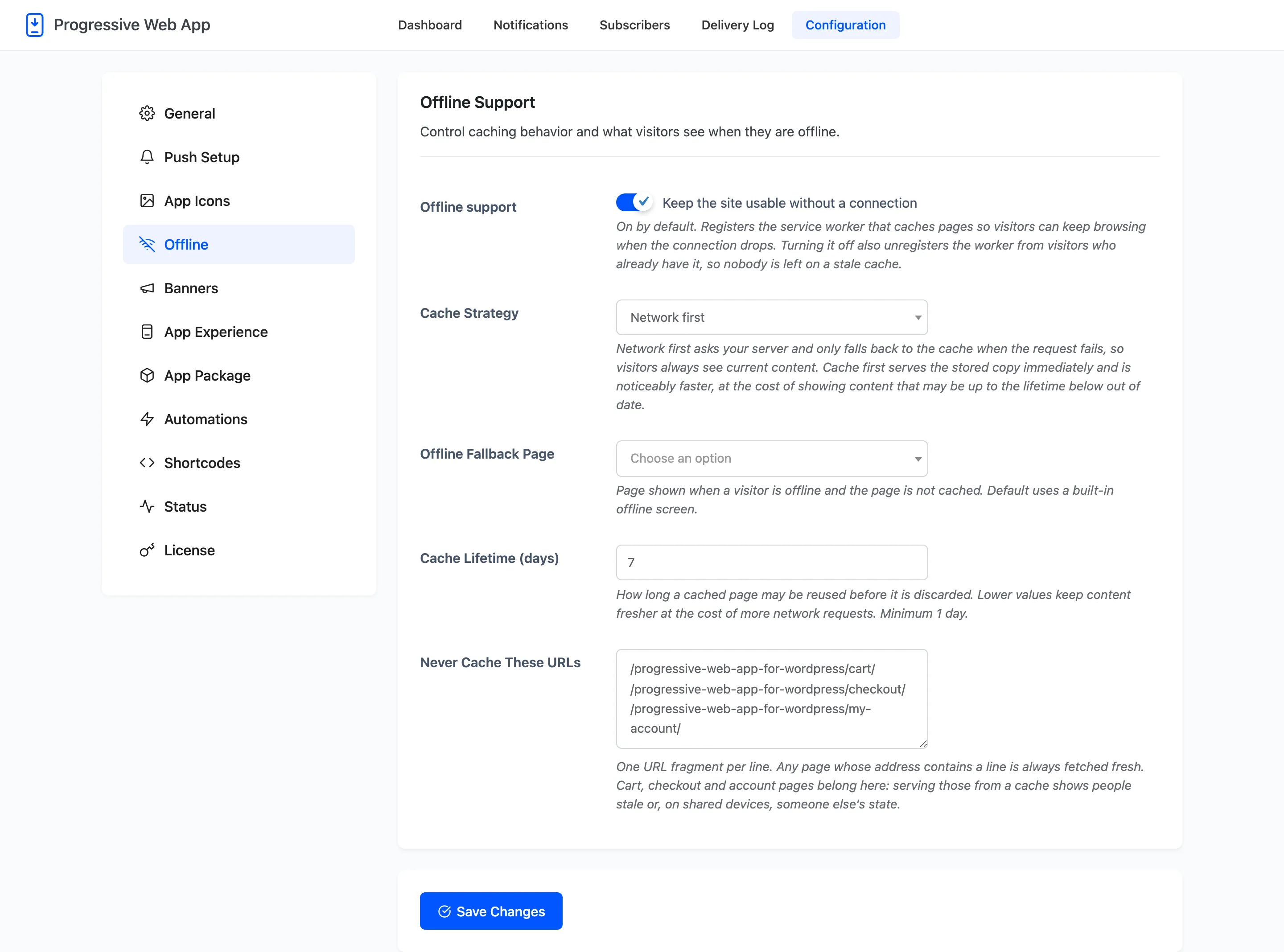
Section titled “Step 3: Every page they open is cached”From then on, each page the visitor loads is fetched from your server and a copy is stored on their device. The default strategy asks your server first and only reaches for the copy when that fails, so nobody is shown stale content while they are online.
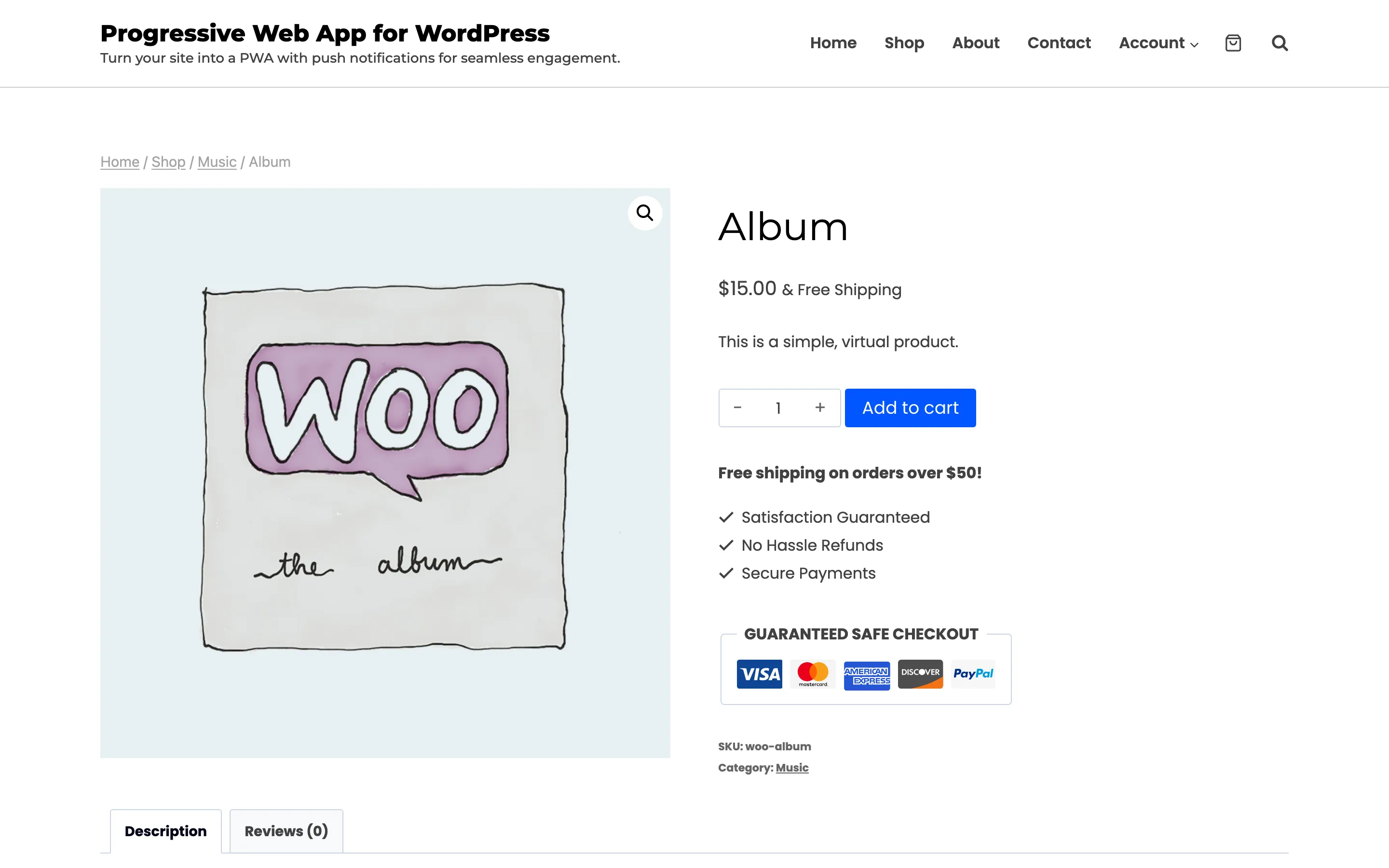
That screenshot is a real product page with the connection cut. It looks like an ordinary page because that is the whole point: offline browsing is invisible when it works.
Cart, checkout and account pages are excluded by default, and should stay that way. Those pages are different for every visitor, and serving one from a cache shows people stale totals or, on a shared device, somebody else’s session.
Step 4: The browser offers Install
Section titled “Step 4: The browser offers Install”Once the manifest, the icons and the service worker are all in place, the browser decides the site is installable and offers it. What that looks like depends on the platform.
- Android and desktop Chrome, Edge, Opera and Samsung Internet fire an install event. The plugin catches it and shows your own banner instead of the browser’s menu item.
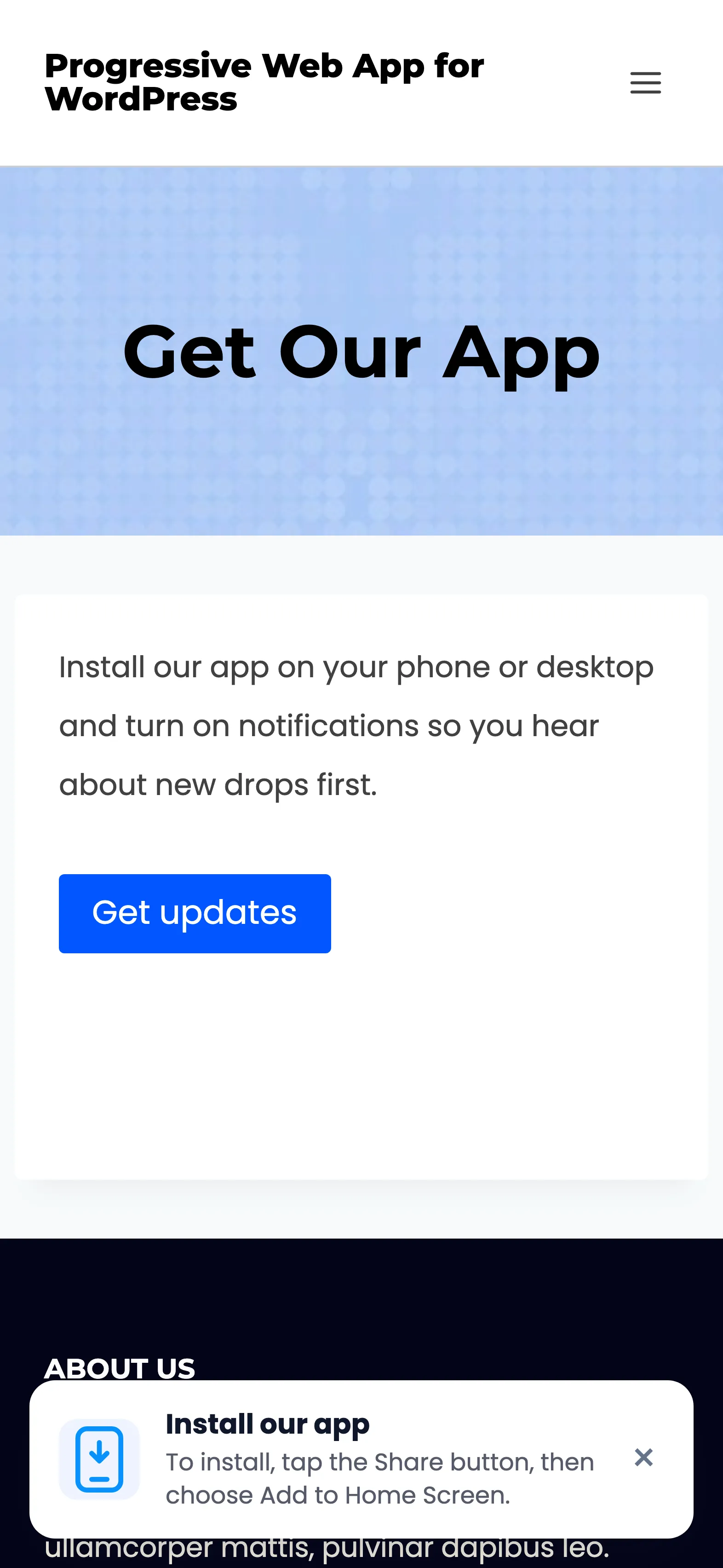
- iPhone and iPad have no install event at all. The banner switches to guidance: tap Share, then Add to Home Screen.
- Firefox installs on Android and not on desktop.
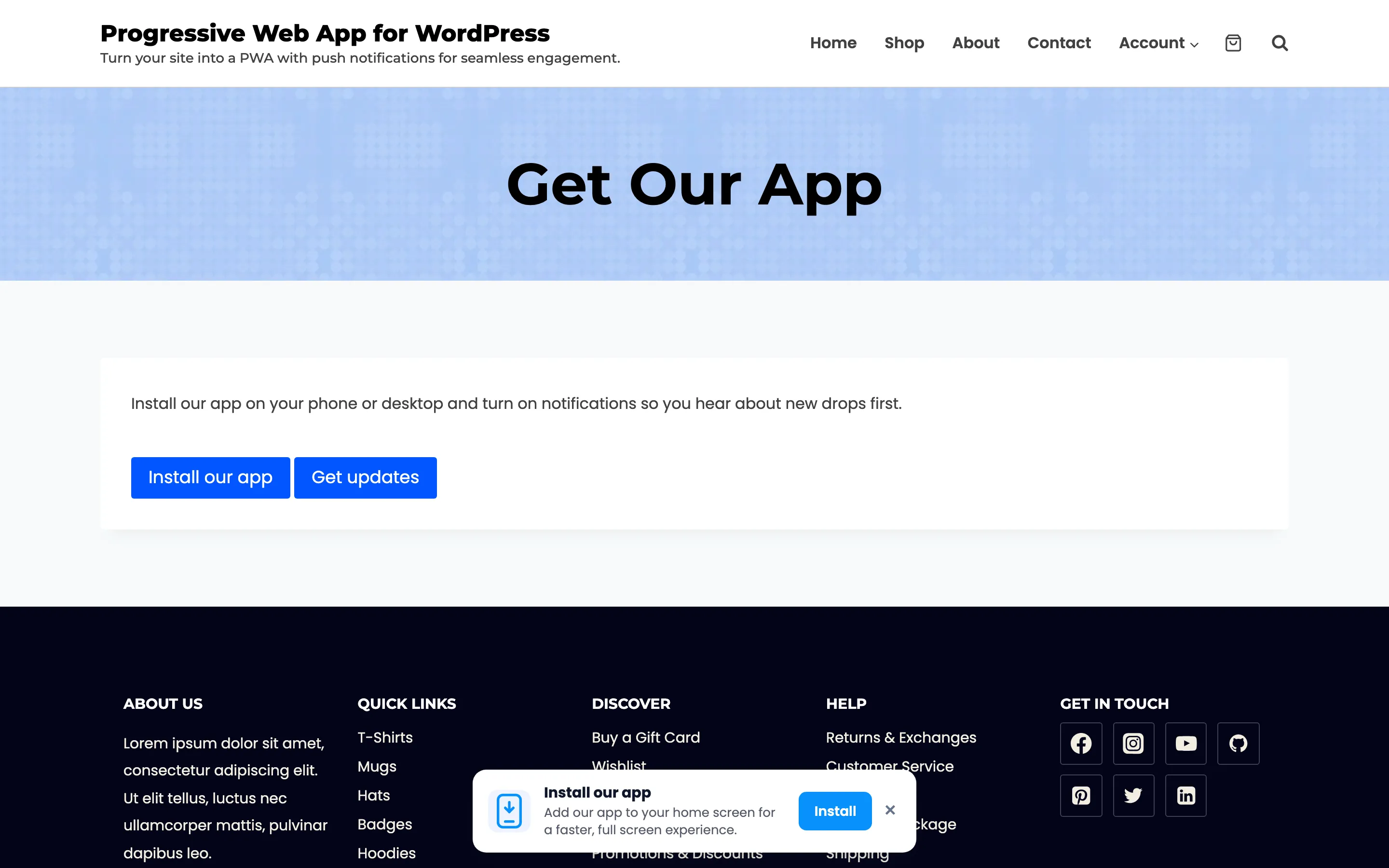
Pressing Install hands over to the browser, which asks its own question. That dialog is the browser’s, so its wording and buttons are outside the plugin’s control.
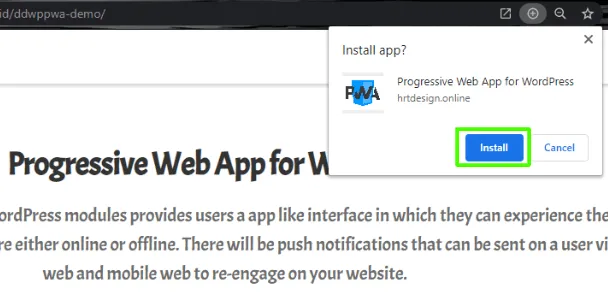
On an iPhone the banner cannot offer that, because Safari has no install event to hook.
The banner’s wording, its button label and all four of its colours are on the
Banners tab. There is also an
[ddwppwa_install_button] shortcode for putting the same prompt inside a page.
Step 5: It opens as an app
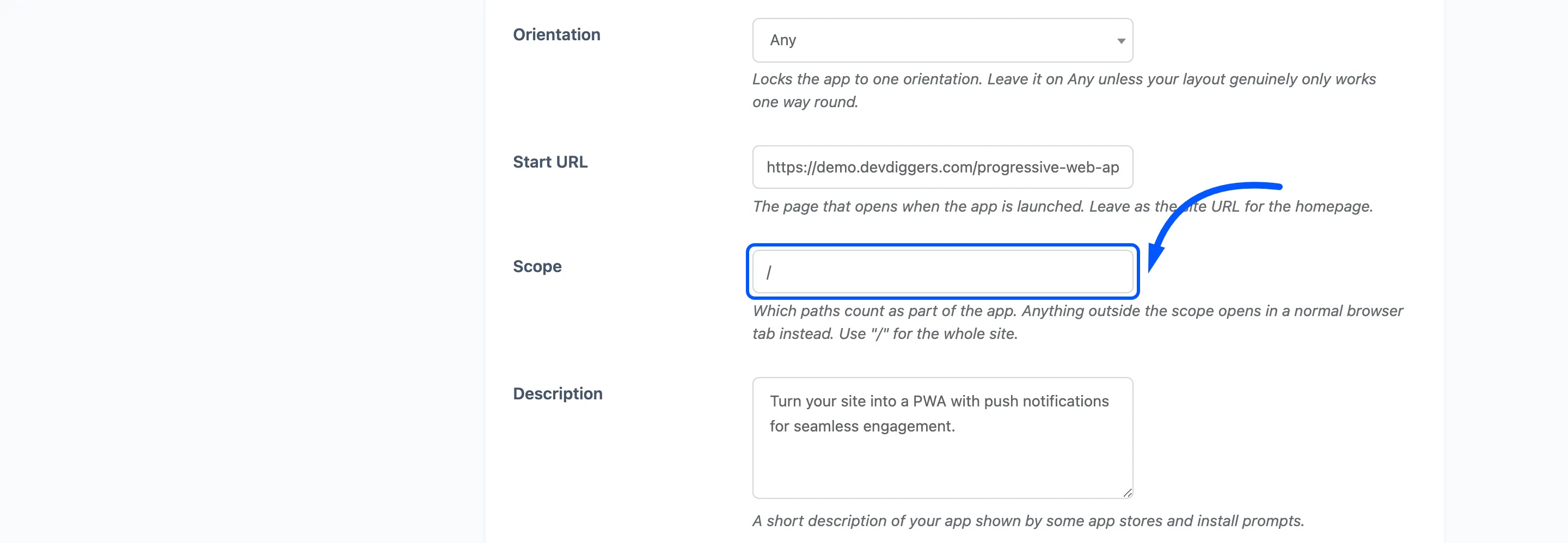
Section titled “Step 5: It opens as an app”Tapping the icon opens your site at the Start URL, in the Display Mode you chose, with the splash screen painted in your background colour. Standalone is the mode that hides the address bar and makes it feel like an app.
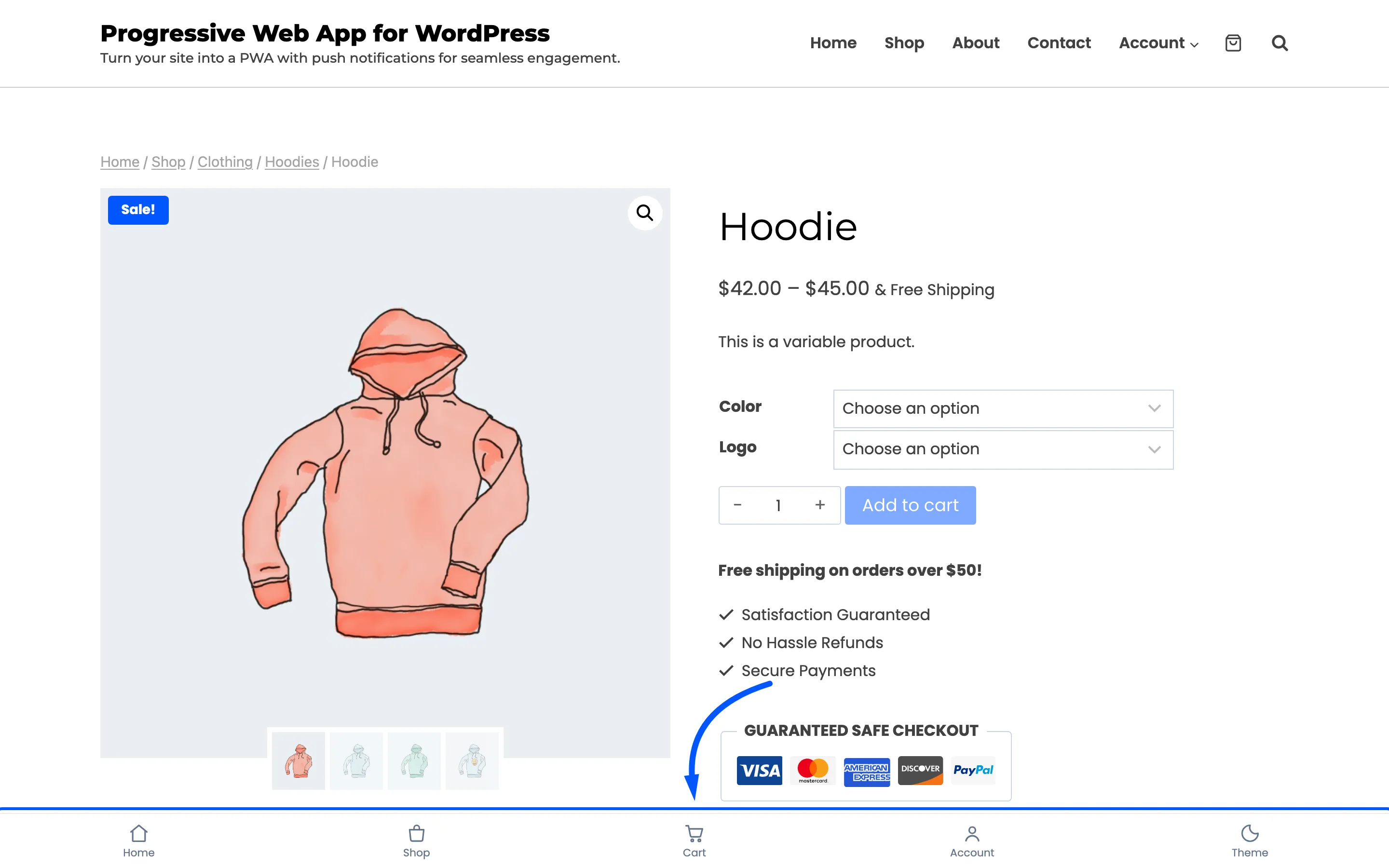
On a phone, which is where most people will open it, the same thing looks like this. No address bar, no browser chrome, and the tabs sit where a thumb reaches them.
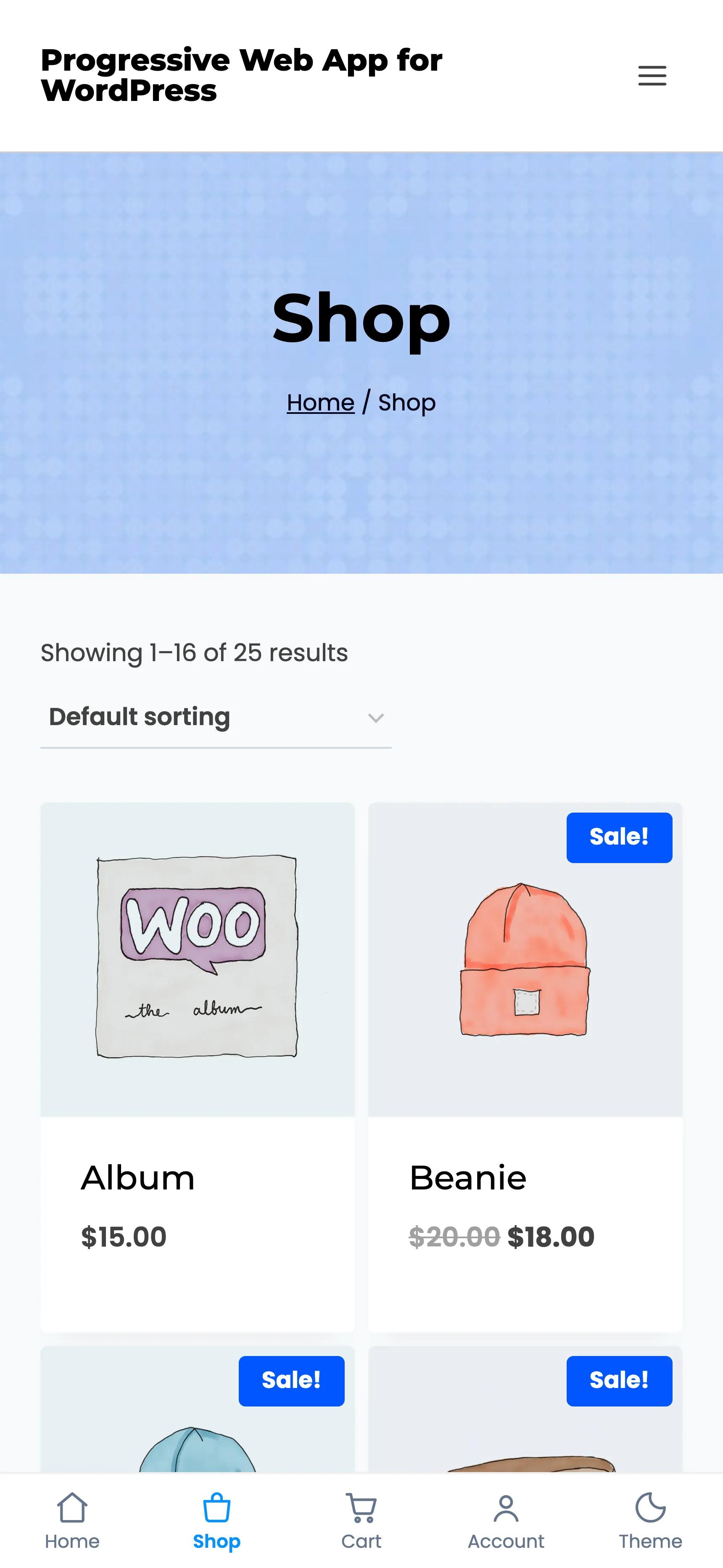
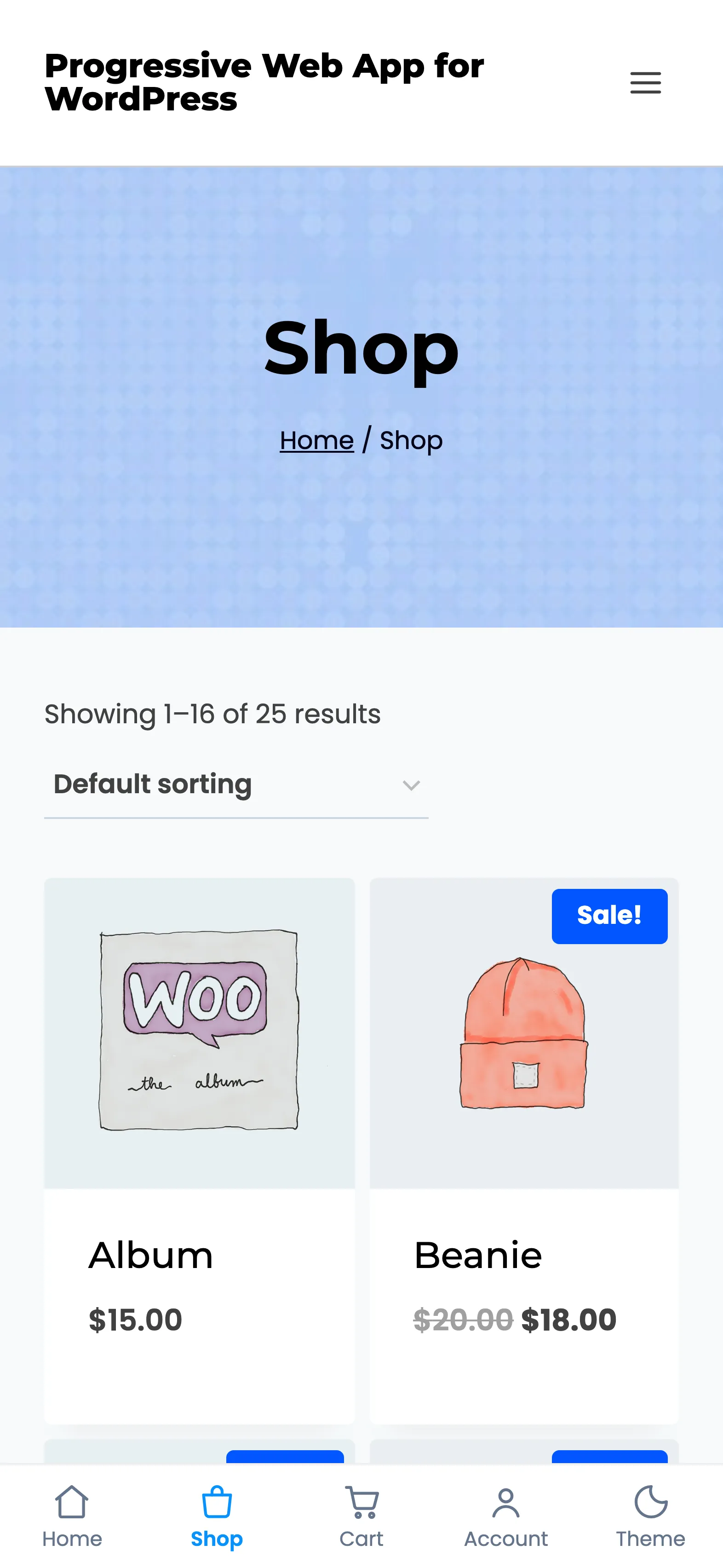
The tab bar in those screenshots is the App Experience layer, and it is the one part of this chain that only ever runs inside the installed app. In an ordinary browser tab the same page draws none of it.
What the visitor can tell
Section titled “What the visitor can tell”Almost nothing, and that is the design. There is no login, no account, no download and no store. The scope decides which addresses count as part of the app: anything outside it opens in a normal browser tab instead.