

The Dashboard
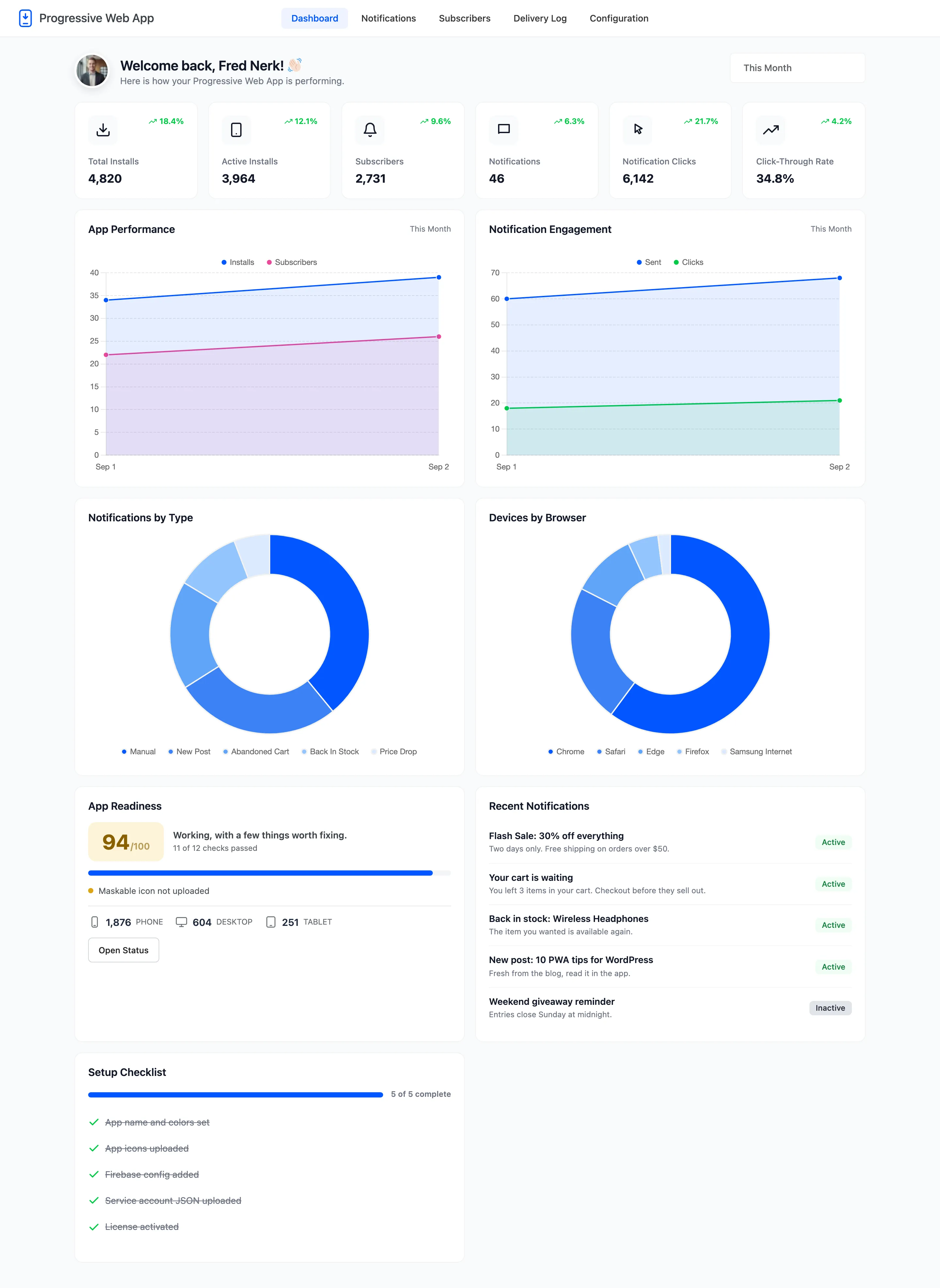
The dashboard is the first screen under DevDiggers Plugins → Progressive Web App. It answers two questions: is the app working, and is anybody using it.
The date range
Section titled “The date range”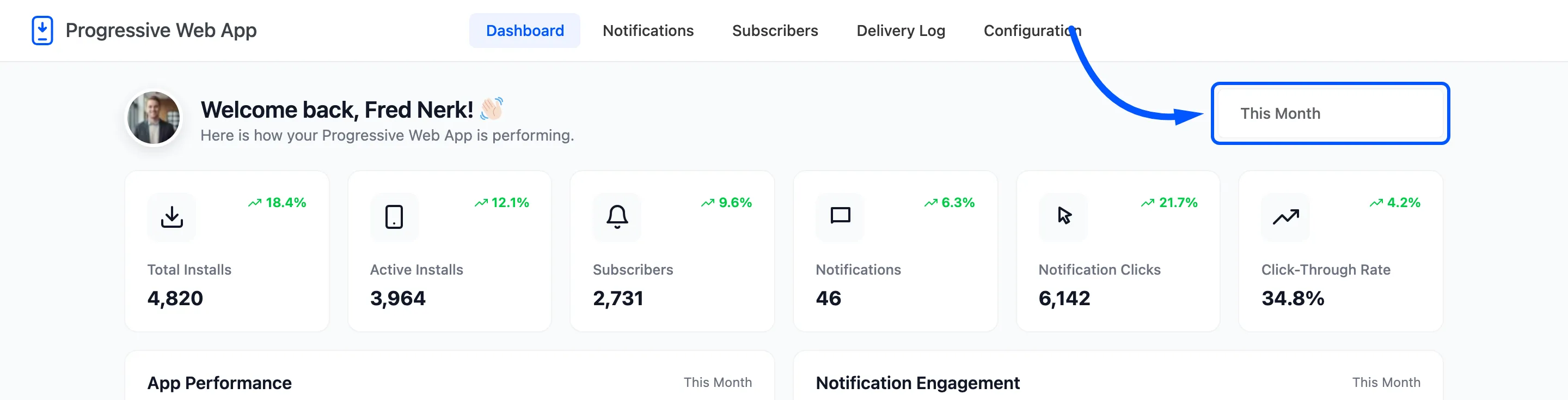
The picker in the header sets the window for the cards and the two line charts. It defaults to this month. The presets cover the usual ranges and there is a custom from and to at the bottom.
Two things ignore it. Active Installs is a live count of devices currently flagged as installed, and the two doughnut charts describe everything you have ever recorded.
The six cards
Section titled “The six cards”
Each card carries a percentage against the previous period of the same length.
- Total Installs: How many devices installed the app in the range.
- Active Installs: How many devices are flagged as installed right now.
- Subscribers: How many devices allowed notifications in the range.
- Notifications: How many notifications you have saved.
- Notification Clicks: How many taps your sent notifications have received.
- Click-Through Rate: Clicks against the number of devices reached.
The four charts
Section titled “The four charts”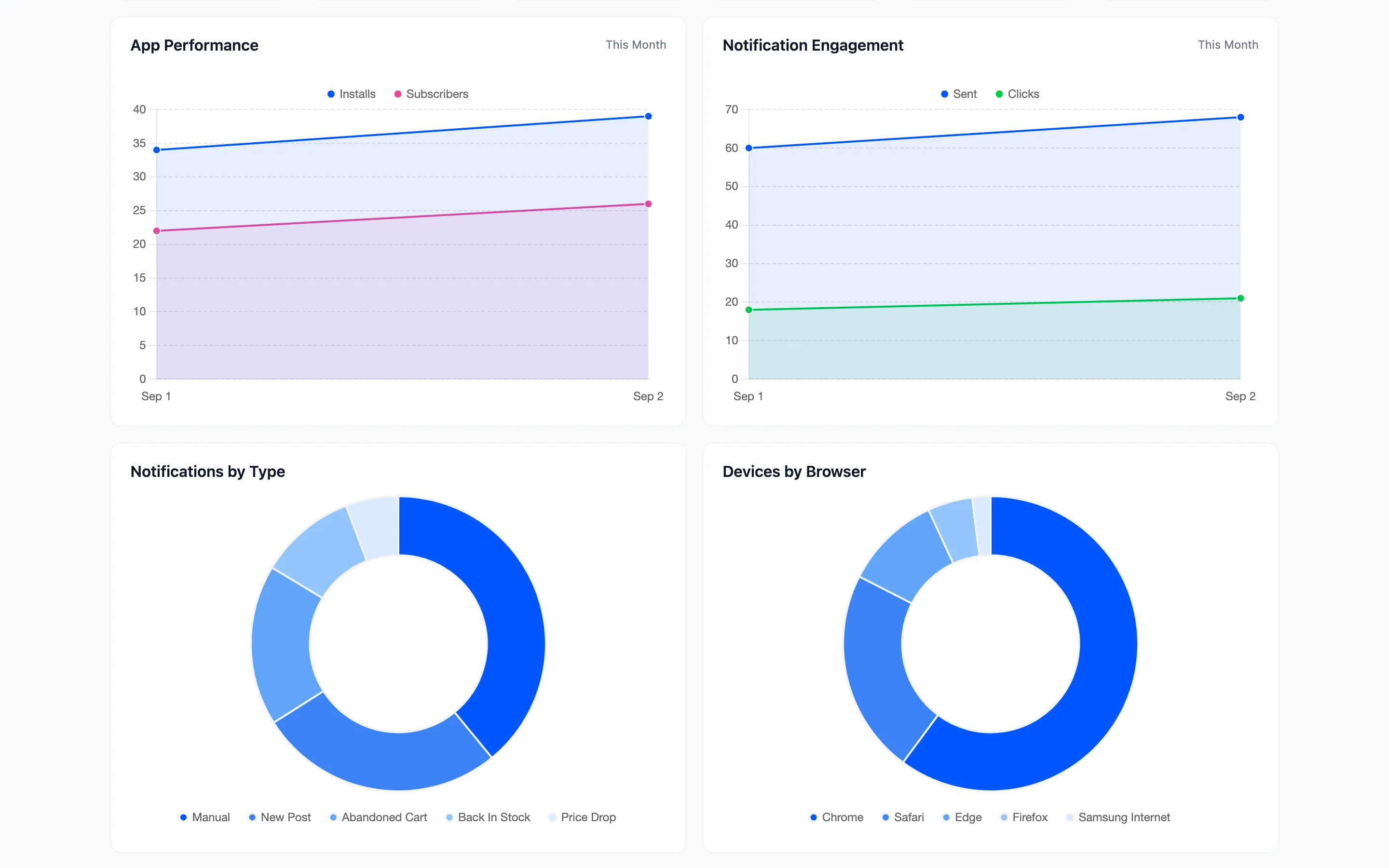
- App Performance: Installs and subscribers per day across the range.
- Notification Engagement: Sent against clicked per day. Pro only.
- Notifications by Type: A breakdown of everything the Delivery Log holds. On a store running automations it shows how much of your volume is manual and how much is automatic.
- Devices by Browser: Which browsers your subscribers use. It is the fastest way to see how much of your audience is on Safari, and therefore has to install the app before it can be reached.
The three widgets
Section titled “The three widgets”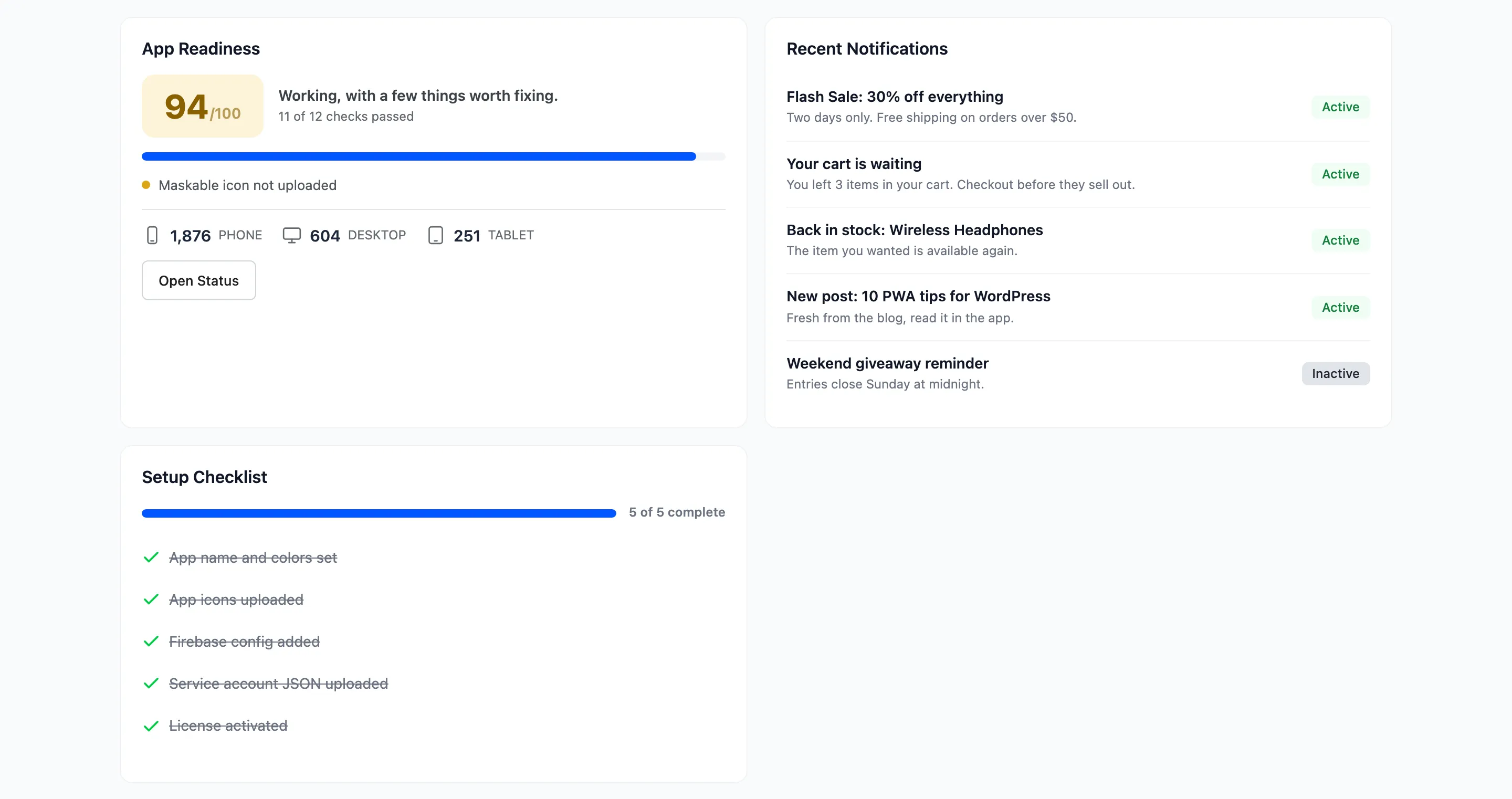
App Readiness is the Status tab’s checks as one score out of 100, with the failures listed under it and a device split by phone, desktop and tablet. Open Status goes to the full list.
Recent Notifications is the last five you saved, with their status. When there are none it offers a Create Notification button instead.
Setup Checklist is five one-time steps: app name and colours, app icons, Firebase config, service account JSON and license. It disappears from your attention once all five are done, and while any step is outstanding it offers Finish Setup.
Why a number can be zero
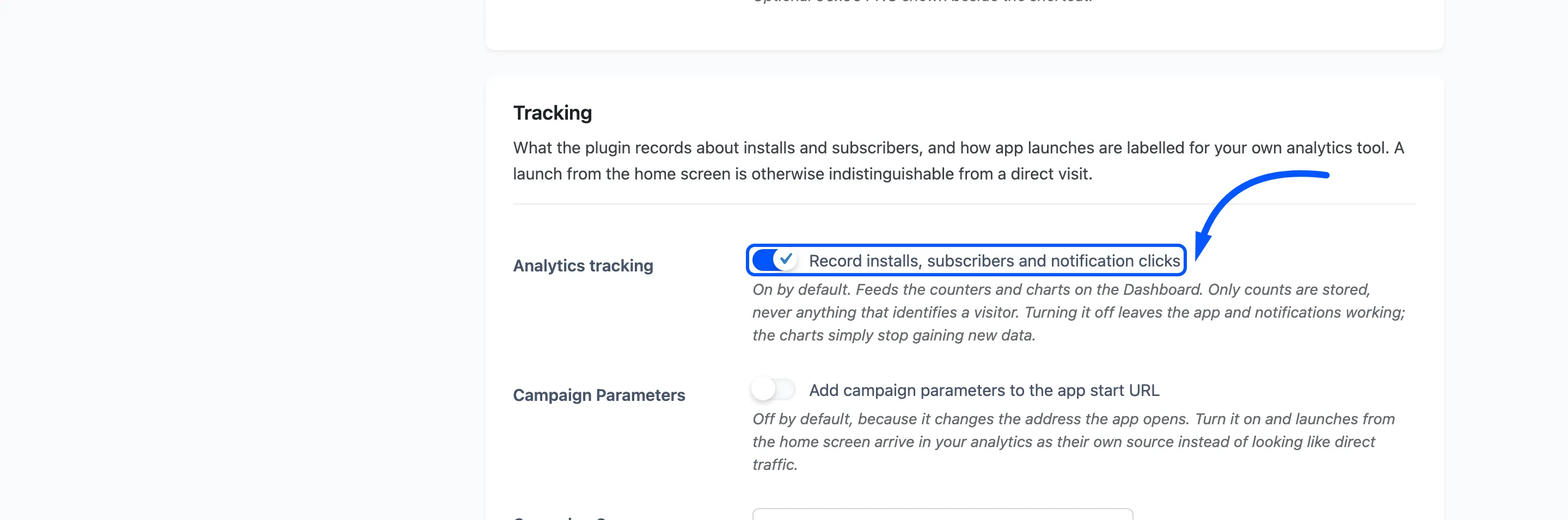
Section titled “Why a number can be zero”Analytics tracking has its own switch on the General tab. With it off the app and the notifications keep working and the charts simply stop gaining new data.
The counters are also written by the front end, so a site whose license has lapsed records nothing: the storefront half of the plugin is not loaded at all.