Push Setup
Push Setup is where notifications become possible. Nothing on the Automations tab and nothing on the Notifications screen can deliver anything until the four values here are filled in.
Go to DevDiggers Plugins → Progressive Web App → Configuration → Push Setup.
Firebase Credentials
Section titled “Firebase Credentials”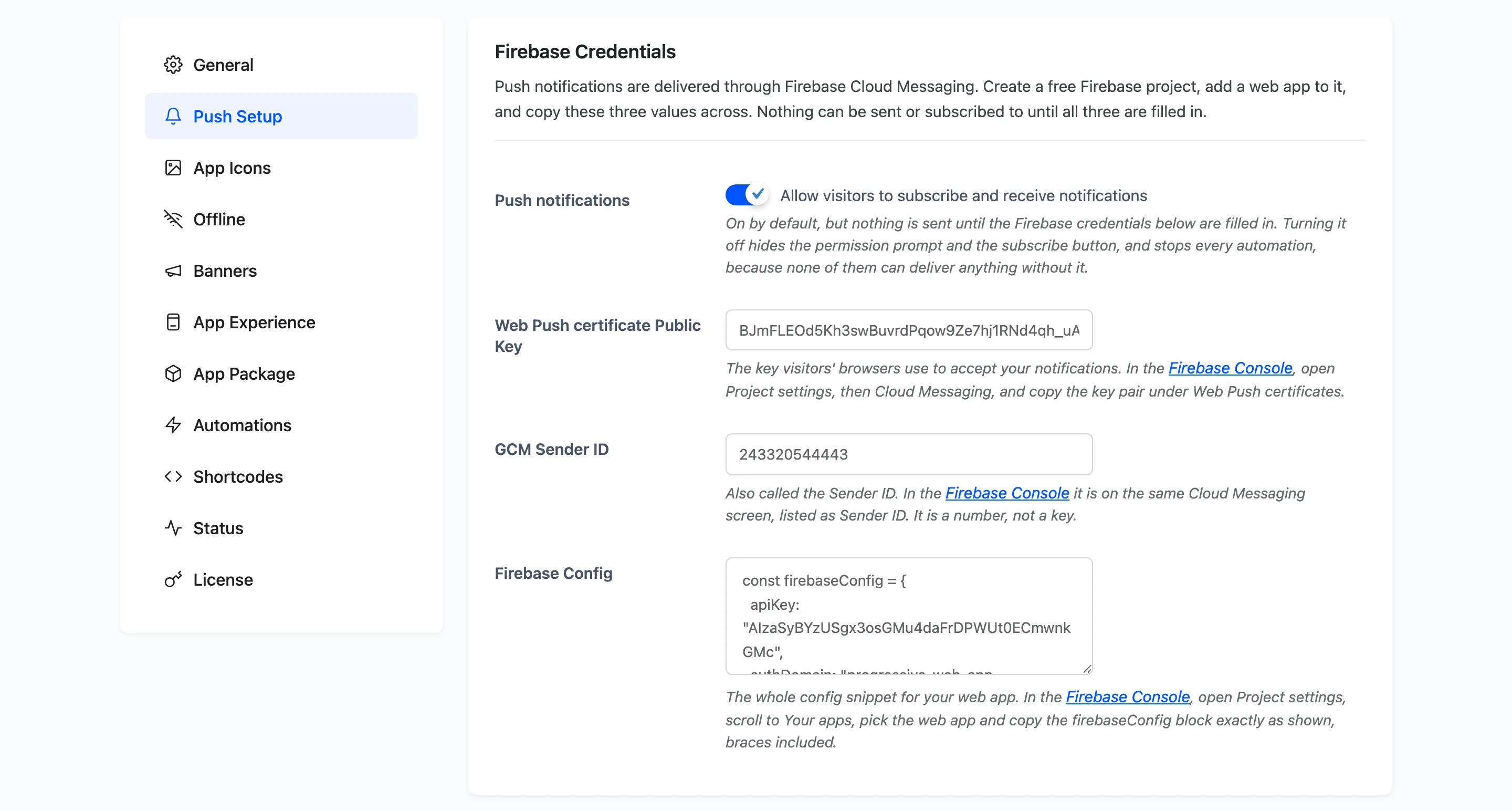
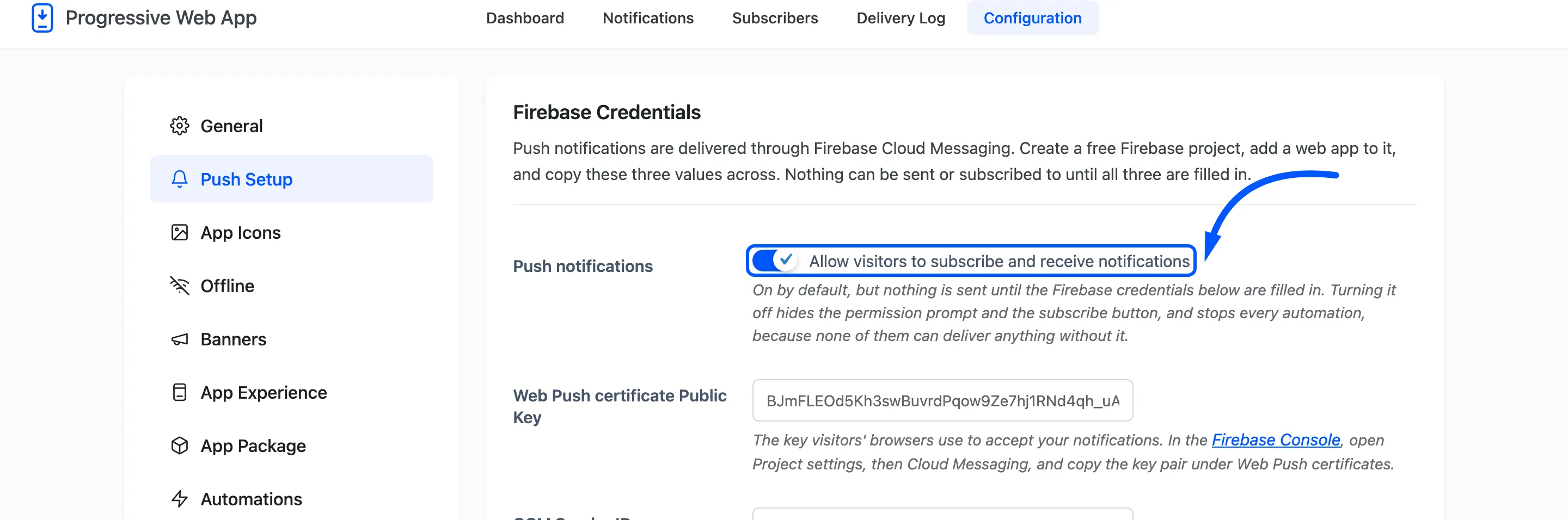
Push notifications: On by default, but nothing is sent until the credentials below are filled in. Turning it off hides the permission prompt and the subscribe button, and stops every automation, because none of them can deliver without it.
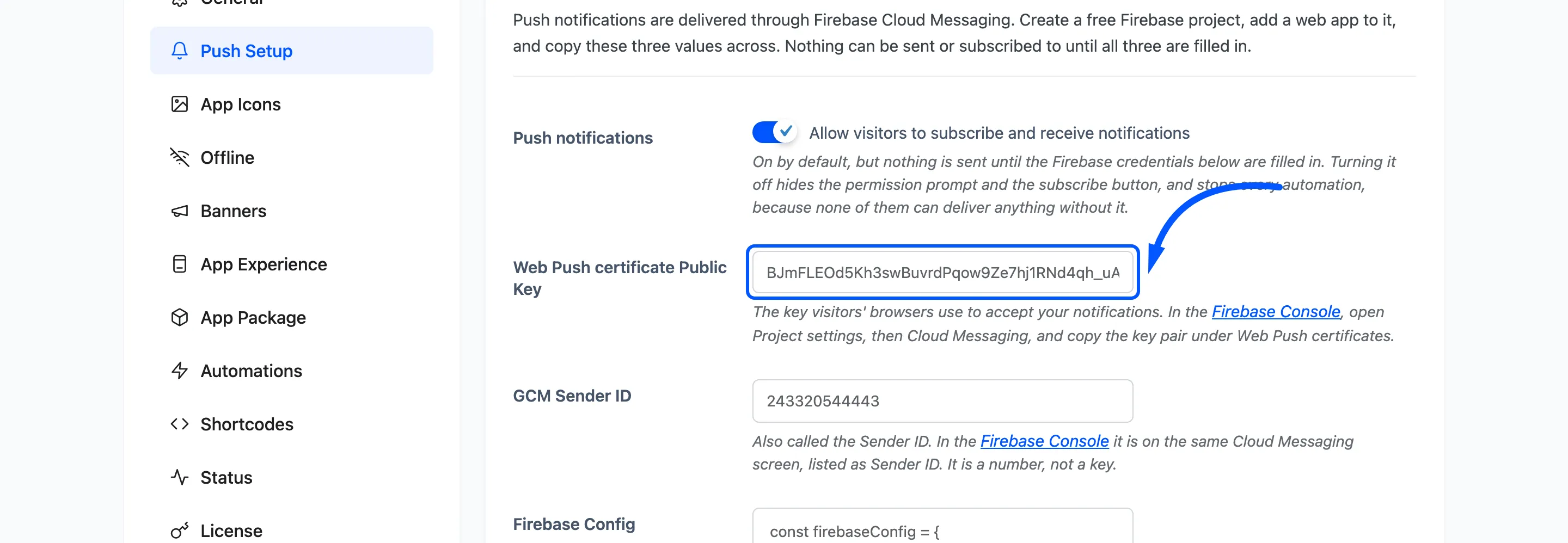
Web Push certificate Public Key: The key visitors’ browsers use to accept your notifications. In the Firebase console open Project settings → Cloud Messaging and copy the key pair under Web Push certificates.
GCM Sender ID: Also called the Sender ID, on the same Cloud Messaging screen. It is a number, not a key.
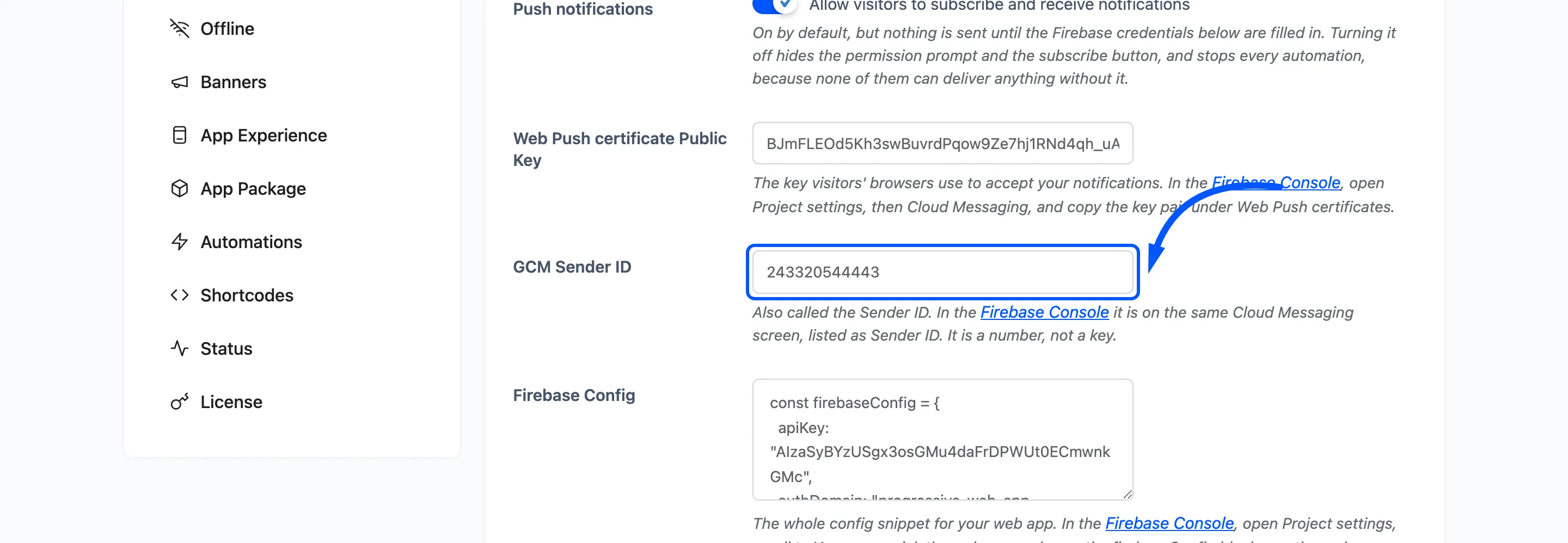
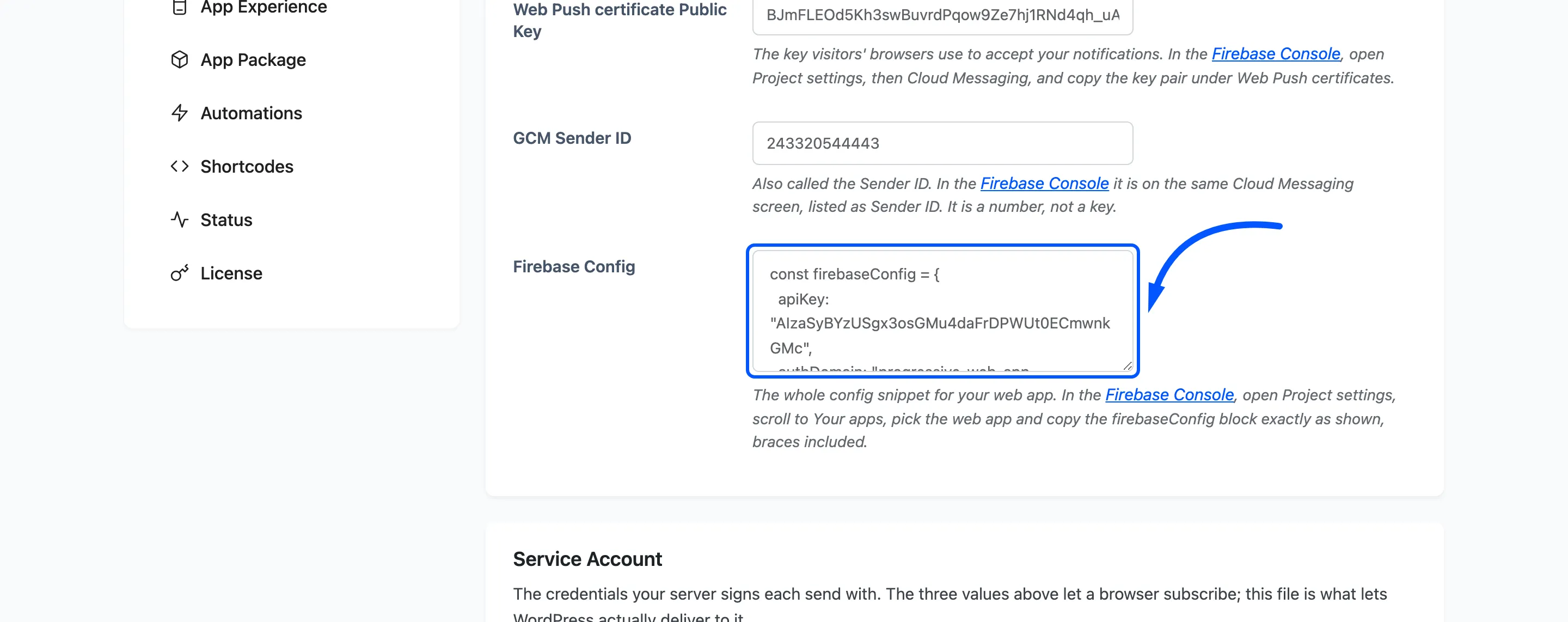
Firebase Config: The whole config snippet for your web app. In Project settings → Your apps,
pick the web app and copy the firebaseConfig block exactly as shown, braces included.
How to Connect Firebase walks through each of those screens.
Service Account
Section titled “Service Account”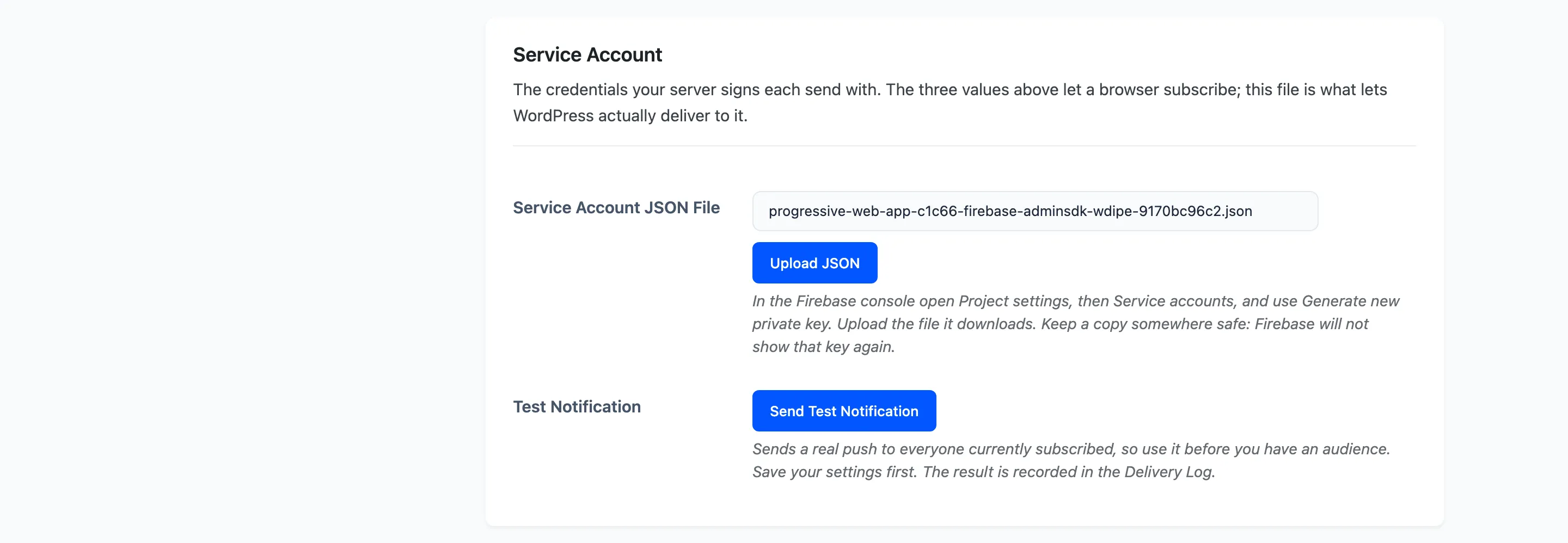
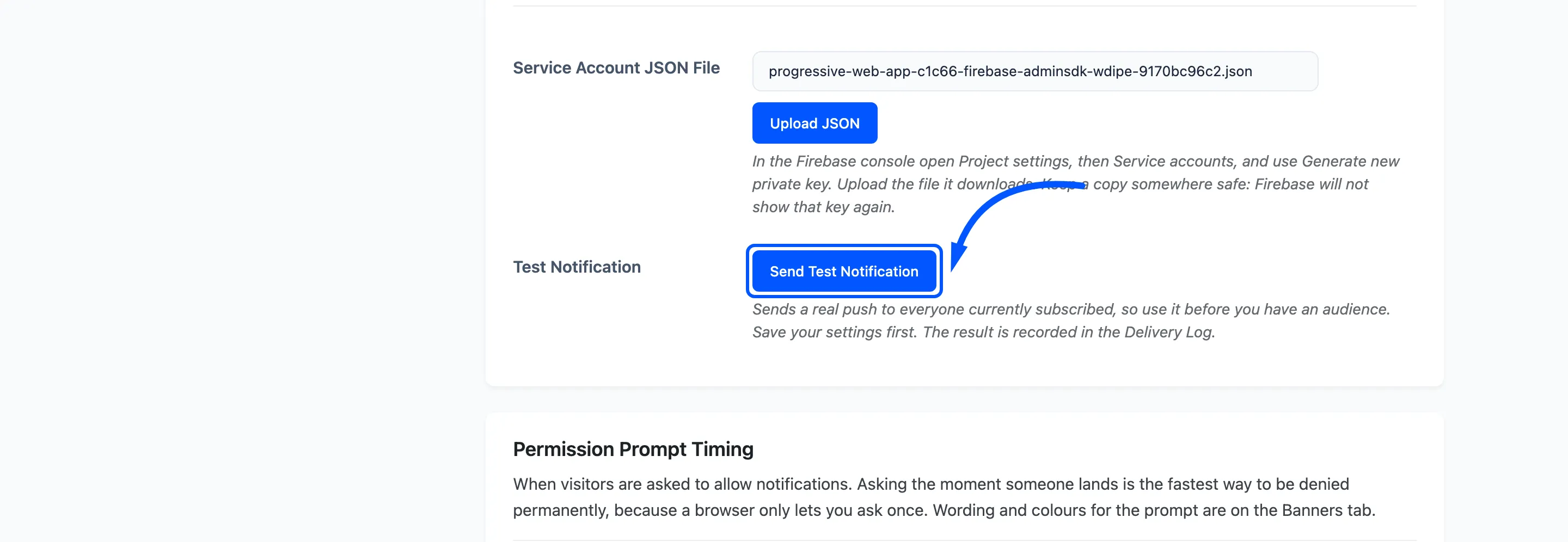
Service Account JSON File: The credentials your server signs each send with. The three values above let a browser subscribe; this file is what lets WordPress actually deliver to it.
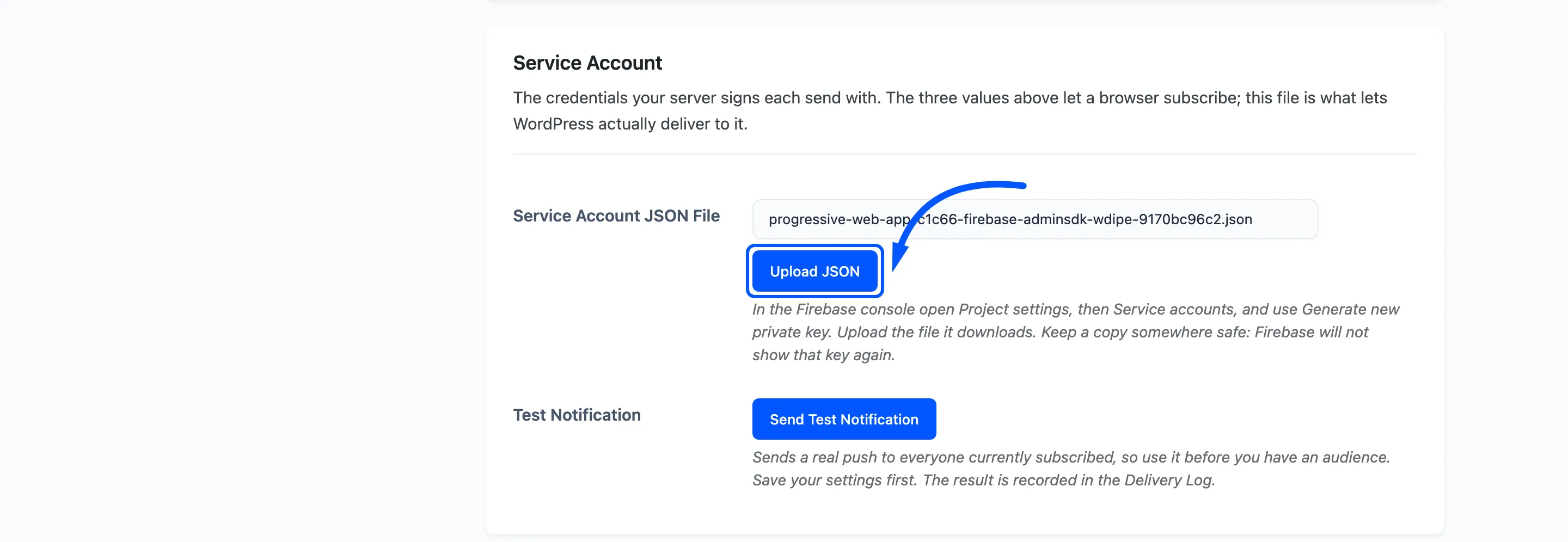
In the Firebase console open Project settings → Service accounts and use Generate new private key. Upload the file it downloads.
Test Notification: Sends a real push to everyone currently subscribed, so use it before you have an audience. Save your settings first. The result is recorded in the Delivery Log with the type Test.
Permission Prompt Timing
Section titled “Permission Prompt Timing”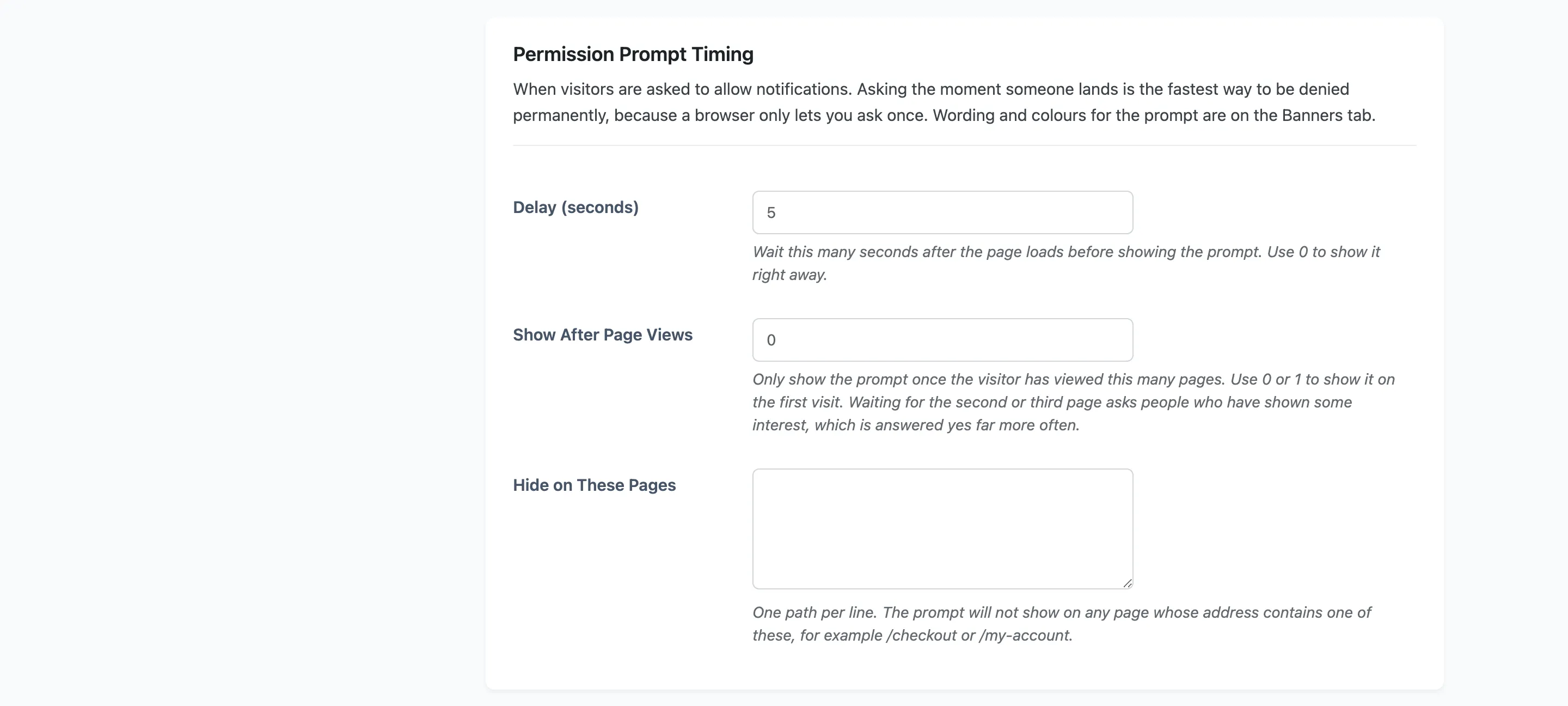
This is when visitors are asked. The wording and the colours are on the Banners tab.
Asking the moment someone lands is the fastest way to be denied permanently, because a browser only lets a site ask once.
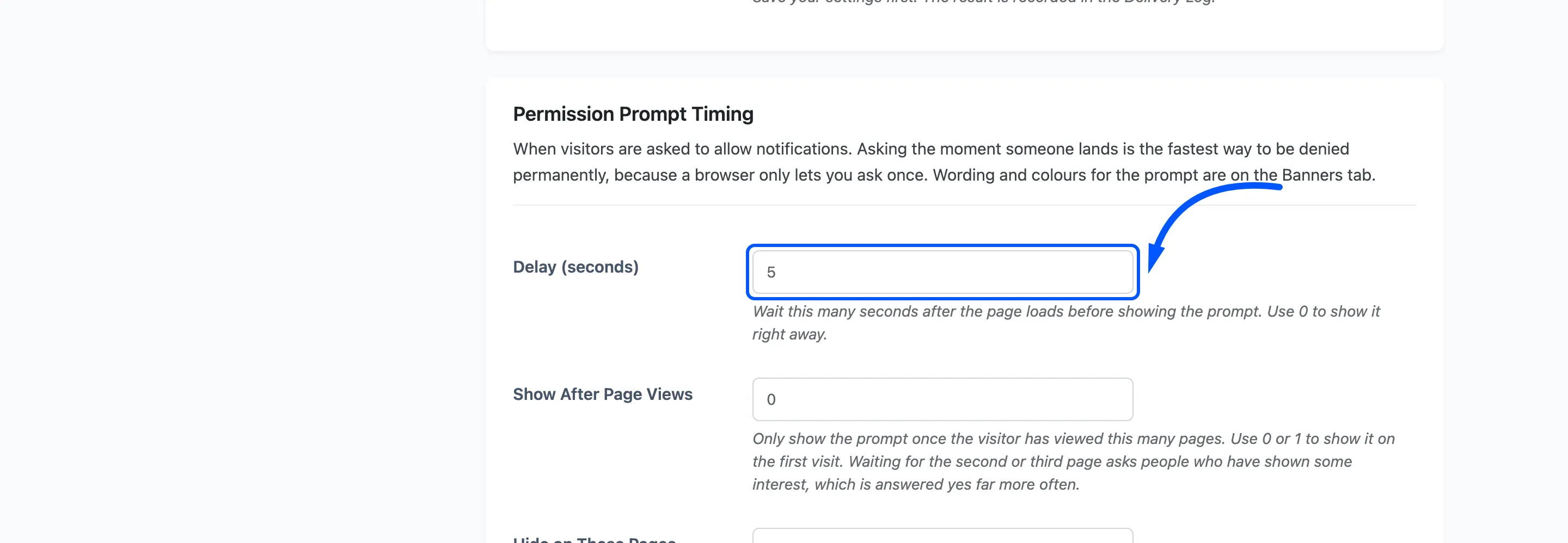
Delay (seconds): Default 5. How long after the page loads the prompt appears. Use 0 to show it straight away.
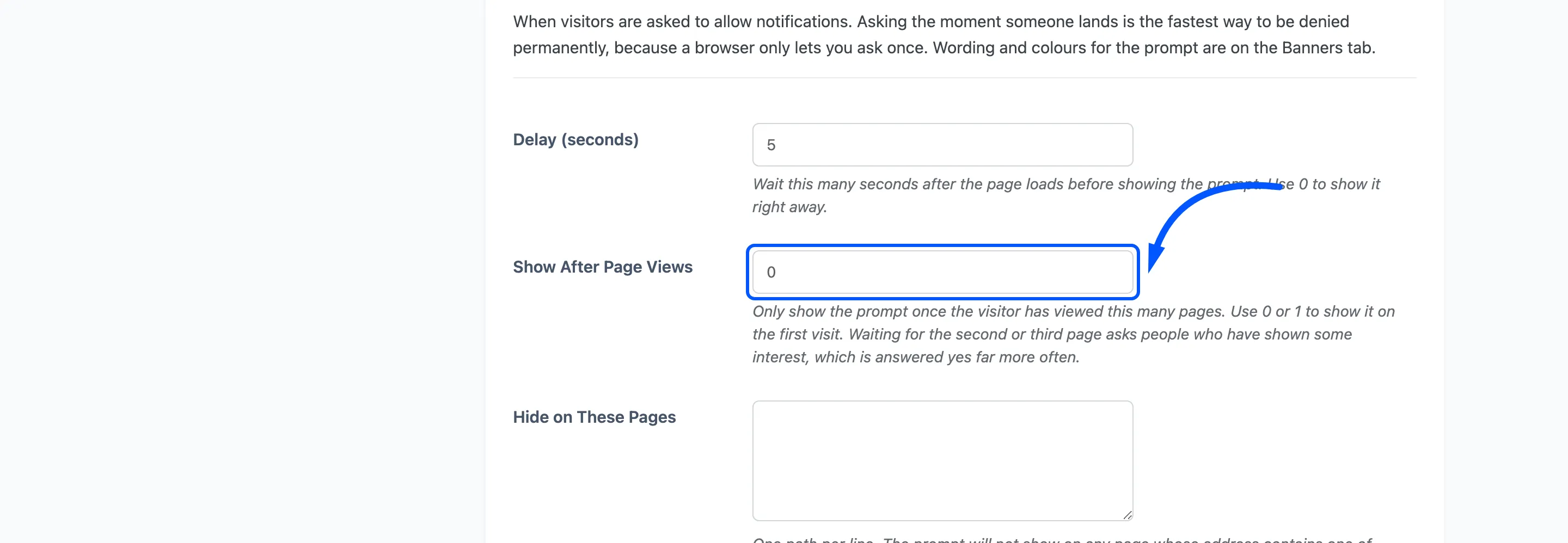
Show After Page Views: Default 0. Only show the prompt once the visitor has viewed this many pages. 0 or 1 shows it on the first visit. Waiting for the second or third page asks people who have shown some interest, and that is answered yes far more often.
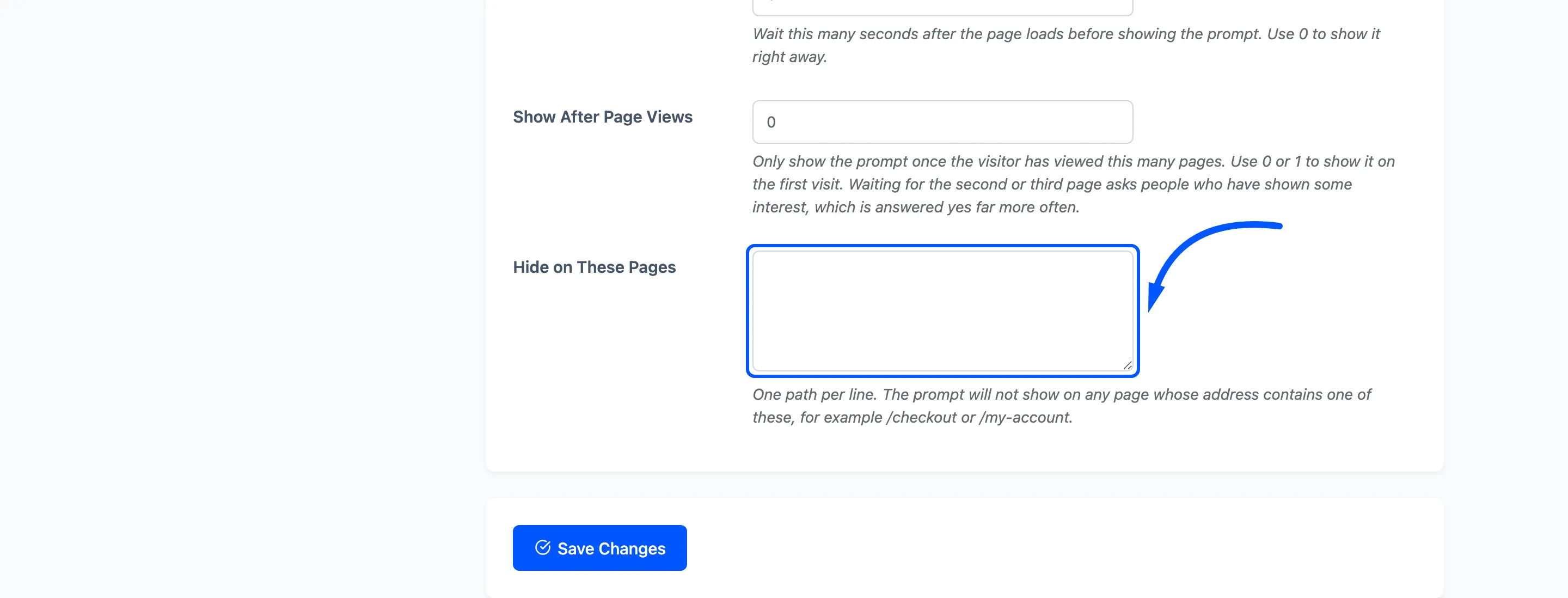
Hide on These Pages: Empty by default. One path per line. The prompt will not show on any page
whose address contains one of them, for example /checkout or /my-account.