

How to Set Up Abandoned Cart Reminders (Pro)
A cart reminder is the highest-converting notification most stores send, and the easiest to get wrong. Too soon and it reads as surveillance. Too late and the moment has passed.
WooCommerce has to be active, and push has to be working.
Step 1: Check WP-Cron is actually running
Section titled “Step 1: Check WP-Cron is actually running”Do this first. The reminder is a scheduled sweep, so if nothing is scheduling, nothing sends.
Go to Configuration → Status and read the Environment group.
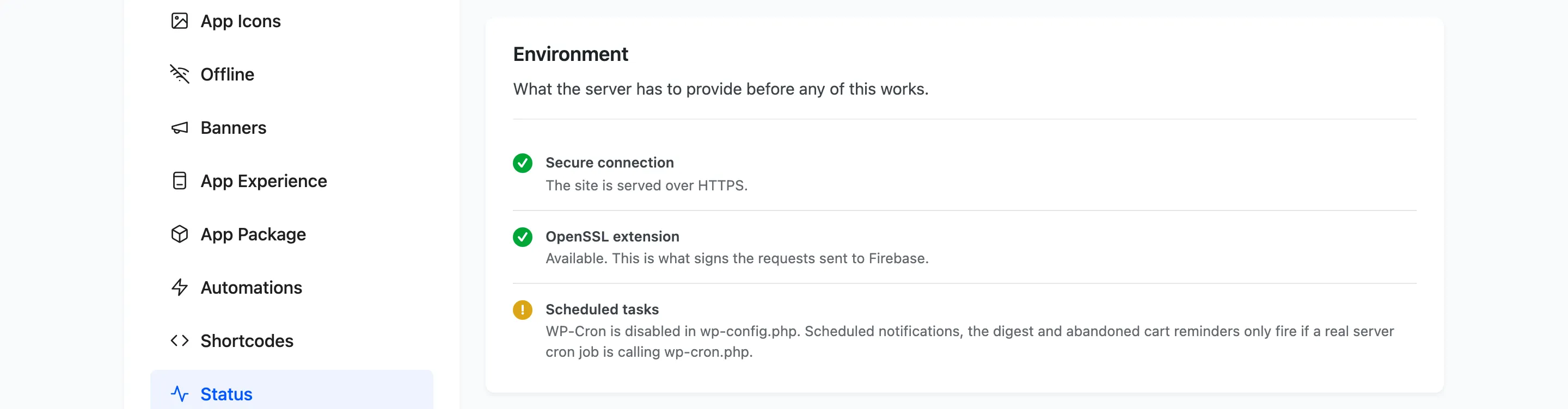
Scheduled tasks passes when WP-Cron is active. If it warns that DISABLE_WP_CRON is set in
wp-config.php, the sweep only runs when a real server cron job calls wp-cron.php. Many hosts set
that up and never mention it, so a warning is a question for your host rather than a fault.
Step 2: Open the Automations tab
Section titled “Step 2: Open the Automations tab”Go to DevDiggers Plugins → Progressive Web App → Configuration → Automations and scroll to Abandoned Cart.
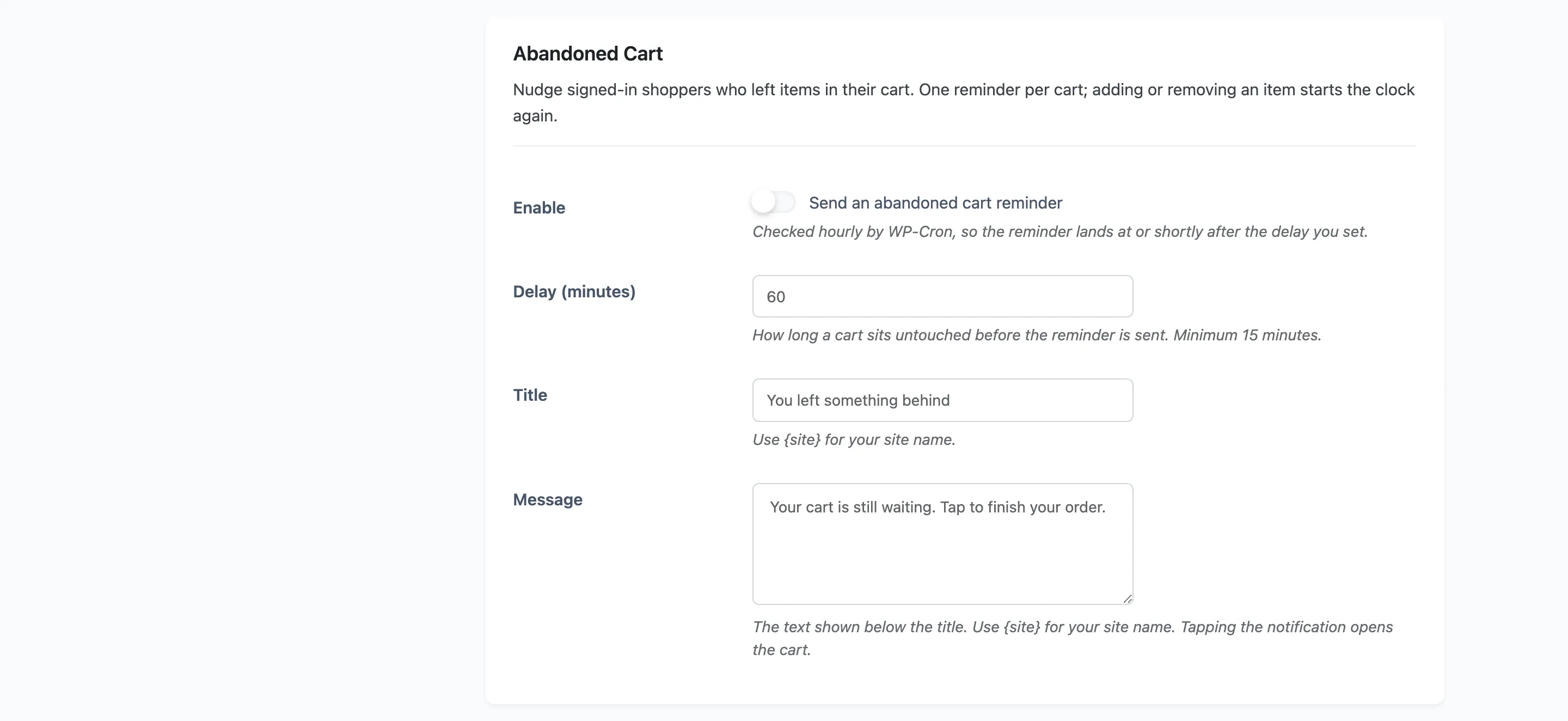
Tick Enable. The sweep is checked hourly, so the reminder lands at or shortly after your delay rather than on the minute. That is normal, and it is worth knowing before you set a 15 minute delay and wonder why it arrived at 40.
One reminder per cart: Adding or removing an item starts the clock again, so a shopper still browsing is never interrupted.
Only signed-in shoppers. A guest cart has no account behind it and no device to reach, so those are skipped.
Step 3: Set the delay
Section titled “Step 3: Set the delay”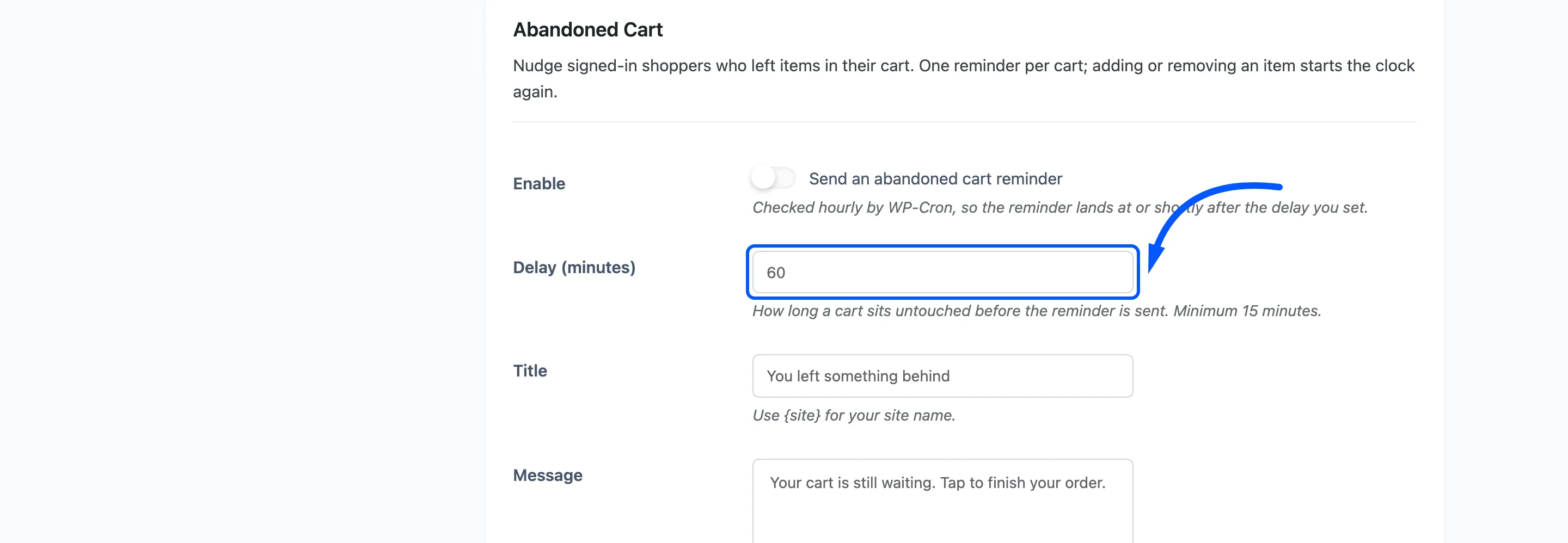
Default 60 minutes, minimum 15.
Sixty is a good starting point. It is long enough that the shopper has genuinely left, and short enough that they still remember what was in the cart. Below about 30 minutes you are reminding people who went to make a cup of tea.
Step 4: Write the title and the message
Section titled “Step 4: Write the title and the message”
Title defaults to You left something behind.
Message defaults to Your cart is still waiting. Tap to finish your order.
Both accept {site} for your site name. Tapping opens the cart, which is the whole point, so the
message does not need to explain where the notification goes.
Keep it warm and short. This notification arrives on a lock screen an hour after somebody chose not to buy something, and the tone decides whether it reads as helpful or as pushy.
Step 5: Save and confirm
Section titled “Step 5: Save and confirm”Press Save Changes. Then test it properly.
- Sign in as a customer who has allowed notifications.
- Put something in the cart.
- Leave the site and wait past your delay, plus up to an hour for the hourly sweep.
Go to Delivery Log and set the type filter to Abandoned Cart.
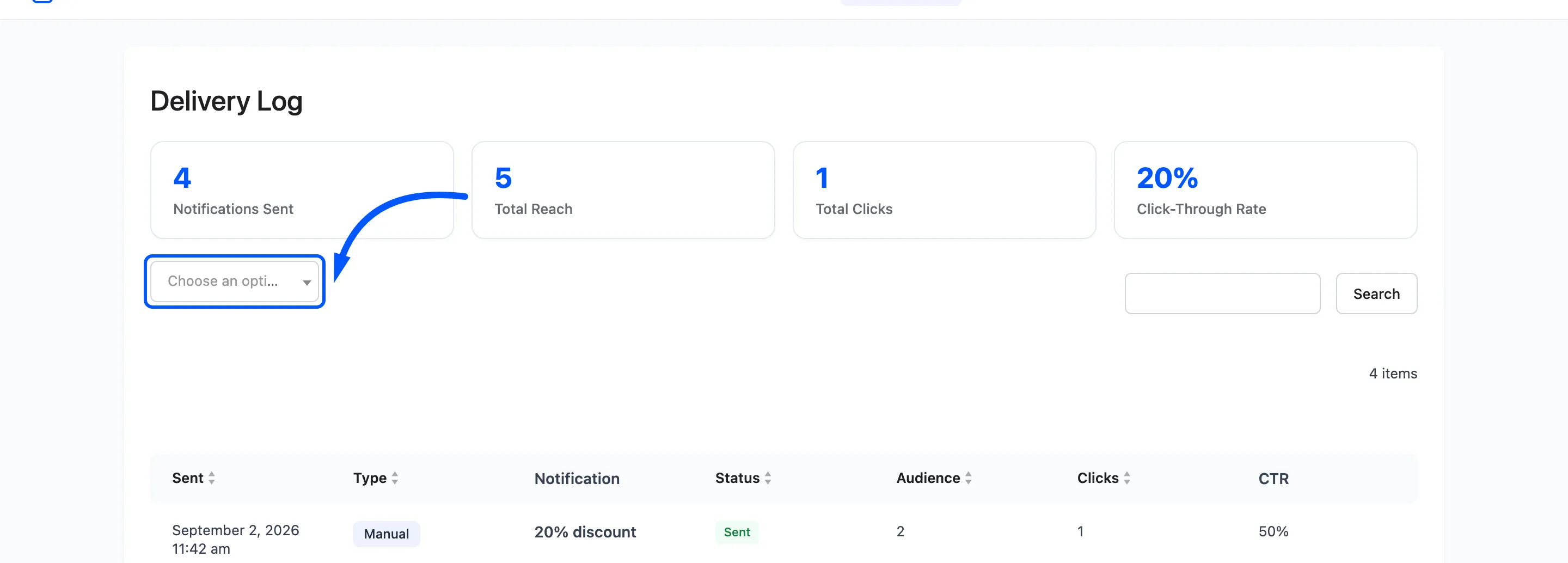
If nothing appears, work through it in this order.
- The shopper was a guest. Nothing to reach.
- The shopper has never allowed notifications. Check the Subscribers screen.
- The delay has not elapsed, including the hourly sweep.
- WP-Cron is disabled and no server cron is calling it. Step 1.
Sending one at a time instead
Section titled “Sending one at a time instead”If cart reminders are not right for your store but you want a single nudge before a deadline, write one notification and schedule it. How to Schedule a Notification covers that.