

Banner Settings
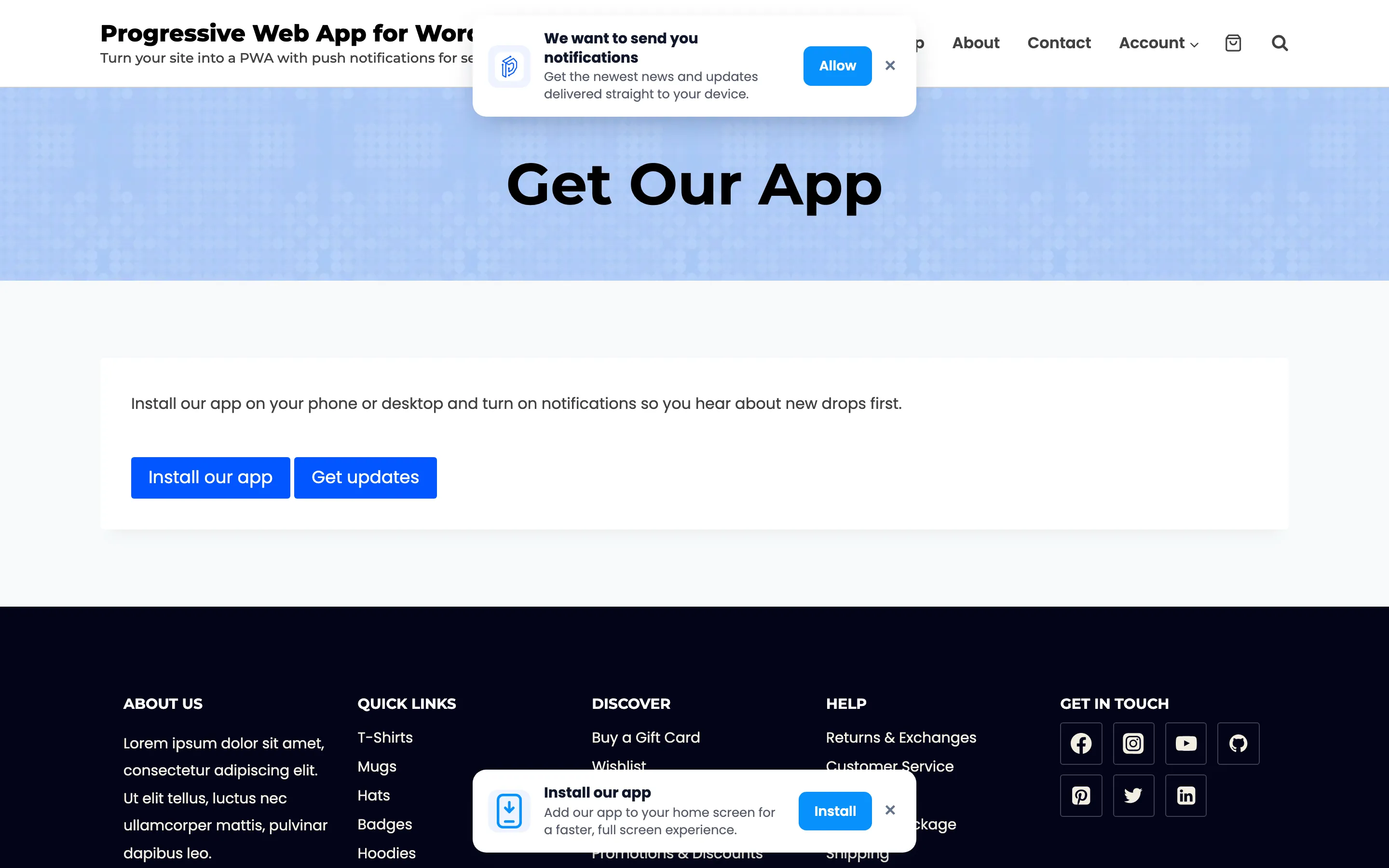
Two boxes appear on your storefront, and this tab is where both are written and coloured. When they appear is elsewhere: prompt timing is on Push Setup, and the install banner waits for the browser.
Go to DevDiggers Plugins → Progressive Web App → Configuration → Banners.
With both switched on, a first-time visitor meets them together. The prompt slides in across the top and the banner rises along the bottom, so they never overlap.
Everything below is one box at a time.
Notification Prompt
Section titled “Notification Prompt”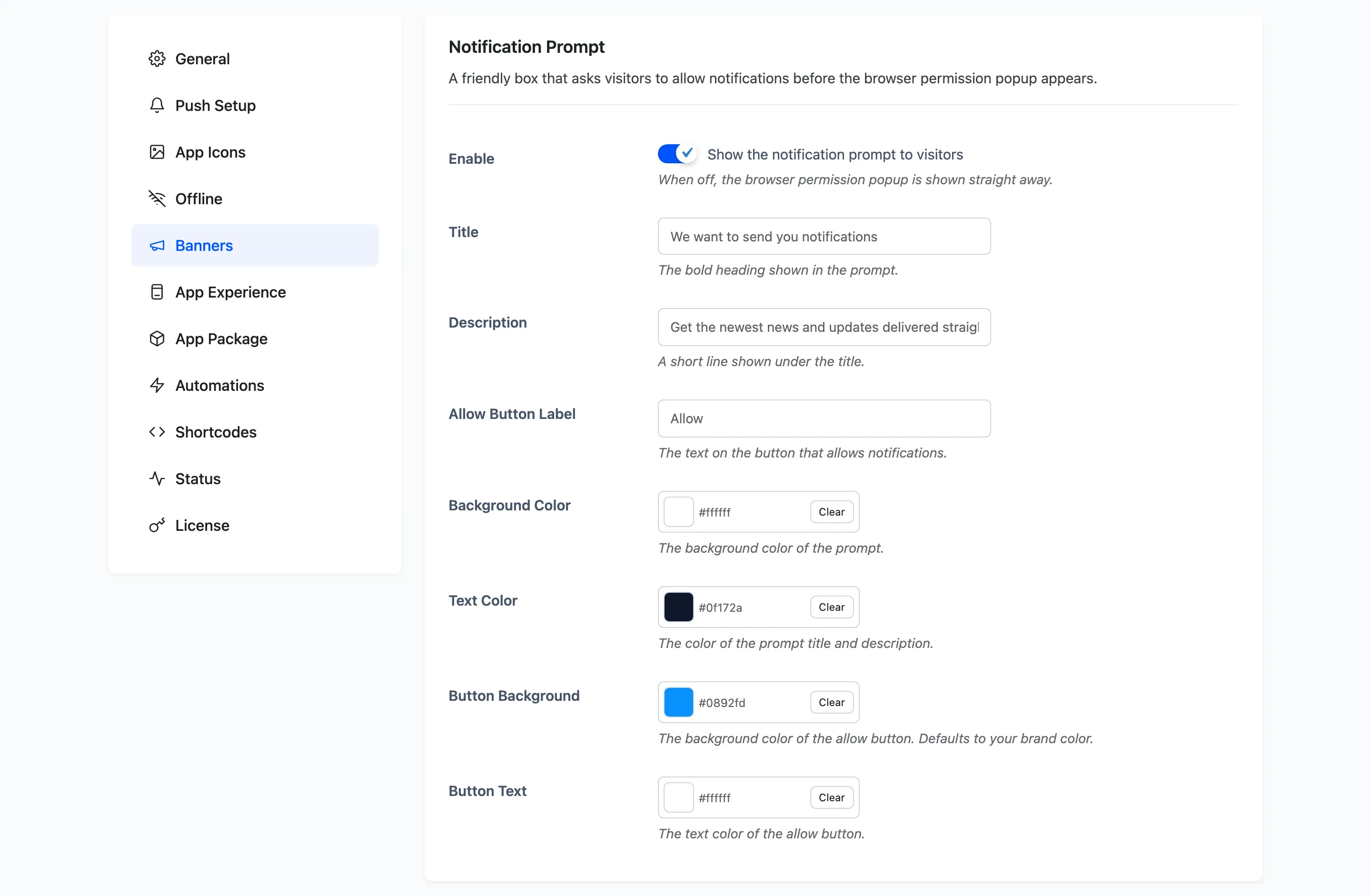
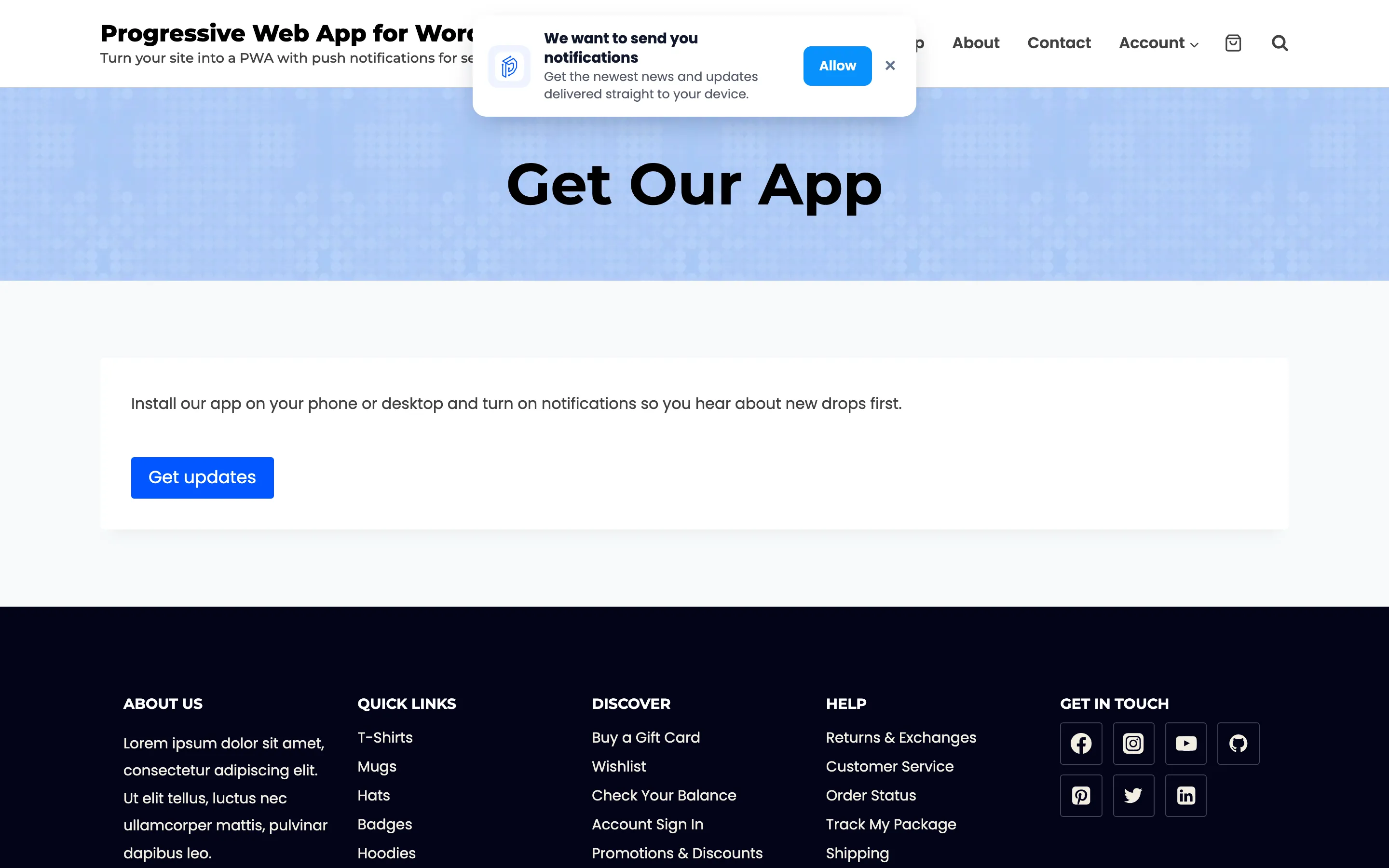
A friendly box that asks visitors to allow notifications before the browser’s own permission popup appears. It exists because a browser lets a site ask exactly once, so a dismissal of your box costs nothing while a No to the browser is permanent.
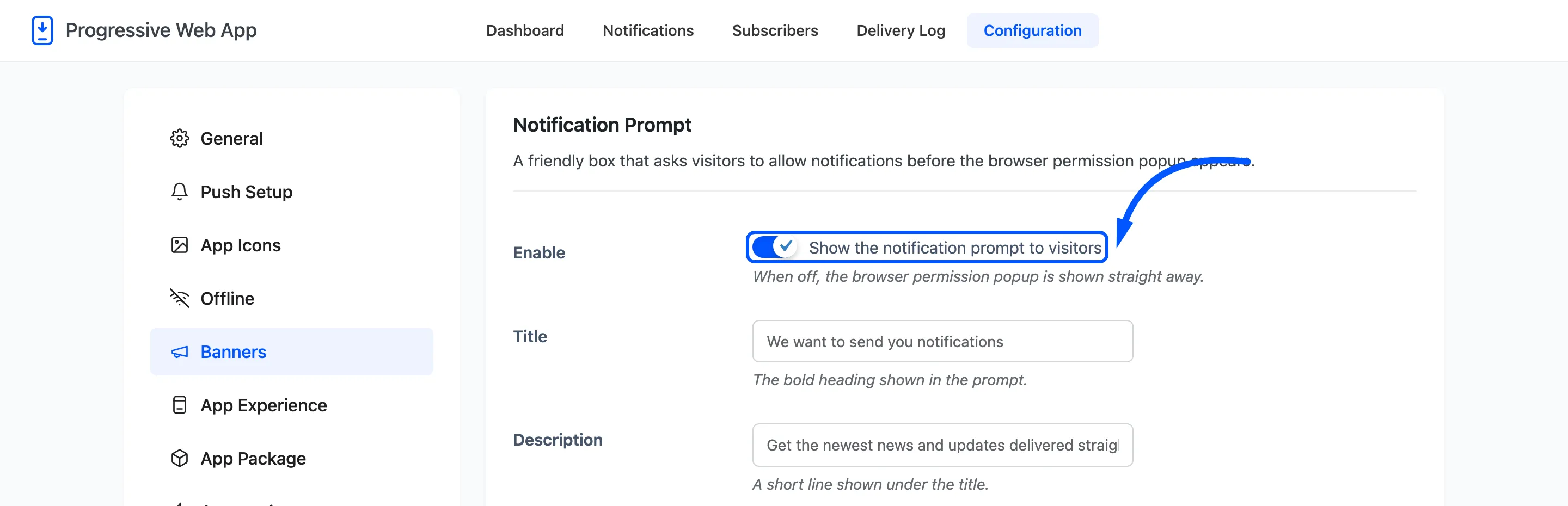
Enable: When off, the browser permission popup is shown straight away with nothing in front of it.
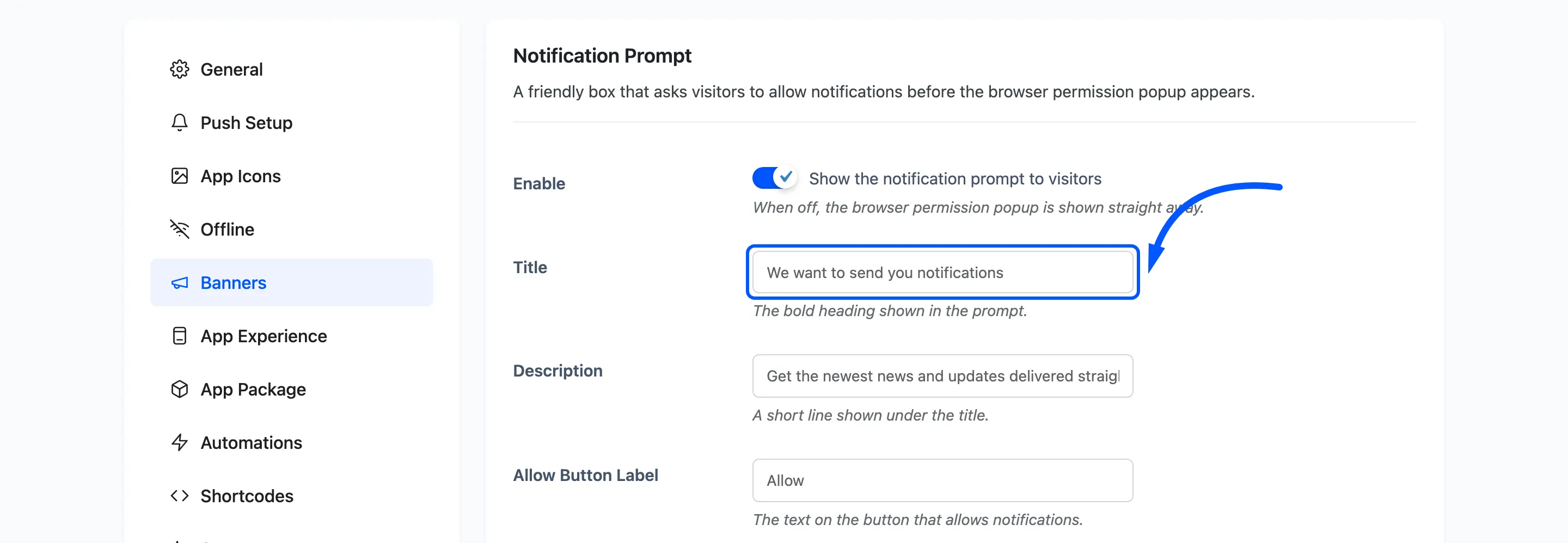
Title: Default We want to send you notifications. The bold heading in the prompt.
Description: Default Get the newest news and updates delivered straight to your device. A short line under the title.
Allow Button Label: Default Allow.
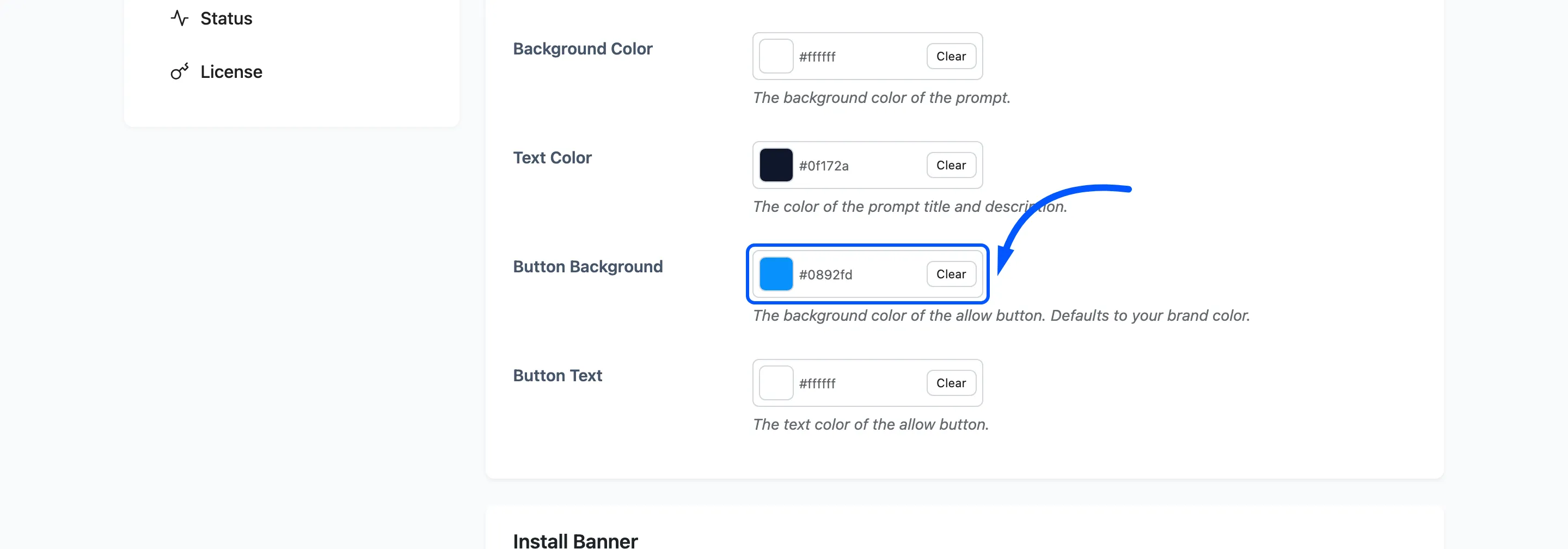
Four colours follow, and all four accept any hex value.
- Background Color: Default
#ffffff. - Text Color: Default
#0f172a. - Button Background: Defaults to your theme colour.
- Button Text: Default
#ffffff.
This is the result on a real page.
Install Banner
Section titled “Install Banner”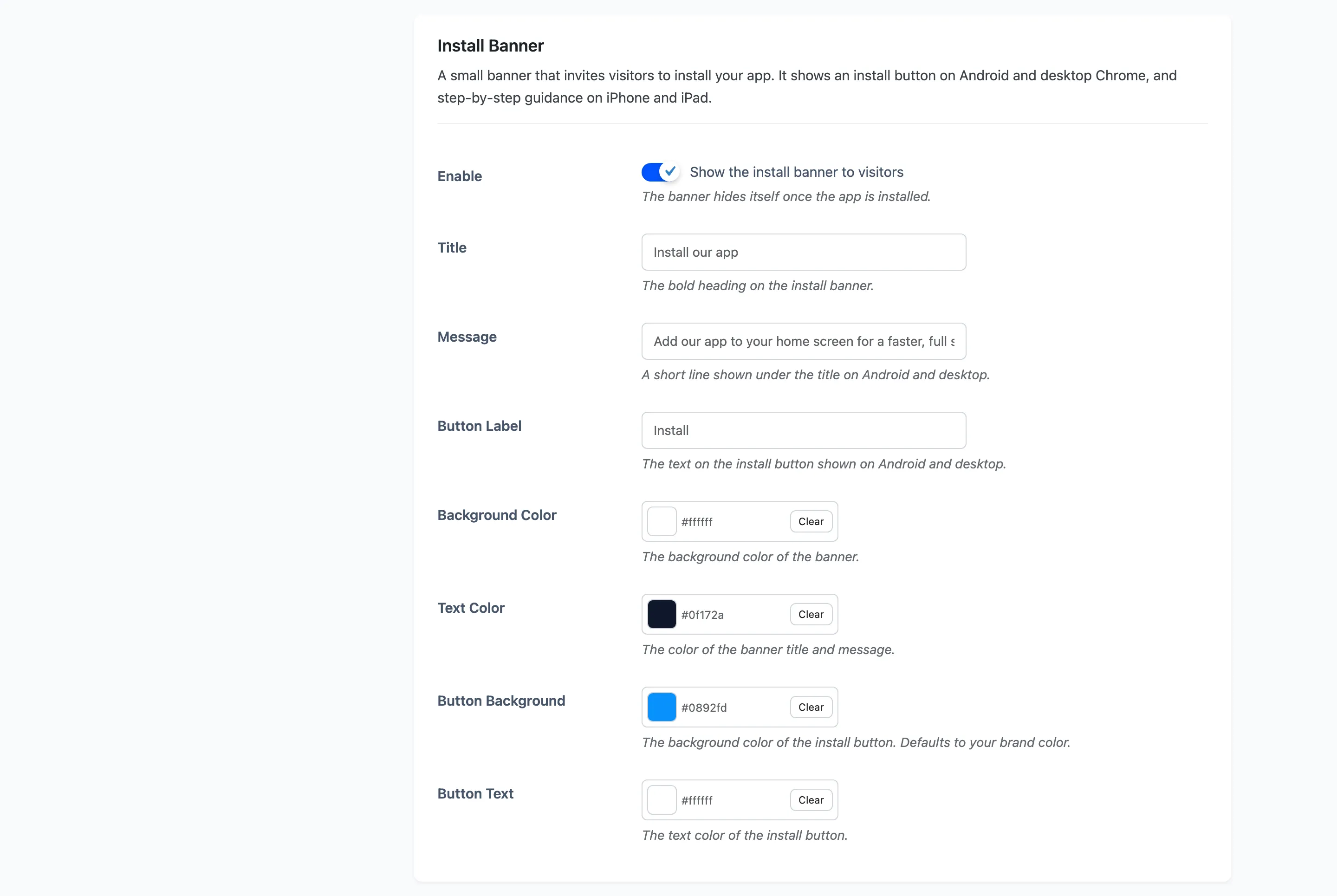
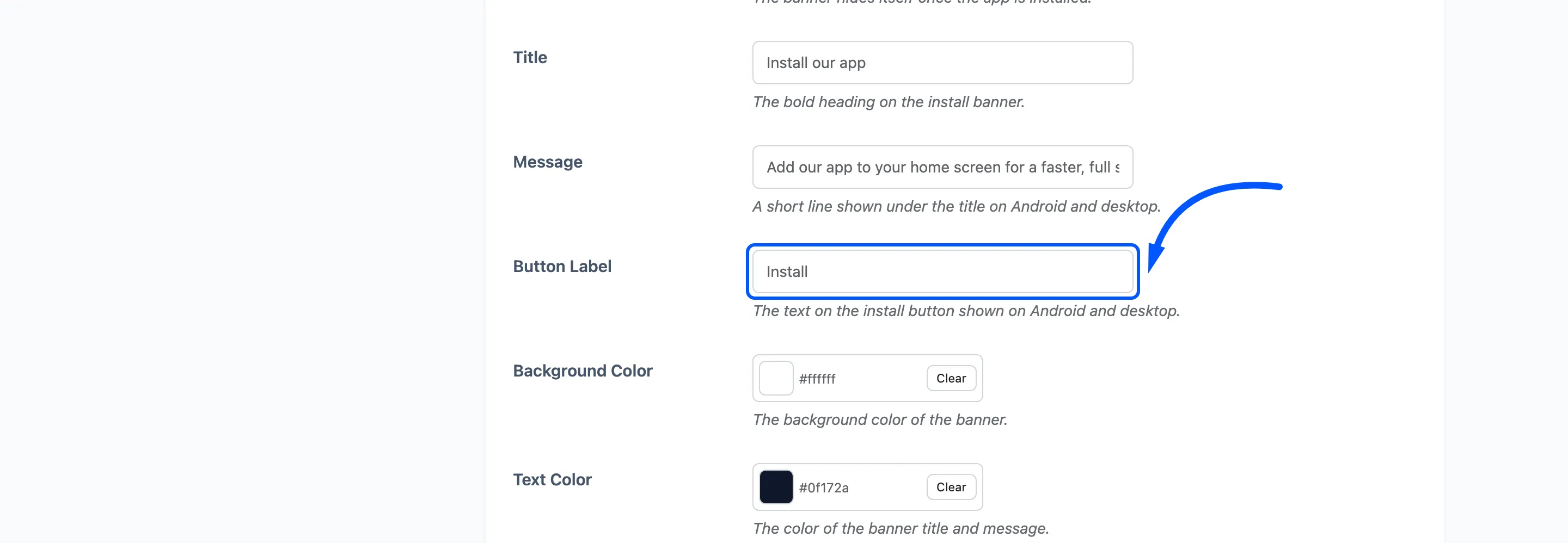
A small banner that invites visitors to install your app. It shows an install button on Android and desktop Chrome, and step-by-step guidance on iPhone and iPad, where there is no install button to show.
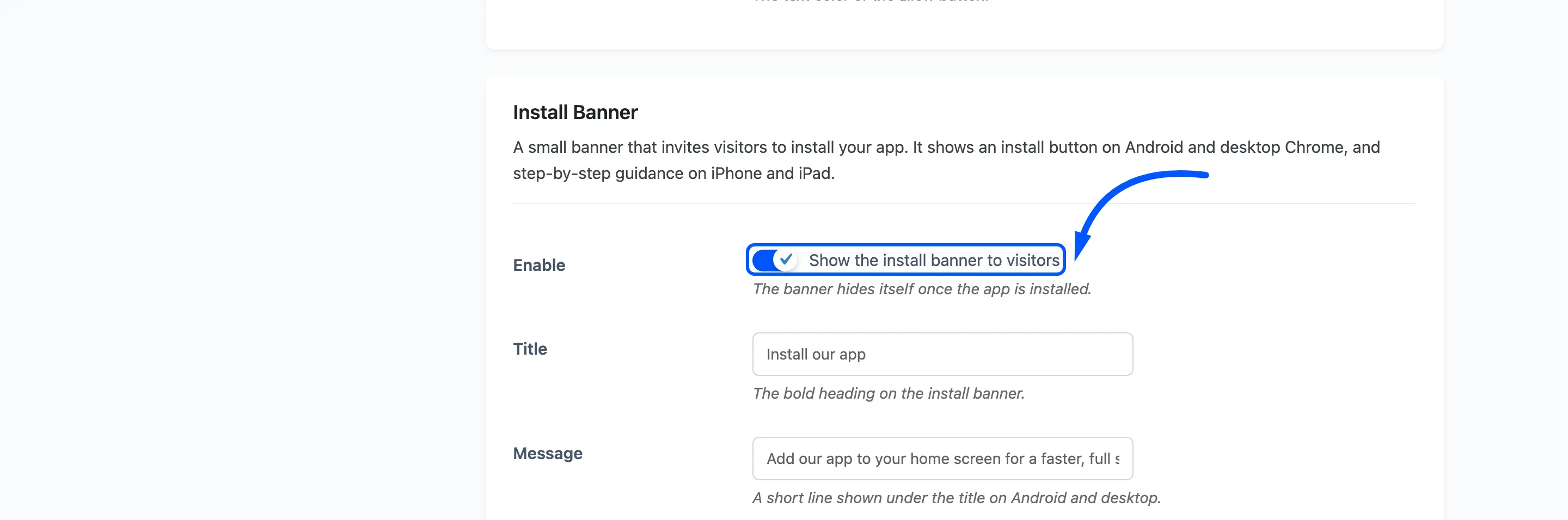
Enable: The banner hides itself once the app is installed, so an installed visitor never sees it again.
Title: Default Install our app.
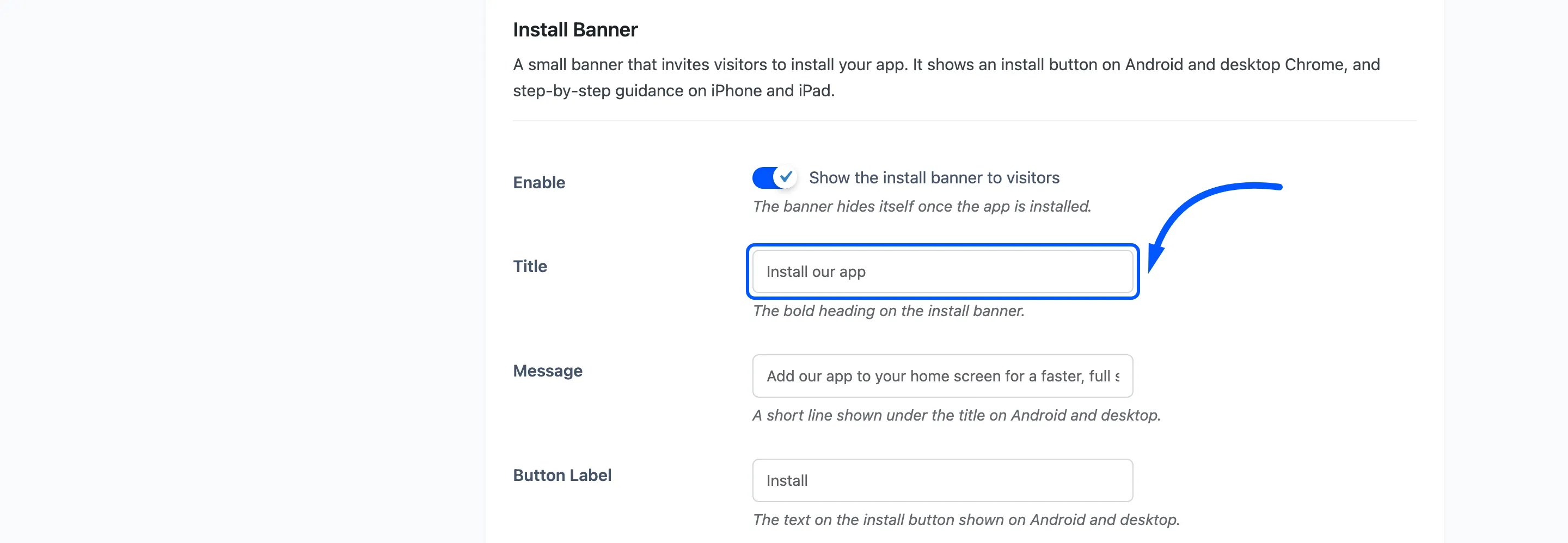
Message: Default Add our app to your home screen for a faster, full screen experience. Shown on Android and desktop. iPhone and iPad get the Add to Home Screen instructions in its place, and that wording is fixed.
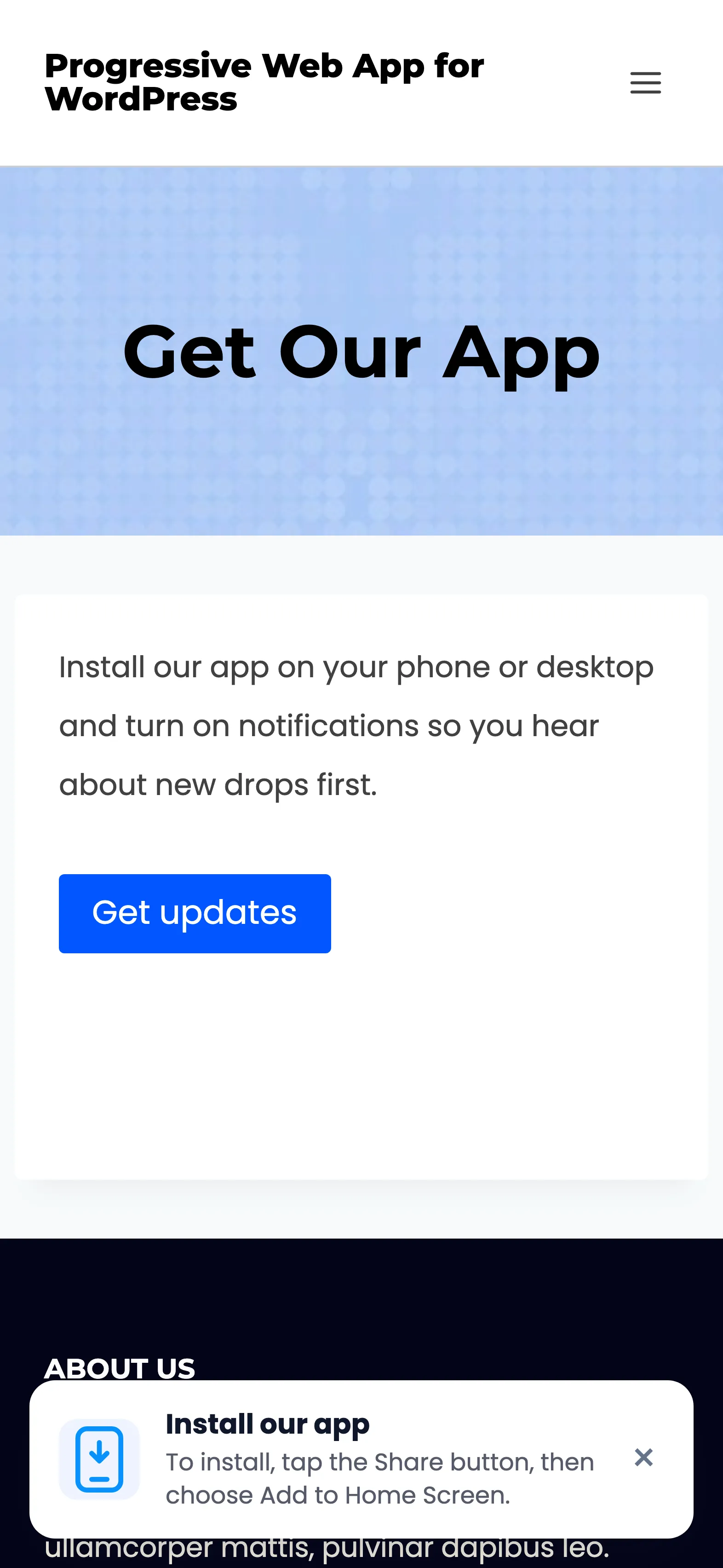
Button Label: Default Install. Shown on Android and desktop only.
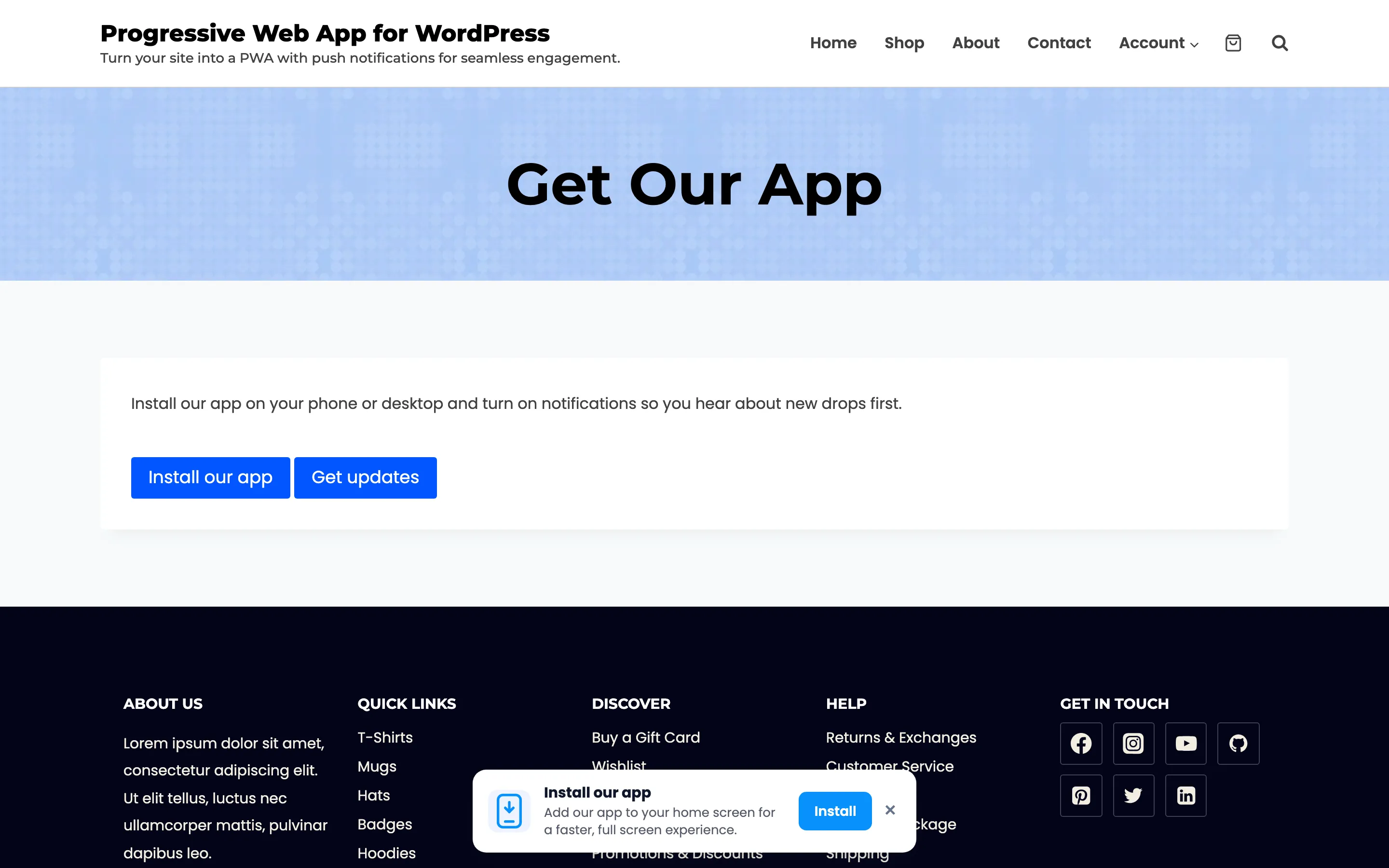
The same four colours as the prompt: background, text, button background and button text.
Here it is on a real page.
How long a dismissal lasts
Section titled “How long a dismissal lasts”The two boxes forget differently, and the difference is deliberate.
- Closing the notification prompt keeps it away for one hour.
- Closing the install banner keeps it away for seven days.
Installing the app hides the banner permanently. Allowing or denying notifications retires the prompt permanently, because the browser will not ask again either way.