

How to Use Share Discounts with the Cart and Checkout Blocks
New WooCommerce stores build their Cart and Checkout pages from blocks. The plugin works with them as they are: nothing to switch on.
Step 1: Use the blocks on your Cart and Checkout pages
Section titled “Step 1: Use the blocks on your Cart and Checkout pages”Your Cart and Checkout pages hold the Cart and Checkout blocks, which is the default for a new store. The demo uses the classic pages, so for this test both pages were switched to the blocks, then put back.
Step 2: Open a share link and add the product
Section titled “Step 2: Open a share link and add the product”John, signed in, opened Fred’s link to the Heavyweight Pullover Hoodie and added it to his cart.
Step 3: Check the Cart block
Section titled “Step 3: Check the Cart block”The discount was in the totals as Friend discount:
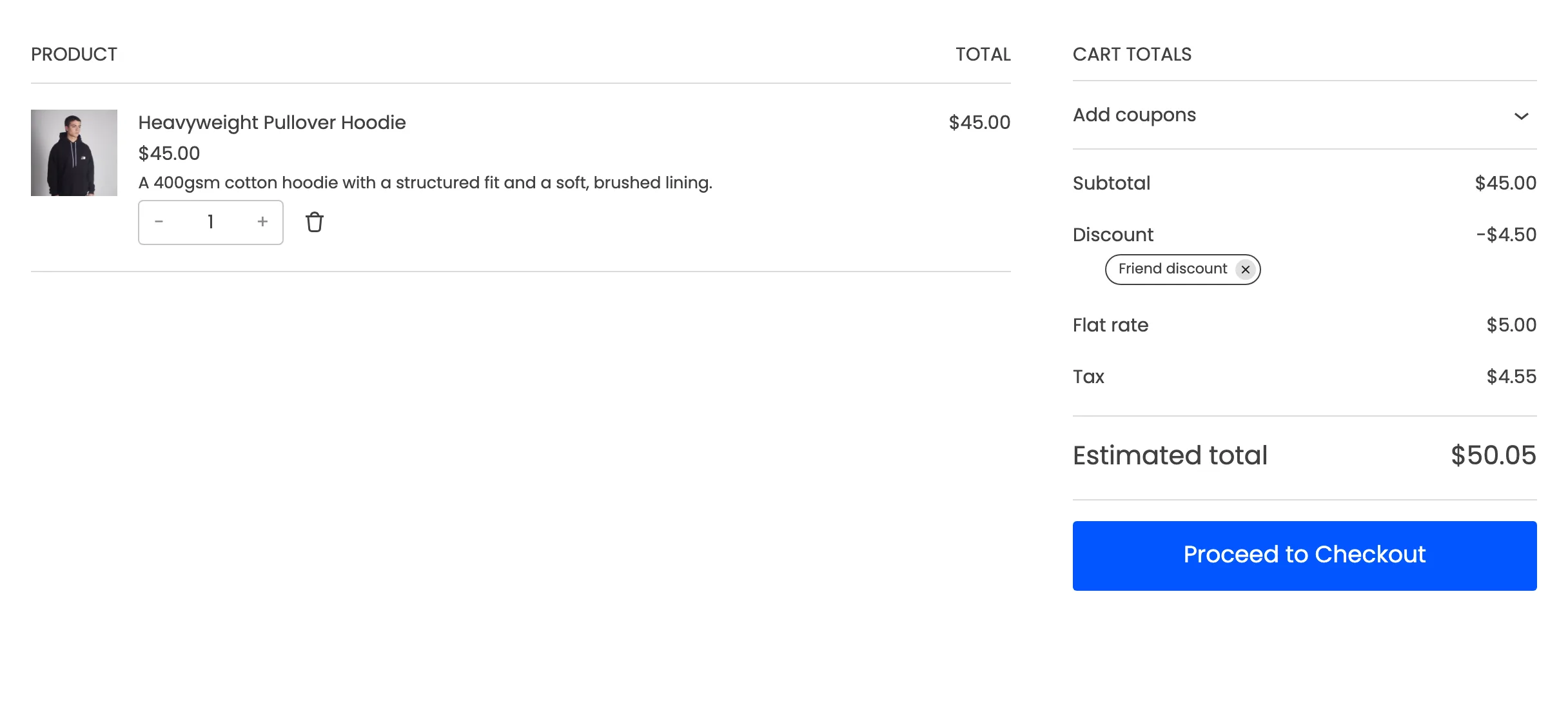
The blocks print a coupon’s code unless a plugin names it. These are named Friend discount and Share discount, so the code, which holds the sharer’s referral code, is not shown.
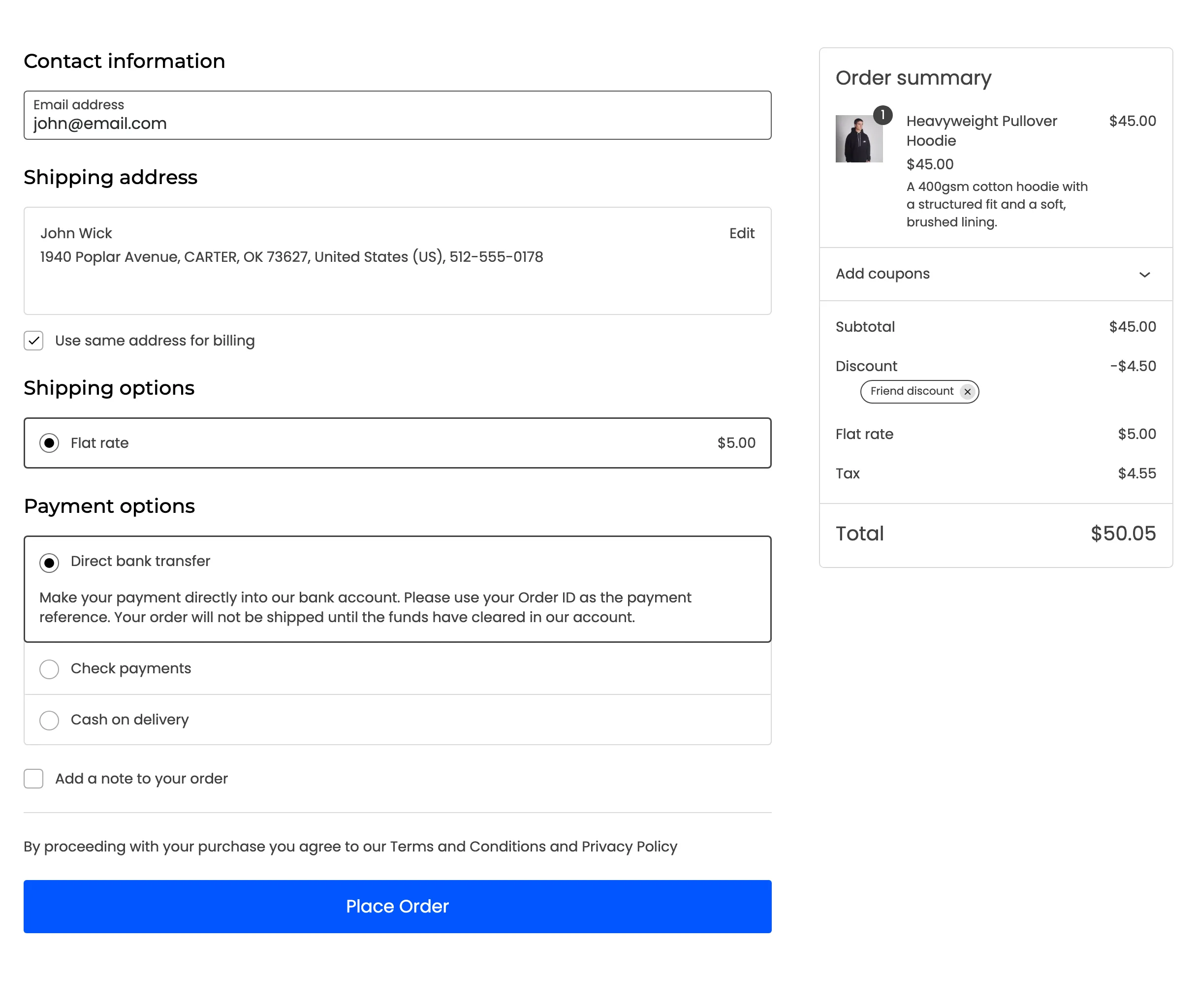
The Checkout block’s order summary carried it through:
Step 4: Place the order
Section titled “Step 4: Place the order”John placed the order in the Checkout block. The referral was recorded for Fred with the friend’s saving, exactly as from the classic checkout.
Good to know
Section titled “Good to know”- Removing the discount from the block cart sticks for the rest of the visit, as in the classic cart.
- Reward coupons typed into the block’s coupon field show their own code, like any store coupon.