

How to Share a Product and Earn a Reward
This is the customer’s side of the program, step by step. Send it to customers who ask how it works, or link it from your own rewards page.
Step 1: Sign in and open a product
Section titled “Step 1: Sign in and open a product”Sharing earns rewards only when the customer is signed in, because the link has to know whose it is. A guest sees Log in to share your personal link in the share box.
Step 2: Share it
Section titled “Step 2: Share it”The share box sits on the product page, under the add to cart button by default. It says what the friend gets and what the customer earns.
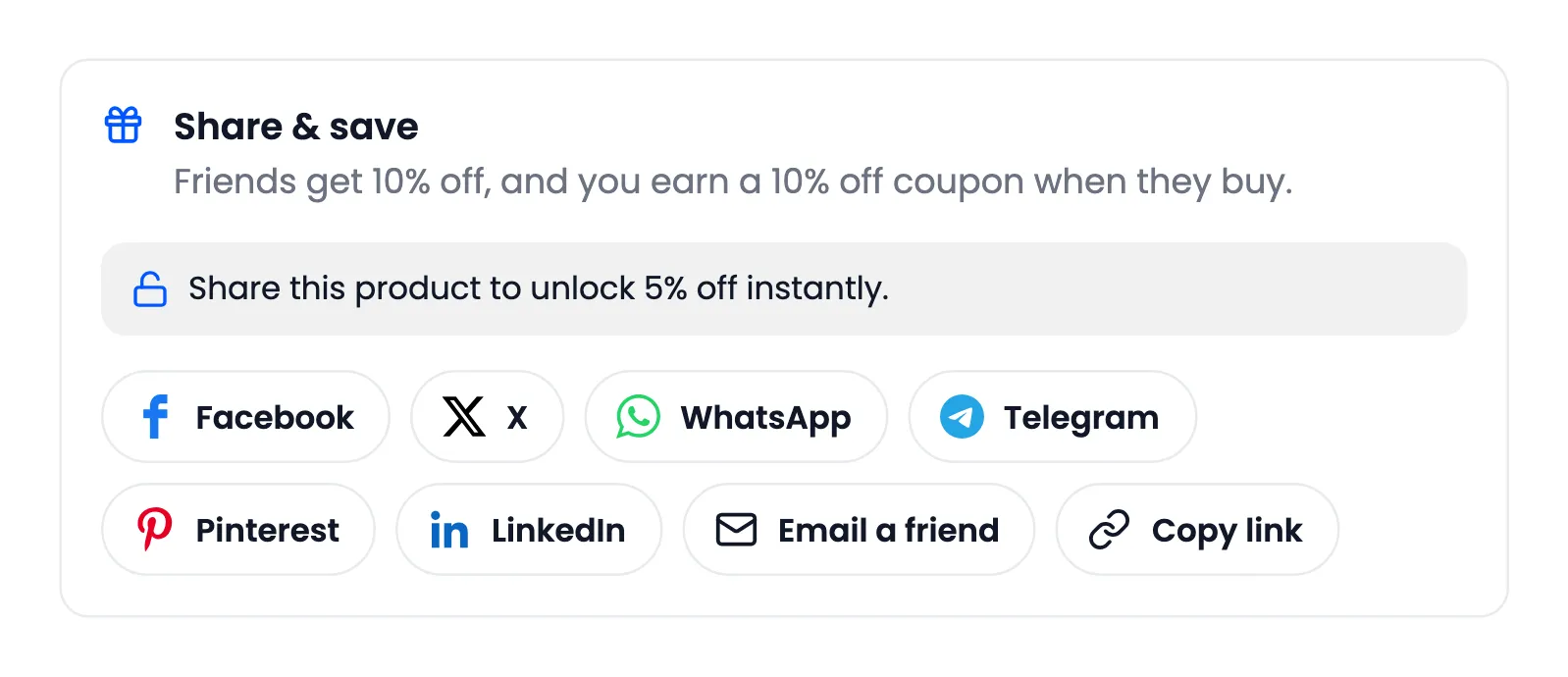
- A network button opens WhatsApp, Facebook or another network with the link filled in.
- Copy link puts the link on the clipboard, for any chat or message.
- More, on a phone, opens the phone’s own share menu.
- Email a friend sends the product from the store, with a personal note.
On the demo, Amara pressed Copy link. The box confirmed it, and Share to Unlock gave her 5% off the bag:
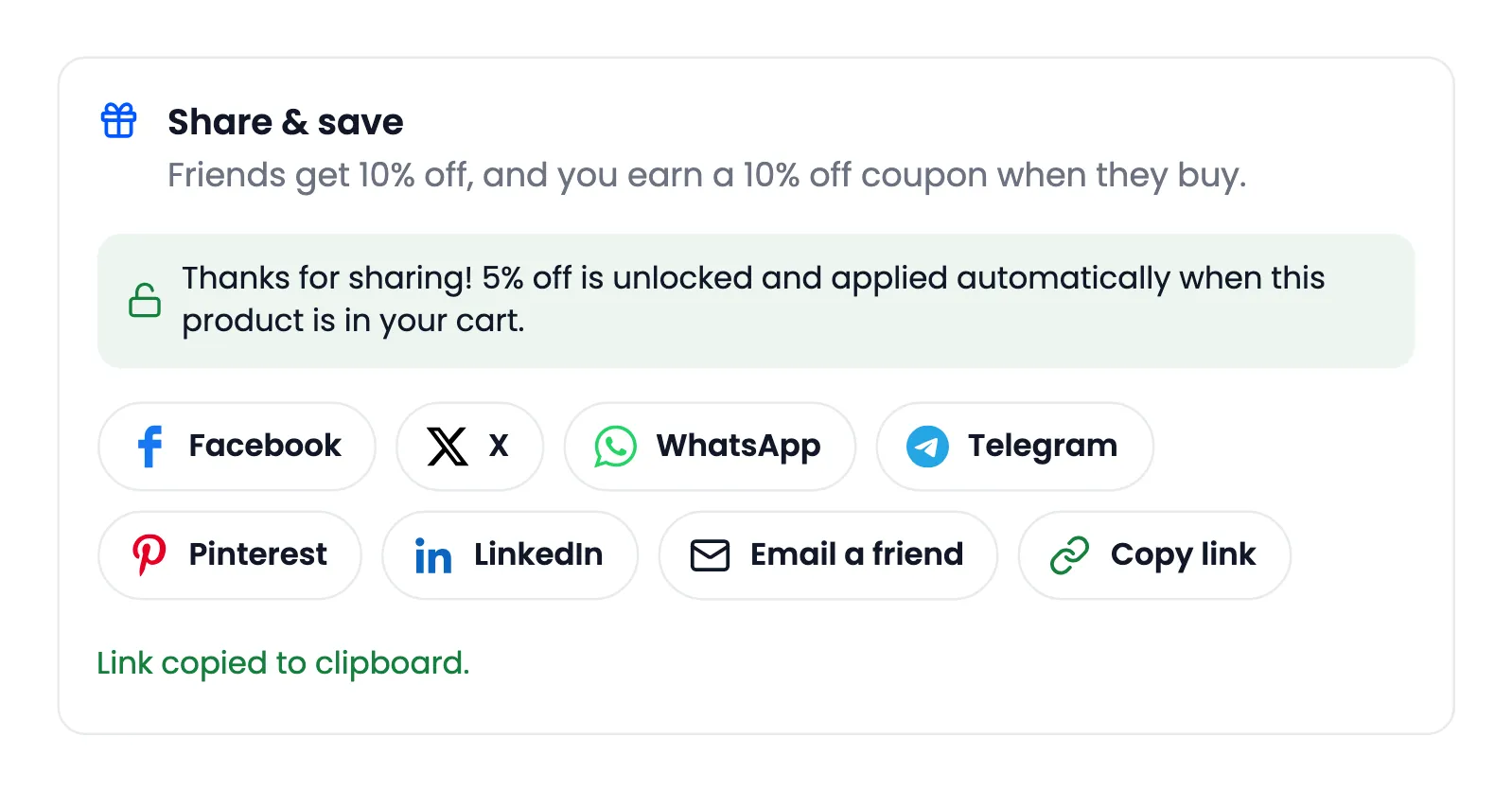
Her link carries her code: …/product/canvas-tote-bag/?sref=sv16qdbd.
Step 3: The friend buys through the link
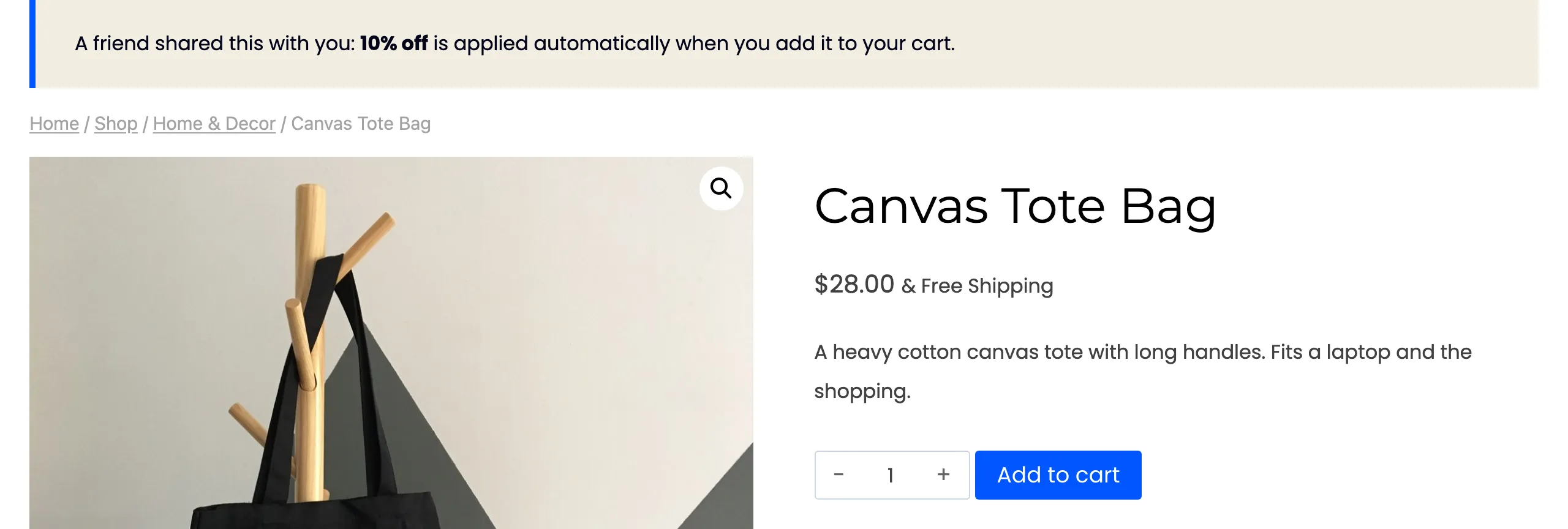
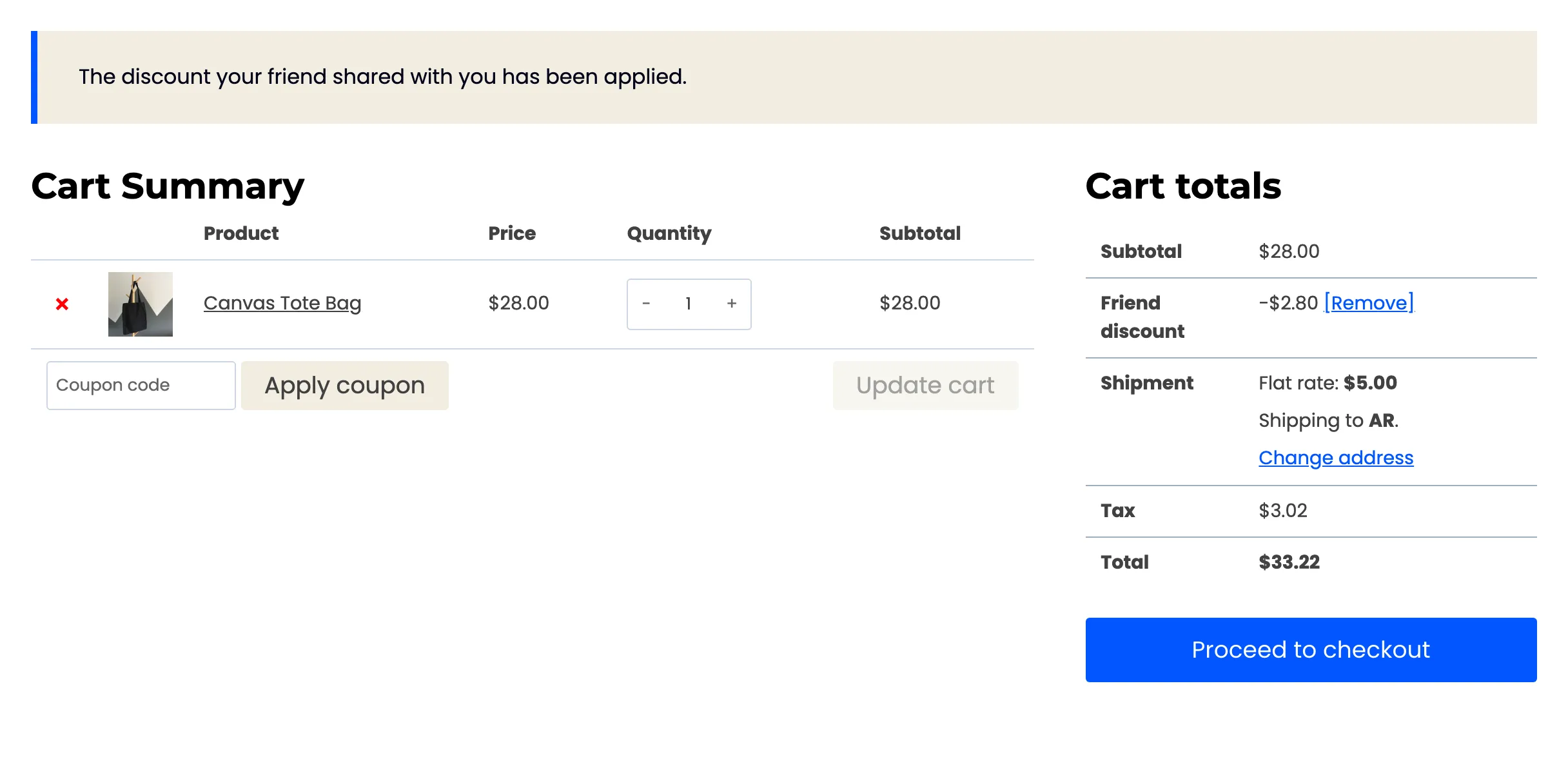
Section titled “Step 3: The friend buys through the link”Nina opened the link. The product page told her 10% off was waiting, and her cart applied it on its own.
The link works for 30 days. If Nina buys within that time, even without clicking again, Amara gets the credit.
Step 4: Collect the reward
Section titled “Step 4: Collect the reward”When the store completes Nina’s order, Amara’s reward is created. She gets an email with the code:
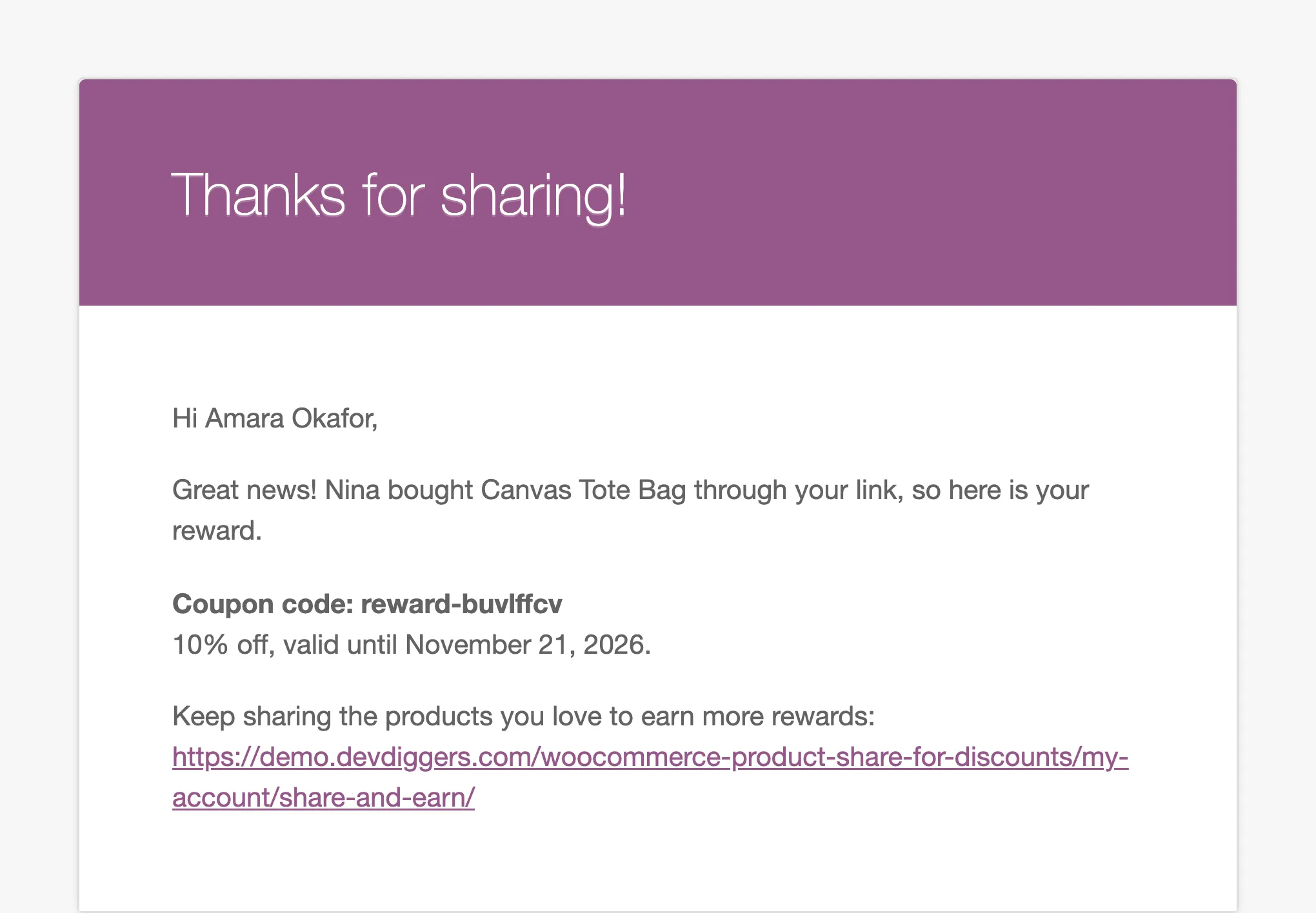
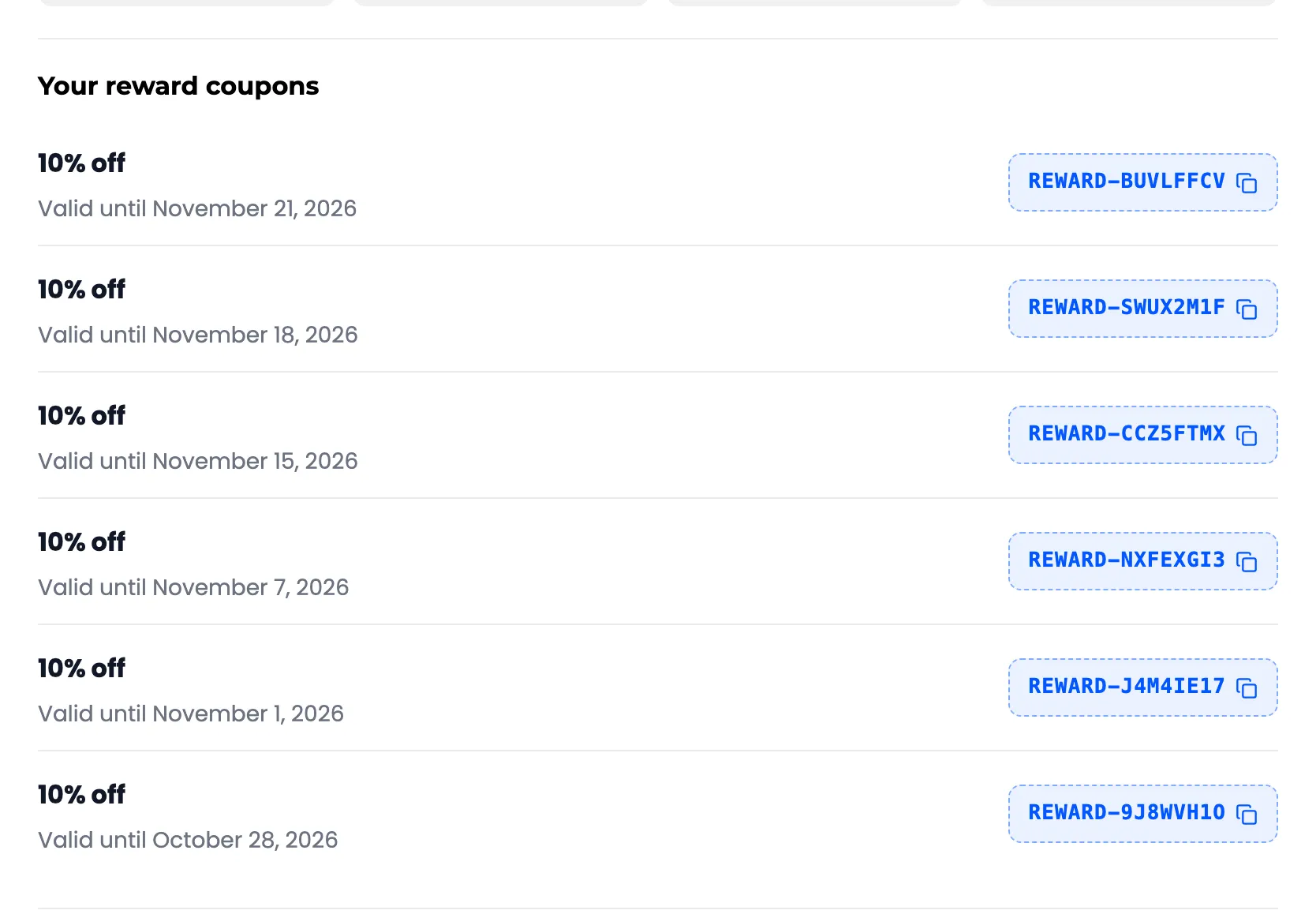
It is also on her Share & Earn page in My Account, under Your reward coupons, with its expiry date:
Good to know
Section titled “Good to know”- Any product, any time: Every product page has the box. Each friend order is its own reward.
- The personal shop link on Share & Earn shares the whole shop, not one product.
- Buying through your own link earns nothing.
- A cancelled friend order takes back the reward if it has not been used.