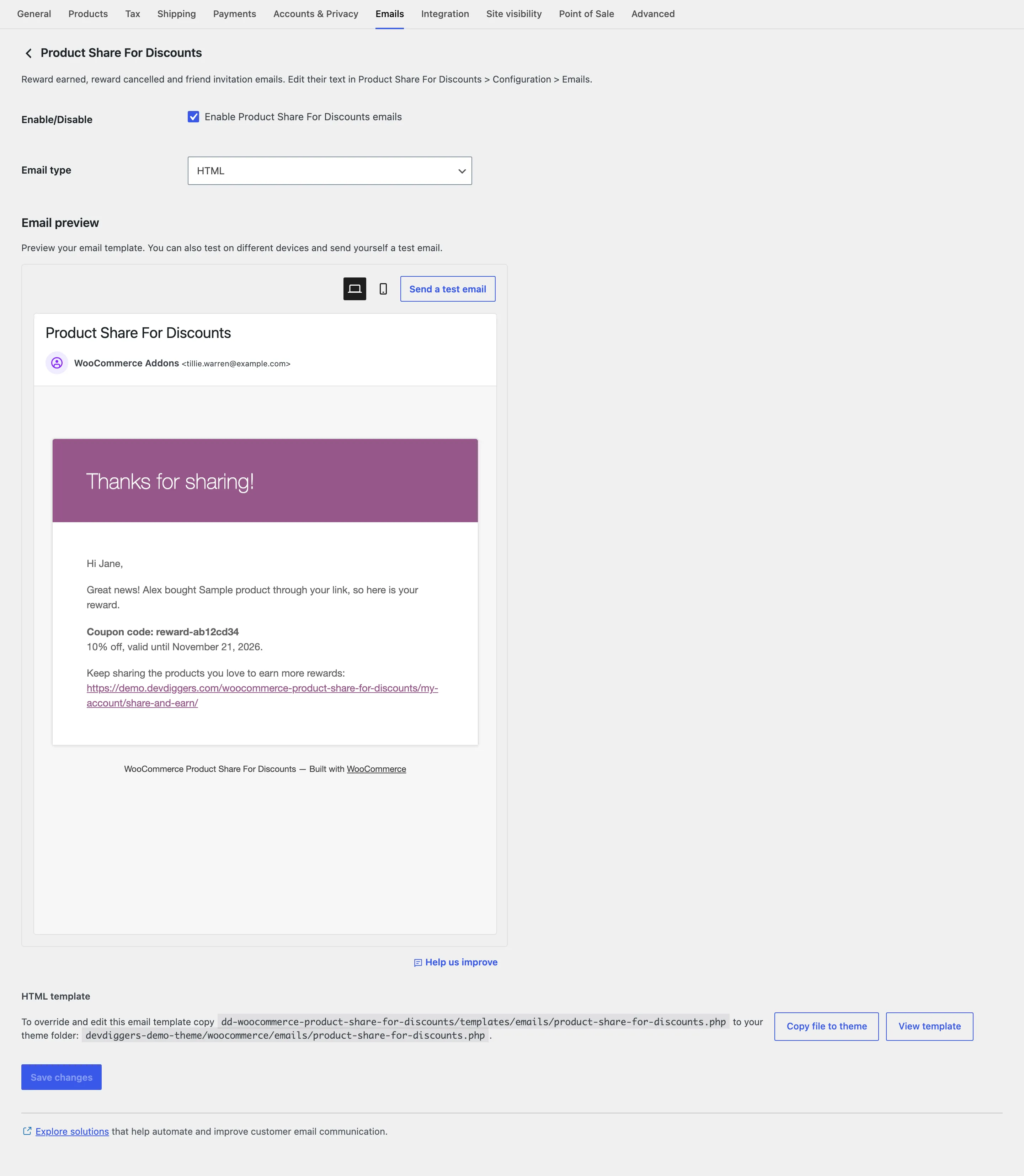
Email Settings
The plugin sends three emails. Open Product Share For Discounts → Configuration → Emails to turn each one on or off and edit its words. Each section has the same four fields:
- Enable: Ticked by default. Sends this email.
- Subject: The subject line. Placeholders work here too.
- Heading: The title at the top of the email.
- Message: The body, in a visual editor. The placeholders it can use are listed under it.
{site_title} and {account_link} work in every email. {account_link} is a link to the customer’s Share &
Earn page.
Reward Earned
Section titled “Reward Earned”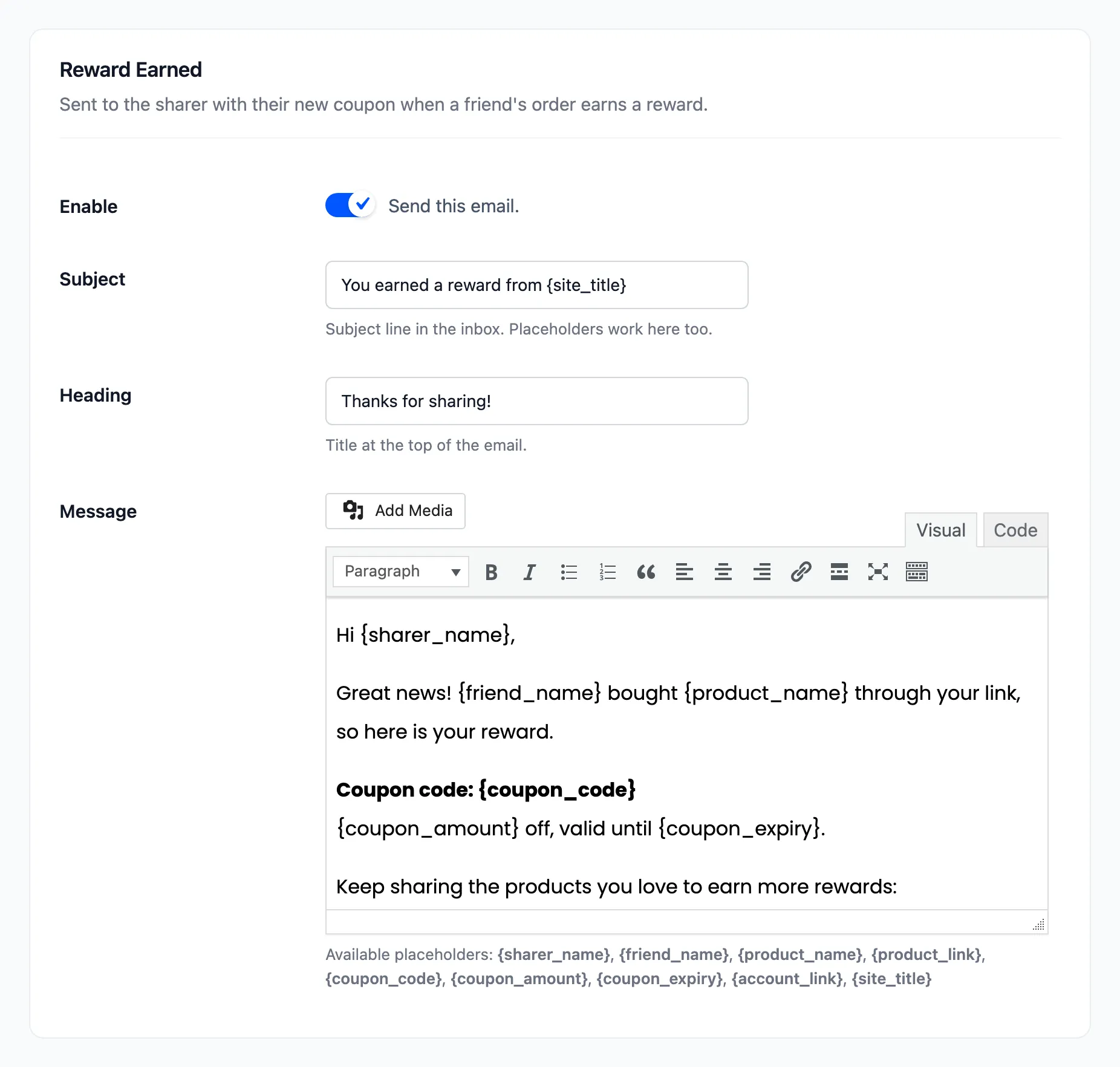
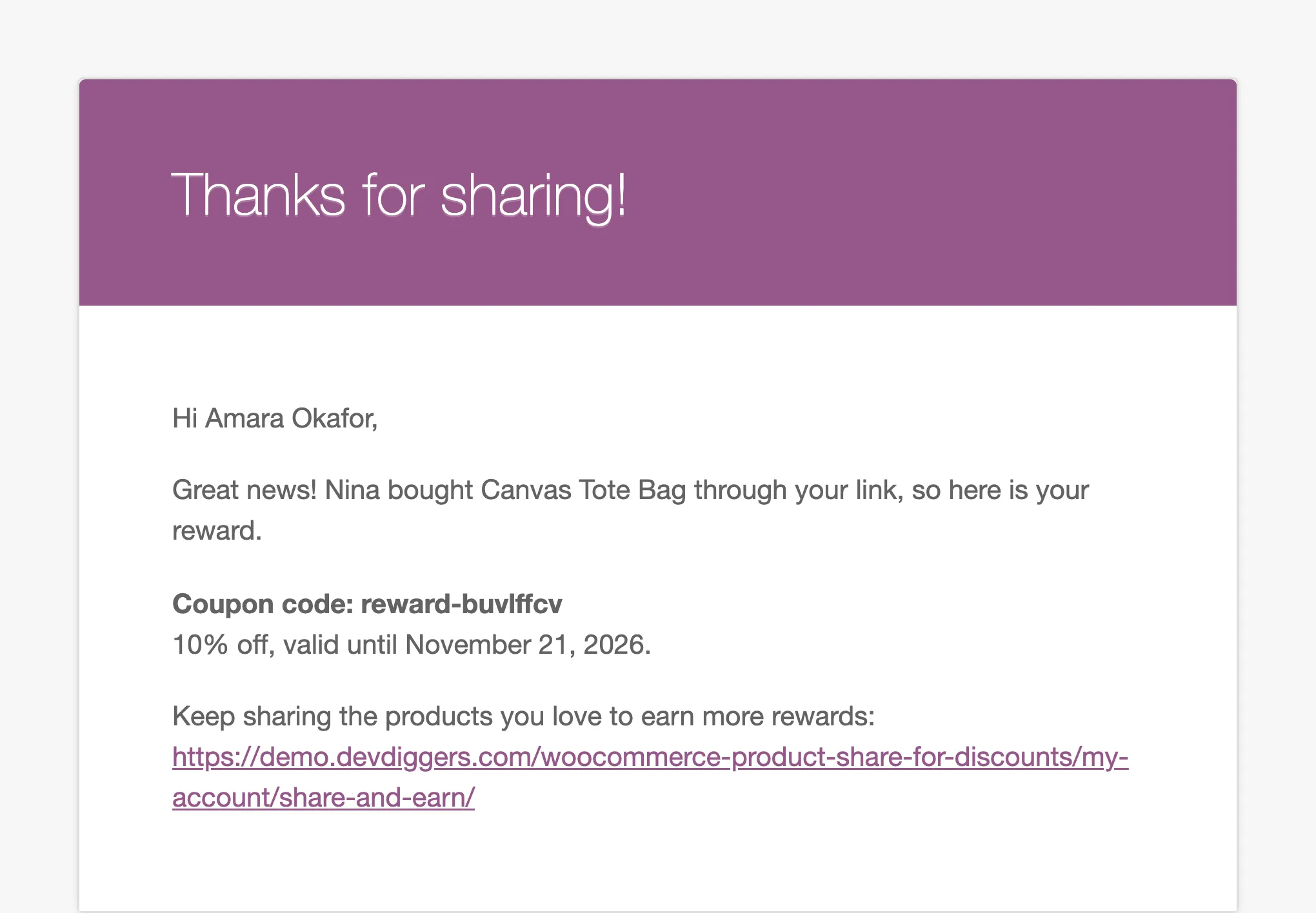
Sent to the sharer when their reward coupon is created. Default subject: You earned a reward from
{site_title}. Placeholders: {sharer_name}, {friend_name}, {product_name}, {product_link},
{coupon_code}, {coupon_amount} and {coupon_expiry}.
{friend_name} is the friend’s billing first name, or “A friend” when there is none.
Friend Invitation
Section titled “Friend Invitation”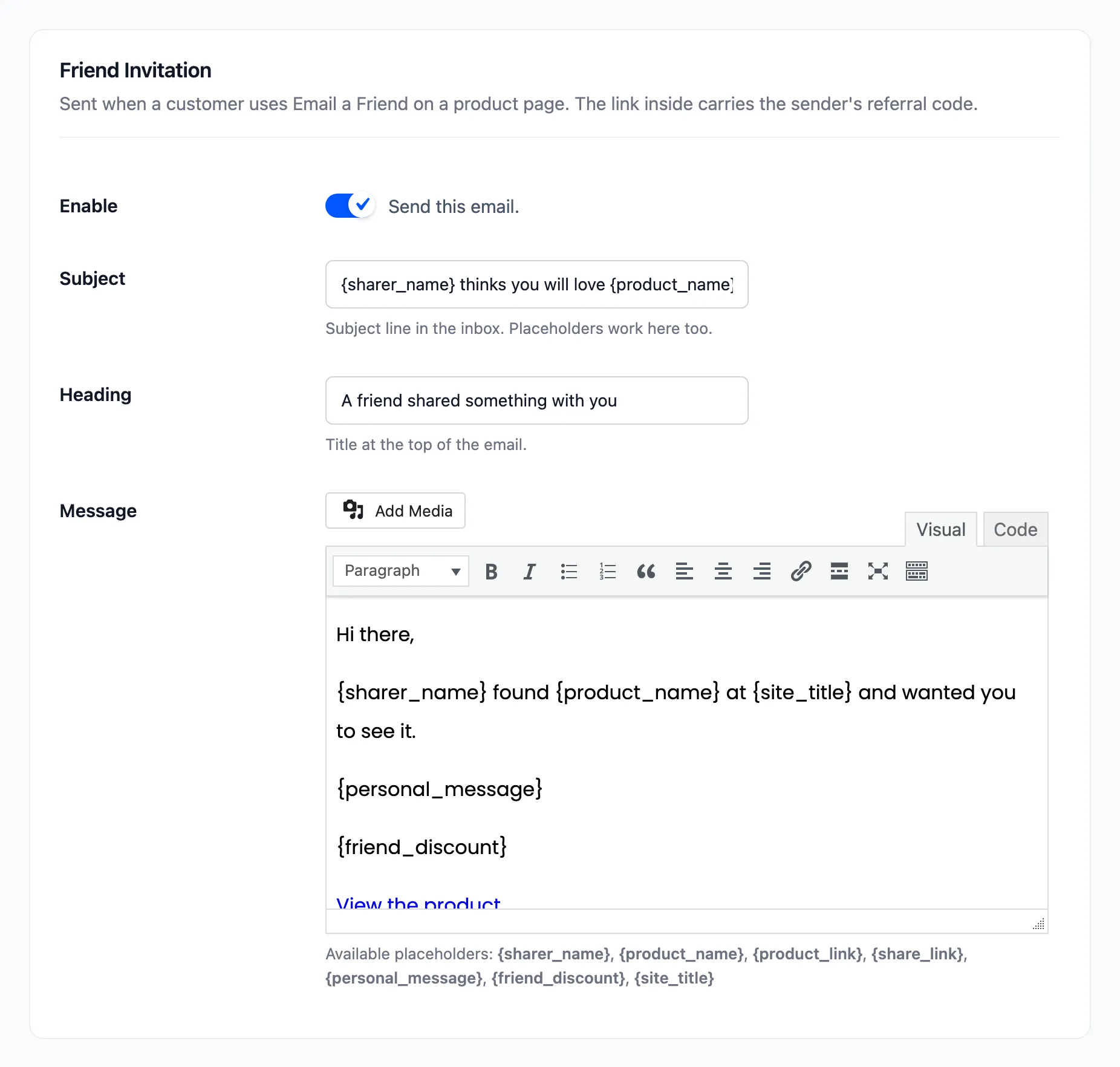
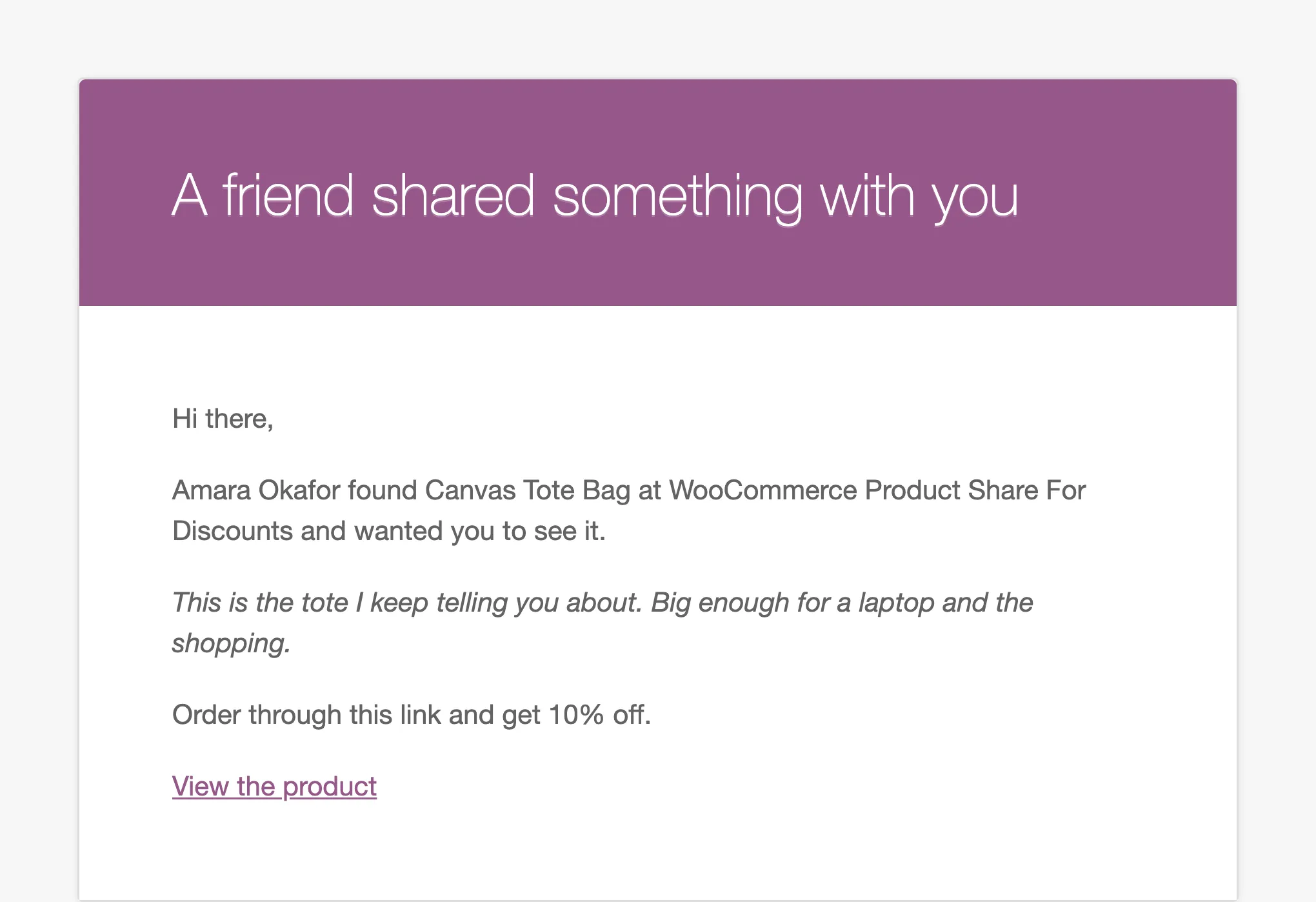
Sent to the address a customer types in Email a friend. Default subject: {sharer_name} thinks you will
love {product_name}. Placeholders: {sharer_name}, {product_name}, {product_link}, {share_link},
{personal_message} and {friend_discount}.
{share_link} is the product link with the customer’s referral code, so the friend gets the friend discount
through it. {personal_message} is the customer’s note, in italics, or nothing. {friend_discount} reads
“Order through this link and get 10% off.” and is empty when friends get no discount.
Reward Cancelled
Section titled “Reward Cancelled”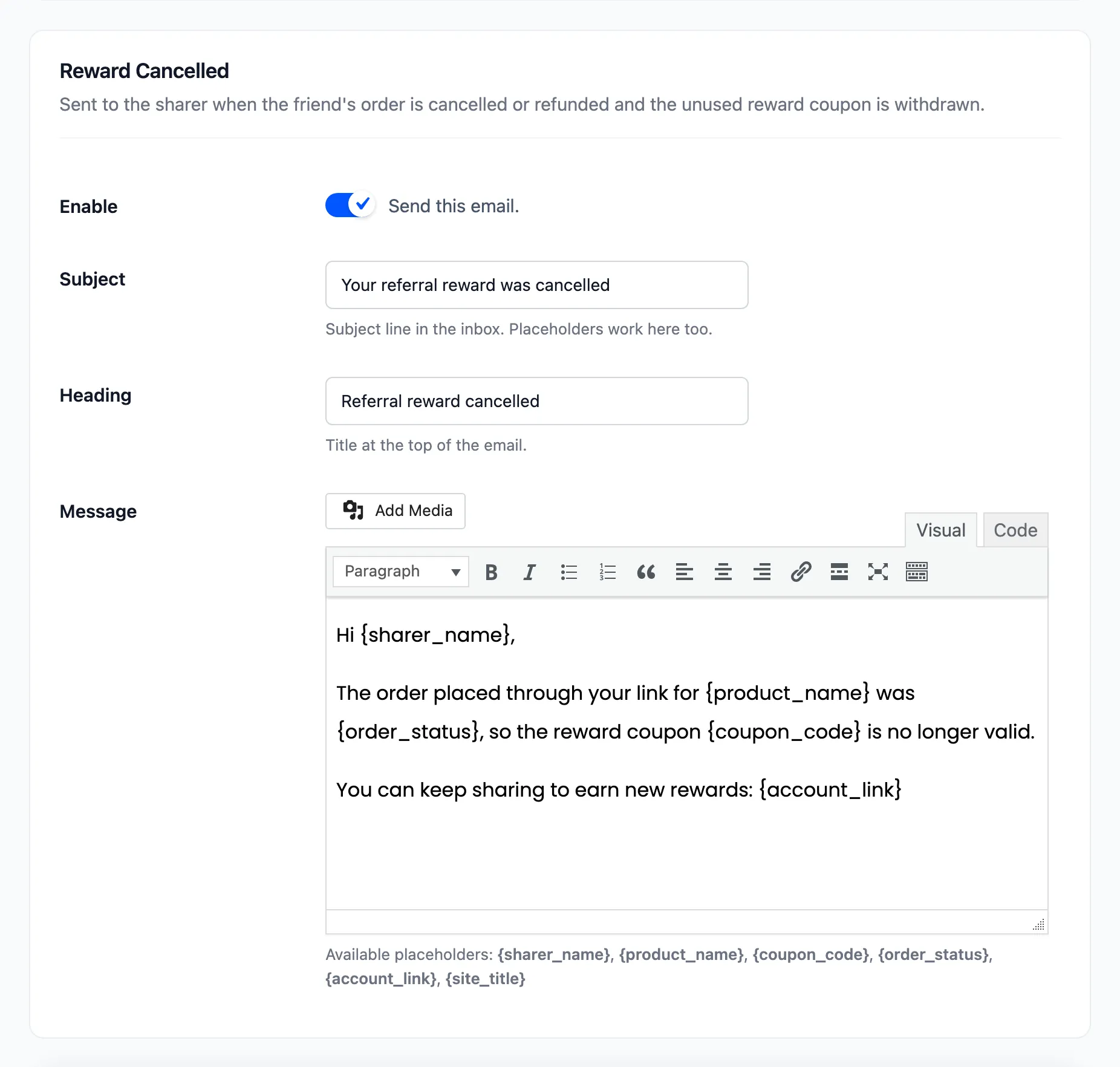
Sent to the sharer when the friend’s order is cancelled, refunded or fails after the reward was issued, and
the unused coupon is withdrawn. Default subject: Your referral reward was cancelled. Placeholders:
{sharer_name}, {product_name}, {coupon_code} and {order_status}.
No email is sent when the coupon had already been used: it stays with the sharer.
The WooCommerce email
Section titled “The WooCommerce email”All three go through one WooCommerce email, Product Share For Discounts, under WooCommerce → Settings → Emails. Its switch turns all three off at once, and it sets Email type (HTML or plain text). The look, colours and footer come from WooCommerce’s own email template settings.