

How to Choose Share Networks and the Widget Style
Six networks is a good start. The right six depend on where your customers talk: WhatsApp and Telegram for chats, Pinterest for home and fashion, LinkedIn for work gear.
Step 1: Pick the networks
Section titled “Step 1: Pick the networks”Open Configuration → Share Widget. Click in Networks to add one, or the × on a network to remove it.
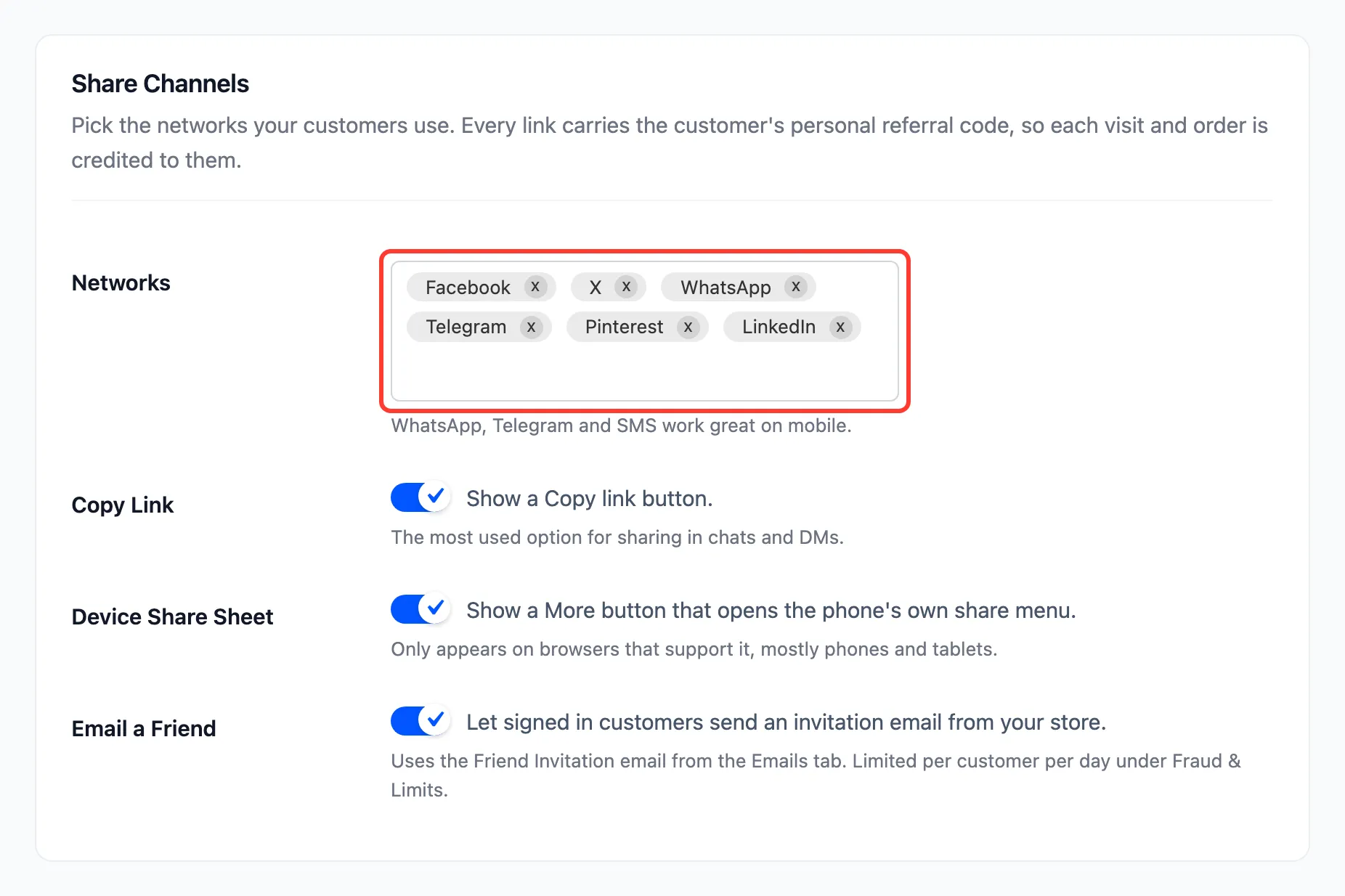
Thirteen are available: Facebook, X, WhatsApp, Telegram, Pinterest, LinkedIn, Reddit, Tumblr, VK, Viber, LINE, SMS and Email. The buttons always appear in that order, whatever order you pick them in.
On a computer, a web network opens in a small window. SMS, Email and Viber open the device’s own app instead.
Step 2: Keep or drop the extra buttons
Section titled “Step 2: Keep or drop the extra buttons”- Copy Link: The most used button. Keep it.
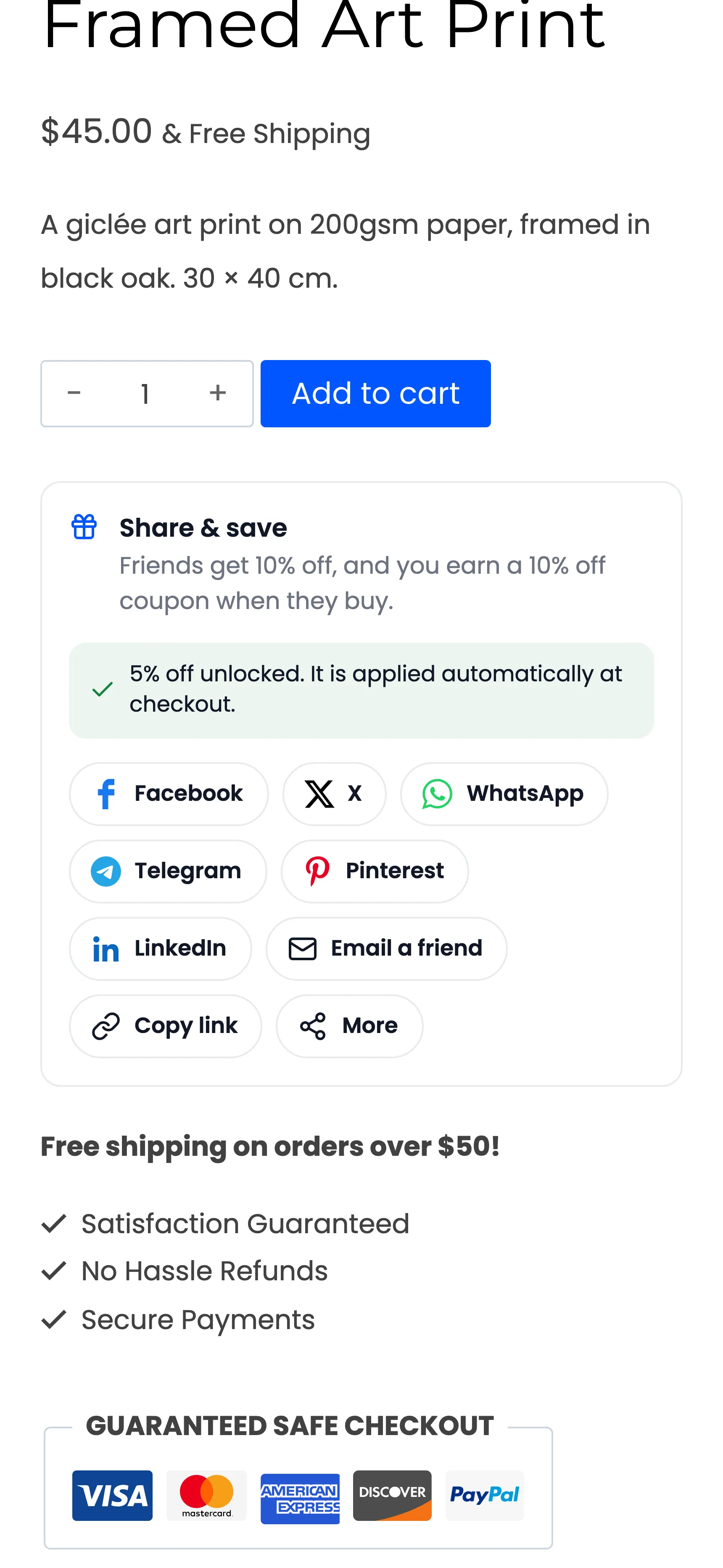
- Device Share Sheet: A More button for the phone’s own share menu, so any app works. It only shows in browsers that support it.
- Email a Friend: For signed-in customers. See How to Email a Product to a Friend.
On a phone, More sits after Copy link:
Step 3: Choose the style
Section titled “Step 3: Choose the style”Further down, under Appearance:
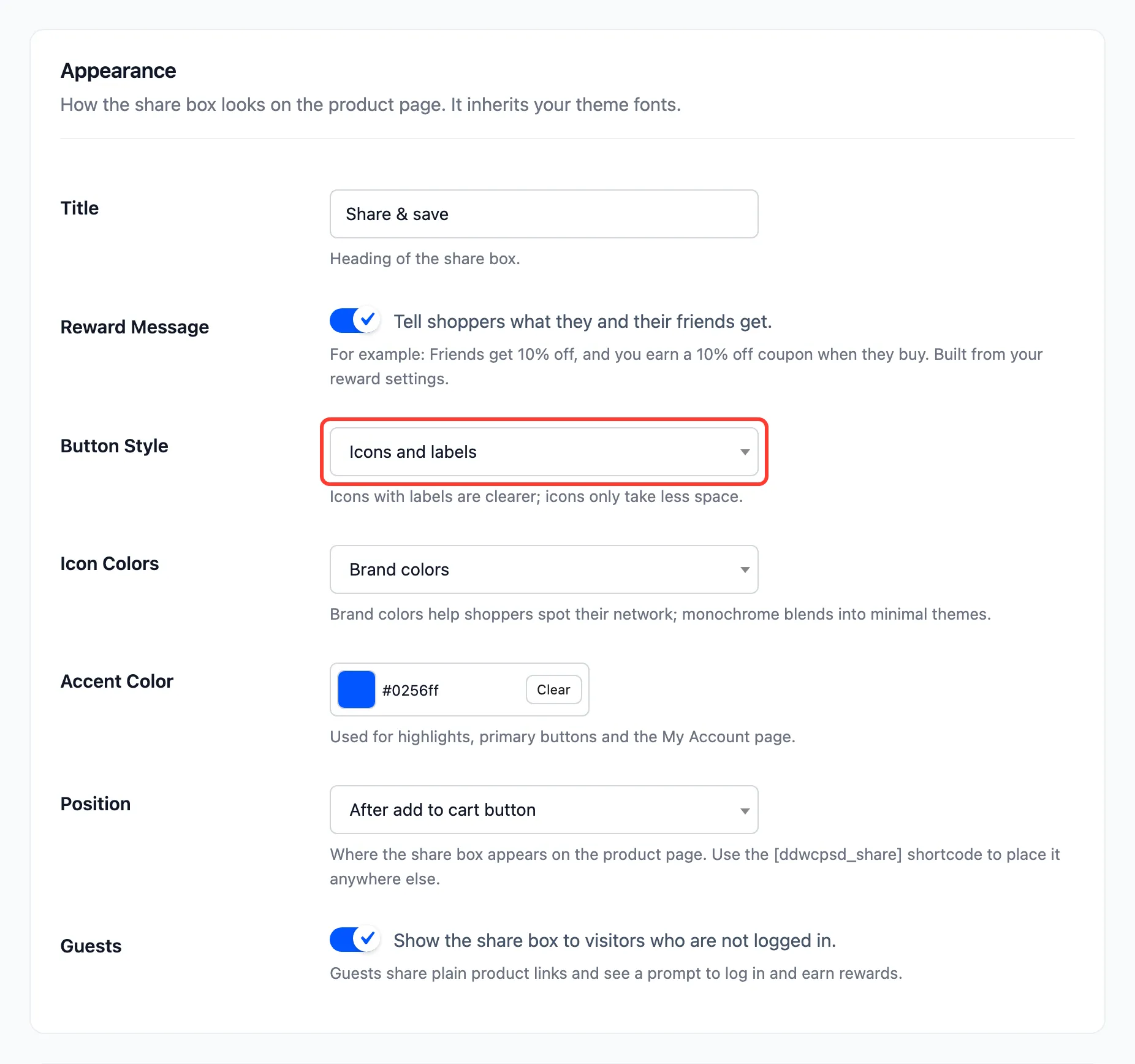
- Title: The heading, Share & save by default.
- Reward Message: The line that tells shoppers what they and their friends get.
- Button Style: Icons and labels, or Icons only to save space.
- Icon Colors: Brand colors, or Monochrome for a quiet theme.
- Accent Color: The colour of the gift icon, the primary buttons and the Share & Earn page.
Press Save Changes.
Step 4: Check the product page
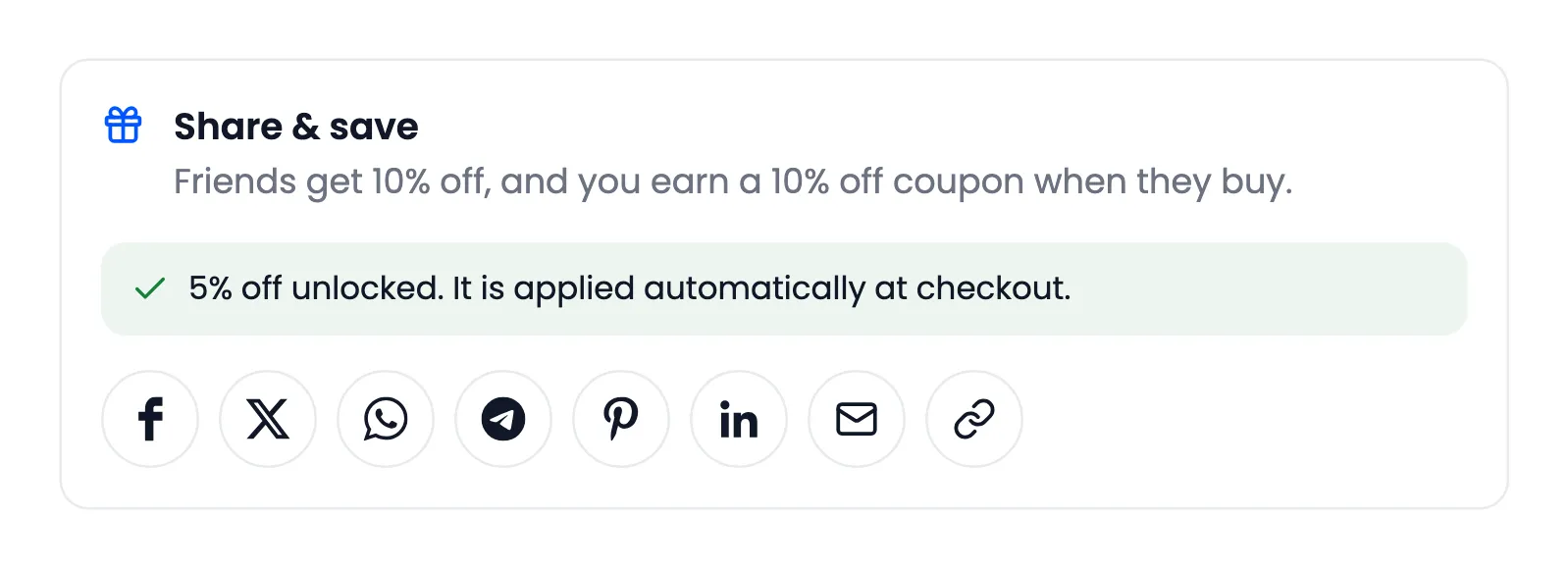
Section titled “Step 4: Check the product page”With Icons only and Monochrome, the box on the demo looked like this:
And with the defaults:
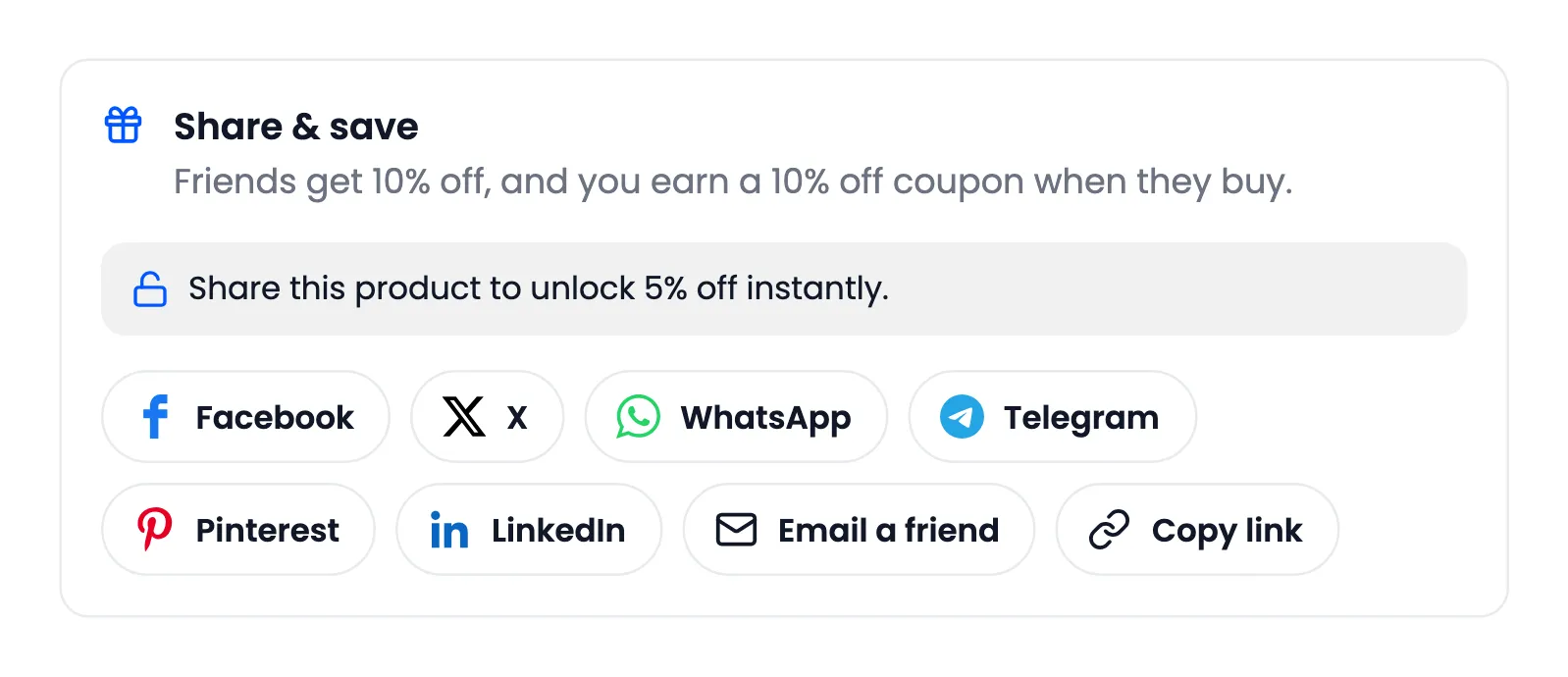
The box uses your theme’s fonts. To place it somewhere else on the page, see How to Move the Share Box on the Product Page.