How to Customize the Reward and Invitation Emails
The three emails are the plugin’s voice when nobody is on your site: the reward that brings a sharer back, the invitation a friend reads first, and the note when a reward is taken back. Their words are yours to change.
Step 1: Open the Emails tab
Section titled “Step 1: Open the Emails tab”Go to Configuration → Emails. There is one section per email.
Step 2: Edit the words
Section titled “Step 2: Edit the words”Each section has Enable, Subject, Heading and Message. The placeholders each email understands are listed under its message.
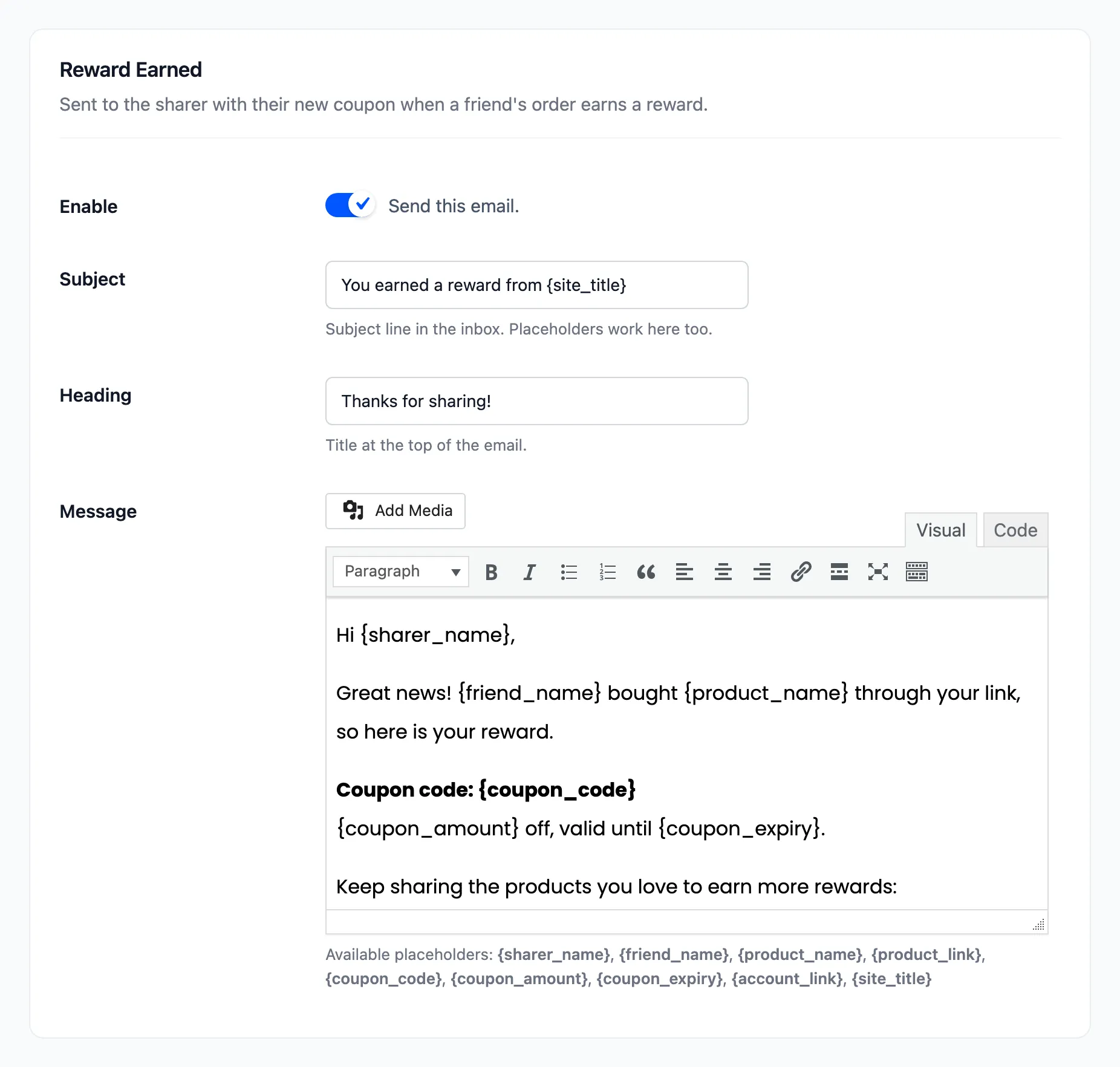
A few that do the most work:
{coupon_code},{coupon_amount}and{coupon_expiry}in Reward Earned: the code, its value such as 10%, and the expiry date or “no expiry date”.{share_link}in Friend Invitation: the link with the customer’s referral code. Without it the friend gets no discount and the customer no reward.{account_link}: a link to the customer’s Share & Earn page.
The message is a visual editor. Bold, links and line breaks carry into the email.
Step 3: Save
Section titled “Step 3: Save”Press Save Changes. The next email sent uses the new words.
Step 4: Preview it in WooCommerce
Section titled “Step 4: Preview it in WooCommerce”The emails share WooCommerce’s design. Open WooCommerce → Settings → Emails → Product Share For Discounts. The preview shows the Reward Earned email with sample values:
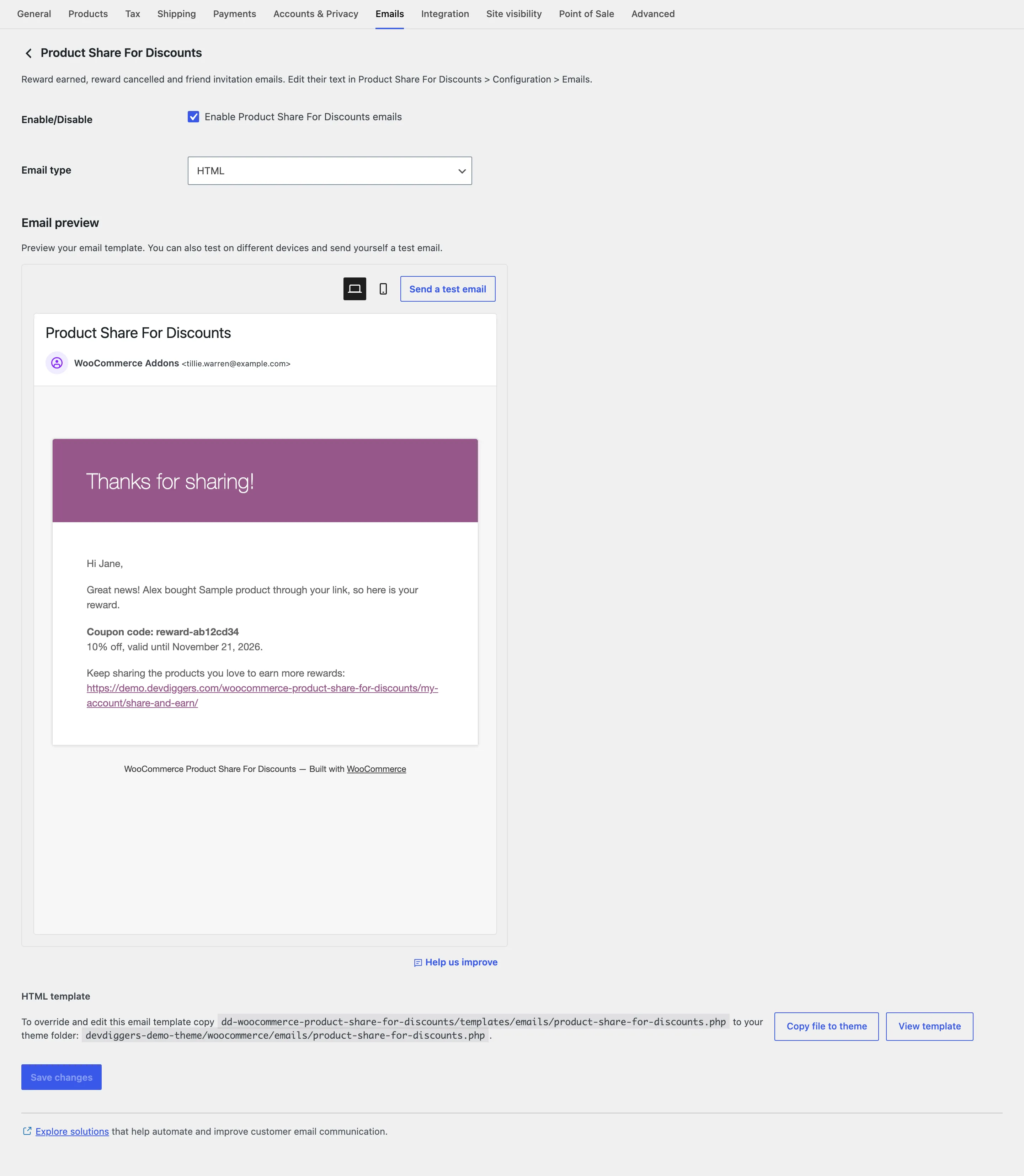
Colours, logo and footer come from WooCommerce’s own template settings at the bottom of the Emails tab. The same screen’s Enable/Disable turns all three plugin emails off at once.
How they look when sent
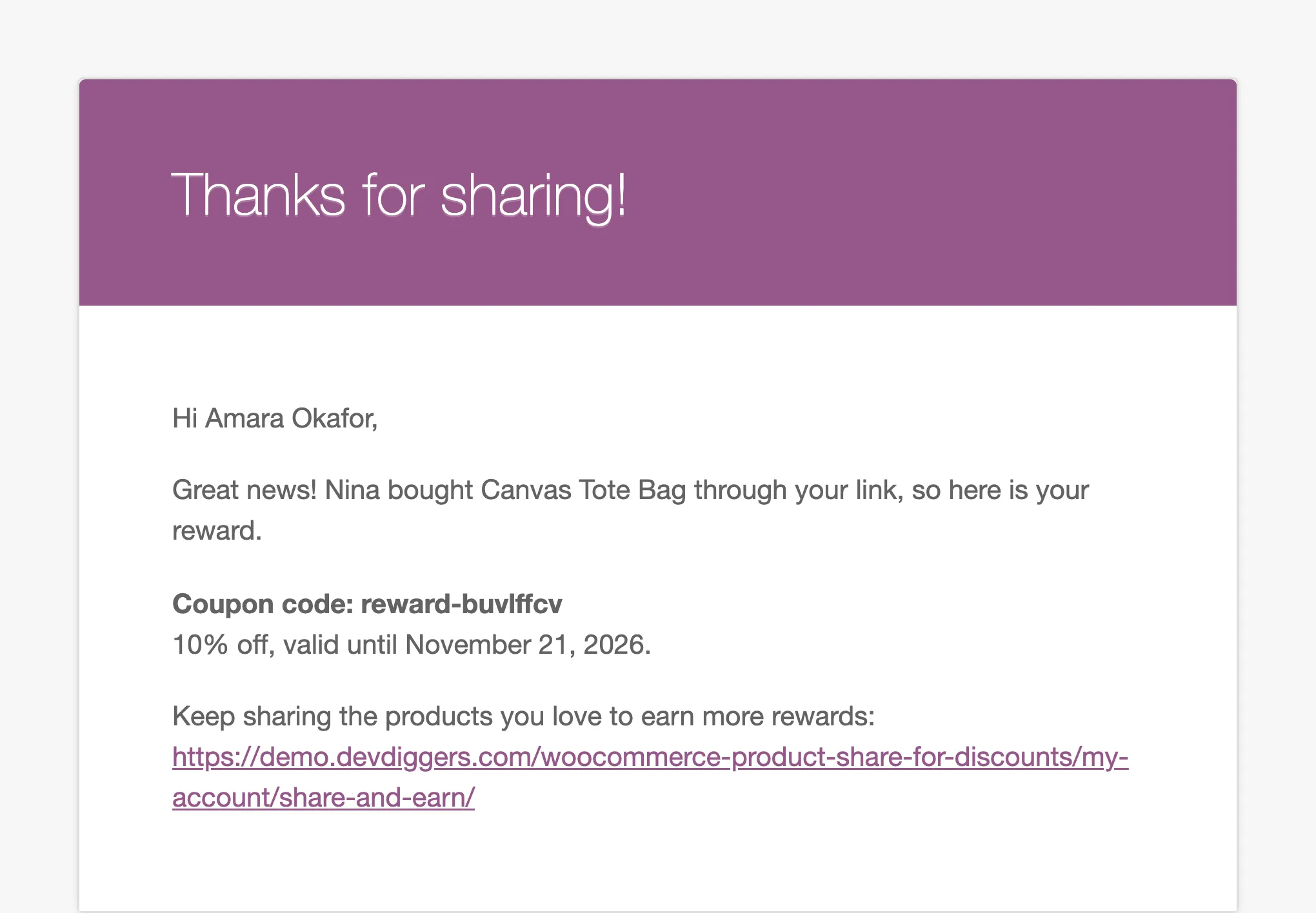
Section titled “How they look when sent”The reward Amara received on the demo:
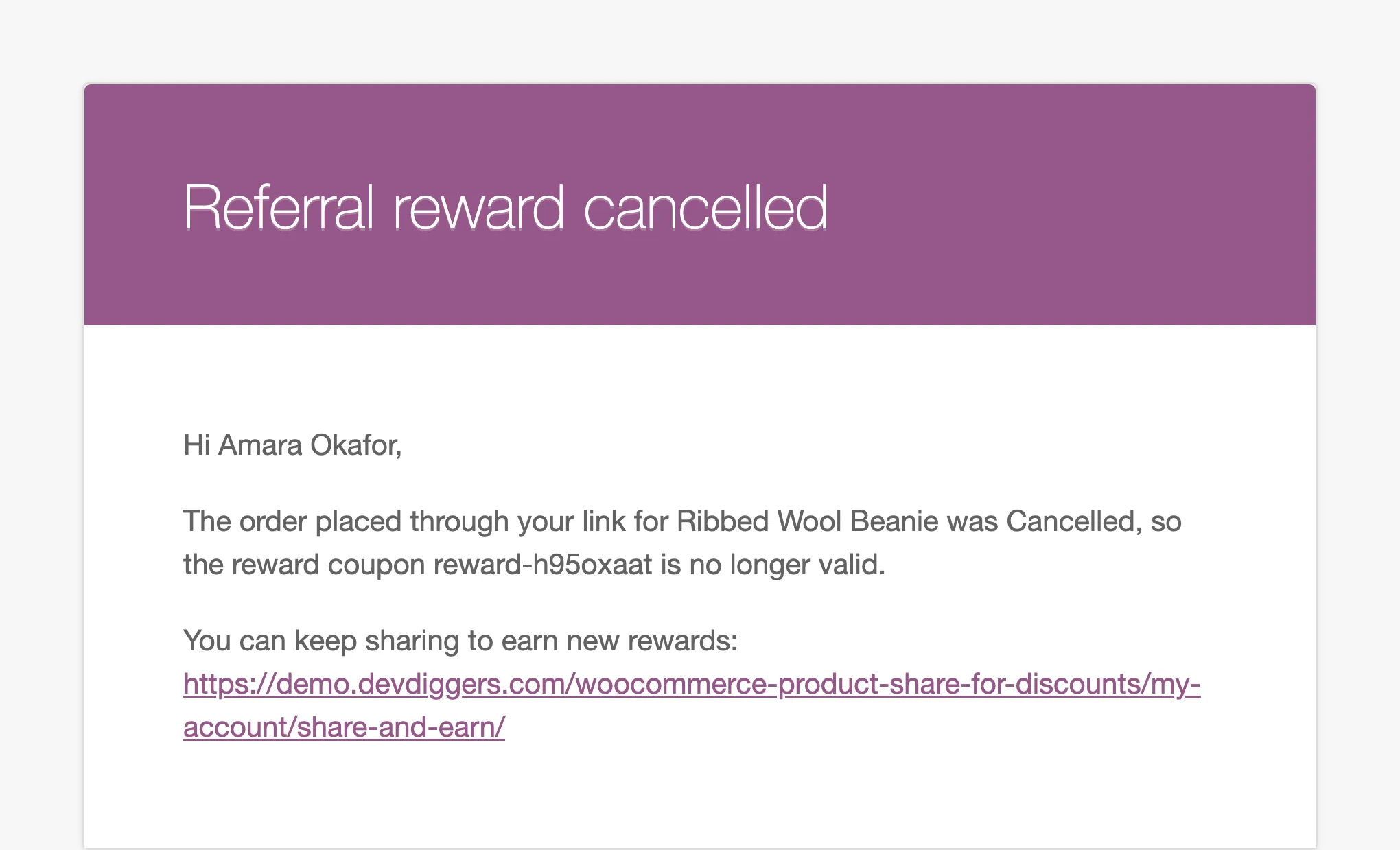
And the one she received when a friend’s order was cancelled: