

How to Let Guests Share and Use Friend Discounts
Guests appear on both sides of a referral. A guest can be the one sharing, and a guest can be the friend who buys. Three settings decide what each may do.
Step 1: Decide on guest sharers
Section titled “Step 1: Decide on guest sharers”Configuration → Share Widget → Guests is ticked by default. Guests then see the share box, but their links carry no referral code: there is nobody to reward. The box asks them to log in to share their personal link.
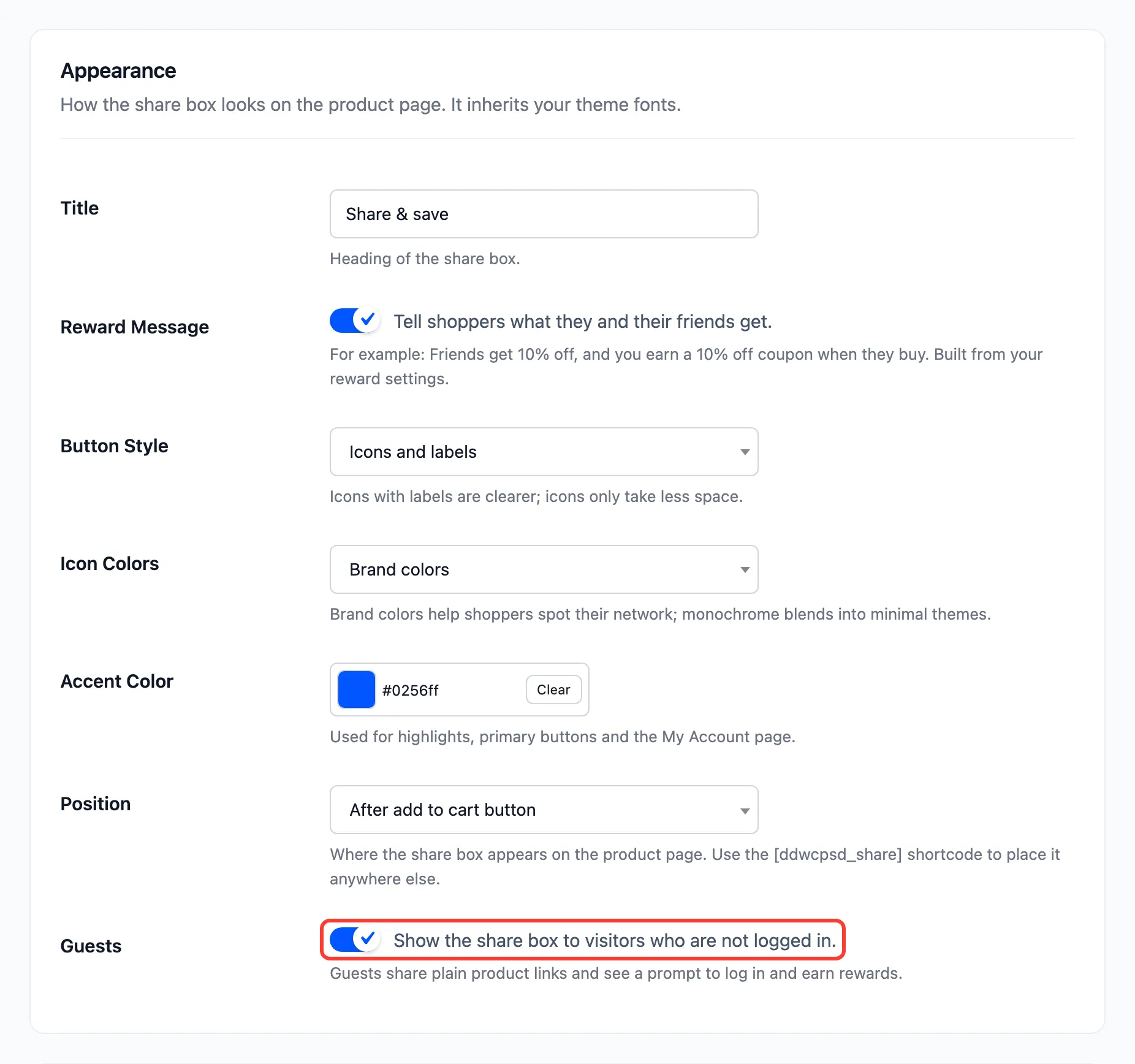
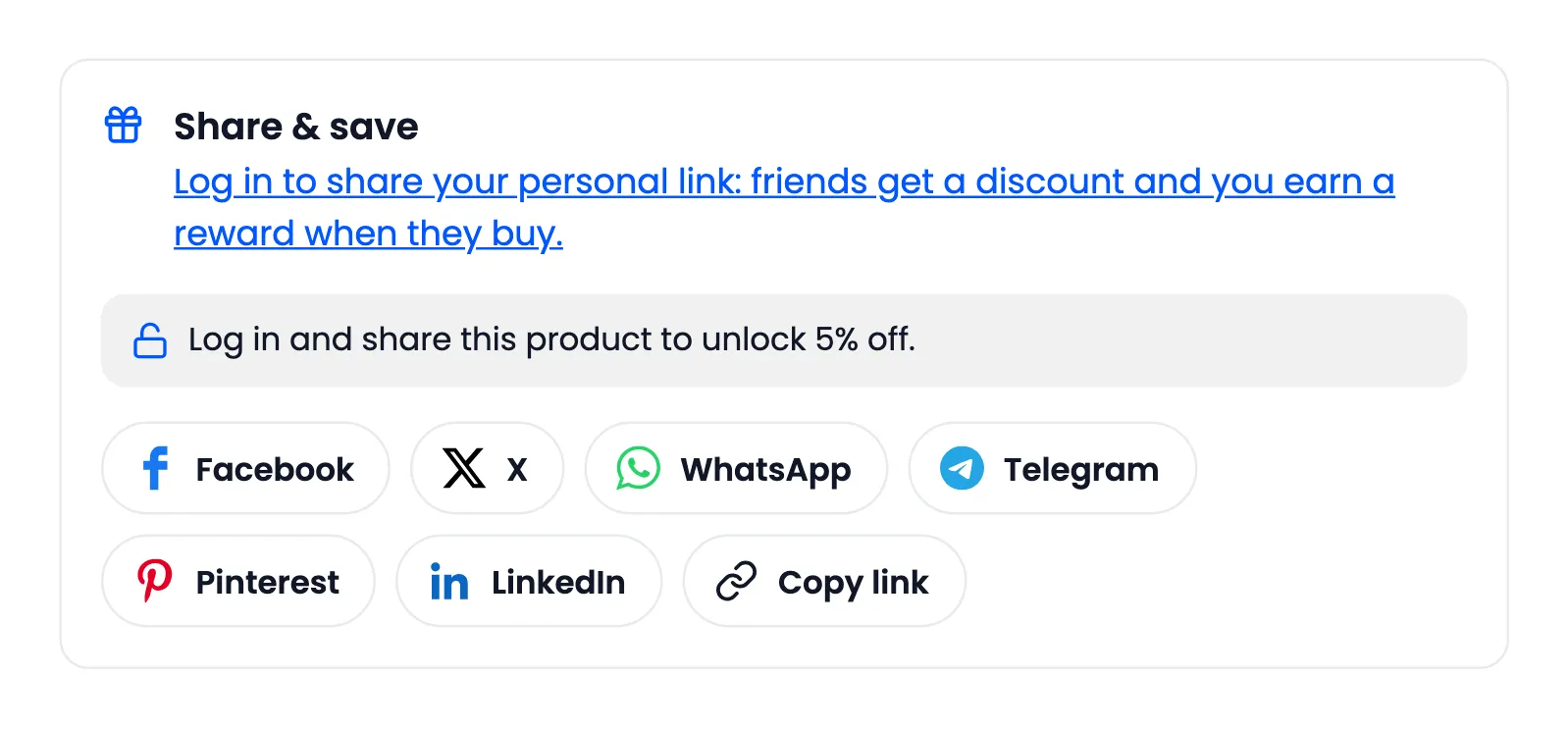
Keep it on: a plain share still brings visitors. Untick it to show the box only to signed-in customers.
Step 2: Decide on guest friends
Section titled “Step 2: Decide on guest friends”Configuration → Fraud & Limits → Guest Friends is ticked by default. A friend can then get the discount and earn the sharer a reward without an account, which is how most friends arrive.
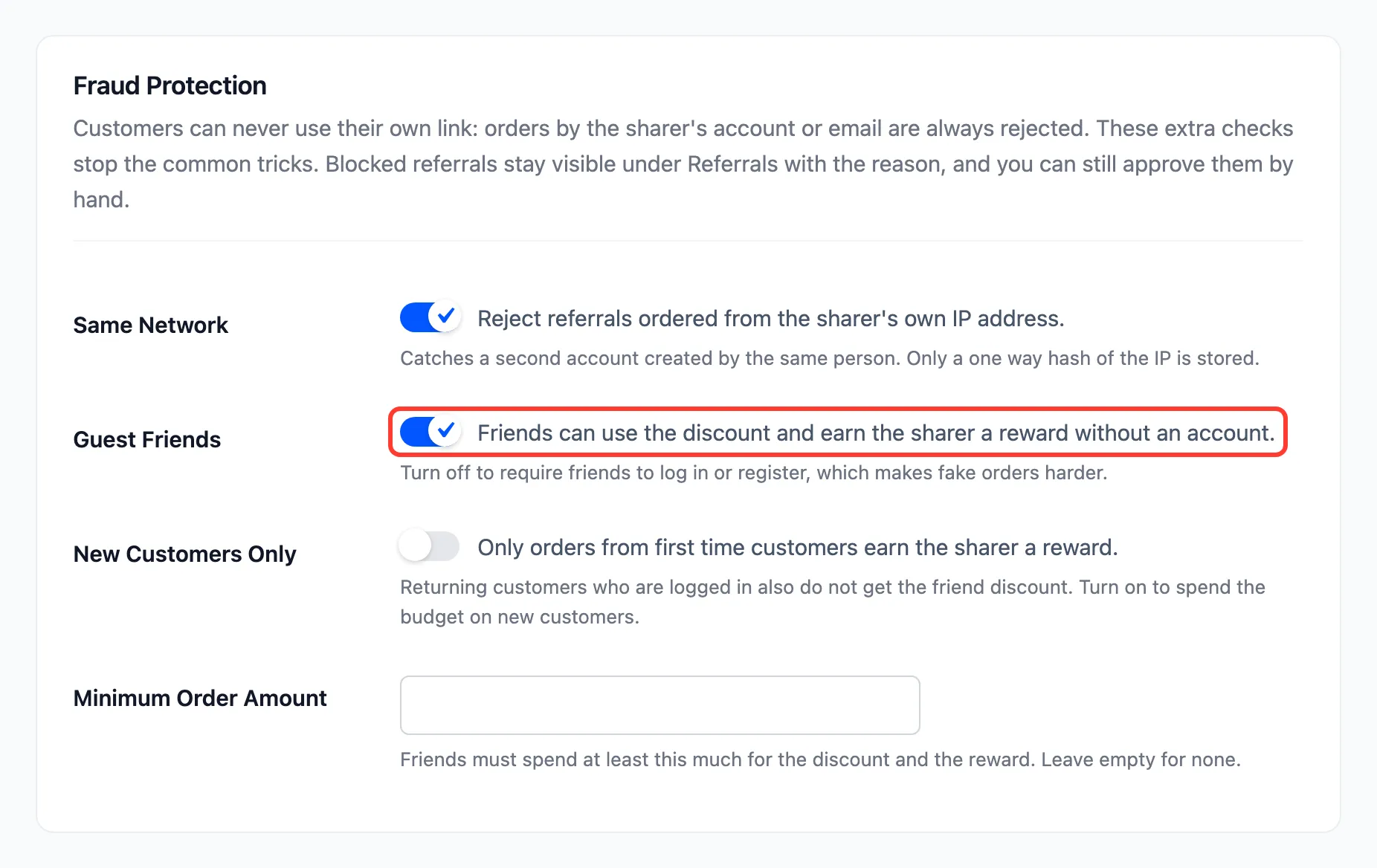
Untick it to make fake orders harder. On the demo, with it off, a guest who opened Amara’s link was asked to log in first:
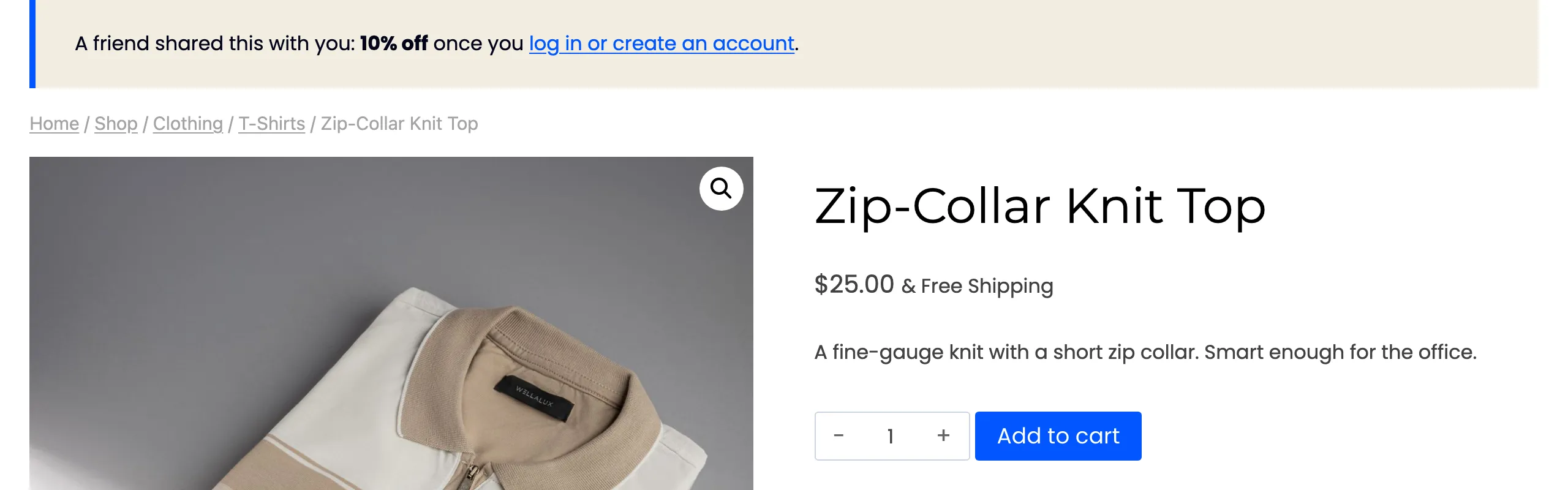
The cart added no discount, and the guest’s order was recorded as Rejected: “Guest orders are not eligible.”

A friend who logs in or registers, then orders, gets the discount and earns the reward. The referral cookie survives the login.
Step 3: Decide on guest unlocks
Section titled “Step 3: Decide on guest unlocks”Configuration → Share to Unlock → Require Login is ticked by default. Guests see Log in and share this product to unlock 5% off. Untick it to let guests unlock too. A guest’s unlock lasts as long as their browser session, so a new session can unlock the same product again.
Press Save Changes on each tab you change.