

How to Add a Share & Earn Page with Shortcodes
My Account is not the only place for the program. Three shortcodes cover a “Refer a friend” page in your main menu, a block on a thank-you page, or a share box on a landing page.
Step 1: Copy a shortcode
Section titled “Step 1: Copy a shortcode”Go to Configuration → Shortcodes.
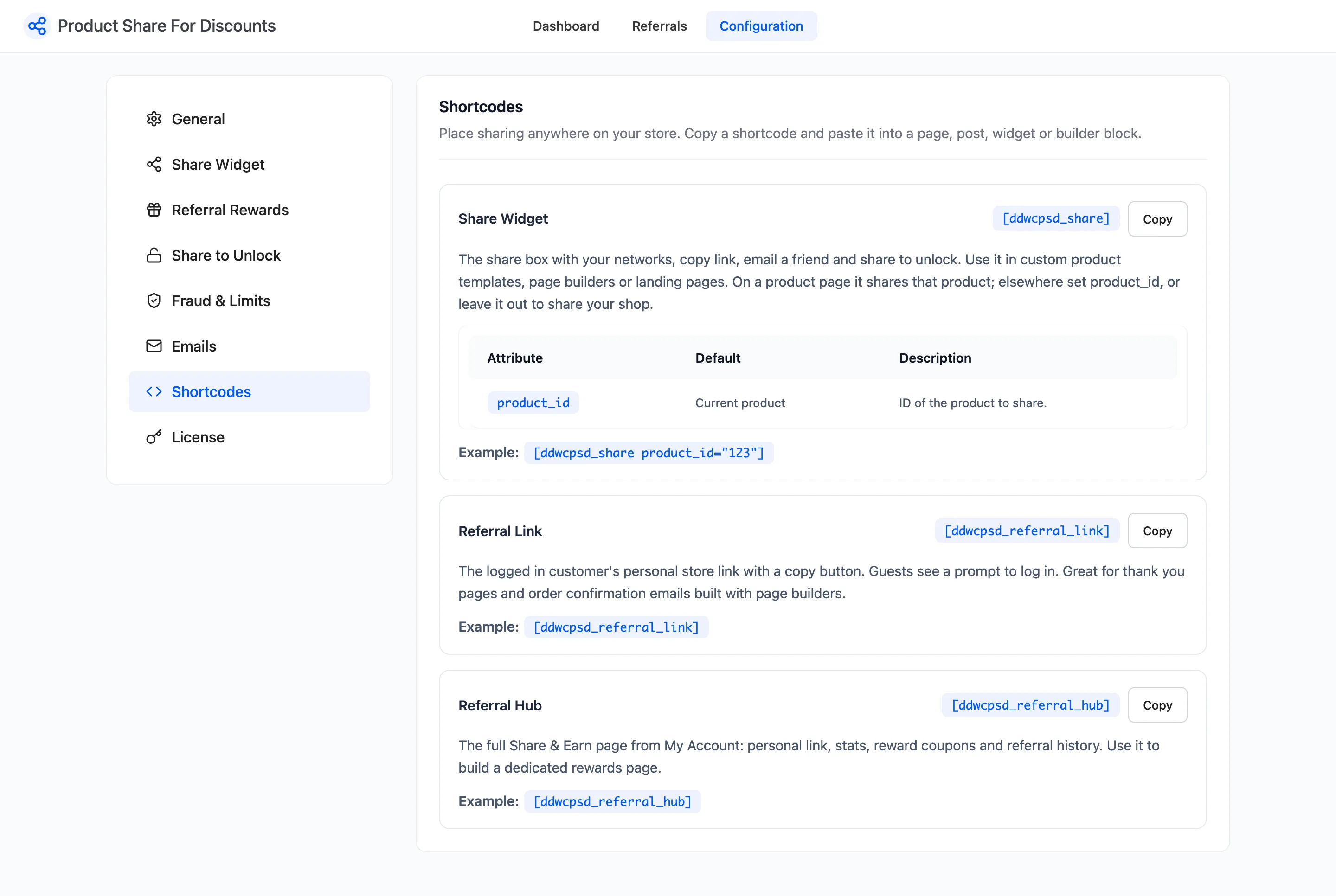
[ddwcpsd_referral_link]: the customer’s personal shop link with a Copy button.[ddwcpsd_share product_id="34"]: the share box for one product. Leaveproduct_idout on a product template to share that product, or on any other page to share your shop.[ddwcpsd_referral_hub]: the whole Share & Earn page.
Step 2: Add a page
Section titled “Step 2: Add a page”Go to Pages → Add New, give the page a title, add a Shortcode block and paste the shortcode. A Classic editor page takes it as plain text.
On the demo, a page called Share and Earn held the referral link and a share box for the Canvas Tote Bag (product 34), each with a line of text above it.
Step 3: Publish and check it
Section titled “Step 3: Publish and check it”Press Publish, then open the page. Signed in as Amara:
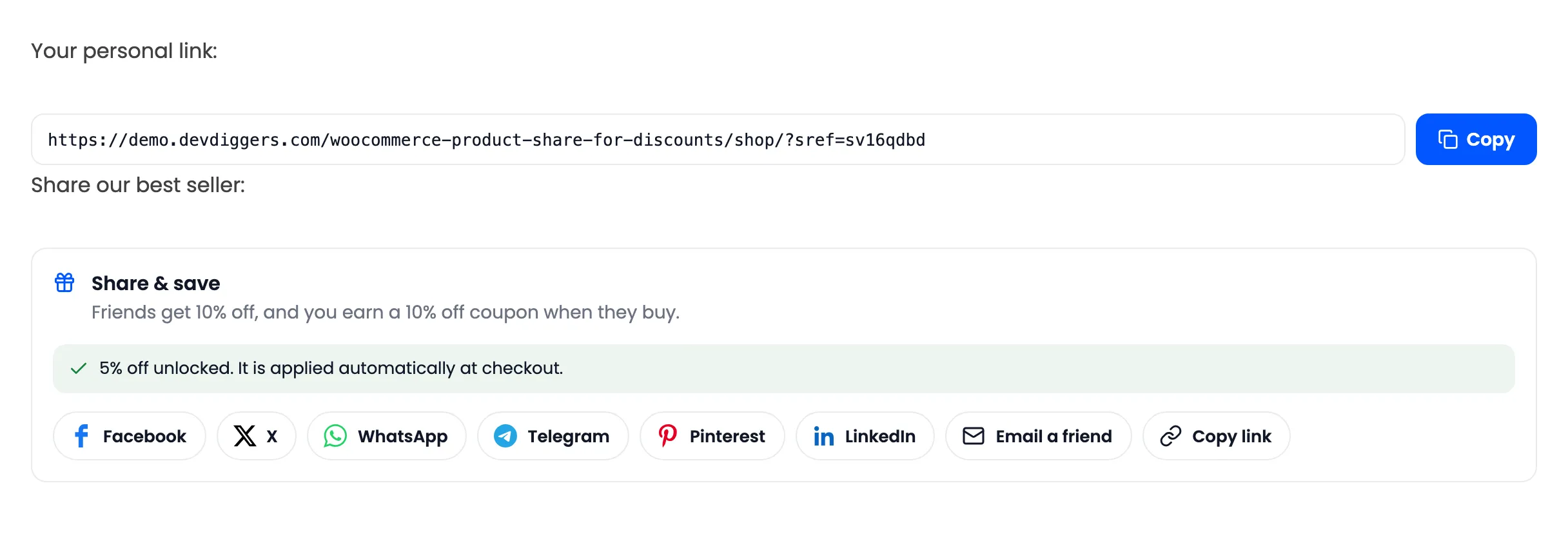
Copy puts the link on her clipboard and says “Link copied to clipboard.” under it.
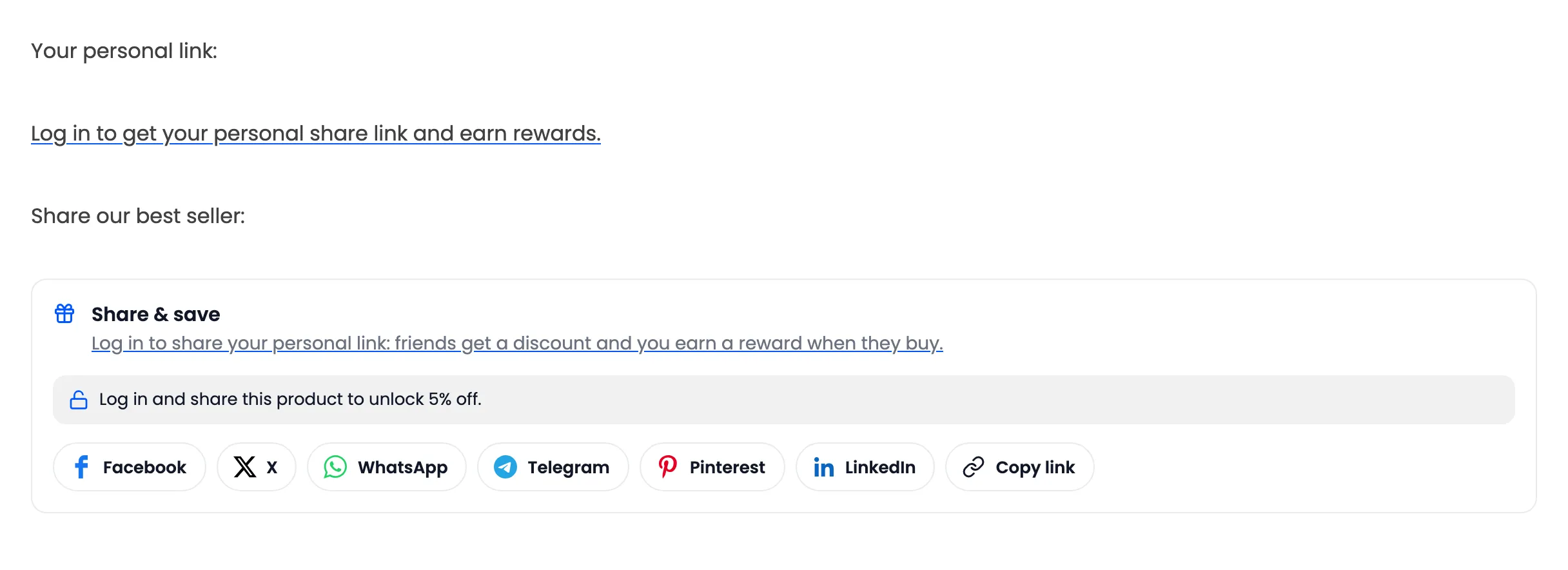
Signed out, the link shortcode asks the visitor to log in, and the share box shares a plain link:
Good to know
Section titled “Good to know”- The page needs no setup: The shortcodes load their own styles and script on whatever page they are on.
- Guests: The share box follows the Guests setting on the Share Widget tab.
- Paused program: With Enable Program off or the license inactive, the shortcodes print nothing.