

Share Widget Settings
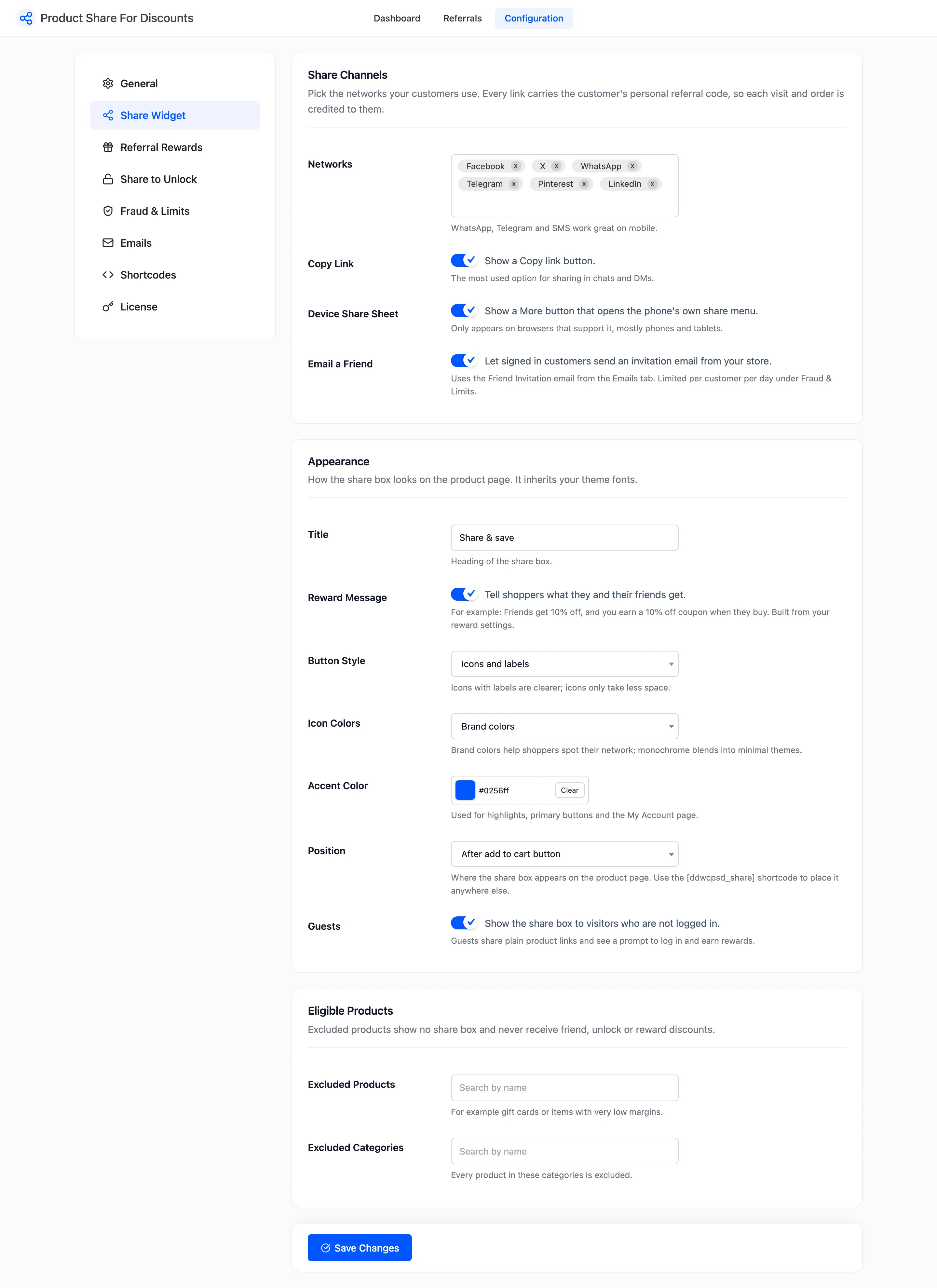
The Share Widget tab decides what the share box on the product page offers, how it looks, where it sits and which products have one. Open Product Share For Discounts → Configuration → Share Widget.
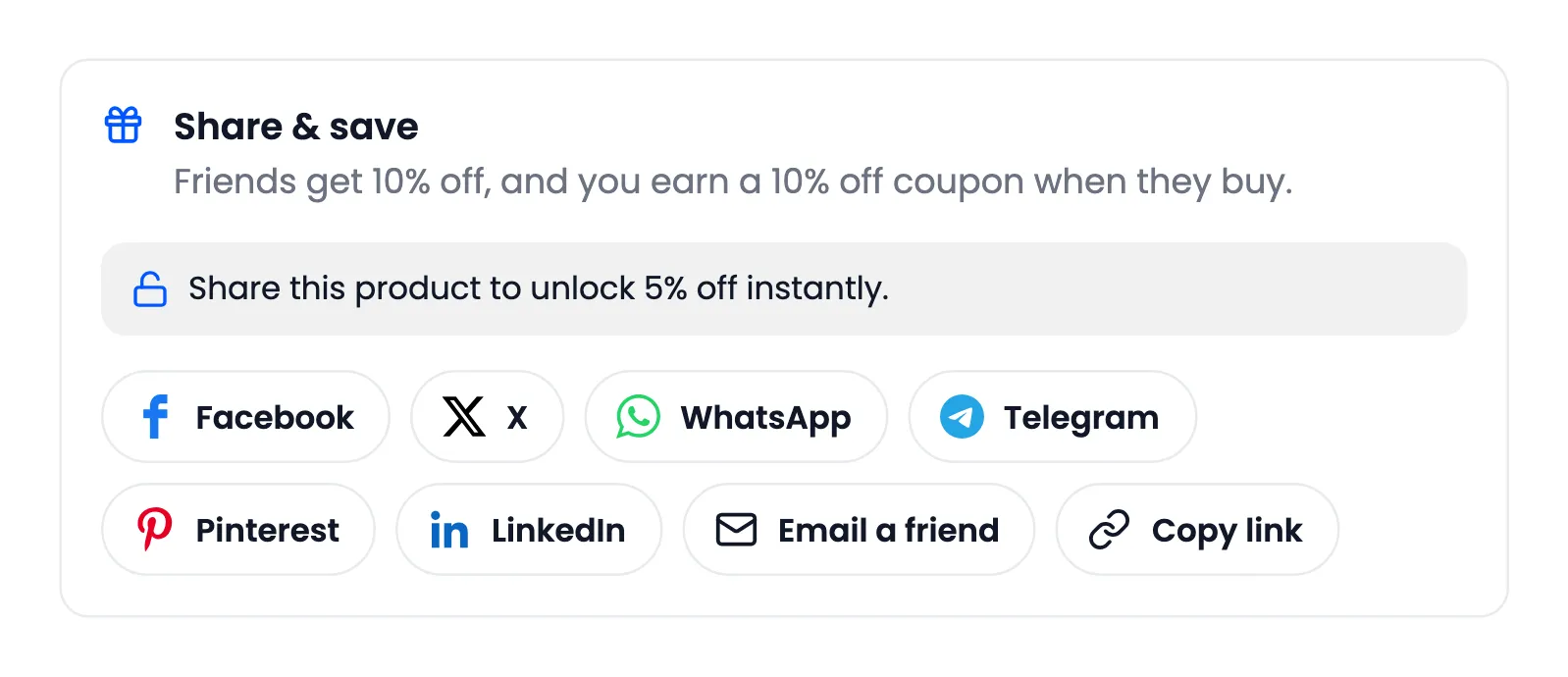
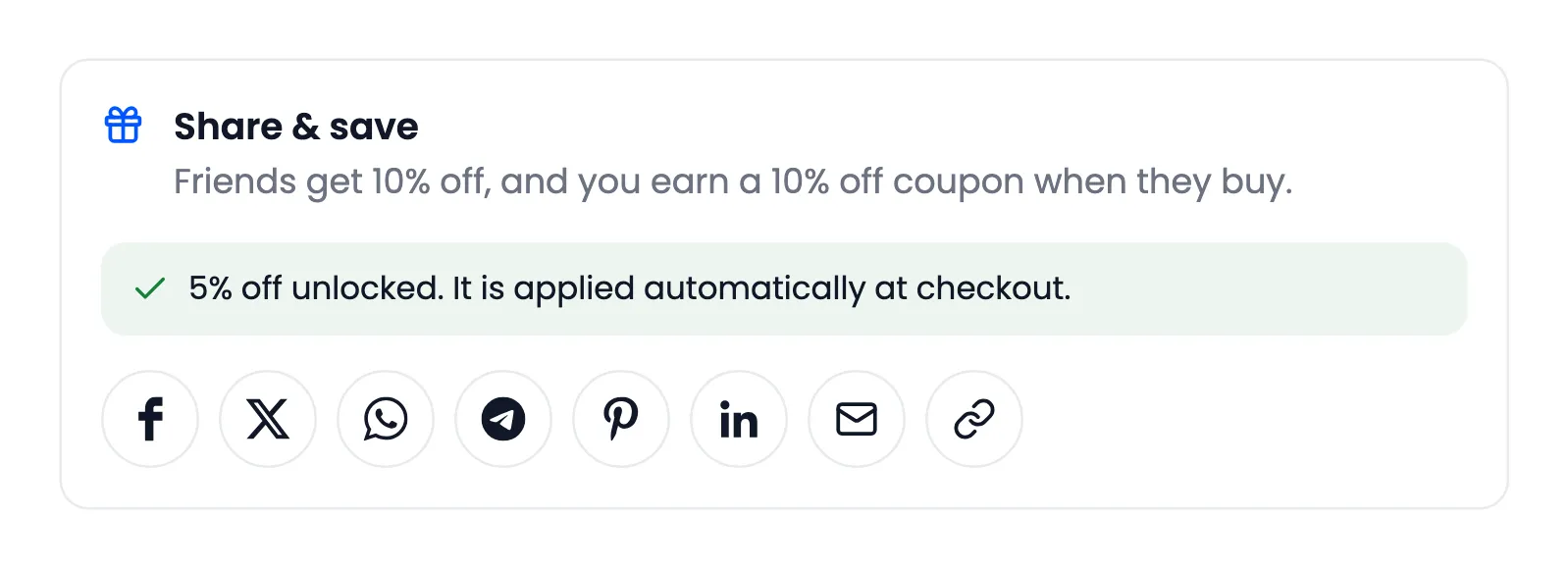
This is the box customers see:
Share Channels
Section titled “Share Channels”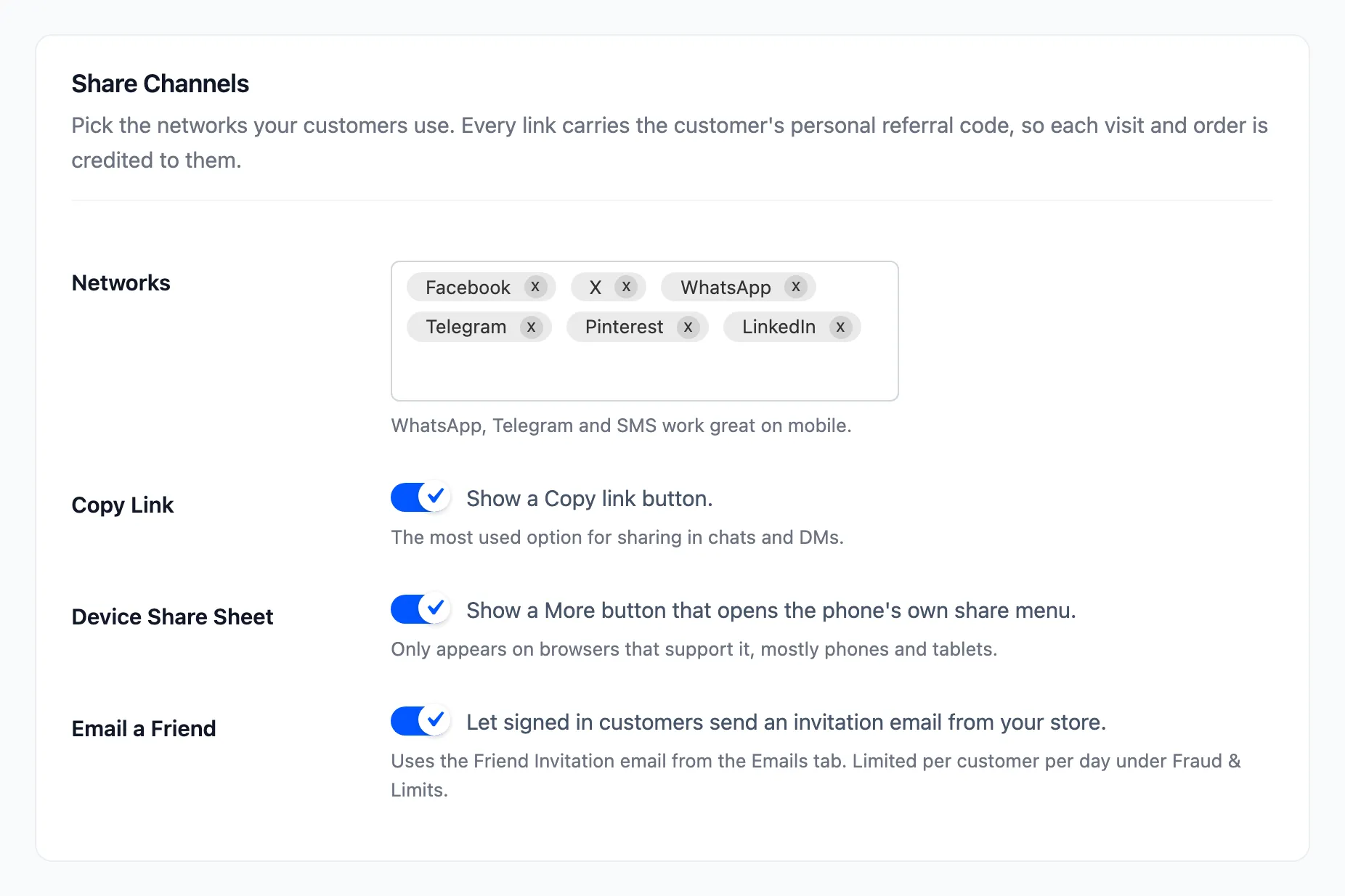
- Networks: Facebook, X, WhatsApp, Telegram, Pinterest and LinkedIn by default. Thirteen are available: those six plus Reddit, Tumblr, VK, Viber, LINE, SMS and Email. Each button opens that network with the customer’s personal link already in it.
- Copy Link: Ticked by default. Adds a Copy link button, the most used way to share in chats.
- Device Share Sheet: Ticked by default. Adds a More button that opens the phone’s own share menu. It only appears in browsers that support it, mostly phones and tablets.
- Email a Friend: Ticked by default. Signed-in customers can send an invitation email from your store. It uses the Friend Invitation email from the Emails tab, and the daily cap under Fraud & Limits.
Leaving Networks empty is allowed. The box then shows only the buttons ticked below it.
Appearance
Section titled “Appearance”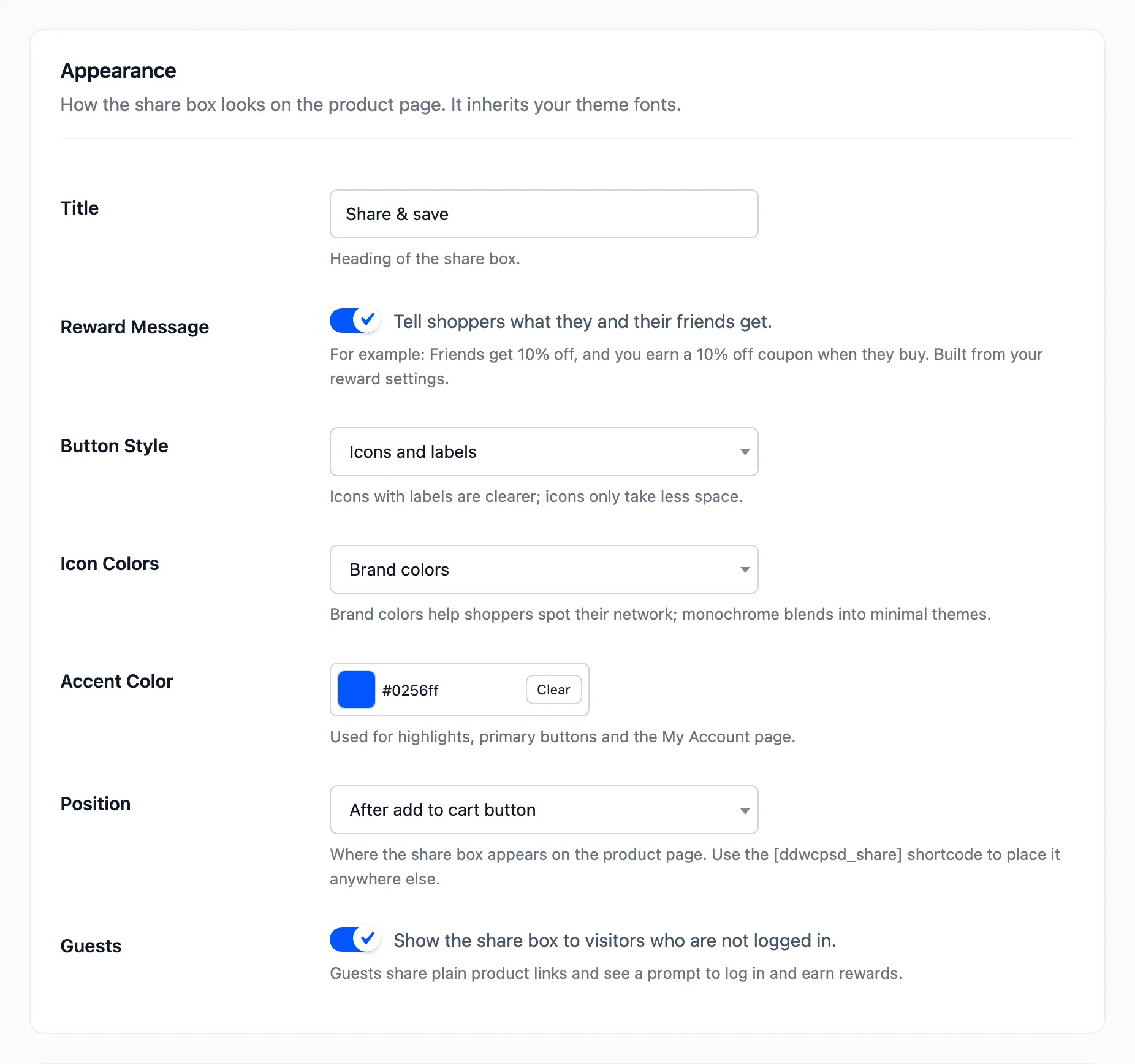
- Title: Default Share & save. The heading of the share box.
- Reward Message: Ticked by default. A line under the title, built from your reward settings. For example: “Friends get 10% off, and you earn a 10% off coupon when they buy.” Guests see a log-in prompt instead.
- Button Style: Icons and labels (default) or Icons only.
- Icon Colors: Brand colors (default) or Monochrome.
- Accent Color: Default #0256ff. Used for highlights, the primary buttons and the Share & Earn page.
- Position: Default After add to cart button. Also: before or after the product title, after the short description, after the product meta, below the product images, or before the product tabs.
- Guests: Ticked by default. Shows the share box to visitors who are not logged in.
A guest’s link carries no referral code, so it earns nobody a reward and gives the friend no discount. The box tells guests to log in to share their personal link.
Eligible Products
Section titled “Eligible Products”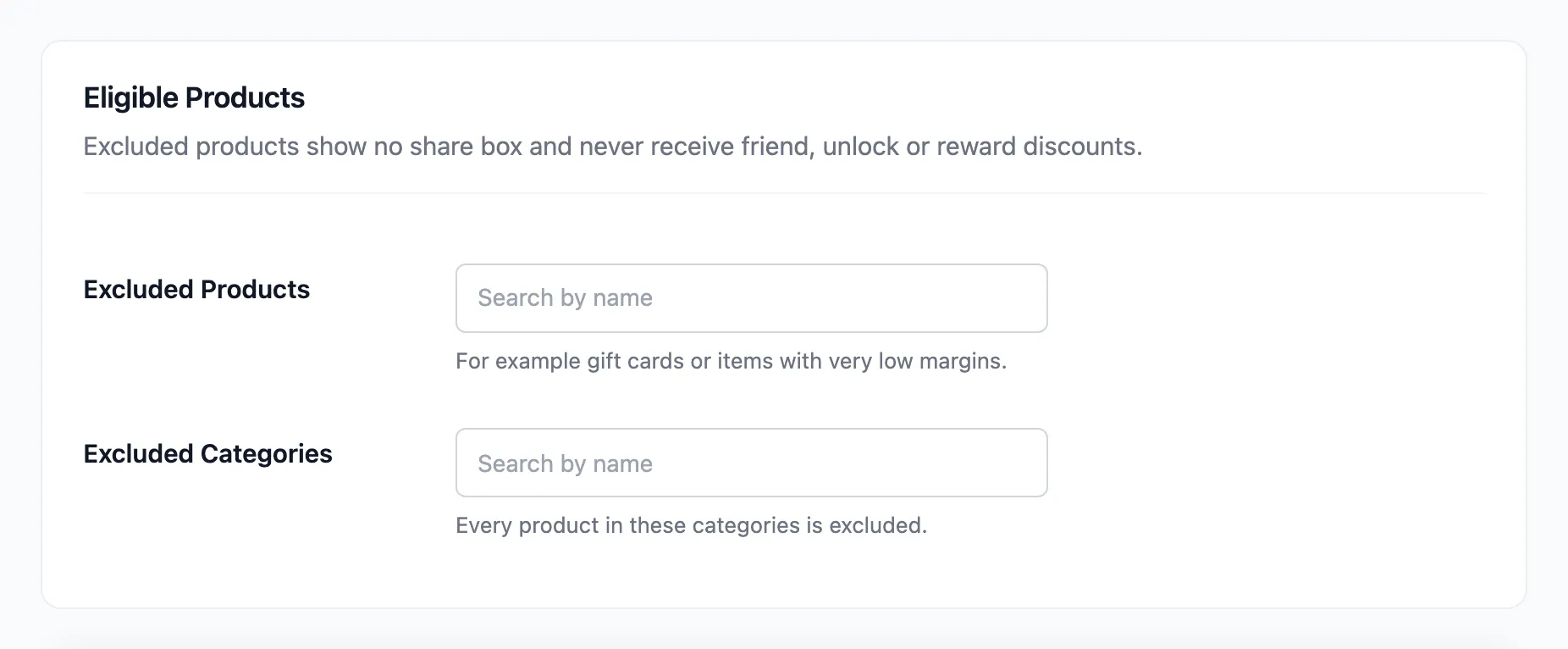
- Excluded Products: Empty by default. These products show no share box and never get a friend, share or reward discount. Gift cards and low-margin items are the usual choice.
- Excluded Categories: Empty by default. Every product in these categories is excluded.
A variation follows its parent product: excluding a variable product excludes all its variations.