

How to Export Referrals to CSV
The CSV is the record for an accountant, a payout check or a look in a spreadsheet. It holds the same rows the list shows, all of them, not one page.
Step 1: Open Referrals
Section titled “Step 1: Open Referrals”Go to Product Share For Discounts → Referrals.
Step 2: Filter the list
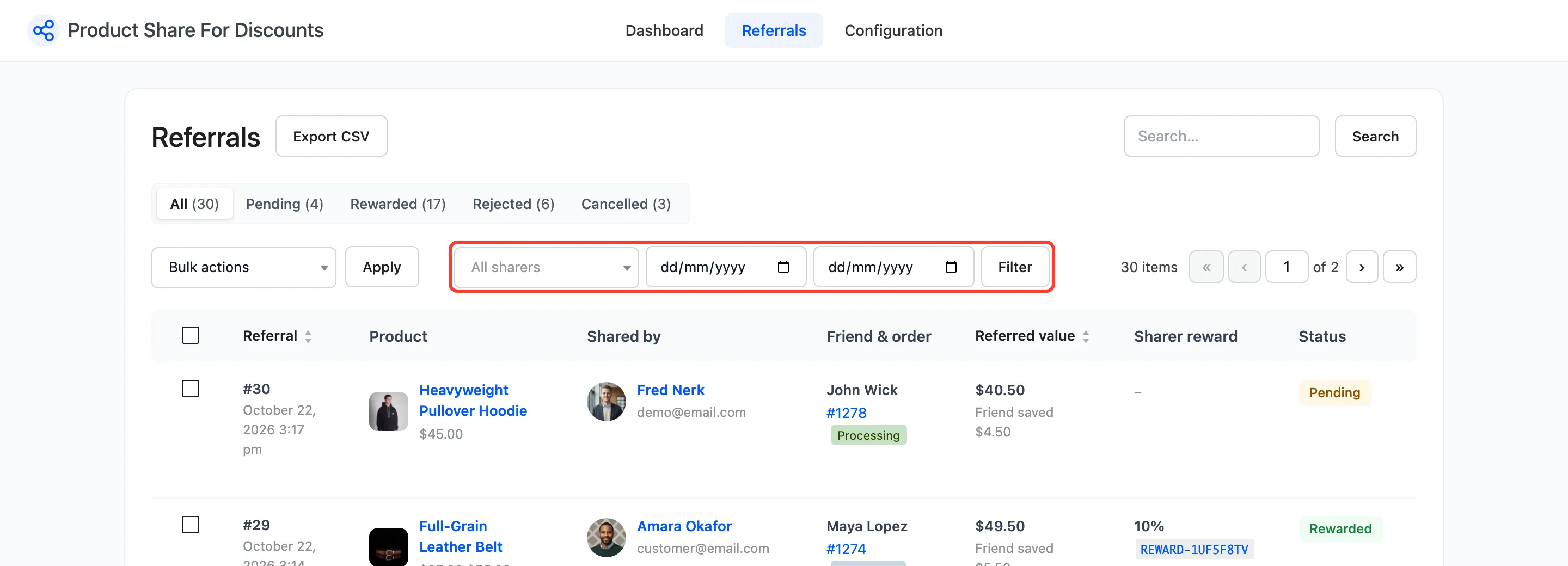
Section titled “Step 2: Filter the list”Pick a status view along the top, a sharer, a date range, or search by referral ID, order number or friend email. Press Filter.
Step 3: Export
Section titled “Step 3: Export”Press Export CSV beside the heading. The file is named referrals- and the date, such as
referrals-2026-10-22.csv, and opens in any spreadsheet.
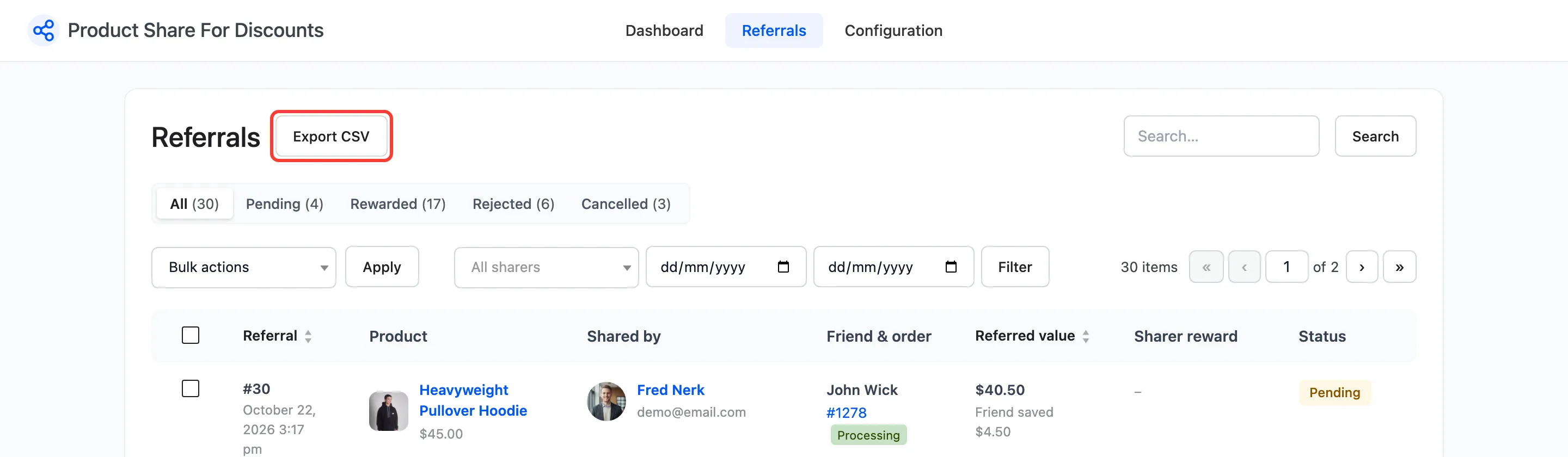
The export keeps the status view, the sharer, the dates and the search you had on screen.
The columns
Section titled “The columns”| Column | What it holds |
|---|---|
| ID | The referral number |
| Date | When the friend’s order was placed |
| Status | Pending, Rewarded, Rejected or Cancelled |
| Sharer, Sharer Email | The customer whose link it was |
| Friend Email | The friend’s billing email |
| Order | The order number |
| Product | The shared product |
| Referred Value | What the friend spent on eligible products, after their discount |
| Friend Discount | What the friend saved |
| Sharer Reward | The reward coupon’s value, such as 10% or $2.52 |
| Coupon | The reward coupon’s code |
| Note | The reason key for a rejection or cancellation, such as same_ip or refunded |
A cell that starts with =, +, - or @ gets an apostrophe in front, so a spreadsheet does not run it as a
formula.