

How to Set Up Points Redemption
Redemption is the second half of a loyalty program. This guide lets customers turn their points into a discount at the cart and checkout.
By the end, a customer with enough points will be able to redeem them for money off an order.
Before you start
Section titled “Before you start”Set up points earning first, and have a test customer who already holds some points. You cannot test redemption without a balance to spend.
Step 1: Set the conversion rate
Section titled “Step 1: Set the conversion rate”Go to DevDiggers Plugins → LoyaltyX → Configuration → Points Redeeming. Under Global Points Conversion Rate, set Points Conversion. Read it as “this many points equals this much discount”.
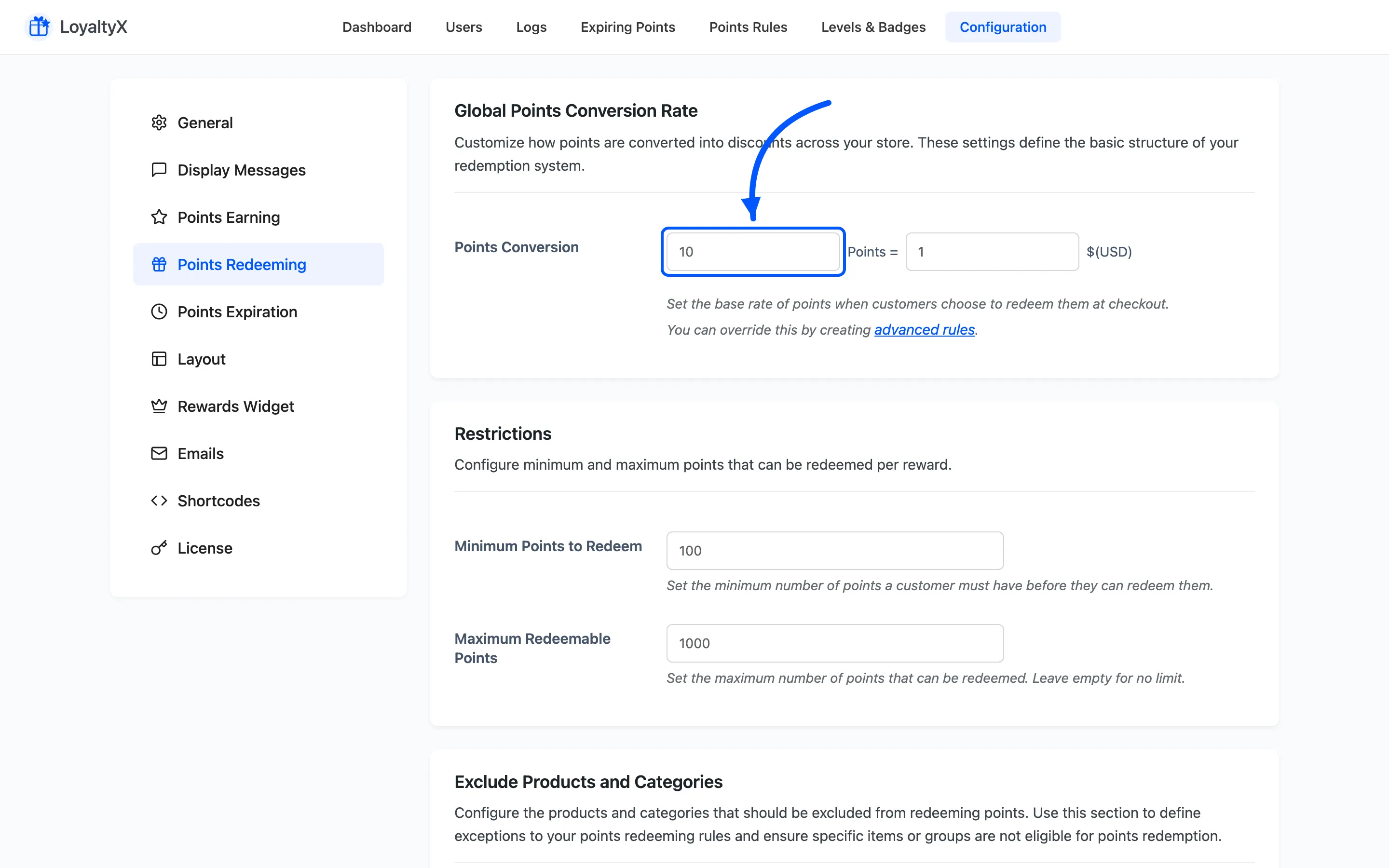
A common rate is 100 points = 1 unit of currency. Keep the earning and redemption rates in proportion. Say customers earn 1 point per unit spent and redeem 100 points per unit. Every 100 units spent then returns 1 unit of discount, which is a one percent reward.
Step 2: Add redemption limits
Section titled “Step 2: Add redemption limits”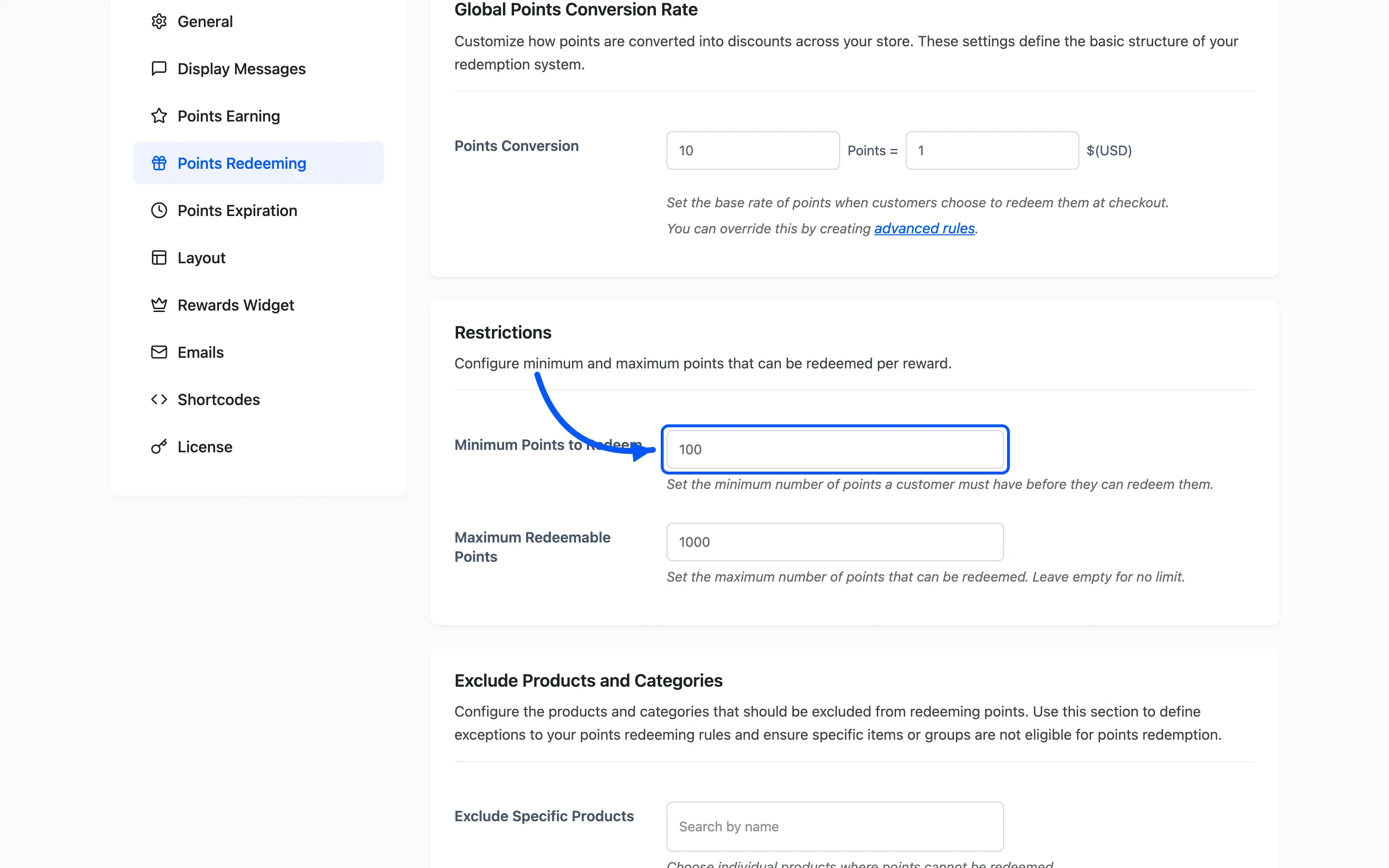
Under Restrictions, set sensible bounds:
- Minimum Points to Redeem stops tiny redemptions. Set it so a customer needs a meaningful balance before they can spend.
- Maximum Redeemable Points caps how much one order can discount. Leave it empty for no cap, or set a limit so points cannot cover an entire order.
Step 3: Exclude products or categories
Section titled “Step 3: Exclude products or categories”Under Exclude Products and Categories, block redemption where you want full price kept:
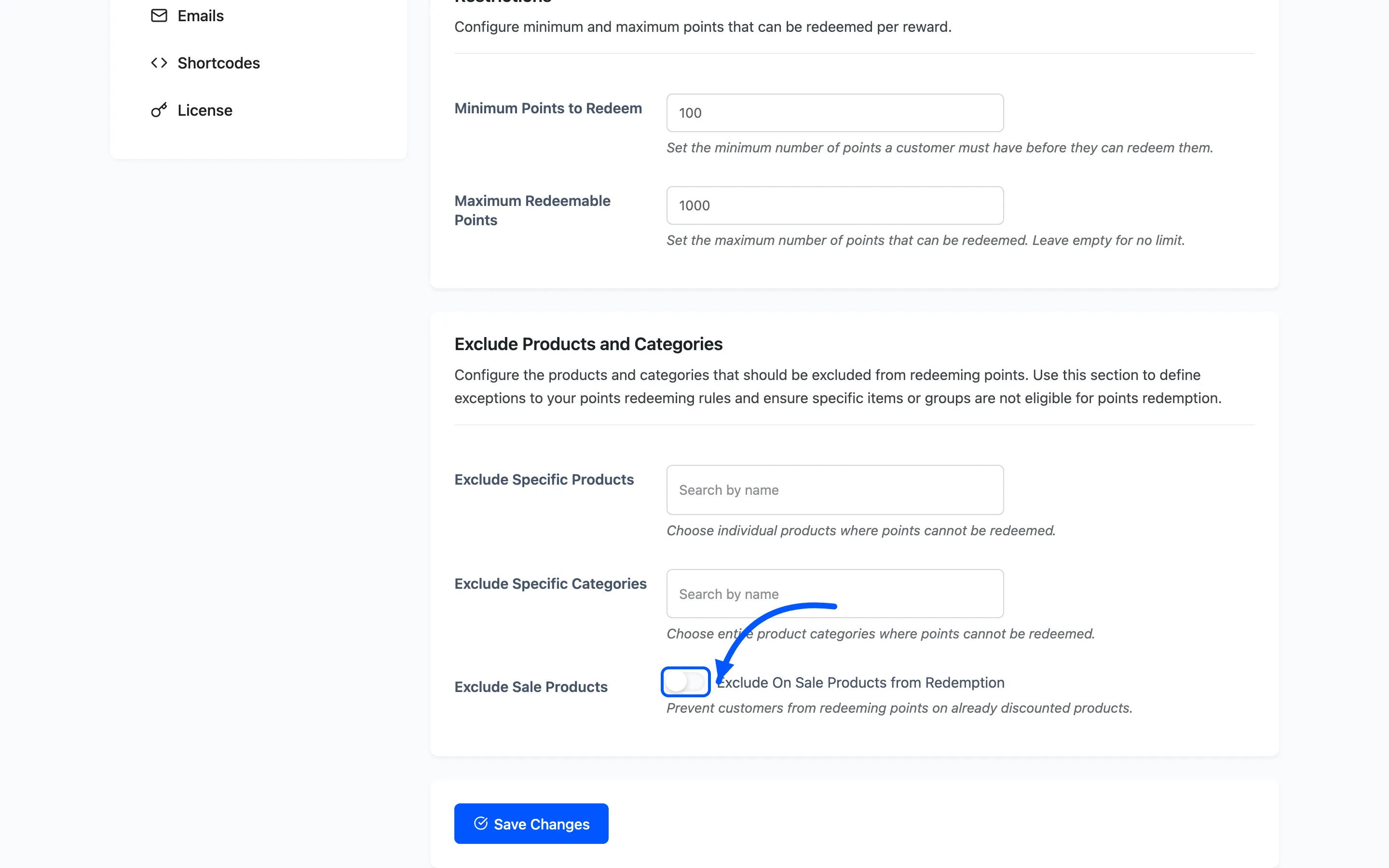
- Exclude Specific Products for individual items.
- Exclude Specific Categories for whole groups.
- Exclude Sale Products so points are not spent on already-discounted items.
Click Save Changes.
Step 4: Turn on the redeem prompt
Section titled “Step 4: Turn on the redeem prompt”Customers redeem faster when they are reminded. Go to Configuration → Display Messages, and in the Cart and Checkout sections turn on Enable Redeem Message. Edit the wording to tell customers how much their balance is worth.
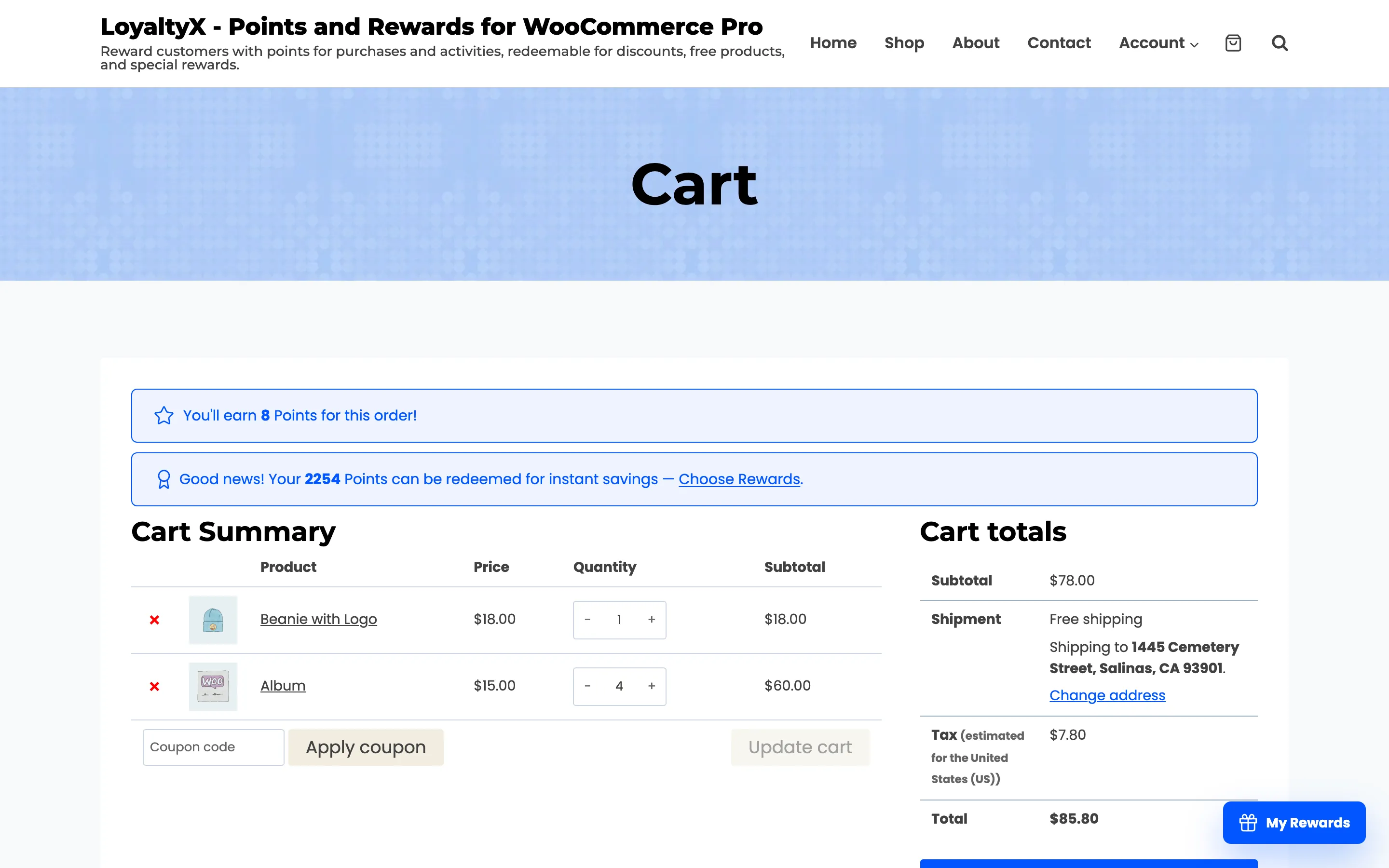
Once the program is enabled, a customer holding points sees a line such as Good news! Your 2,254 Points can be redeemed for instant savings above the cart, with a Choose Rewards link. That link opens the reward cards, where Points Conversion carries the input box for choosing how many points to spend.
Step 5: Test a redemption
Section titled “Step 5: Test a redemption”Sign in as a customer who holds points, add a product to the cart, and open the cart or checkout. Enter an amount on the Points Conversion card and click Redeem Now. LoyaltyX deducts the points, generates a coupon for the matching value and applies it to the order in one step. A Reward line appears in the cart totals and the total drops.
Check that partial redemption works too. A customer should be able to spend part of a balance and keep the rest.
Troubleshooting
Section titled “Troubleshooting”- No redemption field: confirm the program is enabled under Configuration → General.
- Customer cannot redeem: check their balance against Minimum Points to Redeem.
- Discount looks wrong: re-check the conversion rate and any product exclusions.
Where to go next
Section titled “Where to go next”- Display Messages to tune the earn and redeem prompts.
- Points Rules to add richer reward types such as free shipping, in Pro.