

Display Messages
The Display Messages tab controls the small prompts that tell customers how many points an order earns or lets them redeem. You can turn each message on or off per page, edit its wording, and style it.
Open Display Messages
Section titled “Open Display Messages”Go to DevDiggers Plugins → LoyaltyX → Configuration, then open Display Messages in the left menu.
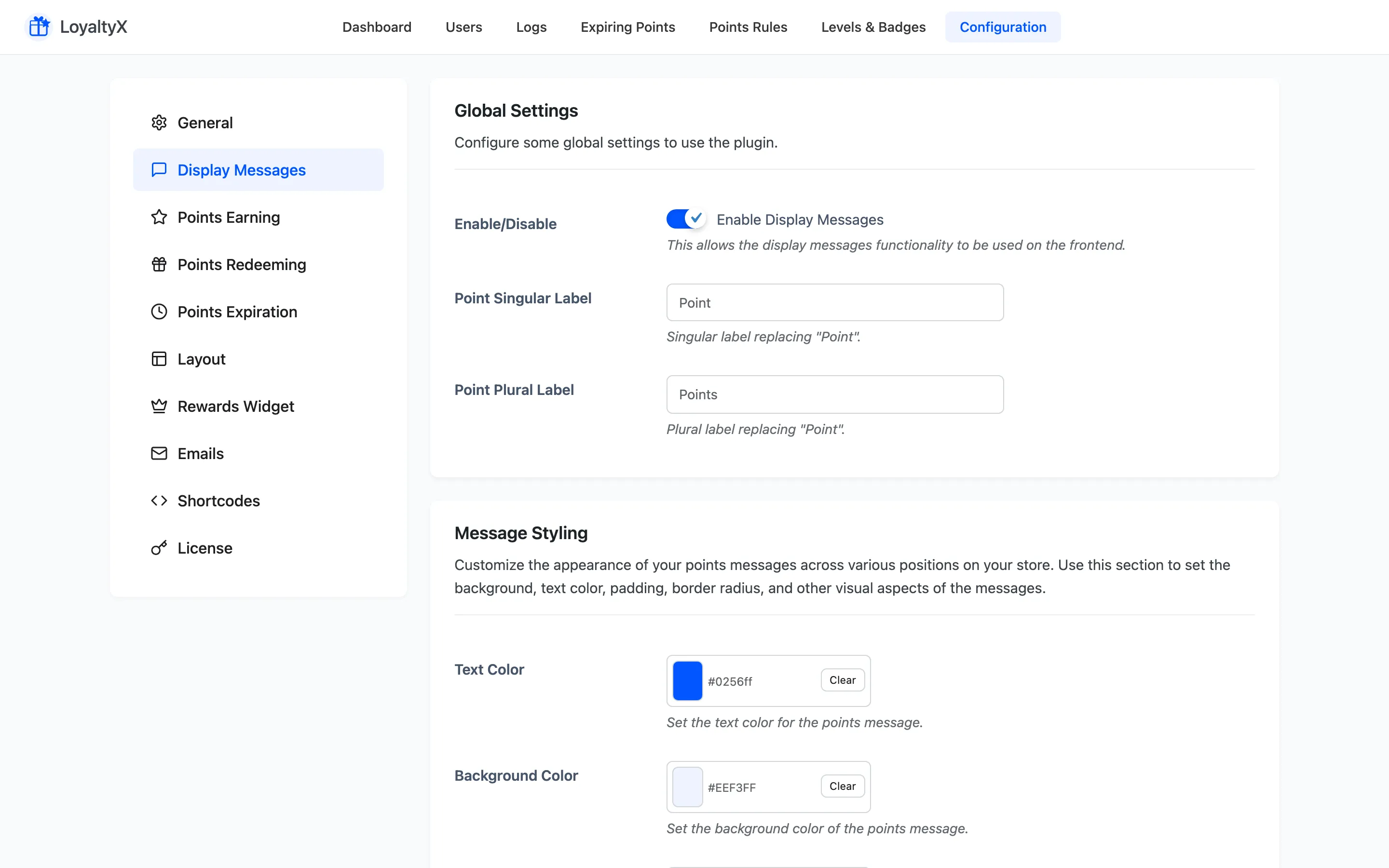
Global settings
Section titled “Global settings”- Enable Display Messages is the master switch for every message below.
- Point Singular Label and Point Plural Label rename the word “point”. Set them to Star and Stars, Credit and Credits, or any label that fits your brand. The new label shows everywhere customers see points.
Message styling
Section titled “Message styling”One style applies to every message: Text Color, Background Color, Border Color, Font Size, Padding, Margin and Border Radius. Set these once and every prompt matches.
Messages per page
Section titled “Messages per page”Each store page has its own message block. For every page you get an enable toggle, a Points Message editor, and a Display Position that decides where on the page the message appears.
- Message in My Accounts Page shows the customer’s points status. Positions run from Before Login/Registration Form to Registration Form End.
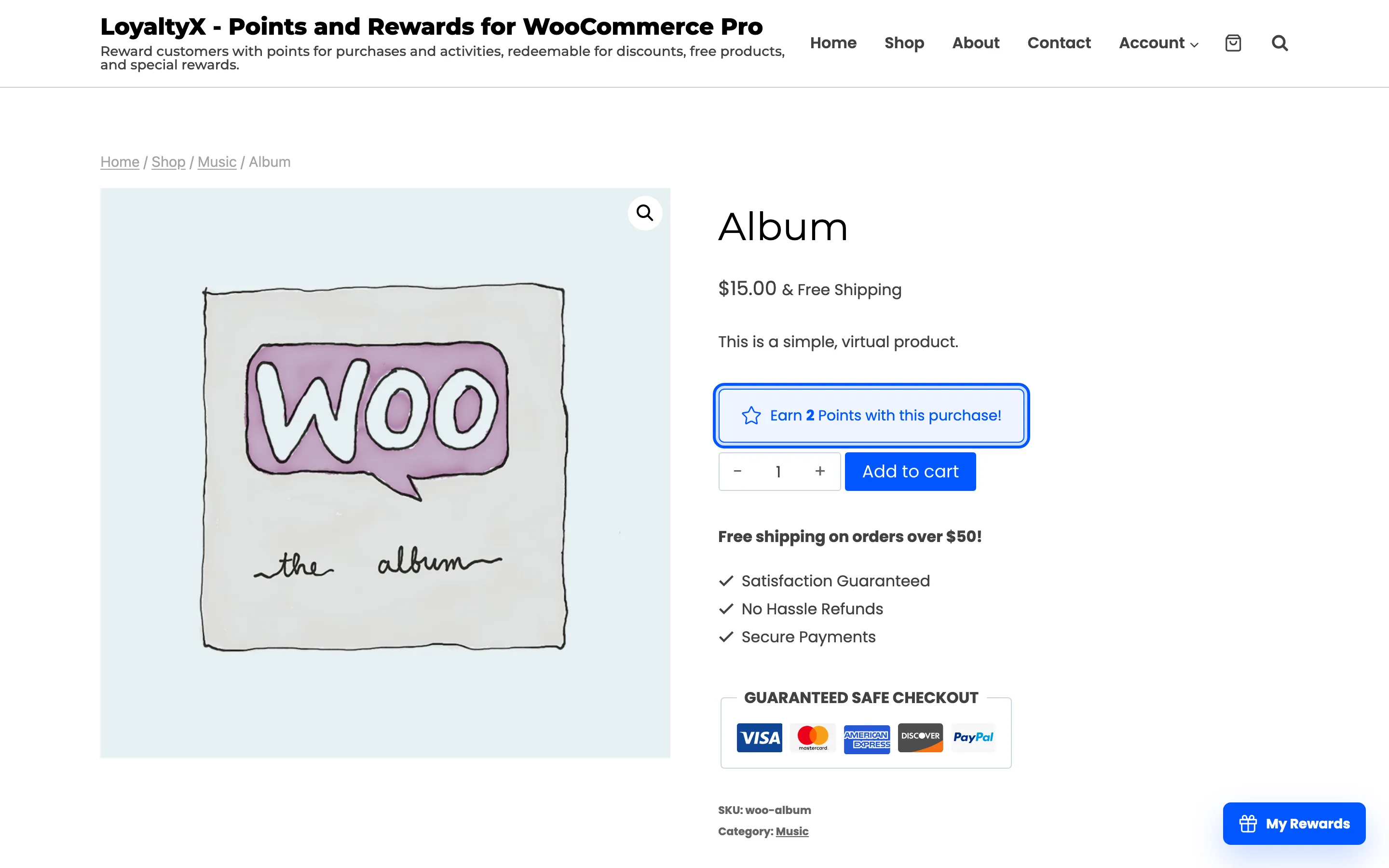
- Message in Product Page shows how many points the product earns. Positions include Before Add to Cart Button, After Product Image and Before Tab Information.
- Message in Shop Page shows points on each product card.
- Message in Cart Page shows the points the order will earn. It also carries a second block, Enable Points Redeem Message on Cart Page, with its own message and position.
- Message in Checkout Page carries the same earn and redeem pair, with checkout positions such as Before The “Order Review Table” and After The Payment Section.
- Message in Order View & Received Page shows the points earned on a completed order.
Write the message with placeholders so one message covers every order. Two are available:
{points_value}prints the number of points.{points_label}prints your singular or plural label from the global settings above.
For example, You will earn {points_value} {points_label} on this order.
Here is the product-page message on the storefront, highlighted near the price.
Save your changes
Section titled “Save your changes”Click Save Changes. Messages update on the front end straight away.
Where to go next
Section titled “Where to go next”- Layout Settings to style the rewards dashboard.
- Rewards Widget to set up the floating widget.