

Setup Wizard
The setup wizard gets a working loyalty program live in about a minute. It opens the first time you activate LoyaltyX and walks you through the core choices. You do not have to visit every settings tab before you start.
When the wizard opens
Section titled “When the wizard opens”The wizard launches automatically right after you activate the plugin. If you skipped it, you can open it again from DevDiggers Plugins → LoyaltyX, or set everything by hand under Configuration. Every choice here is editable later, so nothing you pick is final.
The wizard moves through a short sequence of steps. A progress bar and a Step X of Y counter at the top show where you are, and Continue and Go Back move between steps.
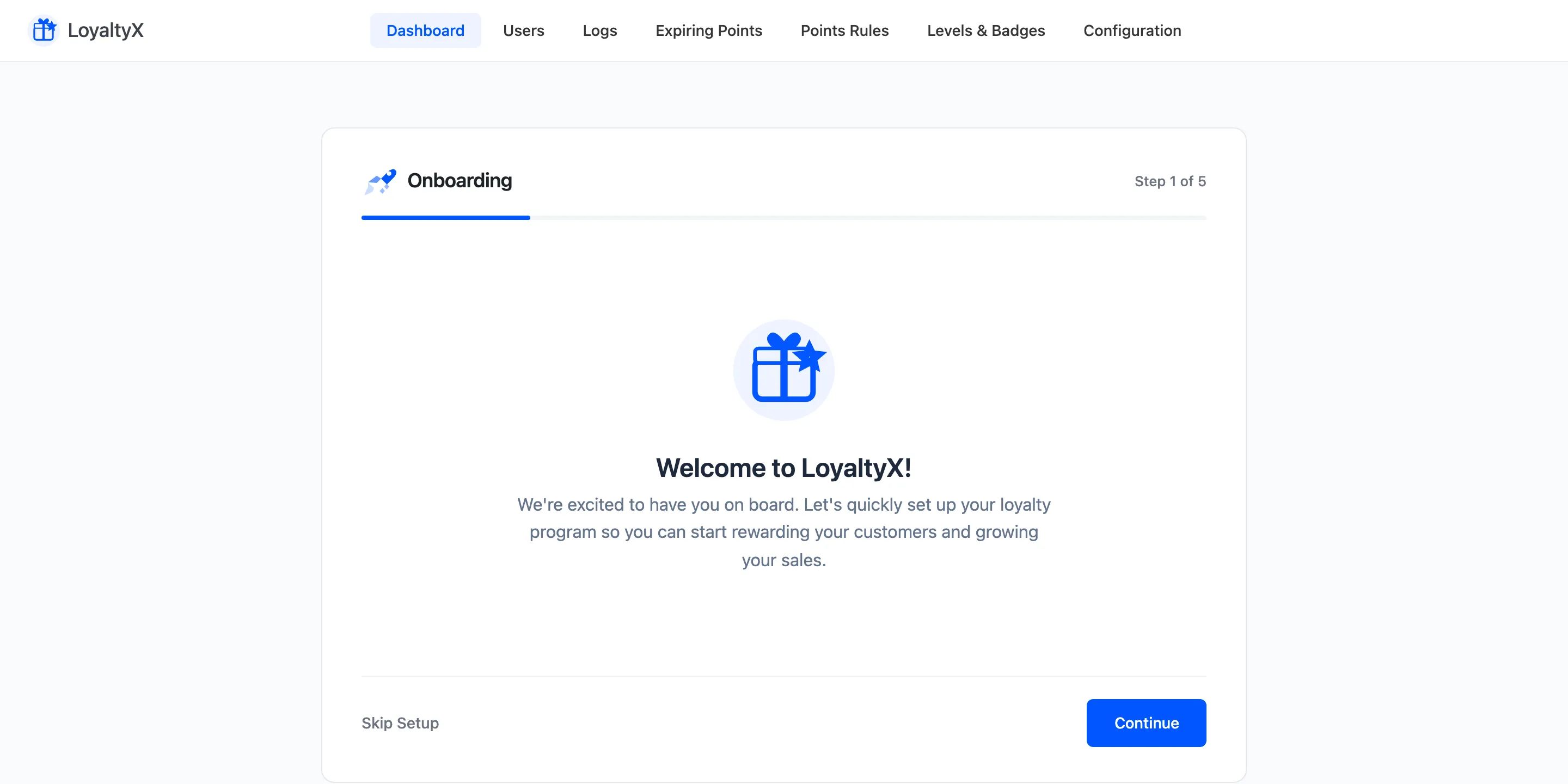
Step 1: Welcome
Section titled “Step 1: Welcome”The first screen introduces the program. There is nothing to fill in. Read it, then click Continue.
Step 2: License
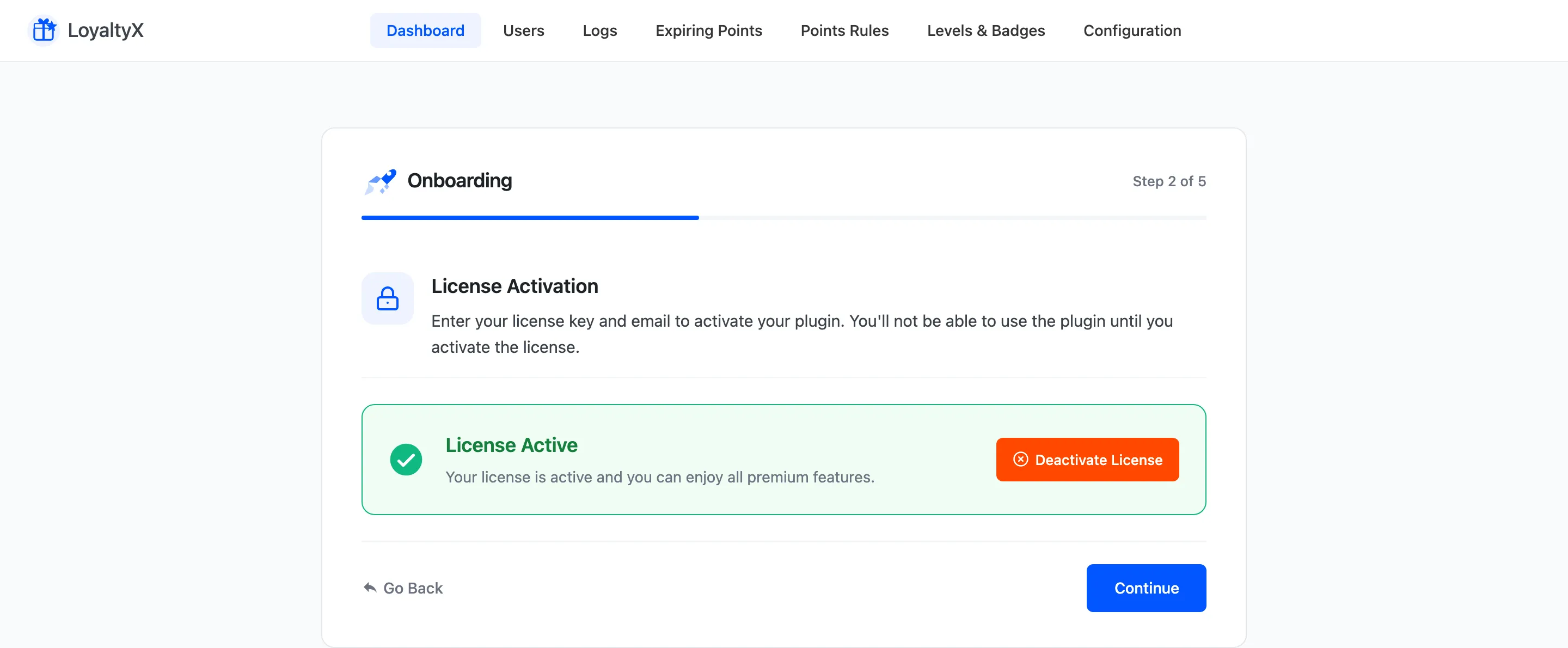
Section titled “Step 2: License”Pro users activate their purchase here by entering the license key from their DevDiggers account. Activation unlocks the Pro earning rules, reward types and tiers.
Step 3: Basic Configuration
Section titled “Step 3: Basic Configuration”This step turns the program on and sets what you call points.
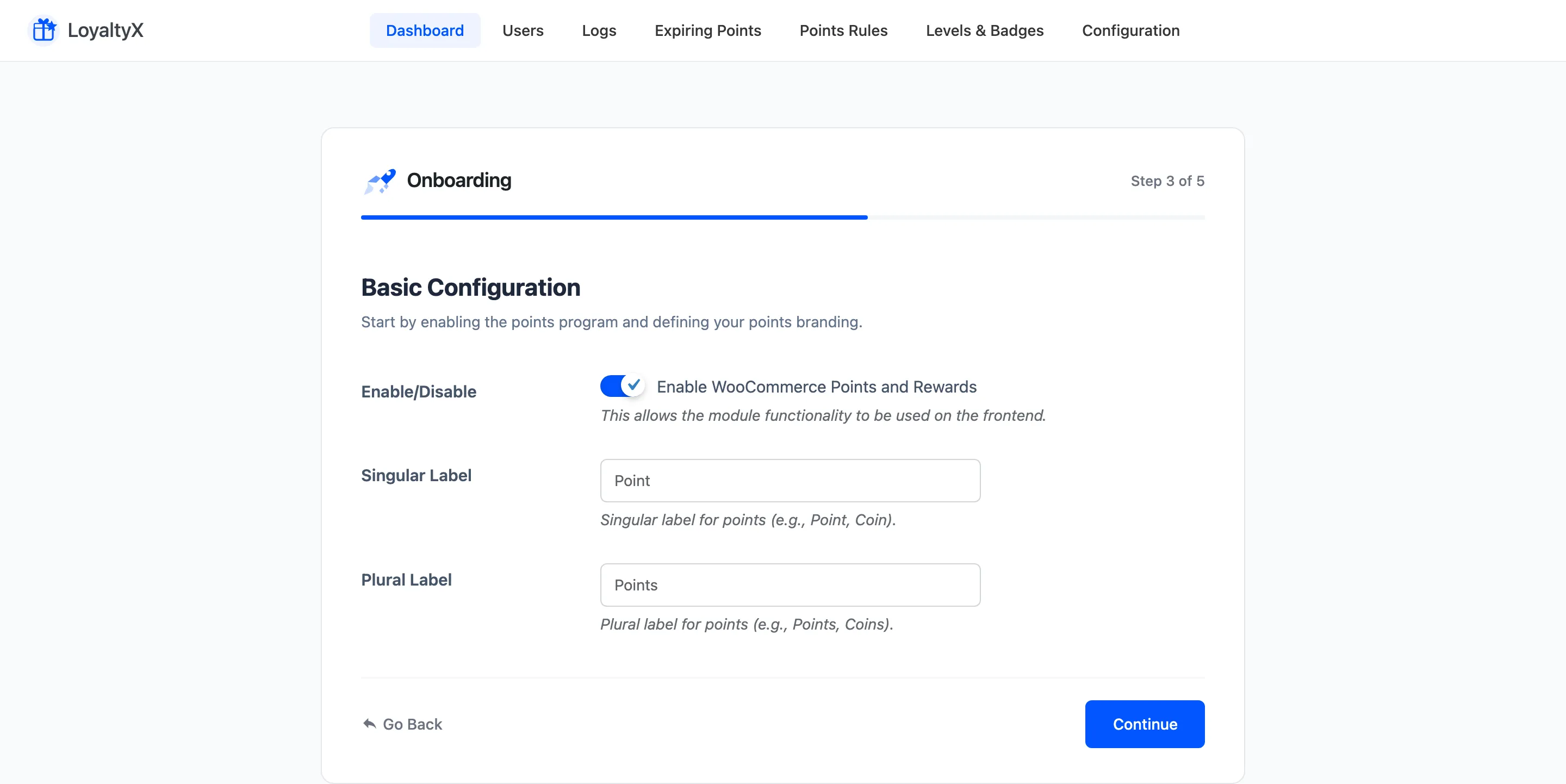
- Enable WooCommerce Points and Rewards switches the program on across the store. Leave it off and no points move.
- Singular Label is the word for one point, such as Point, Star or Coin.
- Plural Label is the word for many, such as Points, Stars or Coins.
The label you set here shows everywhere a customer sees points: the messages, the dashboard and the widget.
Step 4: Points Rules
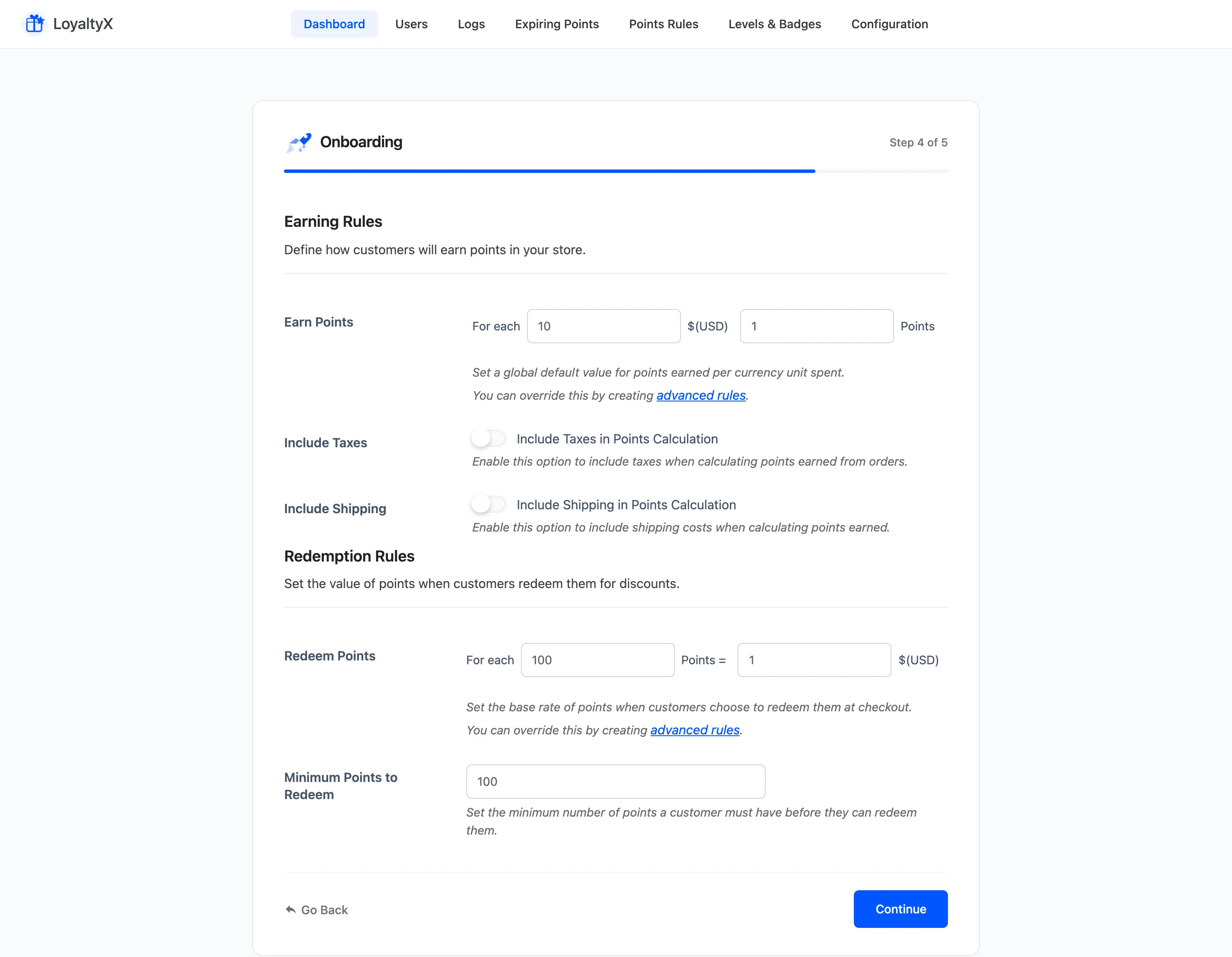
Section titled “Step 4: Points Rules”This step sets the two rates that make the program work: how customers earn points, and what those points are worth when redeemed.
Under Earning Rules:
- Earn Points sets the rate. Read it as “for each X of currency spent, award Y points”. A common start is 1 point per 1 unit of currency.
- Include Taxes and Include Shipping decide whether those amounts count toward points. Both are Pro options; most stores leave them off so customers earn on products only.
Under Redemption Rules:
- Redeem Points sets the conversion. Read it as “X points equal Y of currency in discount”. A common start is 100 points for 1 unit of currency.
- Minimum Points to Redeem is the balance a customer needs before they can spend, in Pro.
Step 5: Ready
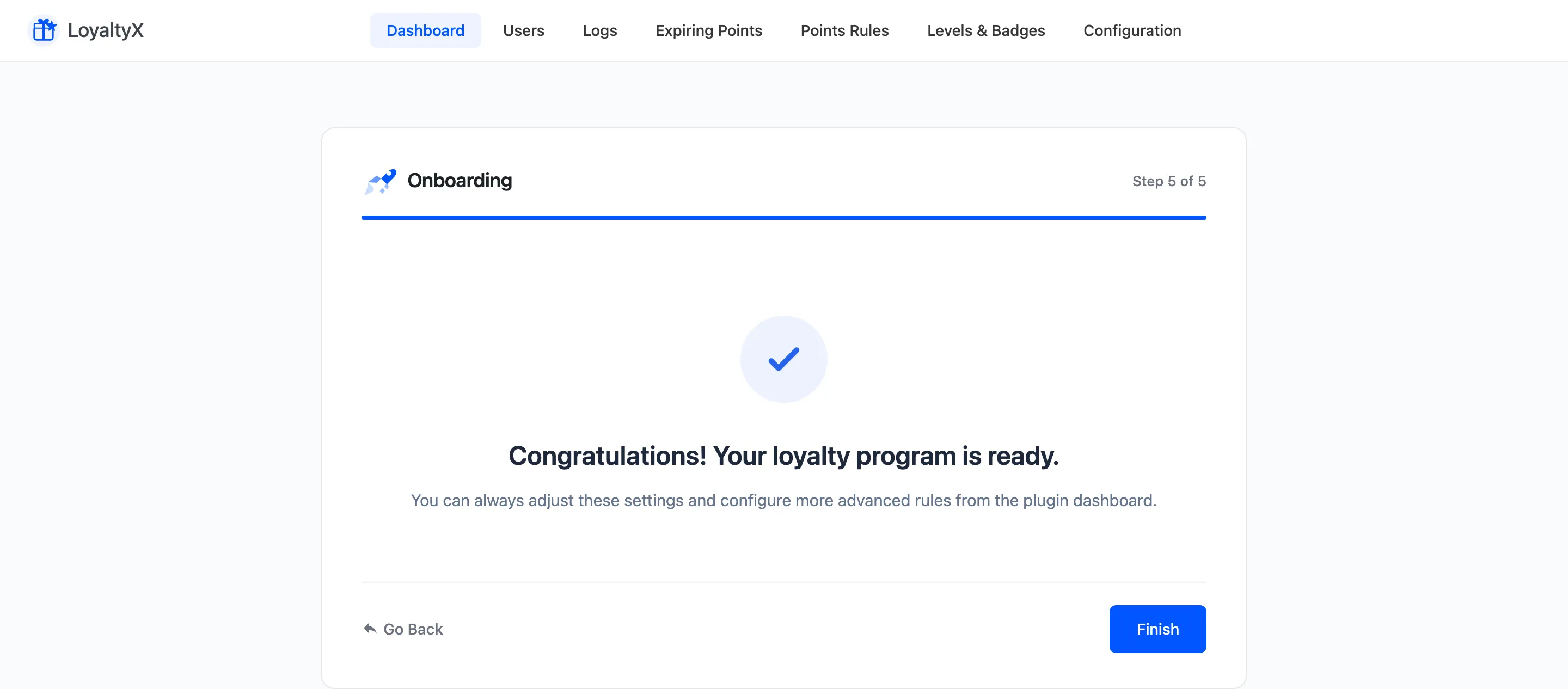
Section titled “Step 5: Ready”The final screen confirms the program is live. Click Finish to leave the wizard and land on the Dashboard.
After the wizard
Section titled “After the wizard”Everything you set is editable, and there is far more the wizard does not cover:
- Change the earning rate and calculation under Points Earning Settings.
- Change the redemption rate and limits under Points Redeeming Settings.
- Rename points, or move the messages, under Display Messages.
Where to go next
Section titled “Where to go next”- The LoyaltyX Dashboard to read your program’s numbers.
- The Customer Experience to see what customers see.