

How to Reward Product Purchases (Pro)
Purchase-based earning rewards every order the same way. A Product Purchase rule rewards the products you choose at their own rate. Use it to push a range, run a points multiplier on one category, or reward a high-margin line more than the rest.
Before you start
Section titled “Before you start”Set up purchase-based earning first, so the program is enabled. This rule runs on top of that base.
Step 1: Open the earning rules
Section titled “Step 1: Open the earning rules”Go to DevDiggers Plugins → LoyaltyX → Points Rules, then open the Points Earning sub-section.
Step 2: Choose the Product Purchase type
Section titled “Step 2: Choose the Product Purchase type”Click Add New. On the Choose Rule Type screen, pick Product Purchase.
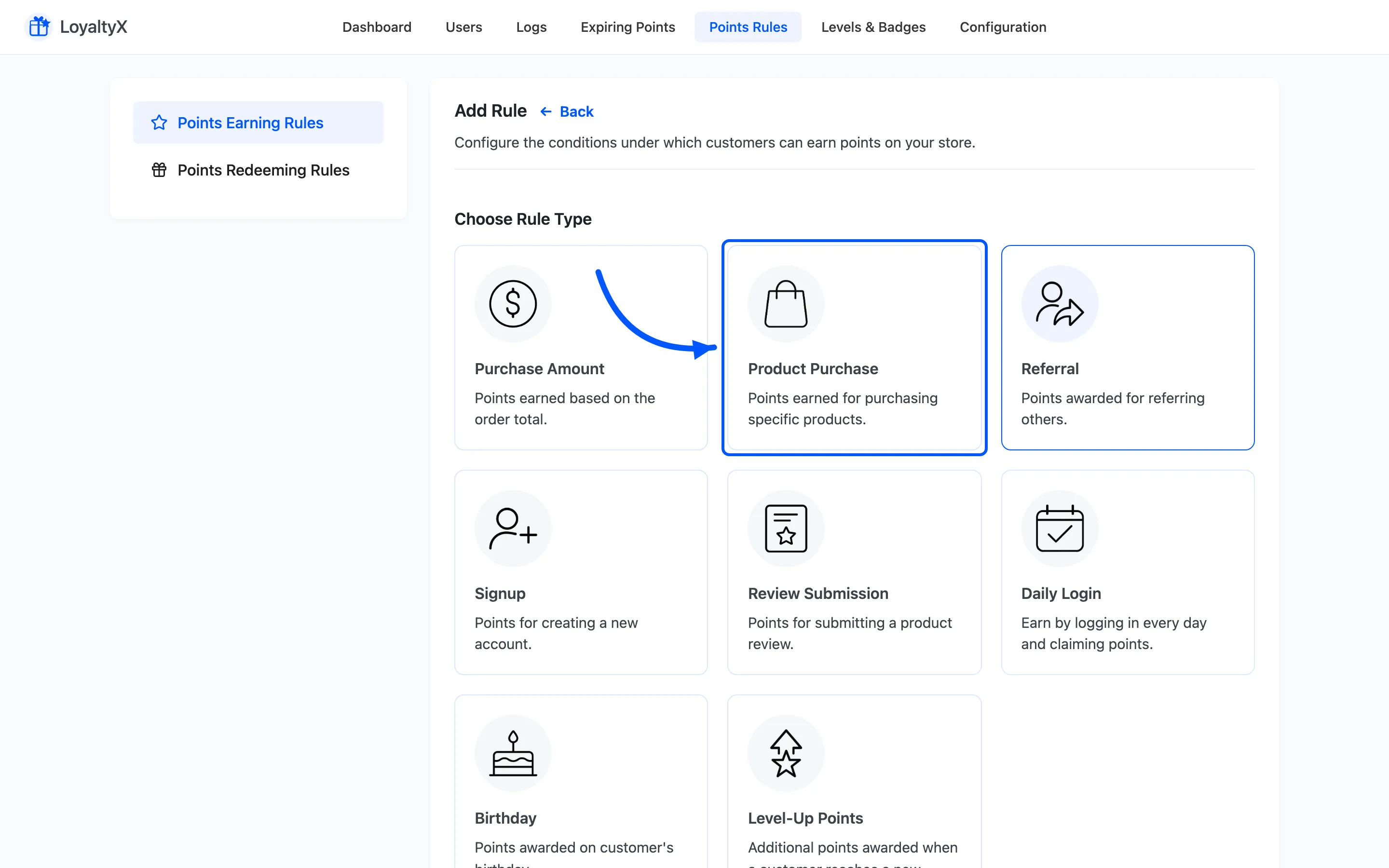
Step 3: Target the products
Section titled “Step 3: Target the products”Apply Rule To Products is where you aim the rule. It has four options:
- All Products applies the rule store-wide.
- On Sale Products targets only items currently on sale.
- Specific Products reveals a Choose Products field for picking individual items.
- Products of Specific Categories reveals Choose Categories instead.
The Choose Products and Choose Categories fields stay hidden until you pick the matching option, so nothing appears until the rule needs it.
Step 4: Set the points rate
Section titled “Step 4: Set the points rate”- Rule Name is your label, such as
Double points on coffee. - Points Type sets how points are worked out, with three options:
- Fixed Points Based on Amount awards points per unit of currency spent. This is the one to use for a rate.
- Fixed Points awards a flat number for the purchase, whatever it cost.
- Percentage Points awards a percentage of the order value as points.
- Points Value is the number behind whichever type you picked. Its suffix changes to match, so it reads Points for the first two types and % for the third.
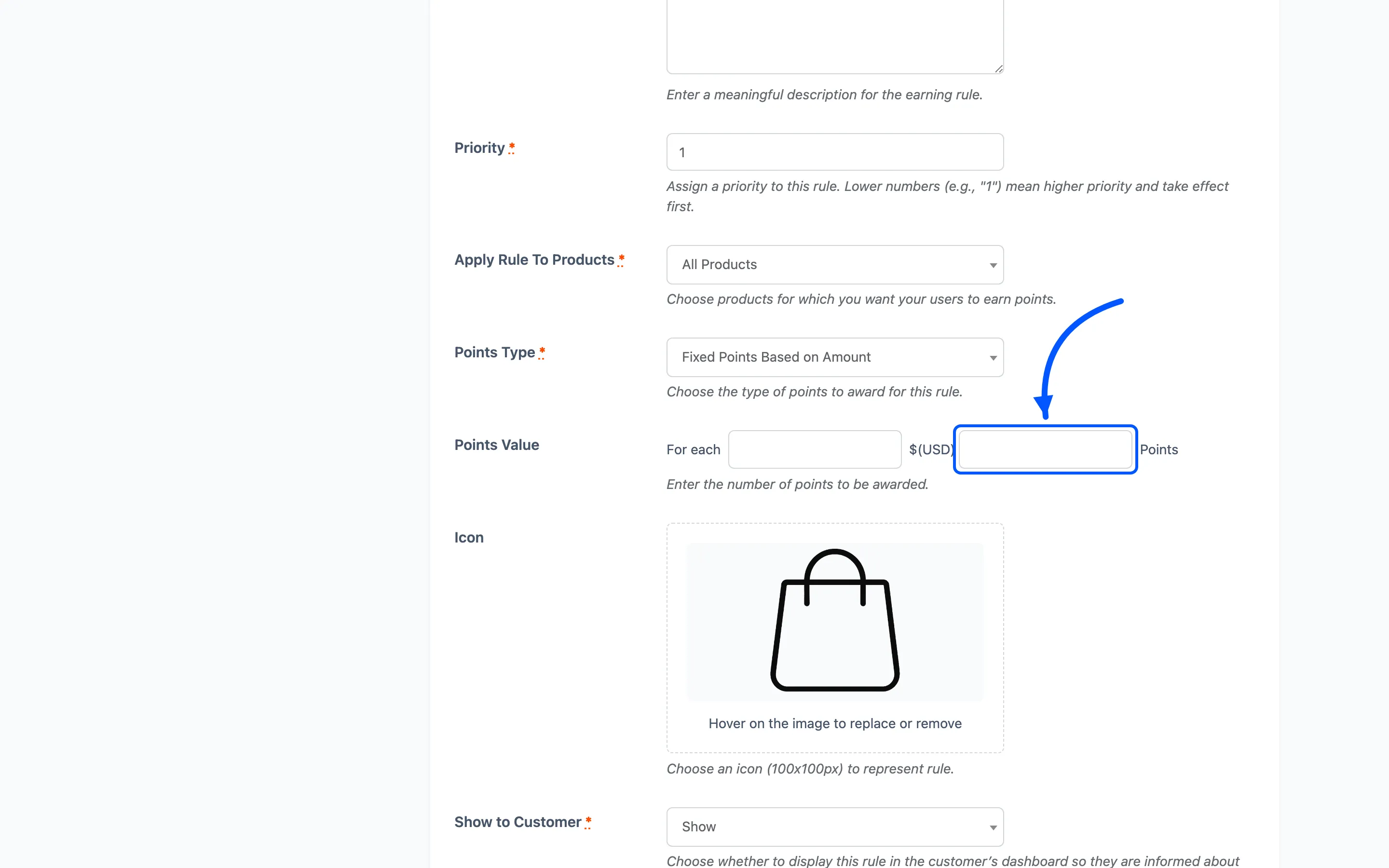
Step 5: Set conditions and activate
Section titled “Step 5: Set conditions and activate”The Conditions section holds the guardrails:
- Minimum Order Value stops small orders triggering the rule.
- Maximum Points Per Order caps the award however large the order gets. Set it on any percentage or per-amount rule, or a single large order can hand out a balance you did not budget for.
- Applicable on Days limits the rule to certain days, which is how you run a double-points weekend.
- Applicable to narrows the rule to Specific User Roles or Specific Levels.
Set Priority to decide which rule wins when more than one applies. The lower number wins, so a
rule at priority 1 beats one at priority 5. Click Save, then set the rule to Active.
What the customer sees
Section titled “What the customer sees”Earning is automatic. When a customer buys a targeted product and the order reaches an awarding status, the points land in their balance. The points a product earns also show on the shop and product pages, so the customer sees the reward before they buy.
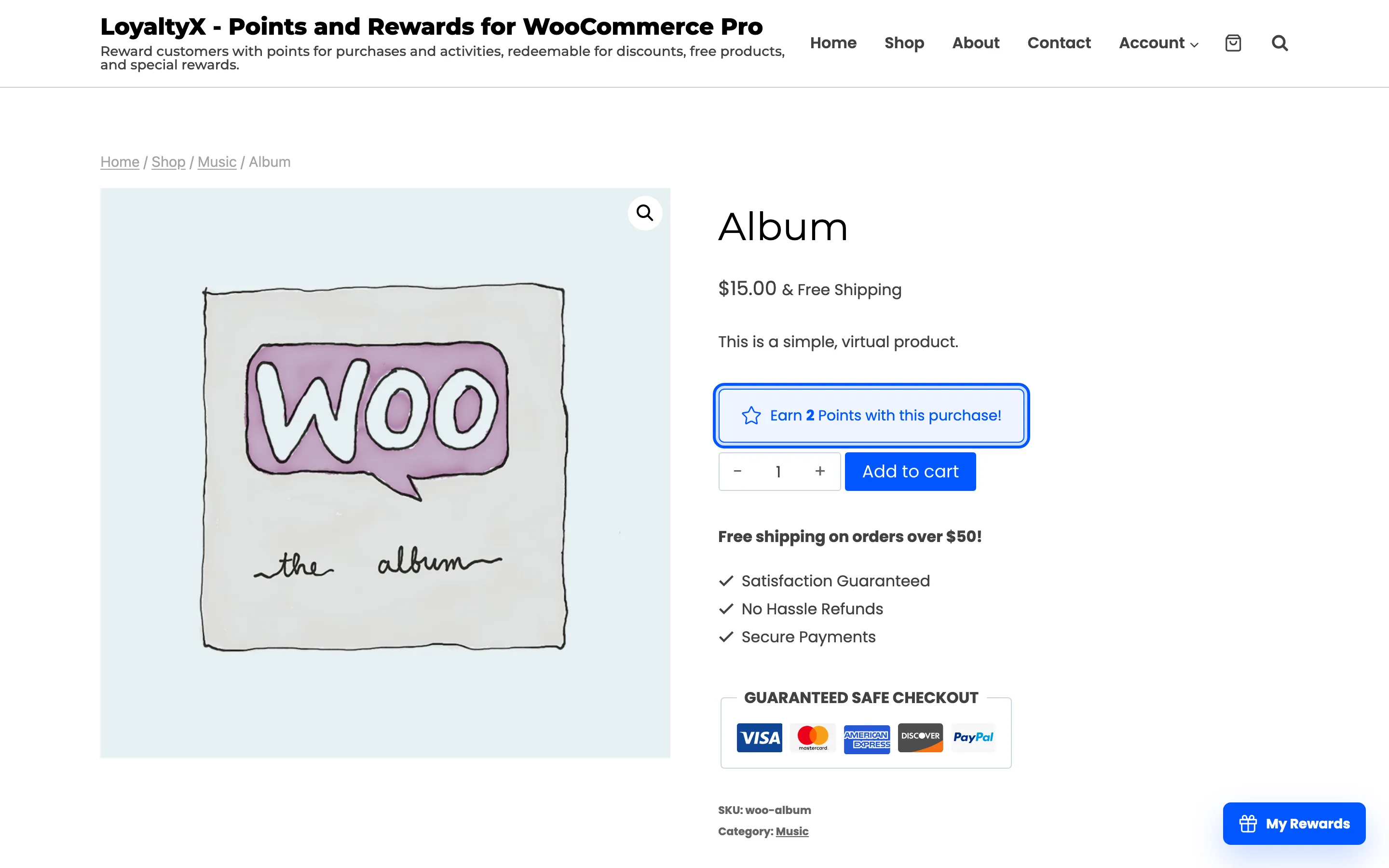
If points do not land, check three things. The rule is Active and the product matches the target. The order also reached a status listed in Award Points on Order Status under Configuration → General.
Where to go next
Section titled “Where to go next”- How to Reward Signups to reward new accounts.
- Points Rules for a reference on every rule type.