

How to Set Up a Buy X Get Y Reward (Pro)
A Buy X Get Y reward lets a customer spend points to buy one product and get another for free or at a discount. It moves a slow product by tying it to one that already sells. It also gives members a reason to spend points instead of leaving them idle.
Before you start
Section titled “Before you start”Set the free conversion rate and redemption limits first, so redemption is switched on. This reward is a rule you add on top of that base.
Step 1: Open the redeeming rules
Section titled “Step 1: Open the redeeming rules”Go to DevDiggers Plugins → LoyaltyX → Points Rules, then open the Points Redeeming sub-section.
Step 2: Choose the Buy X Get Y type
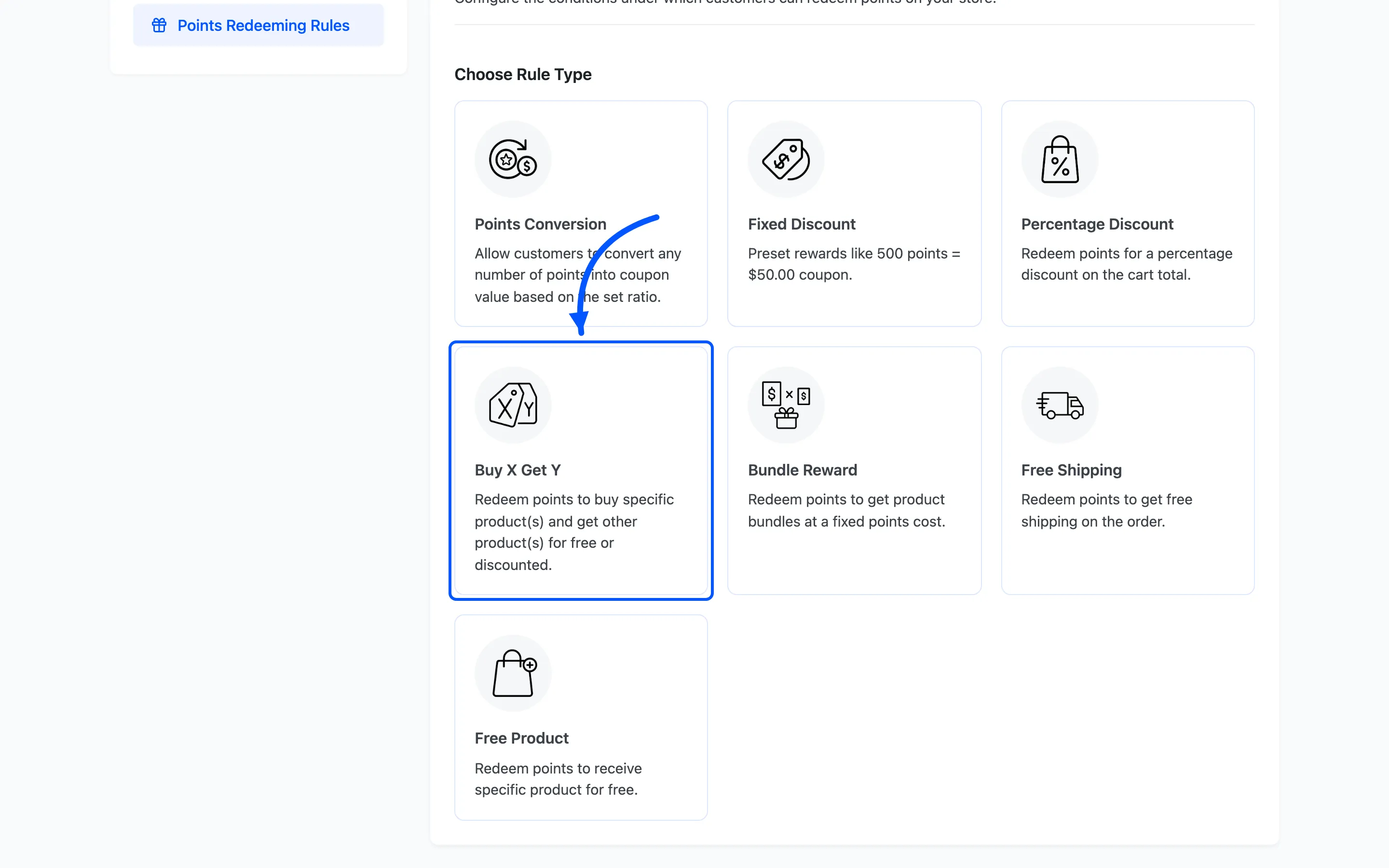
Section titled “Step 2: Choose the Buy X Get Y type”Click Add New. On the Choose Rule Type screen, pick Buy X Get Y.
Step 3: Choose the Buy and Get products
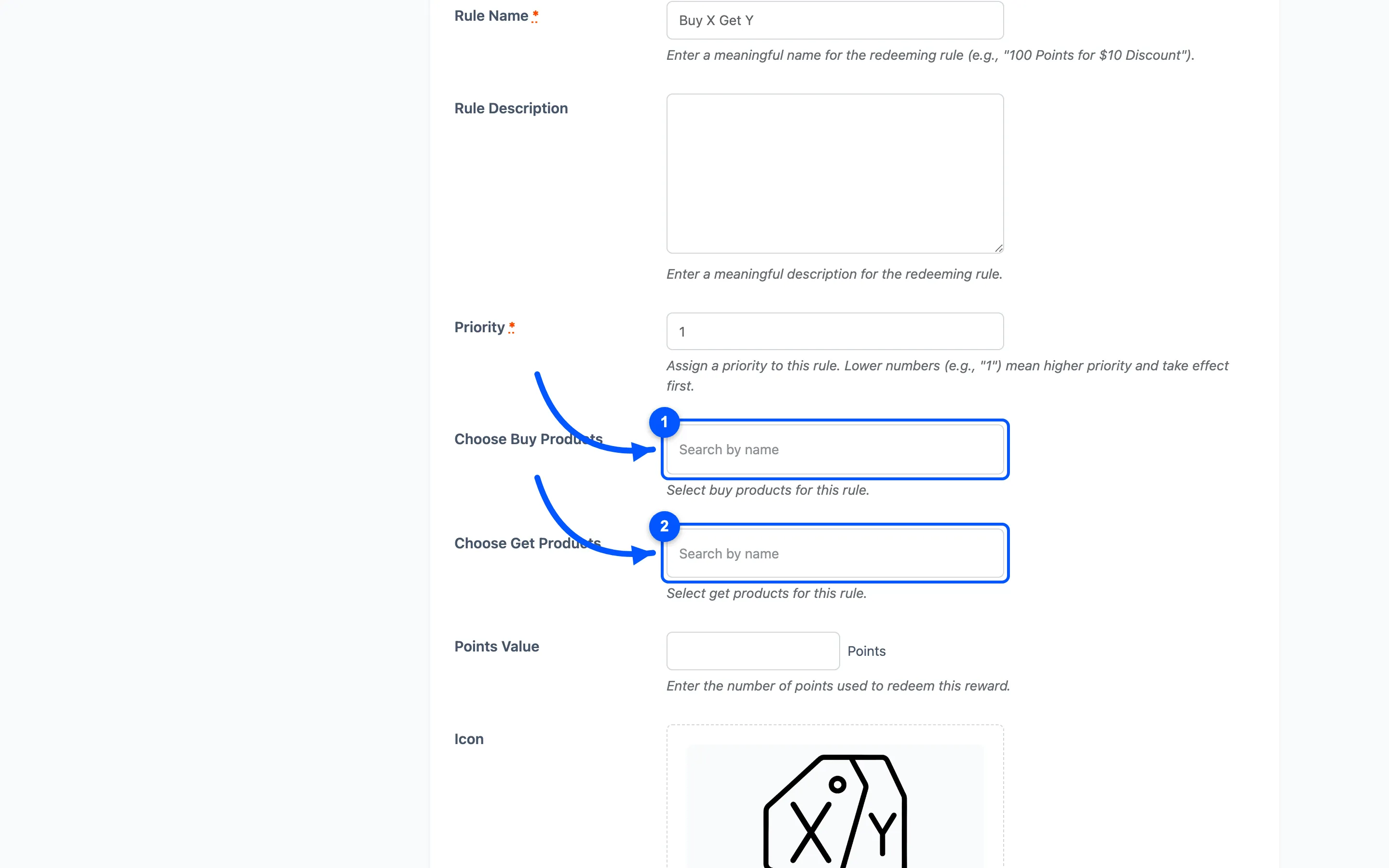
Section titled “Step 3: Choose the Buy and Get products”Two product fields define the deal:
- Choose Buy Products is the product or products the customer has to buy.
- Choose Get Products is the product or products they get free or discounted in return.
Keep the Get product cheaper than the Buy product, or the deal costs you more than the sale is worth.
Step 4: Set the points cost and the coupon
Section titled “Step 4: Set the points cost and the coupon”- Rule Name and Rule Description are what the customer sees, such as
Buy a mug, get a coaster free. - Points Value is how many points the customer spends to unlock the deal.
- Under Coupon, set the Coupon Label shown in the cart, an optional Coupon Expiry in days, and whether the coupon can be shared.
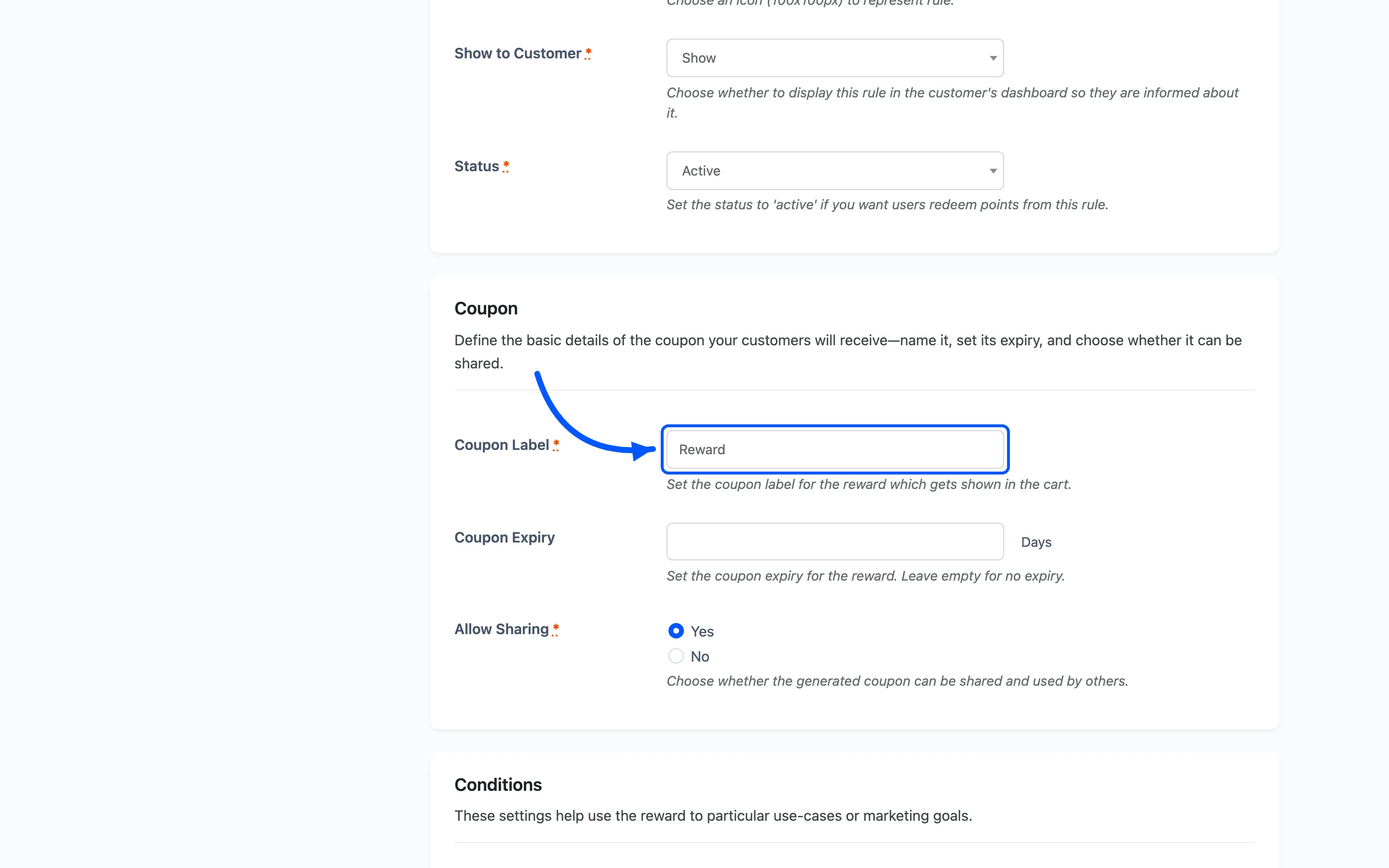
Set Show to Customer to Show so it appears in the rewards area, then click Save.
Step 5: Activate and test
Section titled “Step 5: Activate and test”Back on the list, set the rule to Active. Then check the customer side.
What the customer sees
Section titled “What the customer sees”The customer adds the Buy product to their cart first. Then they open the rewards area, from My Account or the floating widget, and open the Redeem tab. Each active reward shows as a card with its points cost and a redeem action.
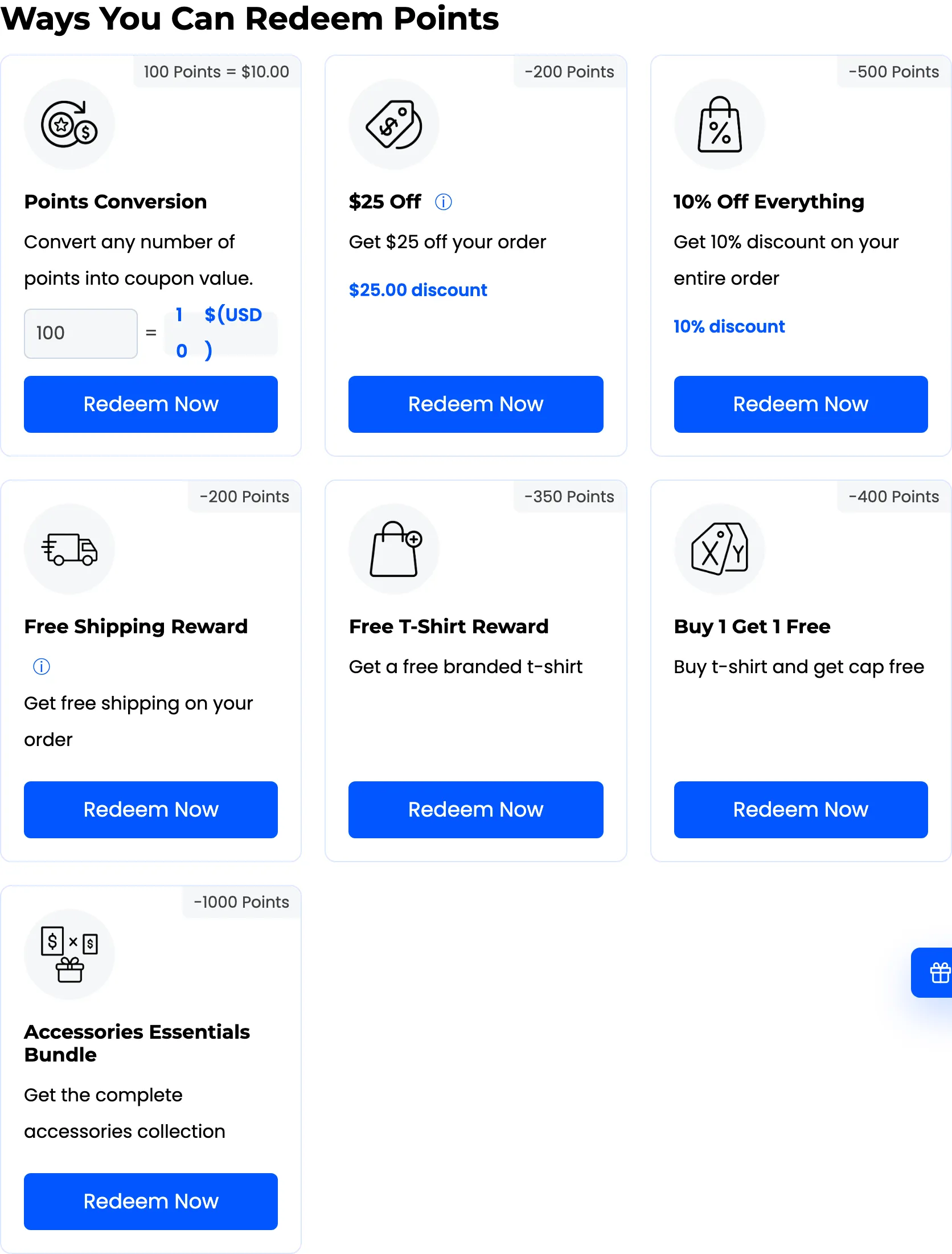
When they click Redeem Now, LoyaltyX deducts the points, creates the reward coupon and applies it to the cart. The Get product is then added to the cart on its own at $0.00. The coupon shows as a Reward line in the cart totals.
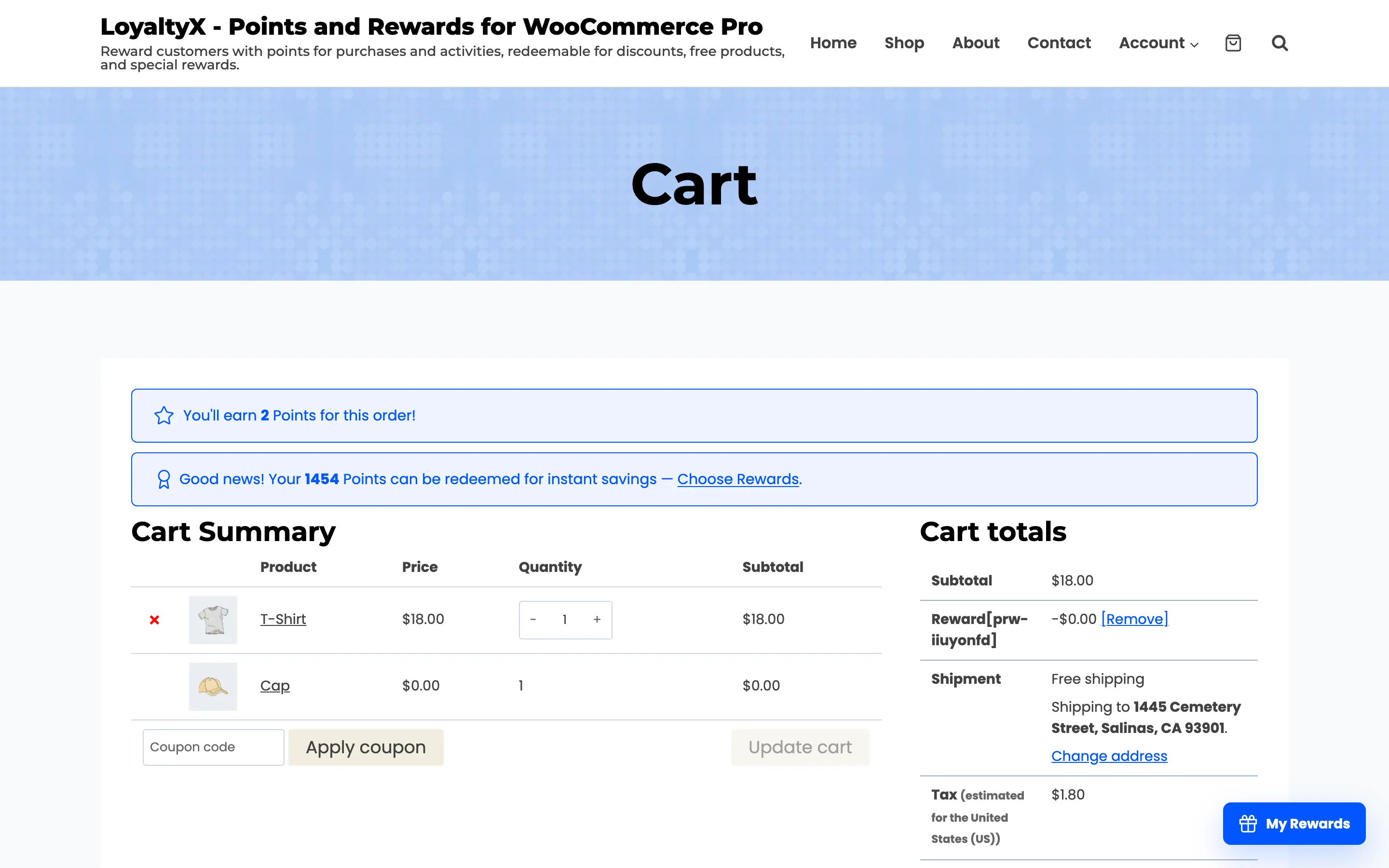
The free product has no remove link, so a customer cannot delete it and keep the deal. Taking the Buy product out of the cart removes the free product with it.
If the reward does not appear, check that the rule is Active and Show to Customer is set to Show. Then confirm the customer holds enough points to meet the Points Value.
Where to go next
Section titled “Where to go next”- How to Set Up a Bundle Reward to discount a set of products bought together.
- Points Rules for a reference on every rule type.