

Customer Insights (Pro)
The Users list shows a balance per customer. The customer profile goes deeper: one screen for one customer, showing how they earn, what they spend, and what they are worth to your store.
Open a customer’s profile
Section titled “Open a customer’s profile”Go to DevDiggers Plugins → LoyaltyX, open the Users tab, then use the View action on a customer’s row.
What the profile shows
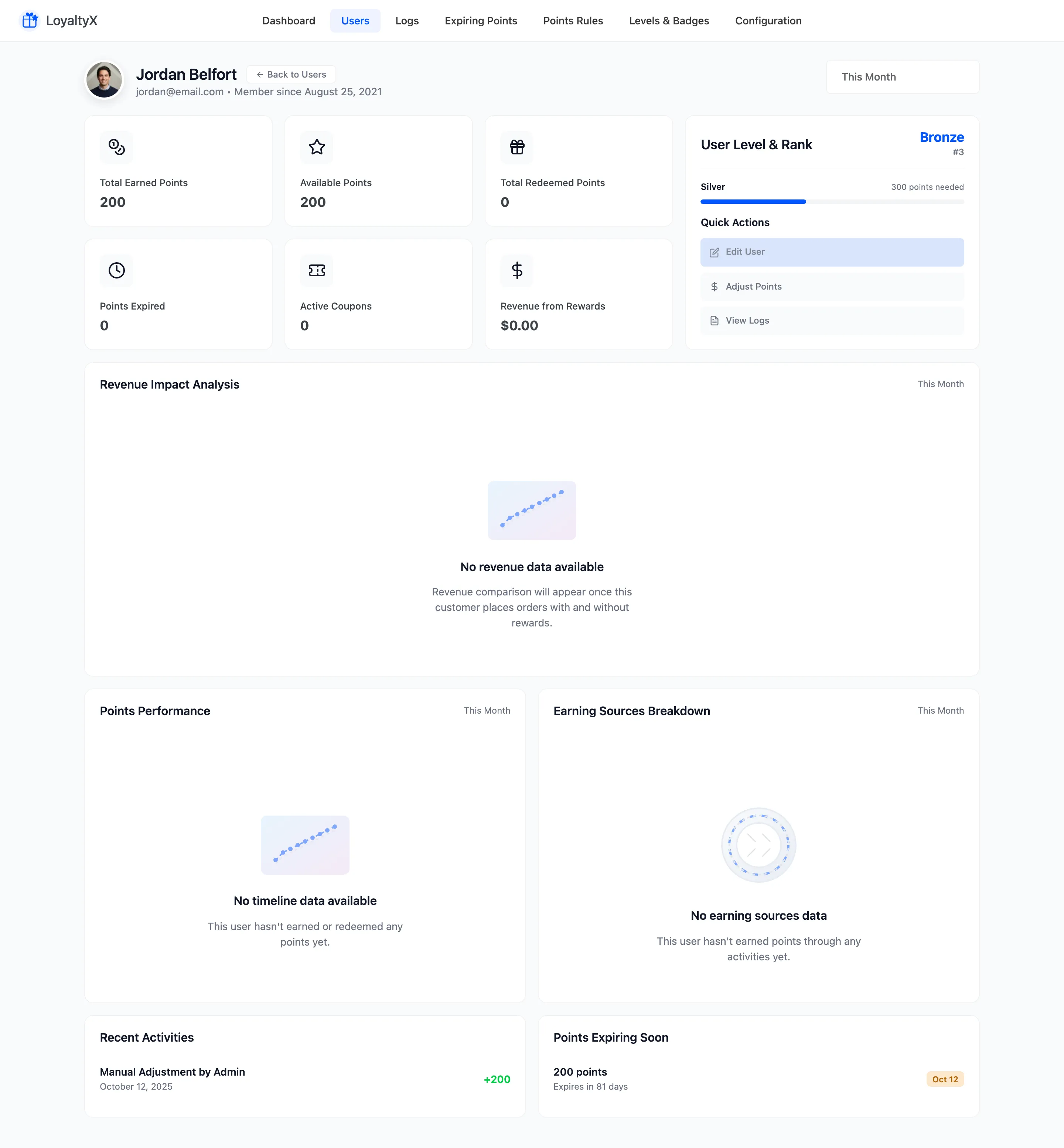
Section titled “What the profile shows”The header names the customer, their email and the date they joined, such as Member since June 8, 2022. Below it sit six summary cards:
- Total Earned Points is the lifetime total.
- Available Points is what they can spend now.
- Total Redeemed Points is what they have already spent.
- Points Expired is what they lost to the expiry window.
- Active Coupons counts the reward coupons they hold but have not used.
- Revenue from Rewards is the order value tied to their redemptions.
Revenue from Rewards is the number to quote when someone asks whether the program pays for itself. It answers that for one customer in one figure.
Beside the cards, User Level & Rank shows the tier and position, and Quick Actions gives you three shortcuts: Edit User, Adjust Points and View Logs.
The charts and lists
Section titled “The charts and lists”Four blocks fill the rest of the screen. Each carries its own period selector, set to This Month by default.
- Revenue Impact Analysis compares orders this customer placed with rewards against those without.
- Points Performance is the earn and redeem timeline.
- Earning Sources Breakdown splits their points by activity, so you can see whether they earn on purchases, reviews, referrals or logins.
- Recent Activities lists their latest events with the signed points value.
Points Expiring Soon runs down the side, with each batch and its countdown, such as 335 points, Expires in 83 days.
Where to go next
Section titled “Where to go next”- Users and Balances for the full member list.
- Transaction Log for every event across all customers.