

Transaction Log
The Logs tab is the full record of every point movement in your store. Use it to trace how a customer reached their balance or to audit a specific event.
Open the Logs tab
Section titled “Open the Logs tab”Go to DevDiggers Plugins → LoyaltyX, then open the Logs tab.
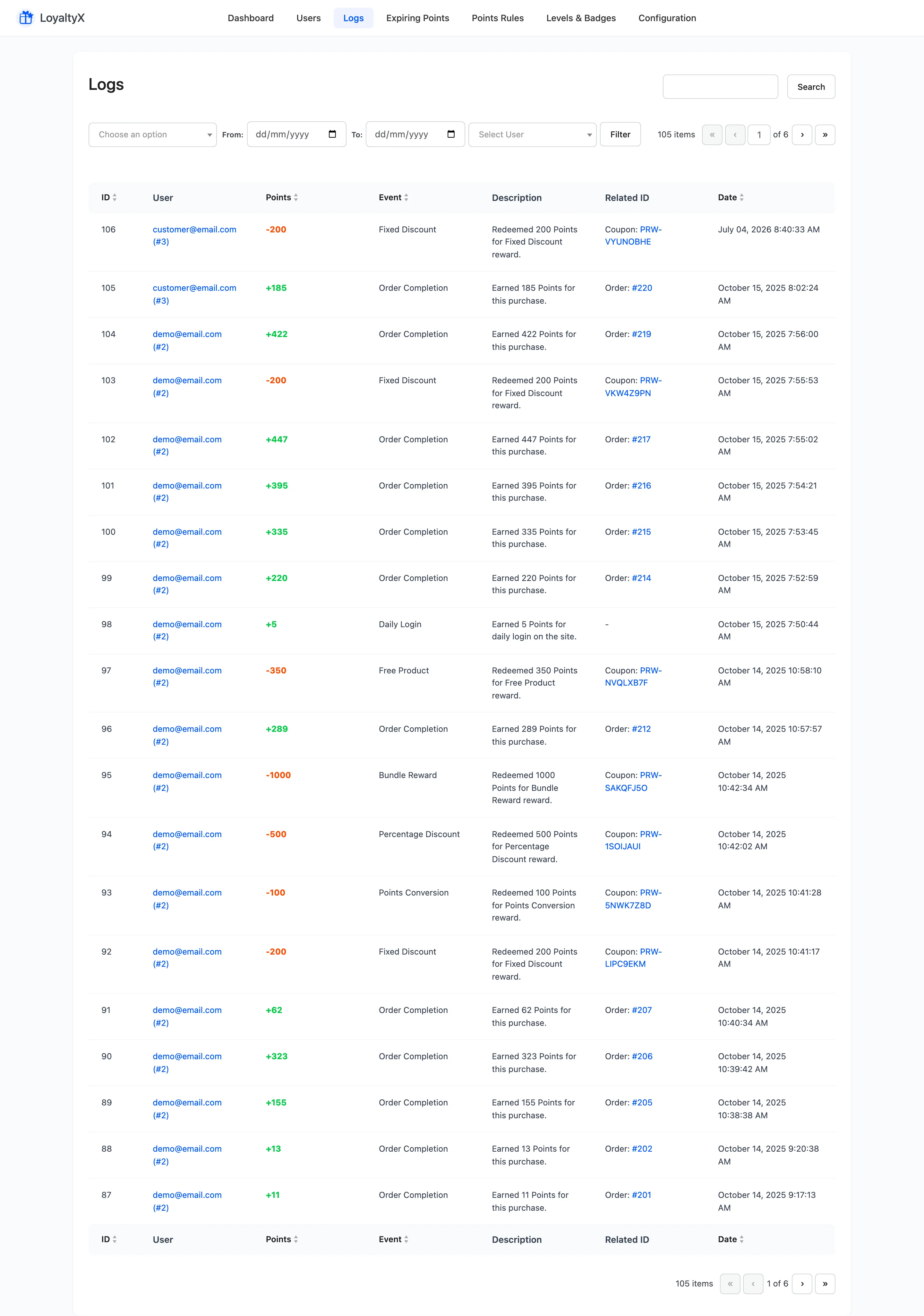
Read the log
Section titled “Read the log”Each row is one point event, in seven columns:
- ID is the event’s reference number.
- User is the customer’s email with their user ID, such as
demo@email.com (#2). - Points is the amount, signed.
+422is points earned,-200is points spent or removed. - Event is what caused it.
- Description is the plain sentence, such as
Redeemed 200 Points for Fixed Discount reward. - Related ID is the record behind the event: an order number for an earn, a coupon code such as
PRW-VKW4Z9PNfor a redemption. - Date is when it happened.
Related ID is what makes the log auditable. A redemption row names the exact coupon LoyaltyX generated. That is how you trace a discount on an order back to the points that paid for it.
Filter the log
Section titled “Filter the log”Use the All Events dropdown to narrow the list to one event type, and the user filter to show a single customer’s history. Sort by Points, Event or Date with the column arrows.
Event types
Section titled “Event types”The Event column tells you why points moved. The full list in the filter is:
- Purchases: Order Completion awards points, and Order Refunded, Order Cancelled and Order Failed reverse them.
- Admin and system: Manual Adjustment by Admin and Points Expired.
- Earning rules: Referral, Signup, Review Submission, Daily Login, Birthday and Level-Up.
- Redemptions: Points Conversion Reward, Fixed Discount Reward, Percentage Discount Reward, Buy X Get Y Reward, Bundle Reward, Free Shipping Reward and Free Product Reward.
Rules you have not set up simply never produce a row, so the list stays short on a new store.
Where to go next
Section titled “Where to go next”- Users and Balances to see balances by customer.
- The LoyaltyX Dashboard for the totals behind these events.