

How to Create a Referral Program (Pro)
A referral program turns happy customers into a sales channel. This guide adds a referral earning rule in LoyaltyX Pro, so a member earns points when someone they refer makes a purchase.
How referrals work
Section titled “How referrals work”Each member gets a referral link from their rewards area. When a new customer follows that link and places a qualifying order, the referrer earns points. The reward lands after the referred order reaches an award status, the same way purchase points do.
Before you start
Section titled “Before you start”Set up purchase-based earning and turn on the rewards widget, so members have somewhere to find and share their link.
Step 1: Open the earning rules
Section titled “Step 1: Open the earning rules”Go to DevDiggers Plugins → LoyaltyX → Points Rules, then open the Points Earning sub-section.
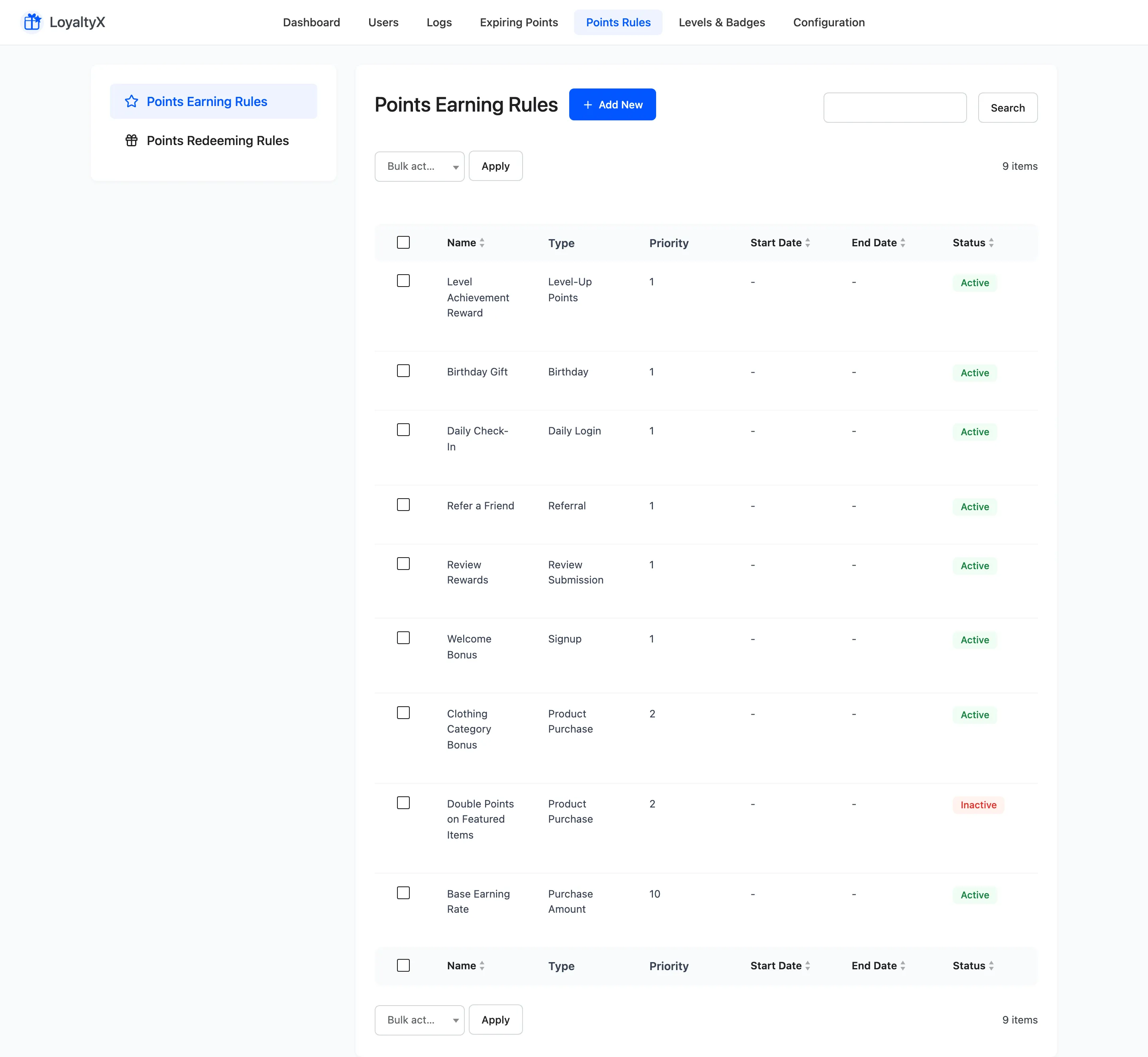
Step 2: Add a referral rule
Section titled “Step 2: Add a referral rule”Click Add New. On the Choose Rule Type screen, pick Referral.
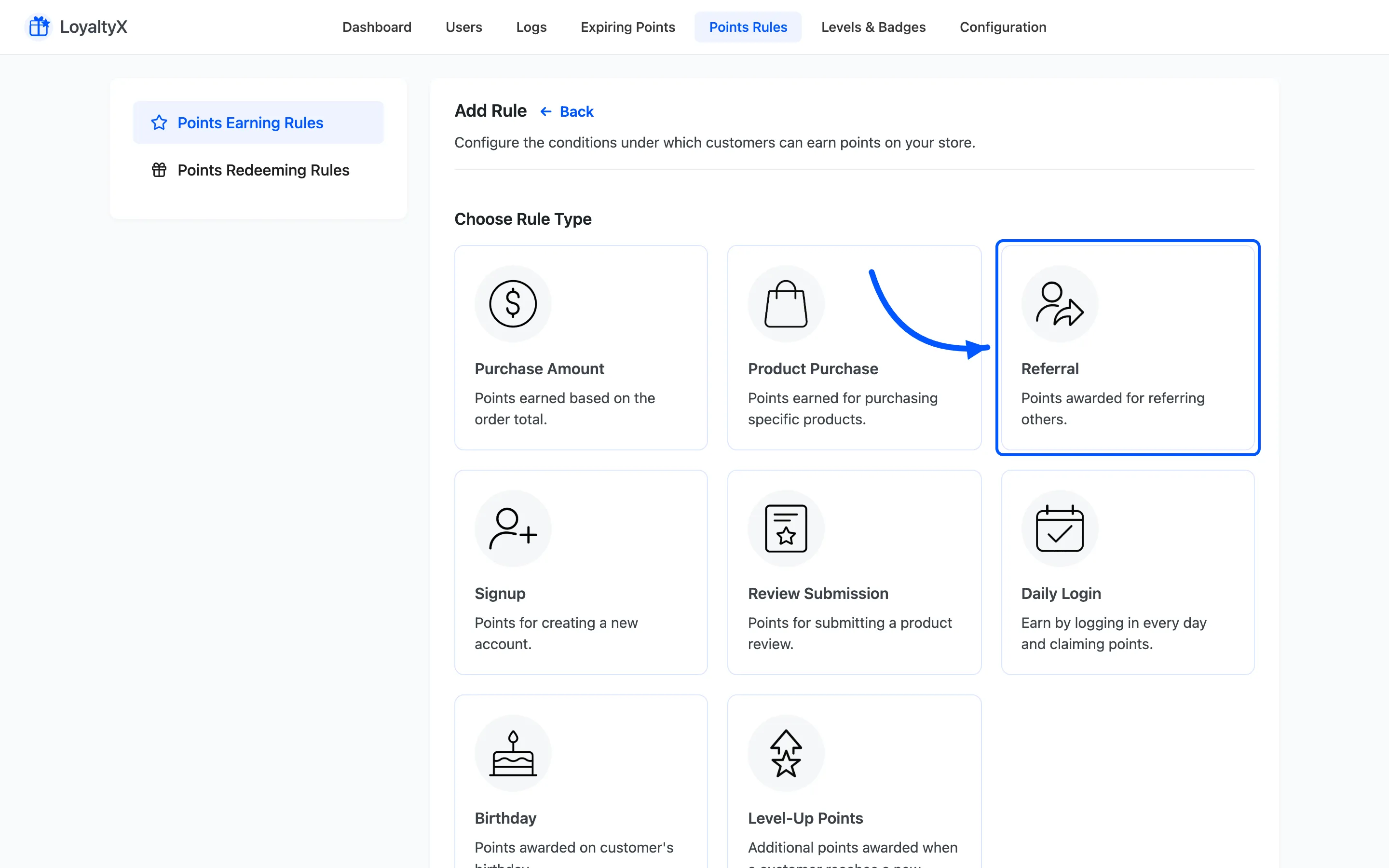
The rule form opens. Fill in:
- Rule Name, such as Refer a Friend.
- Points Value for how many points a successful referral earns.
- Rule Description to explain the reward to members.
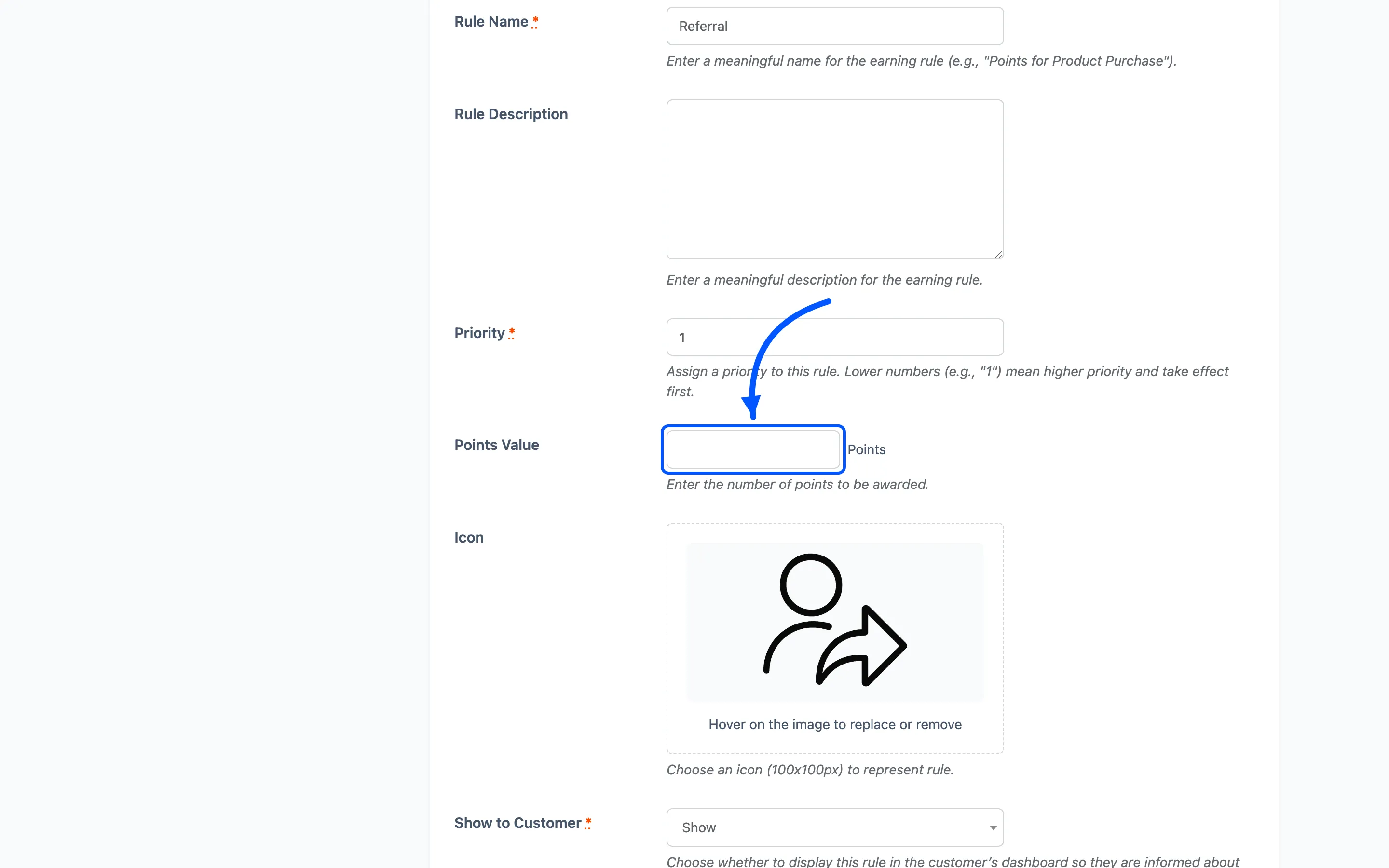
Set the reward high enough to be worth sharing. A referral brings a new customer, so it is worth more than a single review or daily login.
Step 3: Set the referral conditions
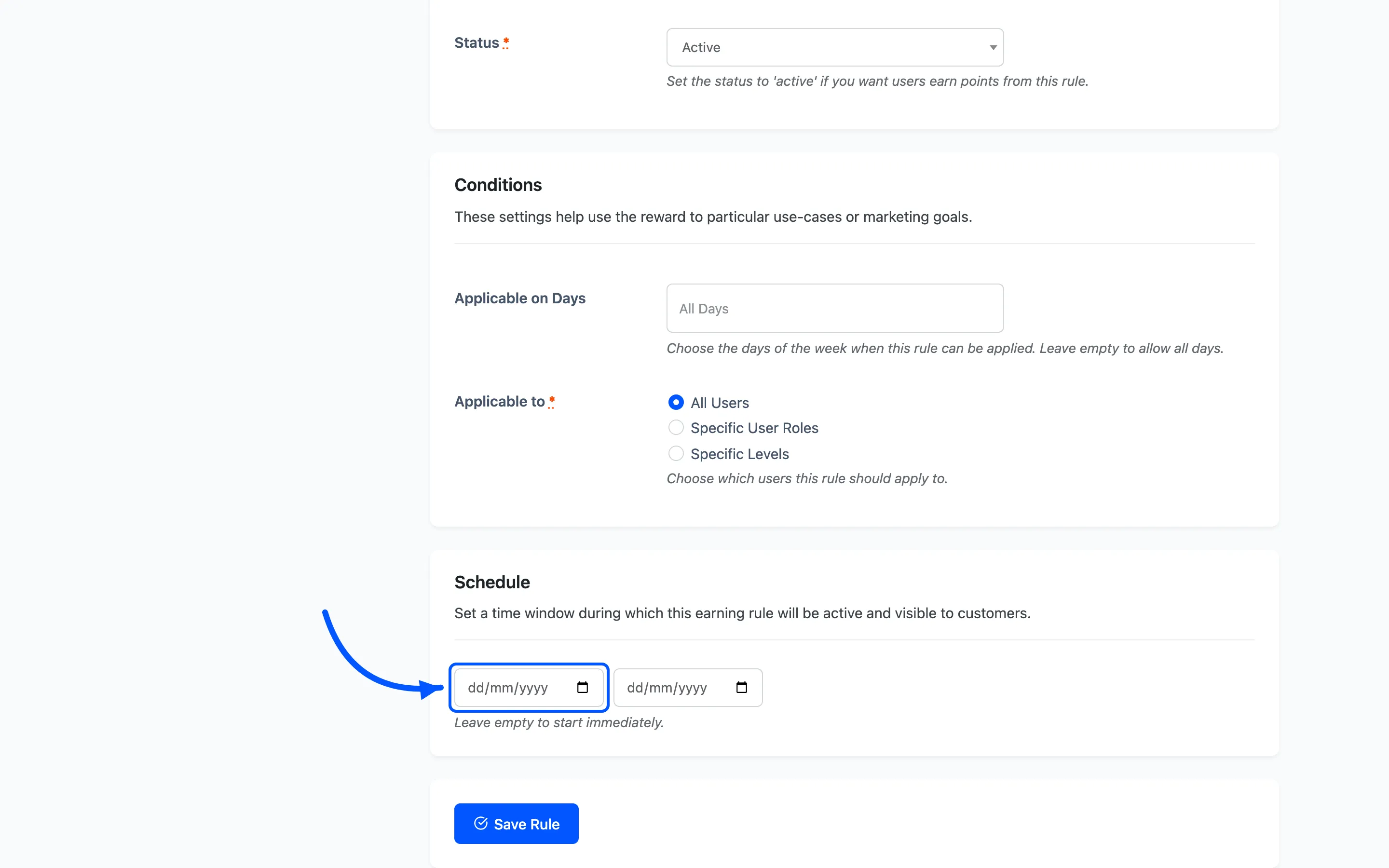
Section titled “Step 3: Set the referral conditions”The referral rule shares LoyaltyX’s standard rule conditions. Use them to control who earns and when:
- Applicable on Days limits the rule to certain days of the week. Leave it empty to run every day.
- Applicable to targets the reward at All Users, Specific User Roles or Specific Levels.
- Schedule with a Start Date and End Date runs the program for a set campaign. Leave the dates empty to start immediately and run indefinitely.
- Priority decides which rule wins when more than one rule could apply. The lower number wins,
so priority
1beats priority5.
Step 4: Show referrals in the rewards area
Section titled “Step 4: Show referrals in the rewards area”Set Show to Customer to Show so the referral appears as a way to earn in the rewards widget and the My Account dashboard. Members need to see their link to share it.
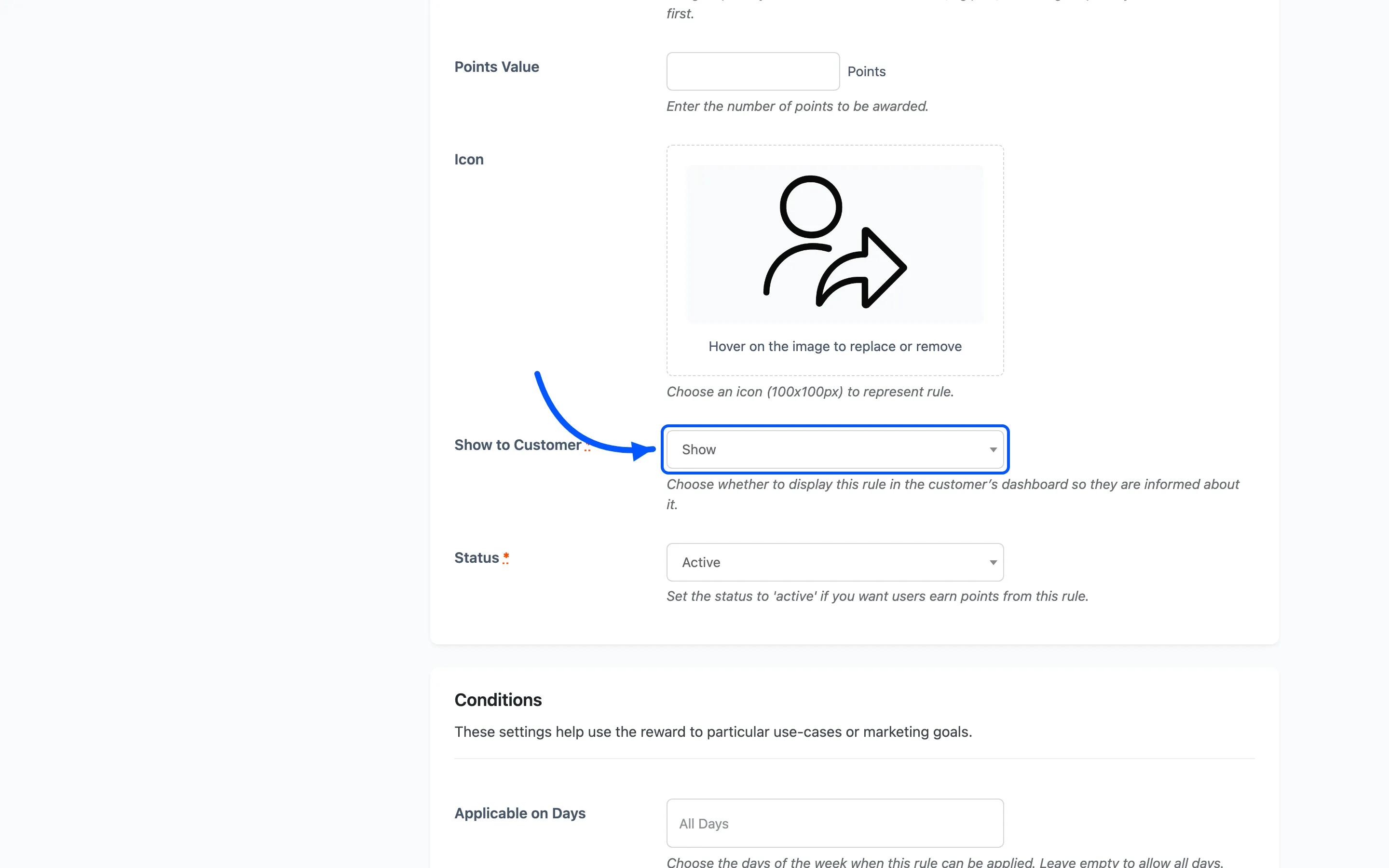
Click Save, then set the rule to Active on the list.
Step 5: Activate and test
Section titled “Step 5: Activate and test”Test the full loop:
- Sign in as a member and copy the referral link from the rewards area.
- Open the link in a separate browser or a private window as a new customer.
- Place an order as the new customer and complete checkout.
- Move the order to an award status and confirm the referrer’s balance goes up.
If the referrer earns nothing, confirm the referred order reached an award status under Configuration → General. Then check the referral rule is set to Active.
What the customer sees
Section titled “What the customer sees”The customer opens the rewards area, from My Account or the floating widget, and opens the Earn tab. The referral rule shows as a card with the points it pays and a Get Referral Link button.
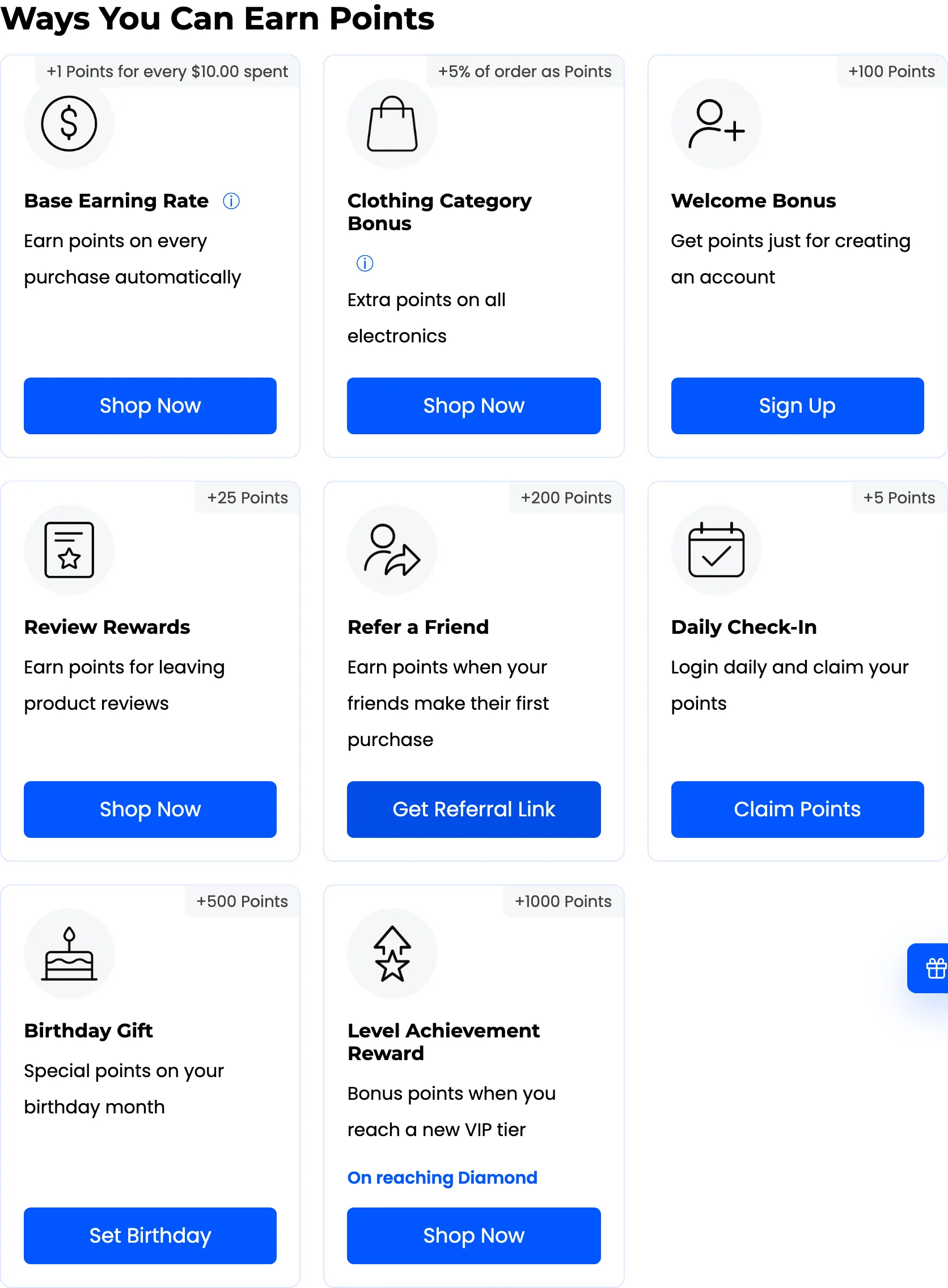
They copy that link and share it. The points arrive only after the referred friend places their first order and it reaches an award status. The reward tracks real sales rather than sign-ups. The customer can watch the count on the Total Referrals card, and every award is listed in their Logs.
Where to go next
Section titled “Where to go next”- How to set up loyalty tiers to reward your most active members with higher ranks.
- Points Rules for a reference on every rule type.