

How to Set Up a Percentage Discount Reward (Pro)
A Percentage Discount reward lets a customer spend points for a percentage off the cart total, such as 300 points for 10% off. A percentage scales with the order, so it rewards a larger basket more than a fixed amount does. That suits stores with a wide price range.
Before you start
Section titled “Before you start”Set the free conversion rate and redemption limits first, so redemption is switched on.
Step 1: Open the redeeming rules
Section titled “Step 1: Open the redeeming rules”Go to DevDiggers Plugins → LoyaltyX → Points Rules, then open the Points Redeeming sub-section.
Step 2: Choose the Percentage Discount type
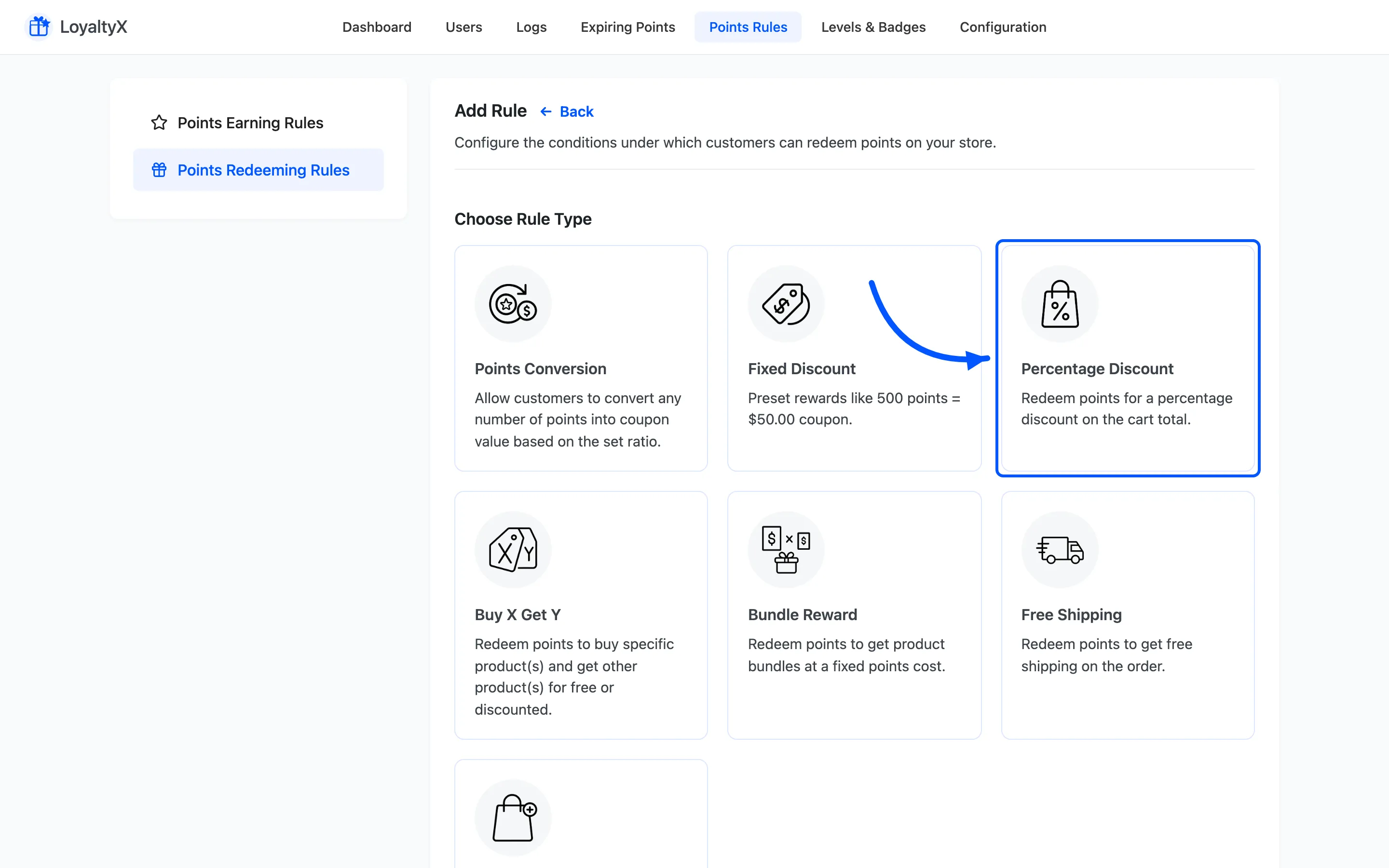
Section titled “Step 2: Choose the Percentage Discount type”Click Add New. On the Choose Rule Type screen, pick Percentage Discount.
Step 3: Set the points and the percentage
Section titled “Step 3: Set the points and the percentage”The Points Value row sets the deal: how many points equal what percentage off the cart total.
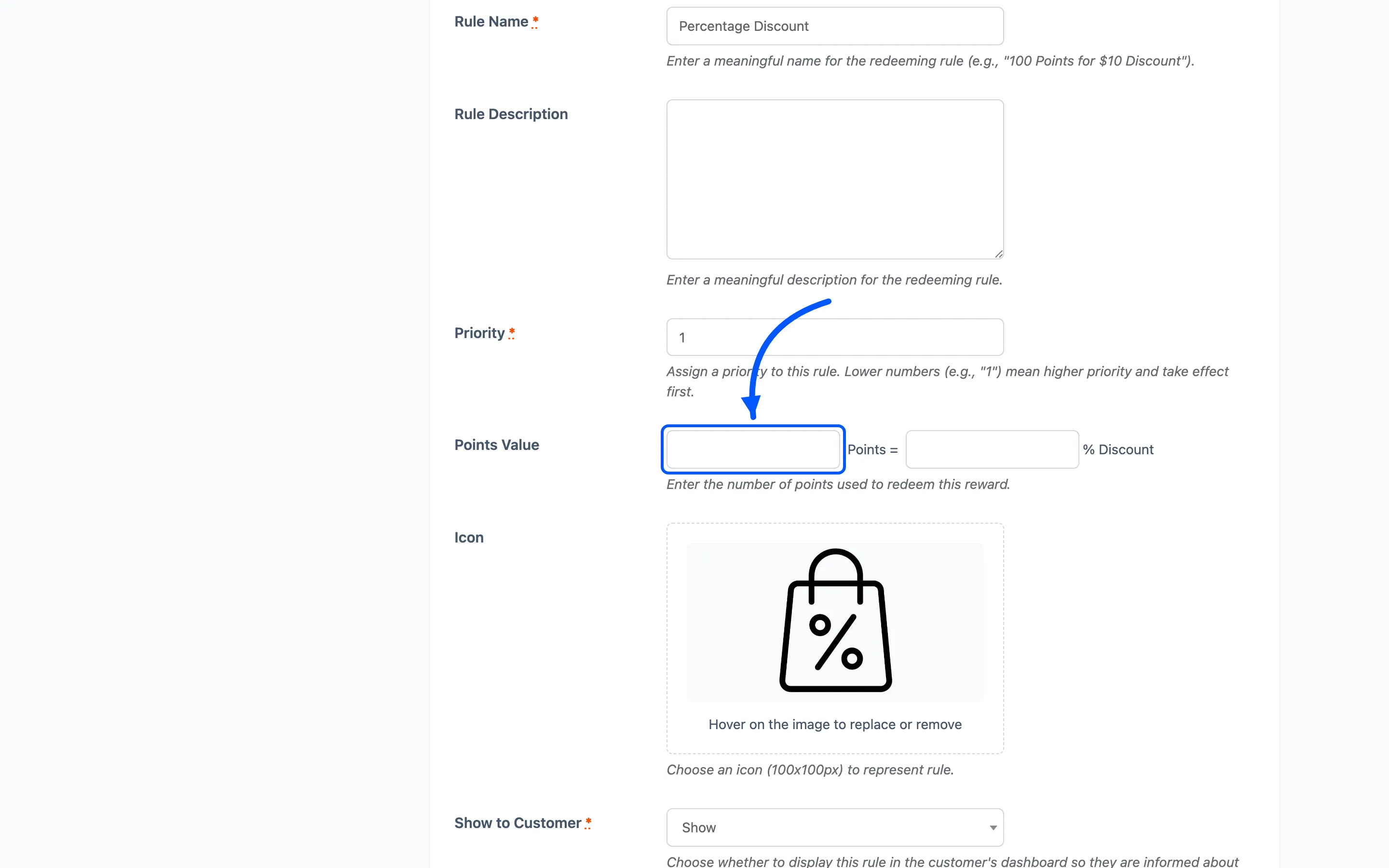
- Rule Name and Rule Description are what the customer sees, such as
300 points for 10% off.
Cap a percentage reward with a Maximum Cart Amount under Conditions if you do not want it applying to very large orders.
Step 4: Set the coupon
Section titled “Step 4: Set the coupon”Under Coupon, set the Coupon Label shown in the cart, an optional Coupon Expiry in days, and whether the coupon can be shared.
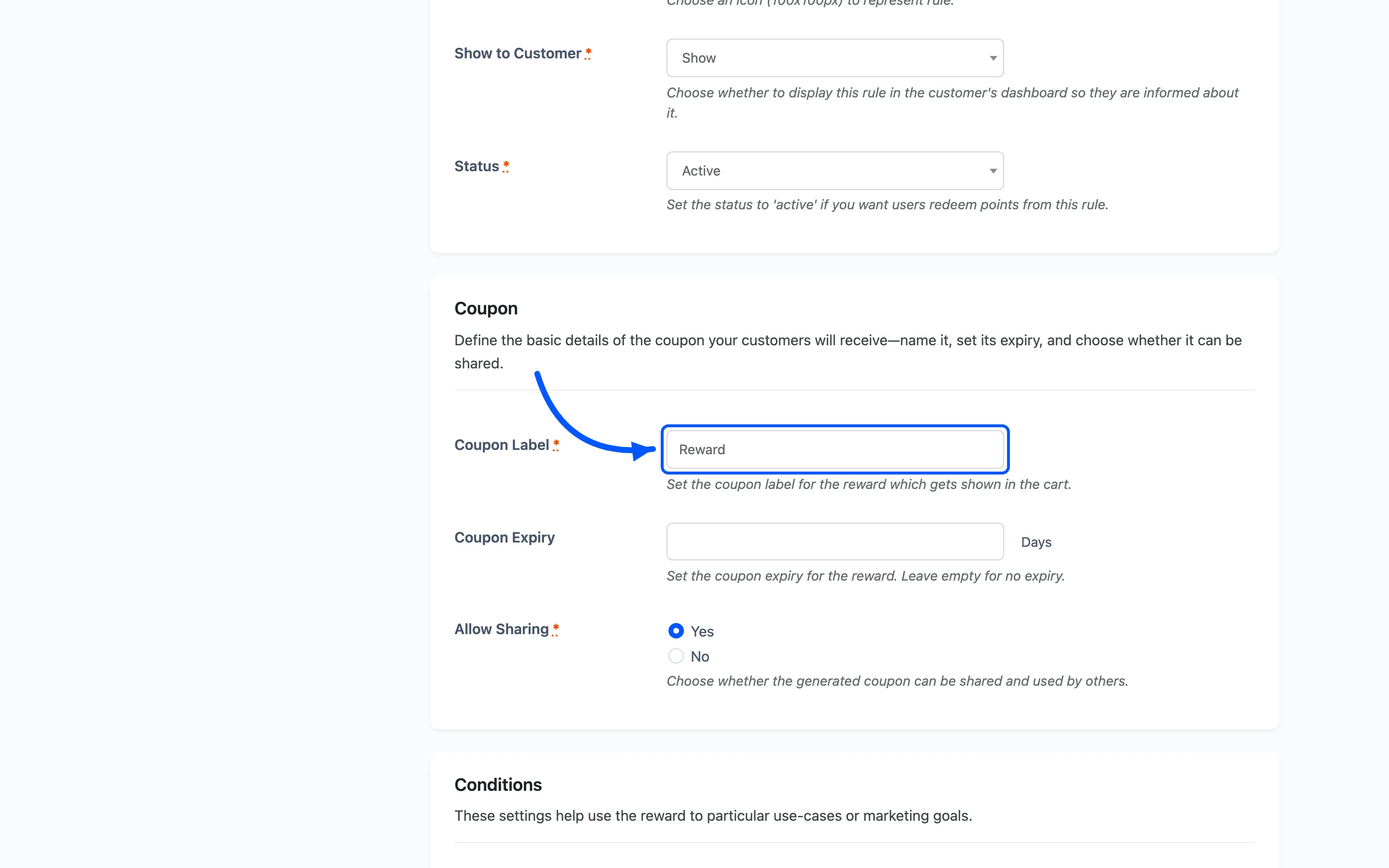
Set Show to Customer to Show, then click Save.
Step 5: Activate and test
Section titled “Step 5: Activate and test”Back on the list, set the rule to Active, then check the customer side.
What the customer sees
Section titled “What the customer sees”The customer opens the rewards area, from My Account or the floating widget, and opens the Redeem tab. Each active reward shows as a card with its points cost.
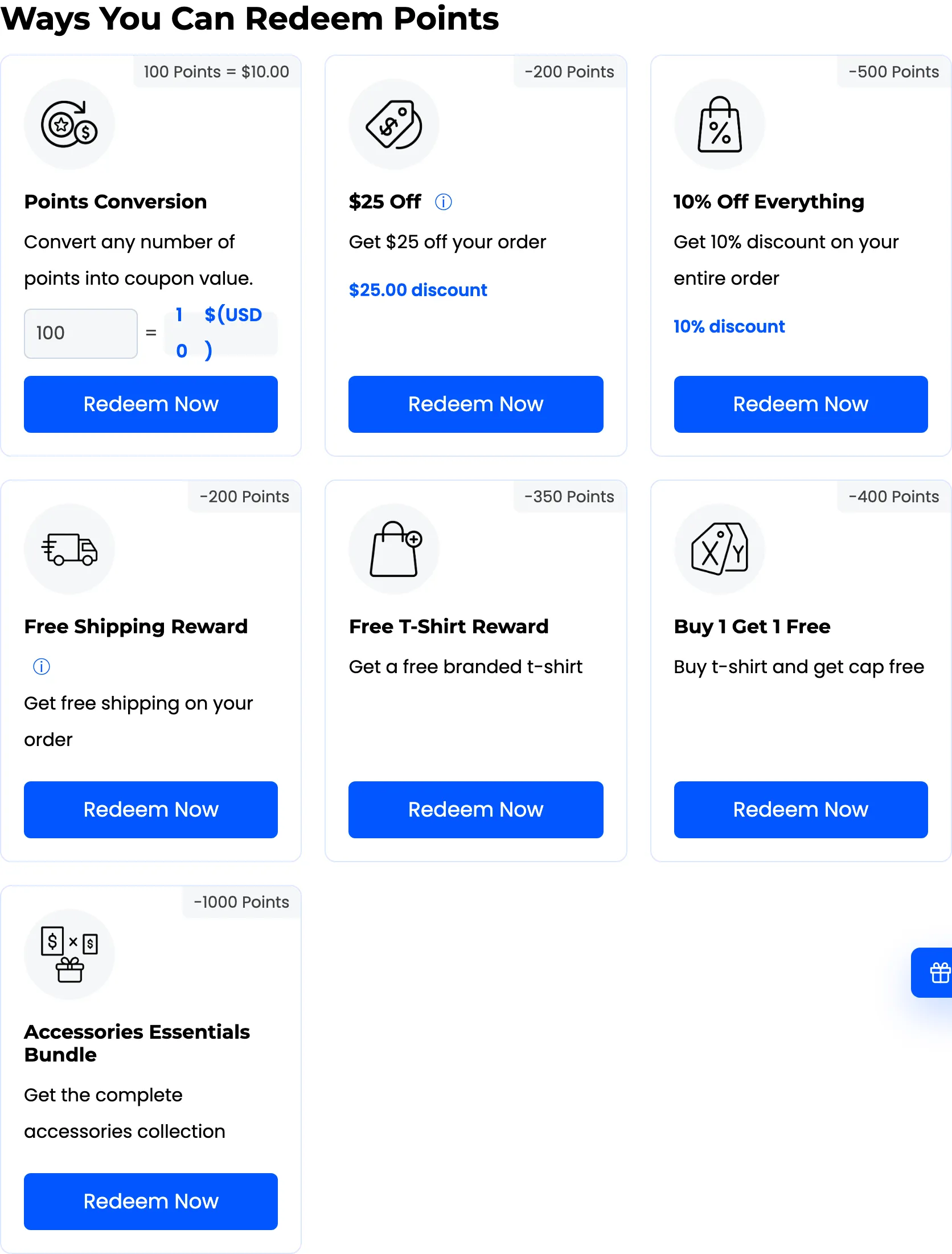
When the customer clicks Redeem Now, LoyaltyX deducts the points, creates the coupon and applies it straight away. The cart totals gain a Reward line showing the amount the percentage worked out to, with a Remove link beside it.
Because the saving scales with the basket, the same reward is worth more on a large order. Cap it with a Maximum Cart Amount under Conditions if that is not what you want.
If the reward does not appear, check that the rule is Active and Show to Customer is set to Show. Then confirm the customer holds enough points.
Where to go next
Section titled “Where to go next”- How to Set Up a Free Shipping Reward to let customers spend points on delivery.
- Points Rules for a reference on every rule type.