

Import Points from CSV
When you move to LoyaltyX from another system, or seed balances for a launch, you do not want to type each one. The Import screen reads a CSV file and applies the points to your customers in one run.
Open the Import screen
Section titled “Open the Import screen”Go to DevDiggers Plugins → LoyaltyX, open the Users tab, then click Import at the top of the list.
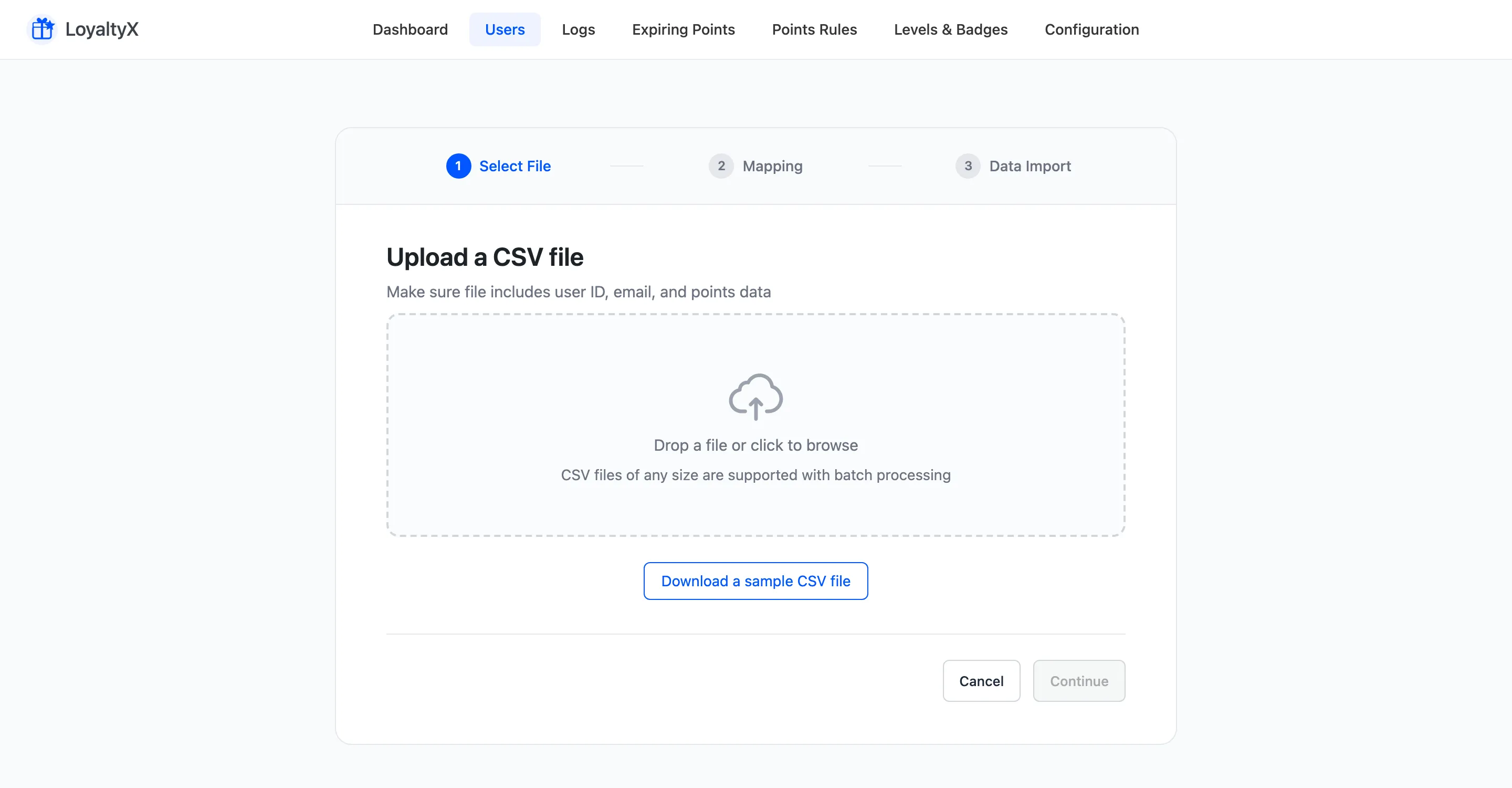
The import runs in three steps: Select File, Mapping, and Data Import.
Step 1: Select the file
Section titled “Step 1: Select the file”Drop a .csv file onto the upload area or click to browse. If you are not sure of the format,
click Download a sample CSV file. The sample has three columns: email, points and
description. Files of any size work, because LoyaltyX processes them in batches. Click
Continue.
Step 2: Map the columns
Section titled “Step 2: Map the columns”LoyaltyX shows each of your CSV columns next to the fields it can fill:
- User identification is ID, Username or Email. Map at least one so LoyaltyX can match each row to a customer.
- Points is required. It is the balance to apply for that row.
- Description is optional and is written to the transaction log for each row.
Then pick a Points Action for the whole file:
- Add to existing points increases each customer’s current balance.
- Subtract from existing points decreases it.
- Override points (set to value) sets the balance to the value in the file, ignoring what was there. LoyaltyX works out the difference and records it as an add or a subtract, so the transaction log still shows what moved.
Step 3: Import and review
Section titled “Step 3: Import and review”LoyaltyX processes the rows and shows a summary: total rows in the file, duplicate rows, how many were imported, and how many were skipped. A row is skipped when the customer cannot be found or the points value is not valid. Click Done to return to the Users list.
Where to go next
Section titled “Where to go next”- Manual Points Adjustment to change a few balances by hand instead.
- Users and Balances to check the imported balances.