

Rewards Widget
The Rewards Widget is a floating button on every store page. Customers open it to check their balance, see ways to earn, and redeem rewards without leaving the page. Guests see a prompt to join.
Open Rewards Widget settings
Section titled “Open Rewards Widget settings”Go to DevDiggers Plugins → LoyaltyX → Configuration, then open Rewards Widget in the left menu.
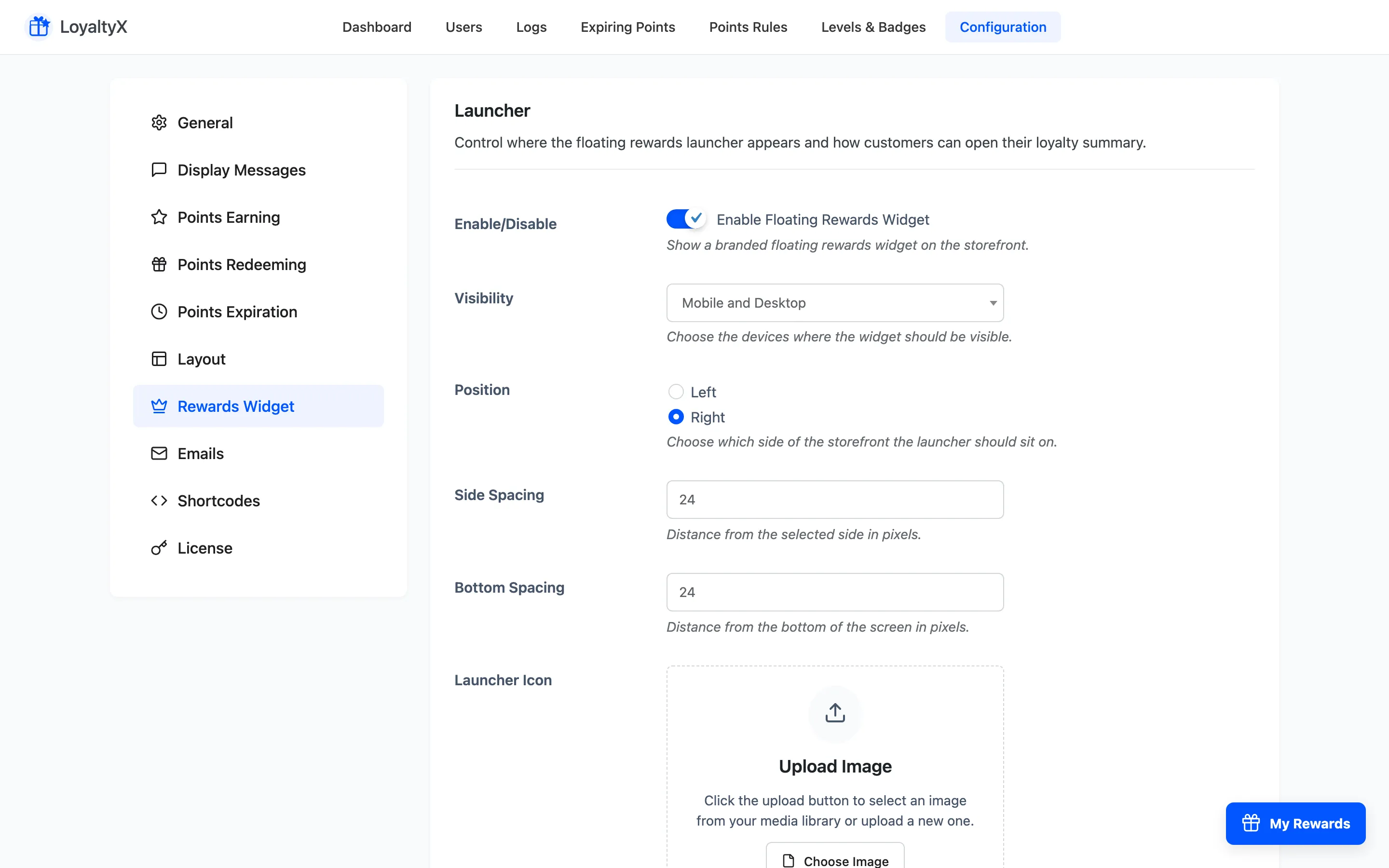
Launcher
Section titled “Launcher”Control the floating button itself.
- Enable Floating Rewards Widget turns the widget on.
- Visibility picks the devices it shows on: Mobile and Desktop, Mobile Only, Desktop Only, or Do not show.
- Position places the launcher in a screen corner. Side Spacing and Bottom Spacing nudge it away from the edges.
- Launcher Icon uploads an optional custom image for the button. Leave it empty for the default gift icon. Launcher Label is the text beside it.
Content
Section titled “Content”Set the words inside the panel.
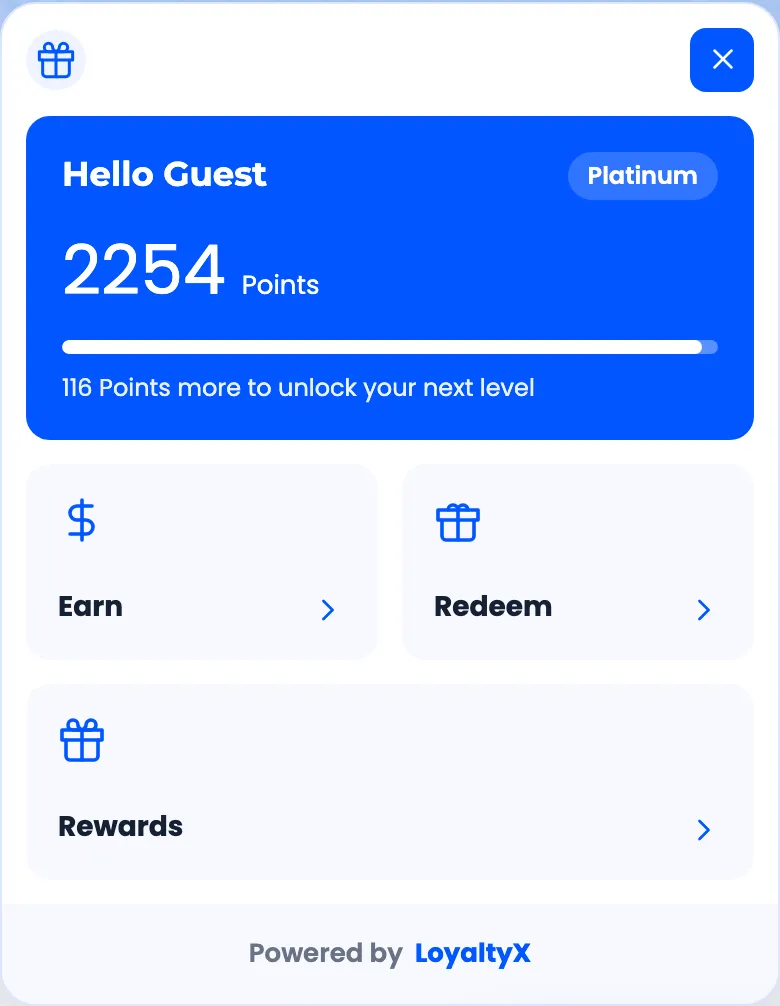
- Guest Heading and Guest Description speak to visitors who have not joined yet.
- Logged-in Heading greets a signed-in customer. Use the
{user_name}placeholder to drop their name into the greeting. - Earn Label, Redeem Label and Rewards Label name the three sections of the panel.
Design
Section titled “Design”Match the widget to your brand.
- Primary Color and Primary Text Color style the main buttons.
- Widget Background, Text Color and Muted Text Color style the panel.
- Action Card Background and Border Color style the earn and redeem cards.
- Show Powered by LoyaltyX toggles the branding line, and Logo sets a logo in the panel.
Save your changes
Section titled “Save your changes”Click Save Changes, then open any store page to see the launcher.
What customers see
Section titled “What customers see”Once enabled, the floating My Rewards button opens this panel on the storefront.
Where to go next
Section titled “Where to go next”- How to customize the rewards widget for a full walkthrough.
- Display Messages for the in-page points prompts.