

Manual Points Adjustment
Points usually move on their own, on a purchase or a redemption. Sometimes a balance needs changing by hand. A goodwill bonus after a support issue, a correction, or a starter balance for every member at launch. The Manual Adjustment screen does that for one customer or thousands in a single run.
Open the Manual Adjustment screen
Section titled “Open the Manual Adjustment screen”Go to DevDiggers Plugins → LoyaltyX, open the Users tab, then click Manual Adjustment at the top of the list.
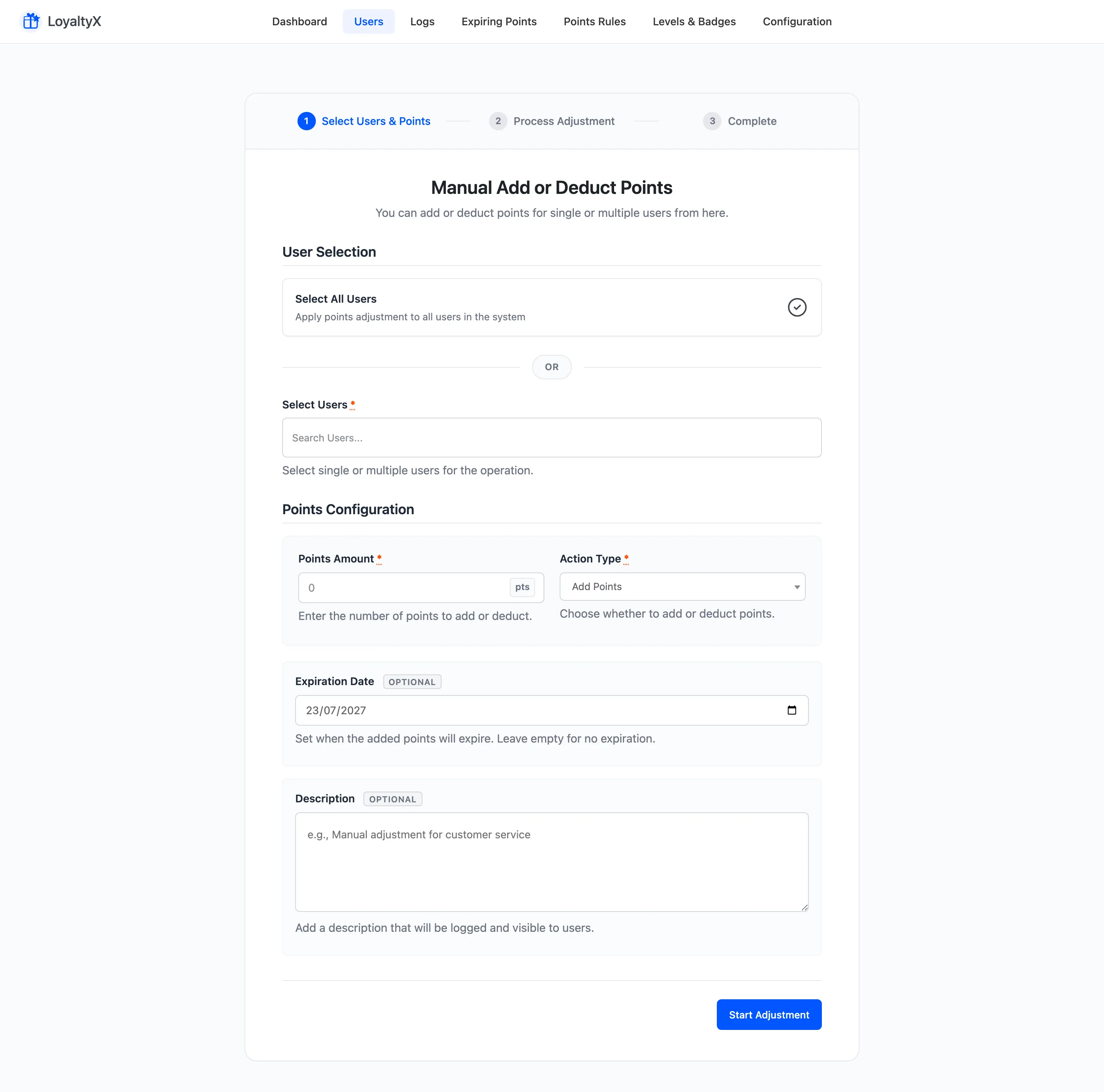
The screen runs in three steps: Select Users & Points, Process Adjustment, and Complete.
Choose who to adjust
Section titled “Choose who to adjust”Under User Selection you pick the customers to change.
- Select All Users applies the adjustment to every customer in your store. Use it for a store-wide bonus, and use it with care.
- Select Users searches by name or email so you can add one customer or a handful. Leave Select All Users off when you use it.
Set the points and action
Section titled “Set the points and action”Under Points Configuration:
- Points Amount is the number to move. Enter a plain number, such as
100. - Action Type is Add Points or Deduct Points. Deducting never takes a balance below zero.
- Expiration Date shows only for Add Points and is optional. It sets a date for the added points to expire. Leave it empty for no expiry.
- Description is optional. Whatever you type is written to the transaction log and shown to
the customer, so a clear note like
Goodwill bonus for order delayhelps later.
Process and review
Section titled “Process and review”Click Start Adjustment. LoyaltyX works through the selected customers and moves to the Complete step, which reports how many were processed, how many succeeded, and how many failed.
Every change is recorded in the log as a Manual Adjustment by Admin event. The plugin also sends the customer the matching email, when that email is enabled under Configuration.
Where to go next
Section titled “Where to go next”- Import Points to load balances in bulk from a spreadsheet instead.
- Transaction Log to see each adjustment you made.
- Email Settings to edit the Manual Adjustment email customers receive.