

The LoyaltyX Dashboard
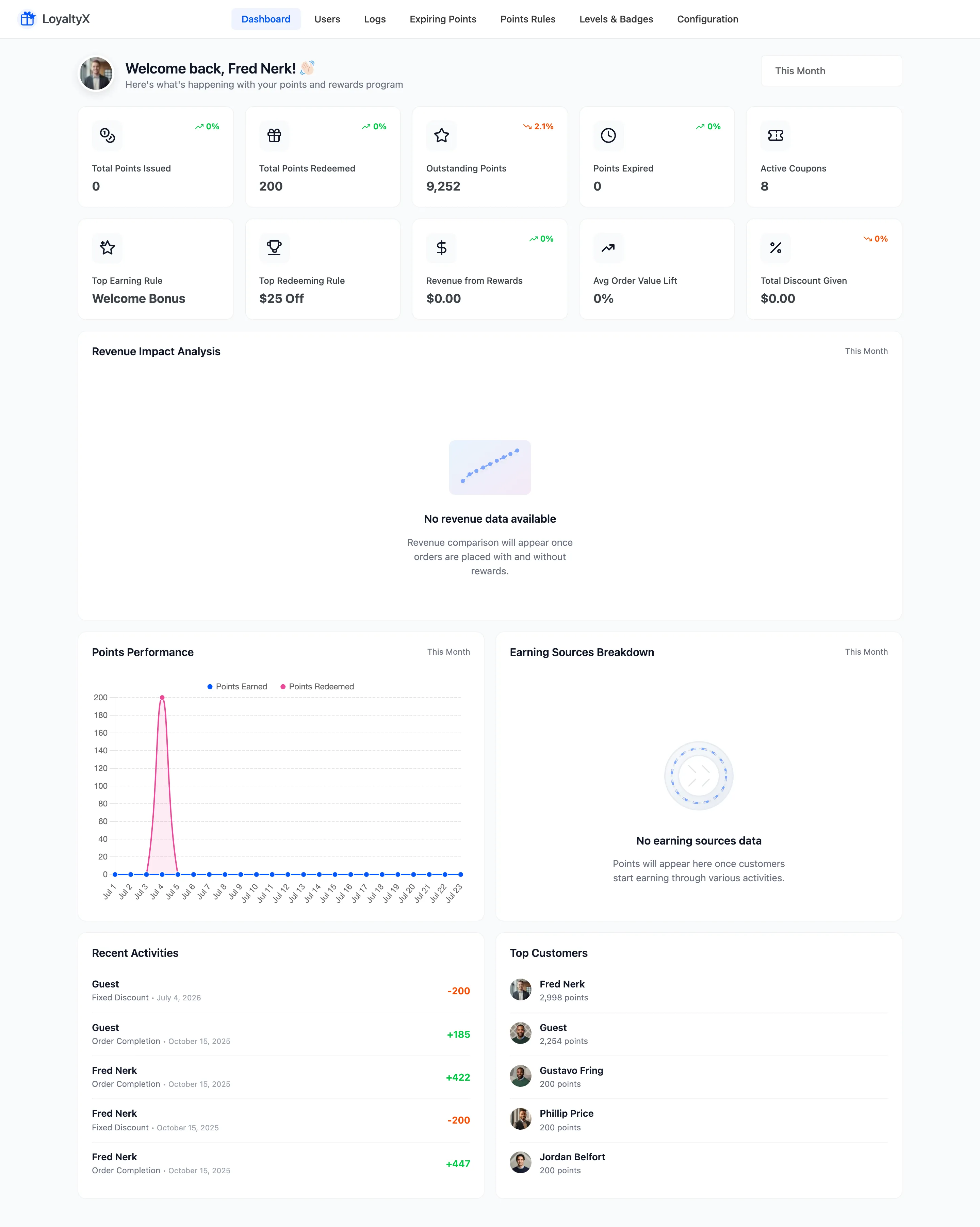
The dashboard is the first screen you see when you open LoyaltyX. It reports how your points program is doing. How many points went out, how many came back as discounts, and which rules and customers drive the most activity.
Open the dashboard
Section titled “Open the dashboard”Go to DevDiggers Plugins → LoyaltyX, then open the Dashboard tab. It opens on a Welcome back greeting, then the metric cards, then the charts.
Each of the three charts carries its own period selector, set to This Month. Change them independently, and note the metric cards are not tied to those selectors.
The metric cards
Section titled “The metric cards”The row of cards summarises the program at a glance. Several carry a percentage under the figure, comparing the current period against the one before it.
- Total Points Issued and Total Points Redeemed show points awarded versus points spent.
- Outstanding Points is the balance customers hold but have not yet redeemed.
- Points Expired counts points cleared by an expiration rule. This stays at zero unless you use Pro expiration.
- Active Coupons is the number of redemption coupons currently live.
- Top Earning Rule and Top Redeeming Rule name the rule that awarded and the reward that redeemed the most points.
- Revenue from Rewards, Avg Order Value Lift and Total Discount Given estimate the program’s effect on sales.
Revenue Impact Analysis
Section titled “Revenue Impact Analysis”This chart compares revenue from orders that used rewards against orders that did not. It stays empty until customers place orders both with and without redeeming points, so the plugin has two groups to compare.
Points Performance
Section titled “Points Performance”The line chart plots points earned against points redeemed across the selected period. Use it to see whether customers are banking points, spending them, or both.
Earning Sources Breakdown
Section titled “Earning Sources Breakdown”This chart splits earned points by where they came from, such as purchases, reviews or referrals. It fills in once customers start earning through more than one activity.
Recent Activities and Top Customers
Section titled “Recent Activities and Top Customers”Recent Activities lists the latest point events with the customer, the reason and the amount. A positive number is points earned; a negative number is points spent. Top Customers ranks the members holding the most points, which is a quick read on who your program rewards most.
Where to go next
Section titled “Where to go next”- General Settings to turn the program on and set order-status rules.
- Points Earning Settings to set how customers earn on purchases.