

How to Upgrade from Version 1
Version 2 rebuilt Biometric Login around passkeys. Updating keeps every customer’s saved passkey.
Step 1: Update the plugin
Section titled “Step 1: Update the plugin”Update from Plugins, or upload the 2.0 zip over the old version. The setup wizard does not open for an update.
Step 2: Check the passkeys moved
Section titled “Step 2: Check the passkeys moved”Version 1 kept passkeys in settings. Version 2 moves each one into its own table the first time it loads, and removes the old copies. Open DevDiggers Plugins → Biometric Login → Passkeys: each 1.x passkey is listed as Biometric device, with Unknown as its type.
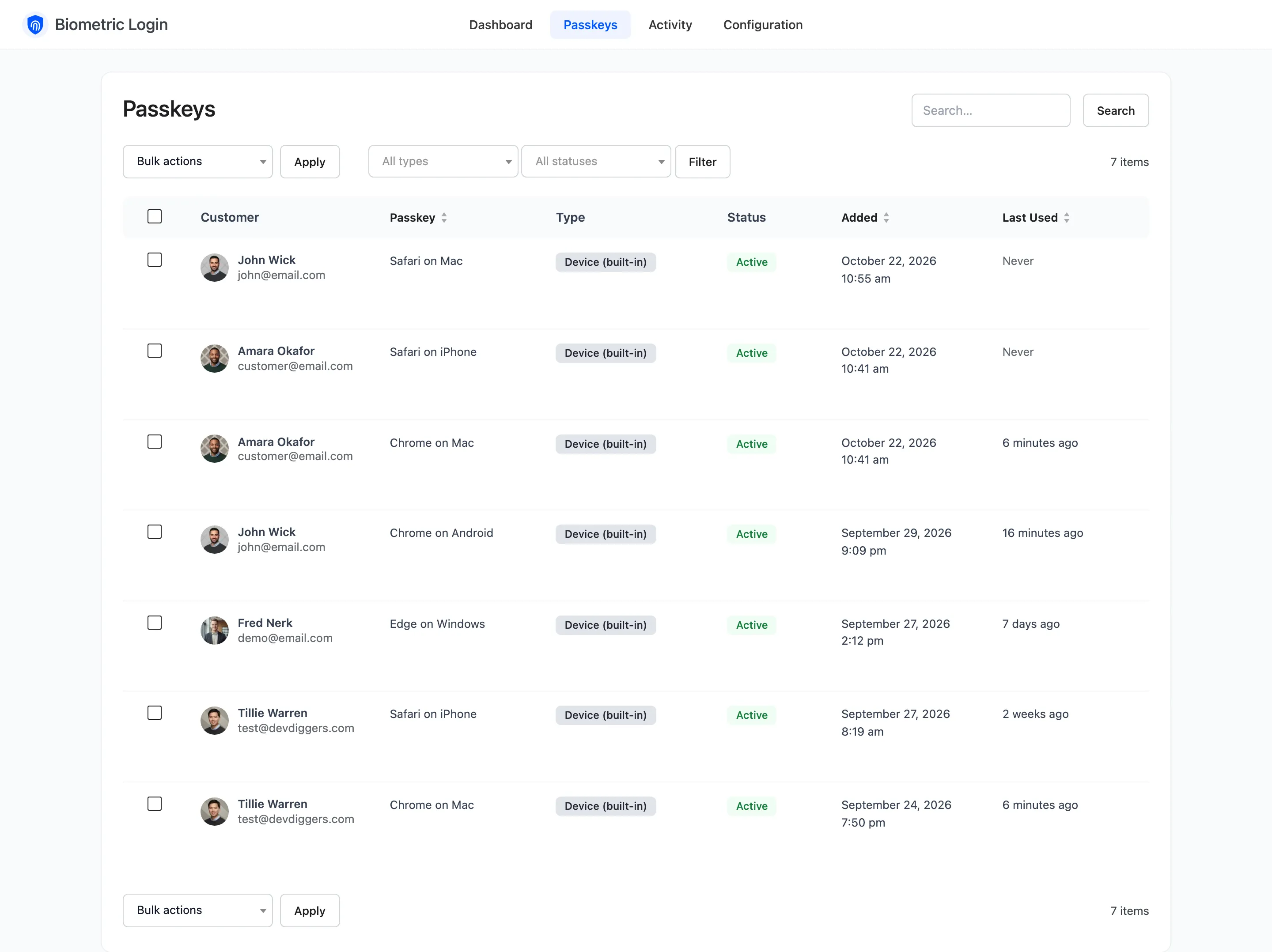
Customers sign in with them as before. They can rename them in My Account → Passkeys.
The 1.x log is not carried over. Activity starts empty and fills from the update on.
Step 3: Review the settings
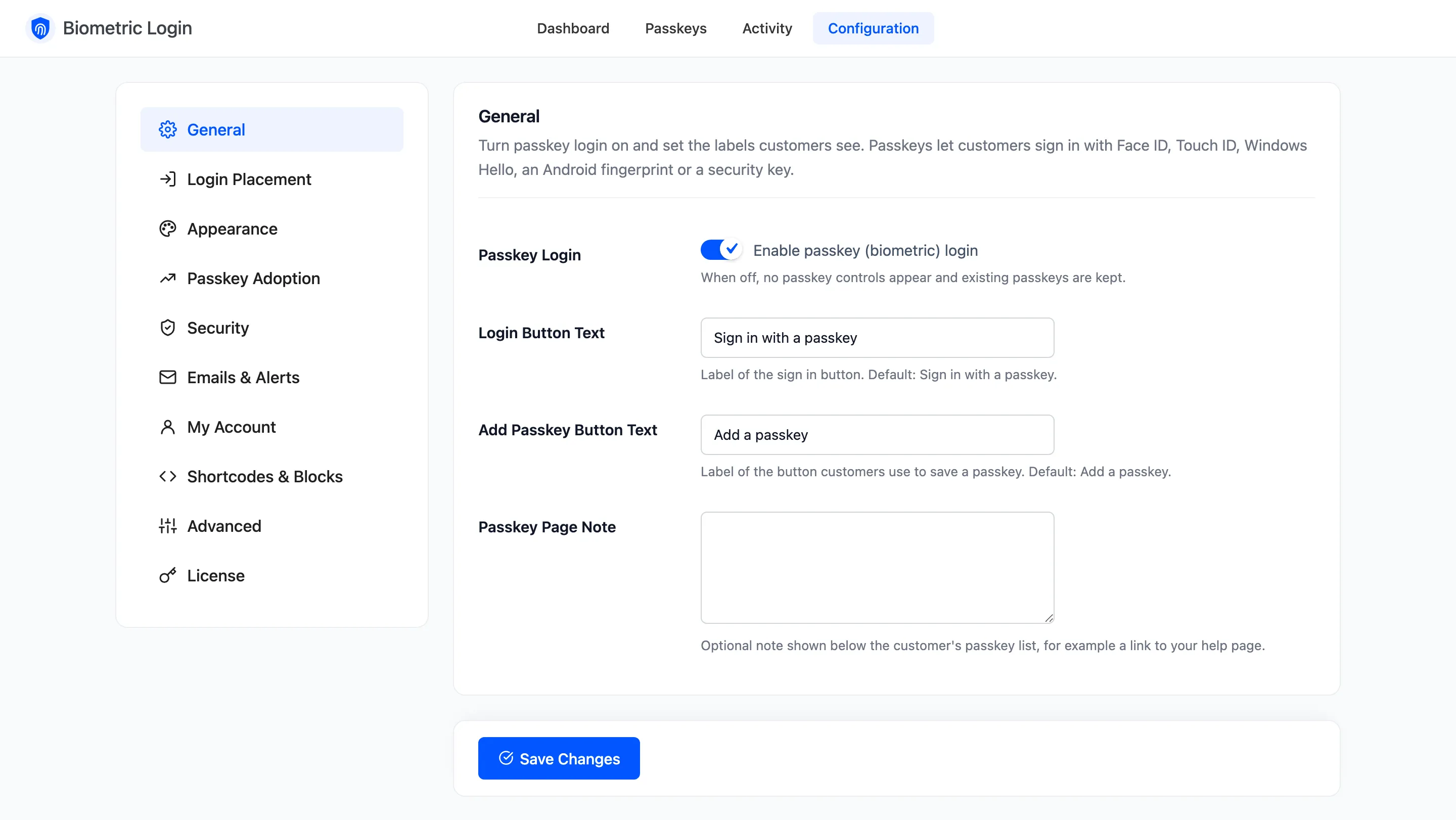
Section titled “Step 3: Review the settings”Your 1.x choices are kept: the button texts, the forms the button shows on, the colours and the shortcodes. Everything new starts at its default, which means:
- Recovery codes are on, and customers get them with their next passkey or from Create new codes.
- All four invitations are on.
- The lockout is on, at 5 attempts and 15 minutes.
Old links to the 1.x settings page open the new Configuration screen.
Step 4: Decide on the My Account address
Section titled “Step 4: Decide on the My Account address”1.x used /my-account/ddwc-biometric-login/. An updated store keeps it, so bookmarks and old emails still
work. To use /my-account/passkeys/, set Endpoint to passkeys under
My Account.
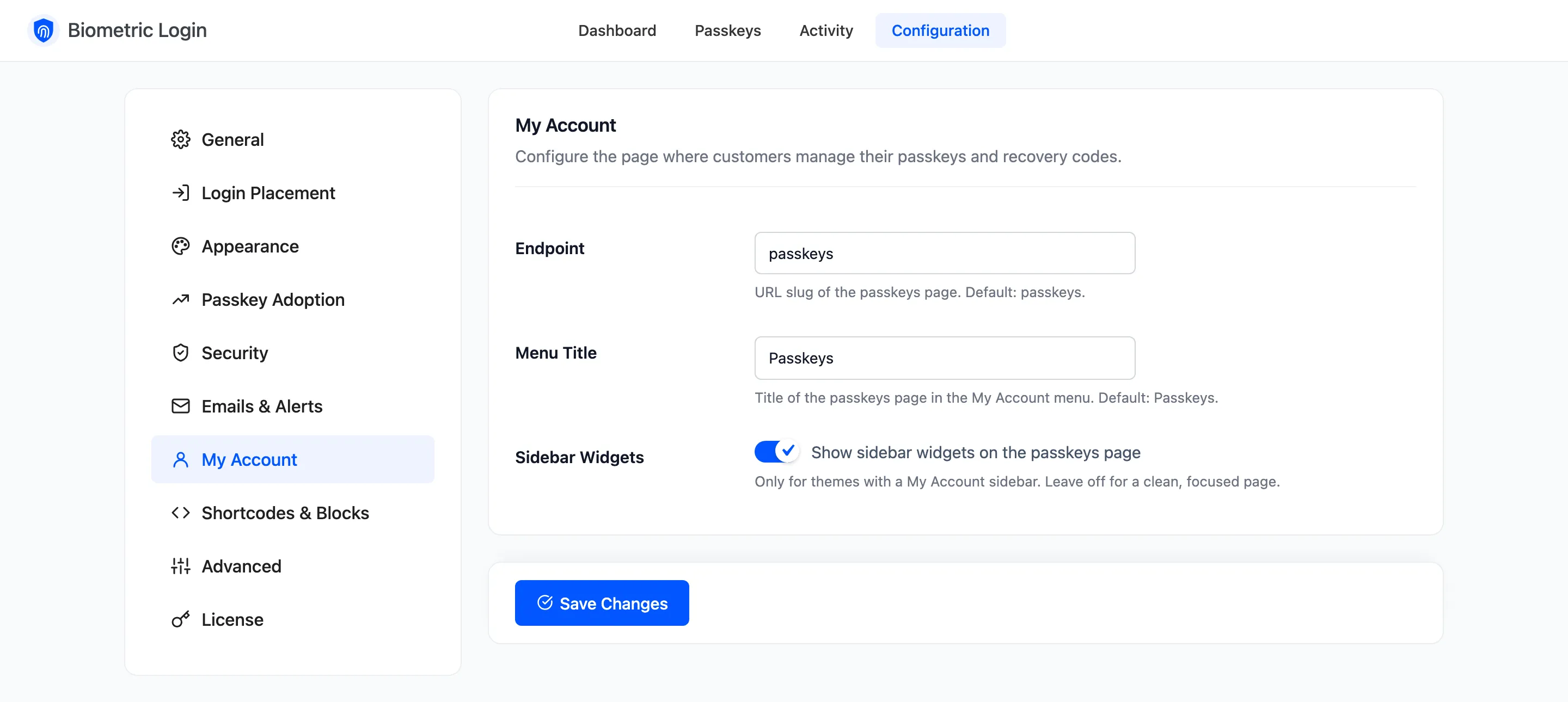
The 1.x menu title may still read Biometric Login. Change Menu Title too if you want Passkeys.