

How to Sign In with a Passkey
Once a customer has a passkey, signing in is one button and one touch.
Step 1: Open the login form
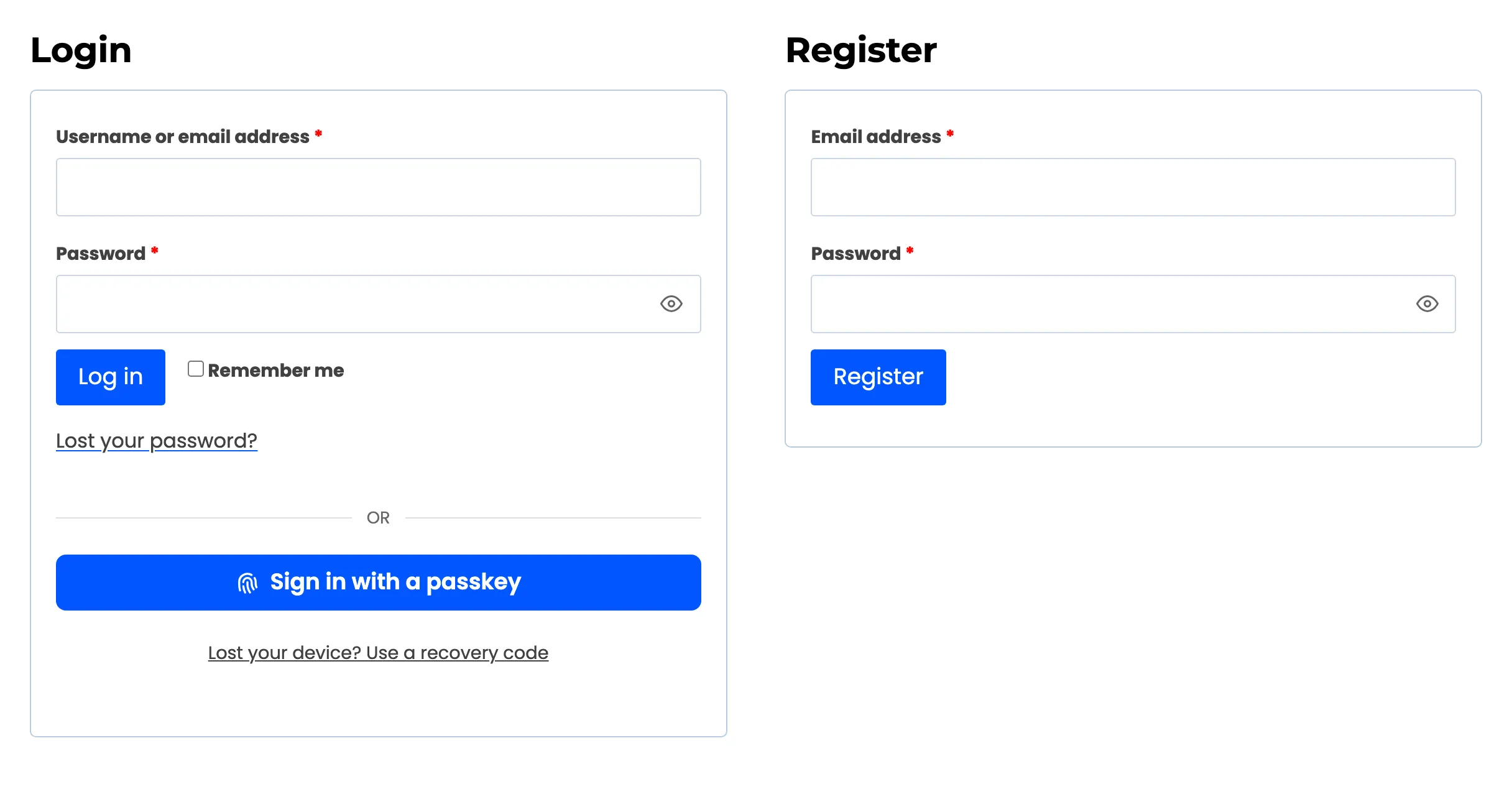
Section titled “Step 1: Open the login form”Signed out, open My Account. The passkey button sits under the password form.
Step 2: Press Sign in with a passkey
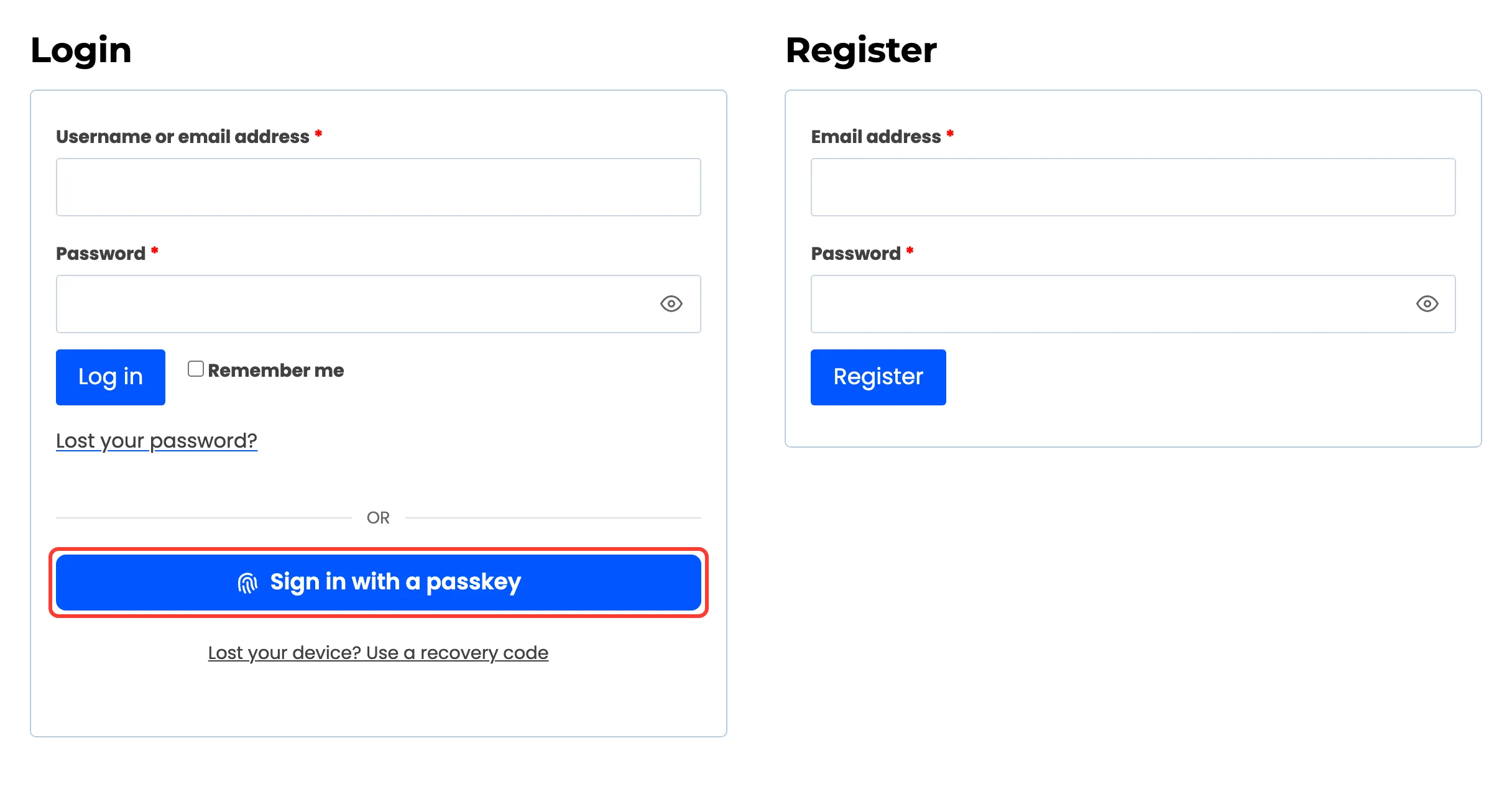
Section titled “Step 2: Press Sign in with a passkey”Press Sign in with a passkey. There is no username to type. The passkey tells the store whose account it is.
Step 3: Confirm on the device
Section titled “Step 3: Confirm on the device”The browser shows its own passkey prompt. The customer approves with the device’s check. If the device holds passkeys for several accounts on your store, the browser asks which one.
Step 4: Land signed in
Section titled “Step 4: Land signed in”“Signed in. Redirecting…” shows for a moment, then the page opens again, signed in.
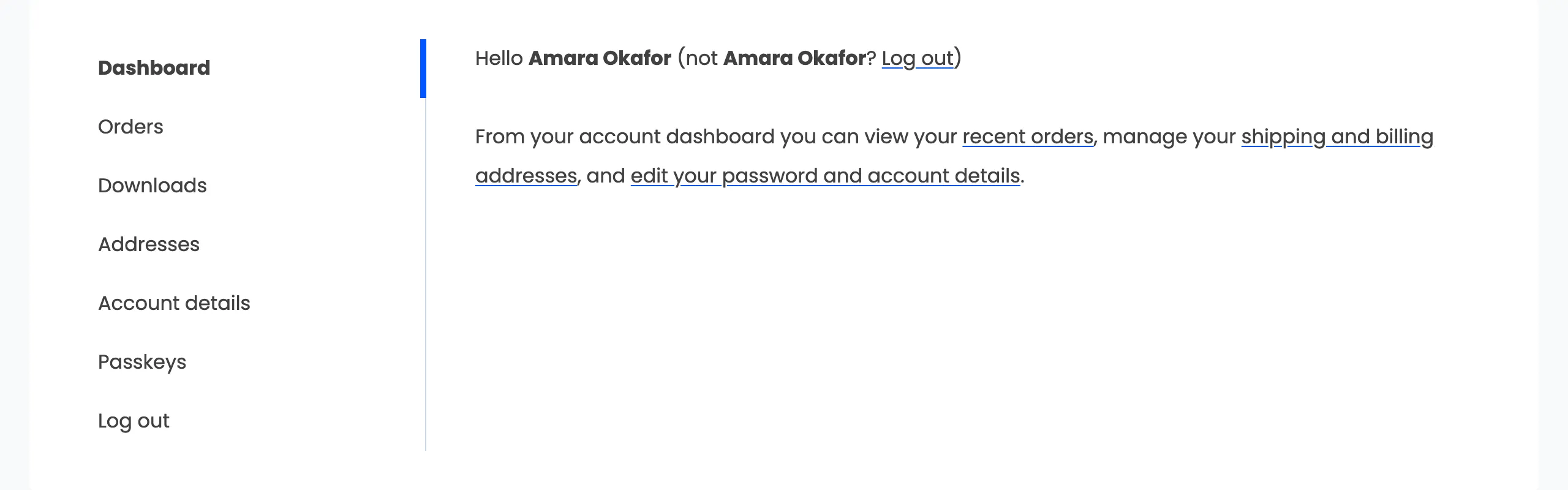
The sign in is recorded in Activity with the device and where it happened. Remember me, when ticked on the form, keeps them signed in the usual length of time.
When it does not work
Section titled “When it does not work”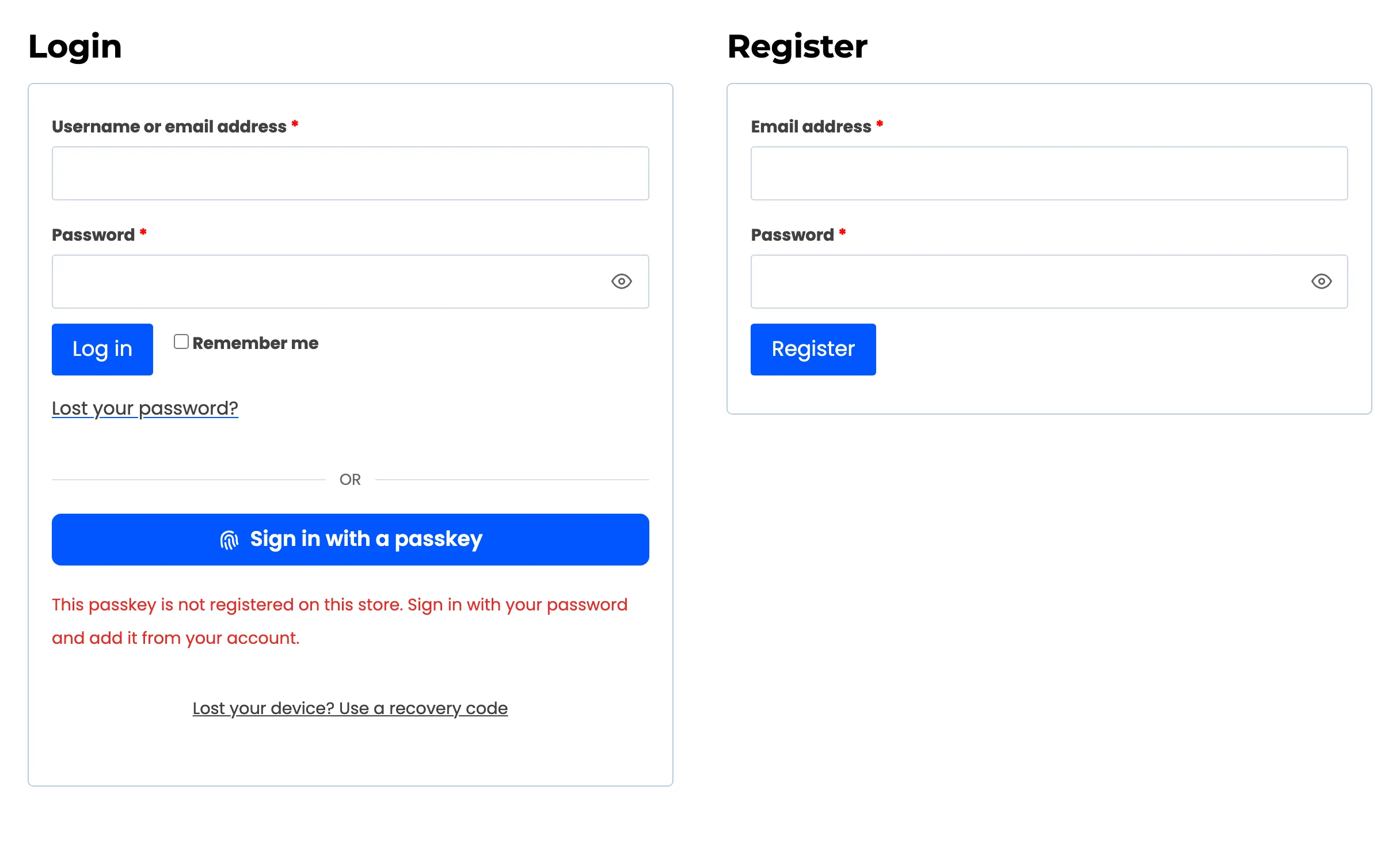
- “This passkey is not registered on this store.” It belongs to another site, or was removed. Sign in with the password and add it again.
- “This passkey is suspended.” Reactivate it from My Account → Passkeys, signed in another way.
- “The request was cancelled or timed out.” The device prompt was closed. Press the button again.
- “Too many failed attempts.” The address is locked out for a while. See How to Lock Out Repeated Failed Sign Ins.
- No device at all: Lost your device? Use a recovery code. See How to Sign In with a Recovery Code.