

How to Export or Erase a Customer's Passkey Data
Biometric Login joins WordPress’s privacy tools, so a data request covers passkeys without extra work.
Step 1: Add an export request
Section titled “Step 1: Add an export request”Open Tools → Export Personal Data, enter the customer’s email, and click Send Request. WordPress emails them to confirm, unless you untick Confirmation email.
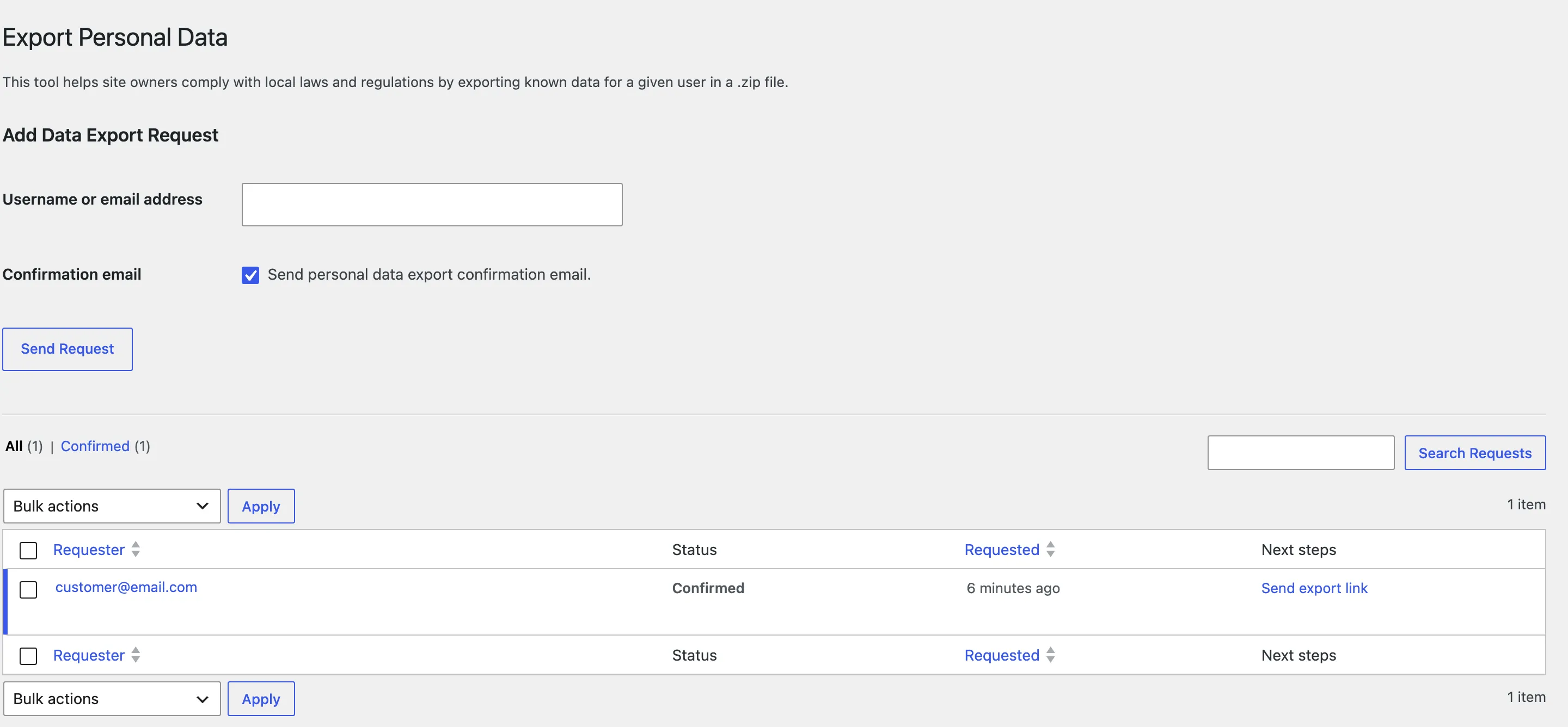
Step 2: Download the data
Section titled “Step 2: Download the data”Hover the confirmed request and click Download personal data. The zip opens in a browser and has two groups from this plugin:
- Passkeys: each passkey’s name, when it was added and when it was last used.
- Sign in activity: each event, its date, IP address and browser.
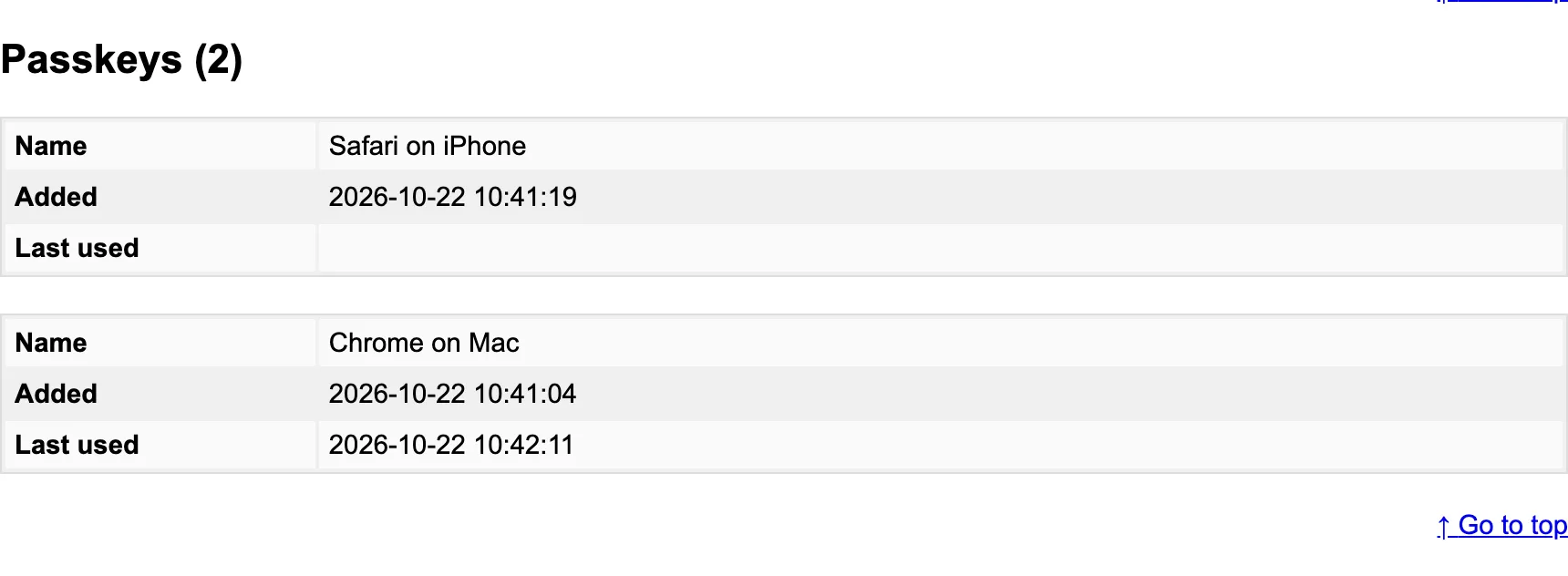
The passkeys’ keys are not in the export. They are a secret the store holds for checking signatures, not data about the customer.
Step 3: Erase when asked
Section titled “Step 3: Erase when asked”Open Tools → Erase Personal Data, add the request and run Erase personal data. The plugin:
- Deletes the customer’s passkeys and recovery codes.
- Keeps their activity rows, without their name, IP address and browser, so your counts stay right.
Deleting the user under Users does the same.