

How to Sign In with a Recovery Code
Recovery codes are the way back in when the device with the passkey is lost, broken or wiped. Each code works once.
Step 1: Open the recovery form
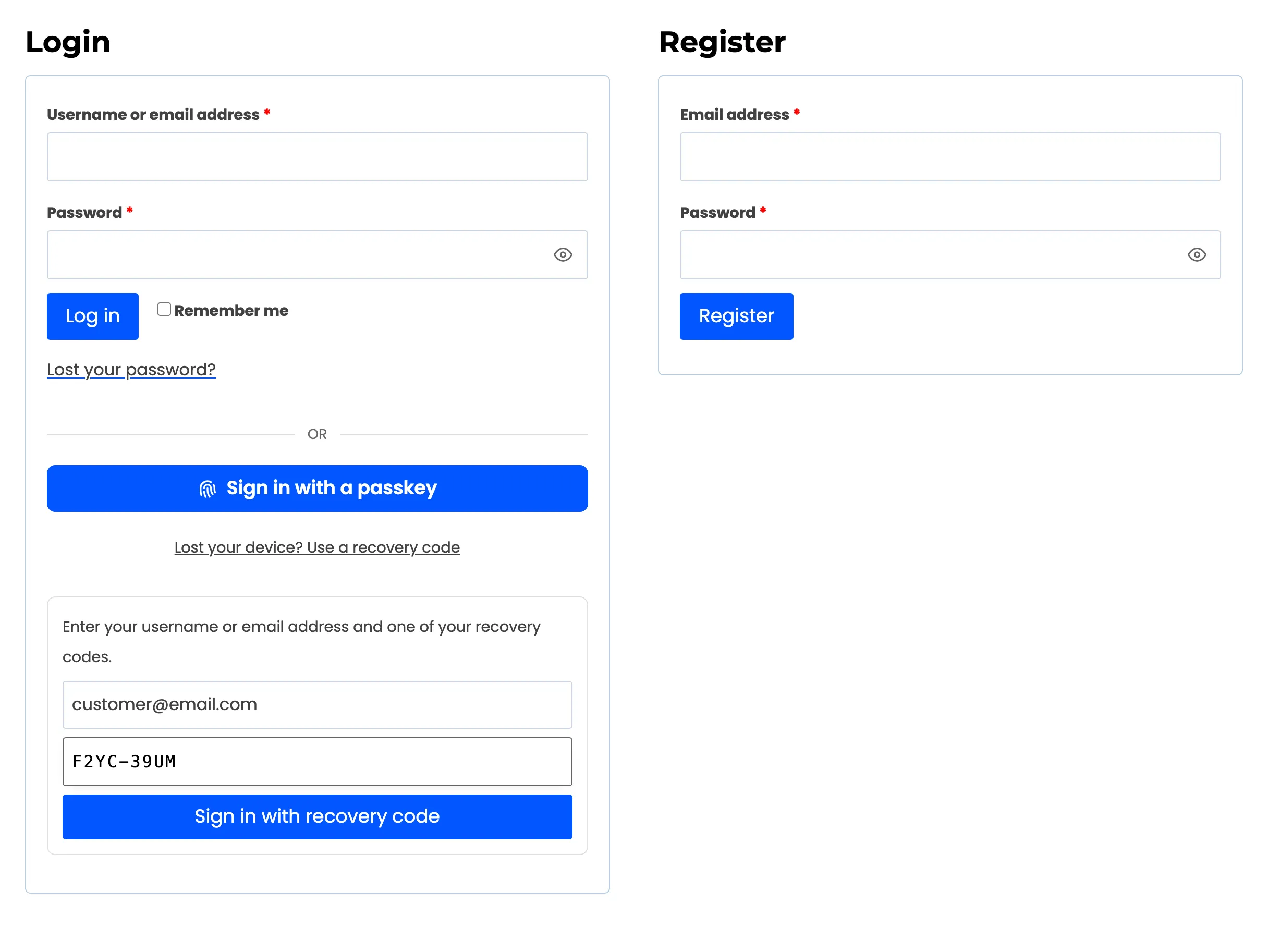
Section titled “Step 1: Open the recovery form”On the My Account login form, under the passkey button, click Lost your device? Use a recovery code. A small form opens. Any username already typed above is copied in.
Step 2: Enter the username and a code
Section titled “Step 2: Enter the username and a code”Type the username or email address, and one code, such as 4Y6V-2BP3. The dash and capitals do not matter.
Press Sign in with recovery code.
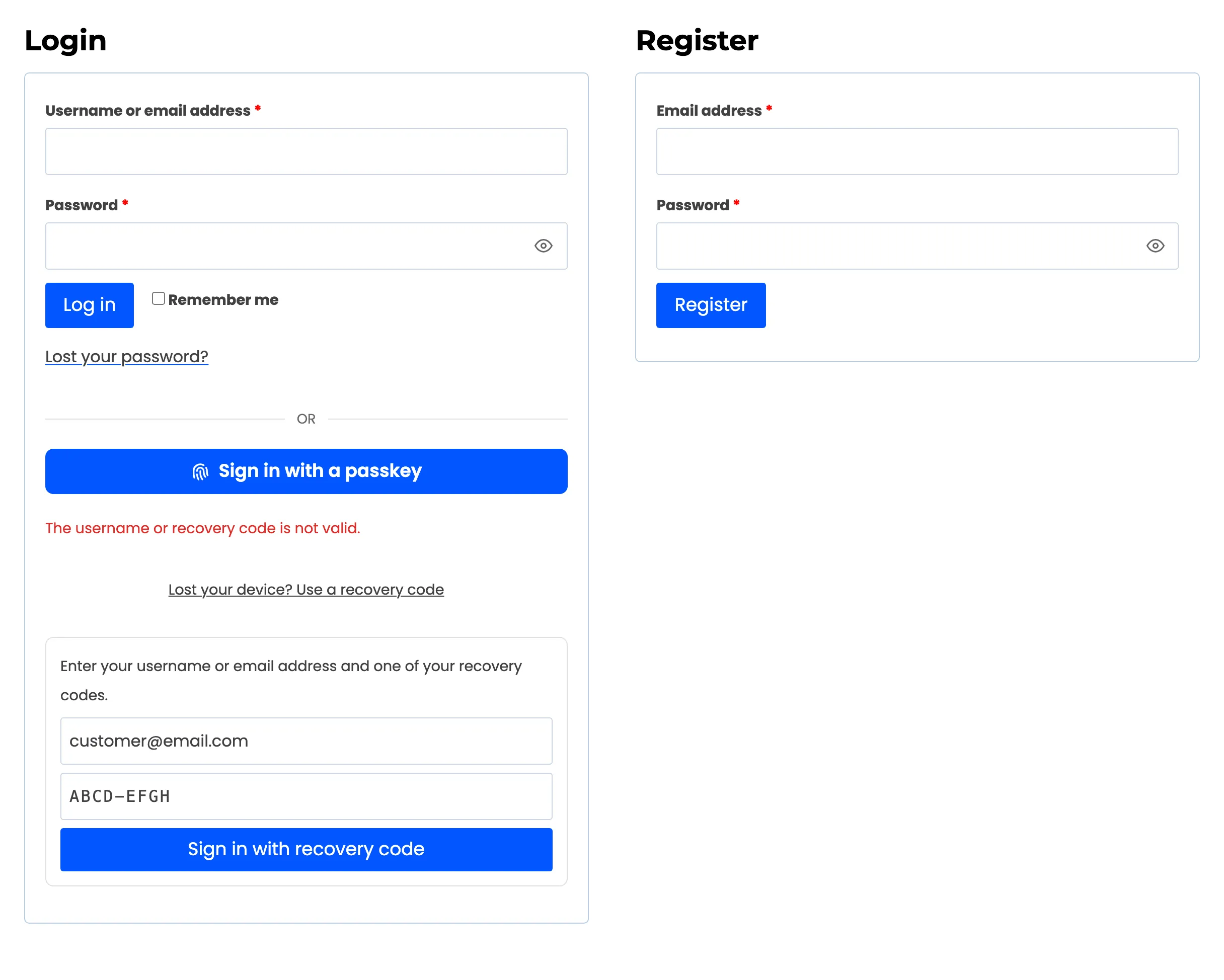
A wrong code, or a username that does not exist, gets the same message: “The username or recovery code is not valid.” The form does not tell anyone which accounts exist. Wrong codes count towards the lockout.
Step 3: Check what is left
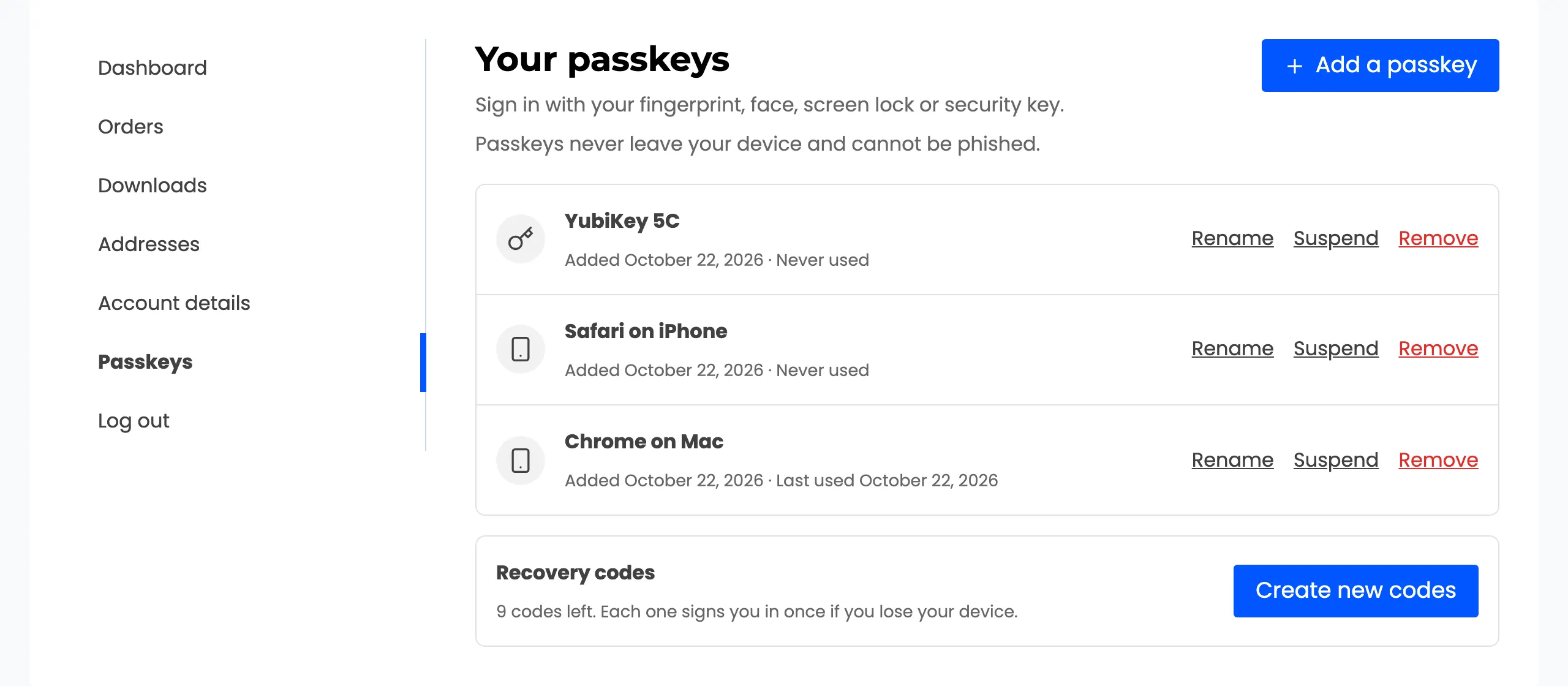
Section titled “Step 3: Check what is left”The customer is signed in, and that code is spent. My Account → Passkeys shows one code fewer.
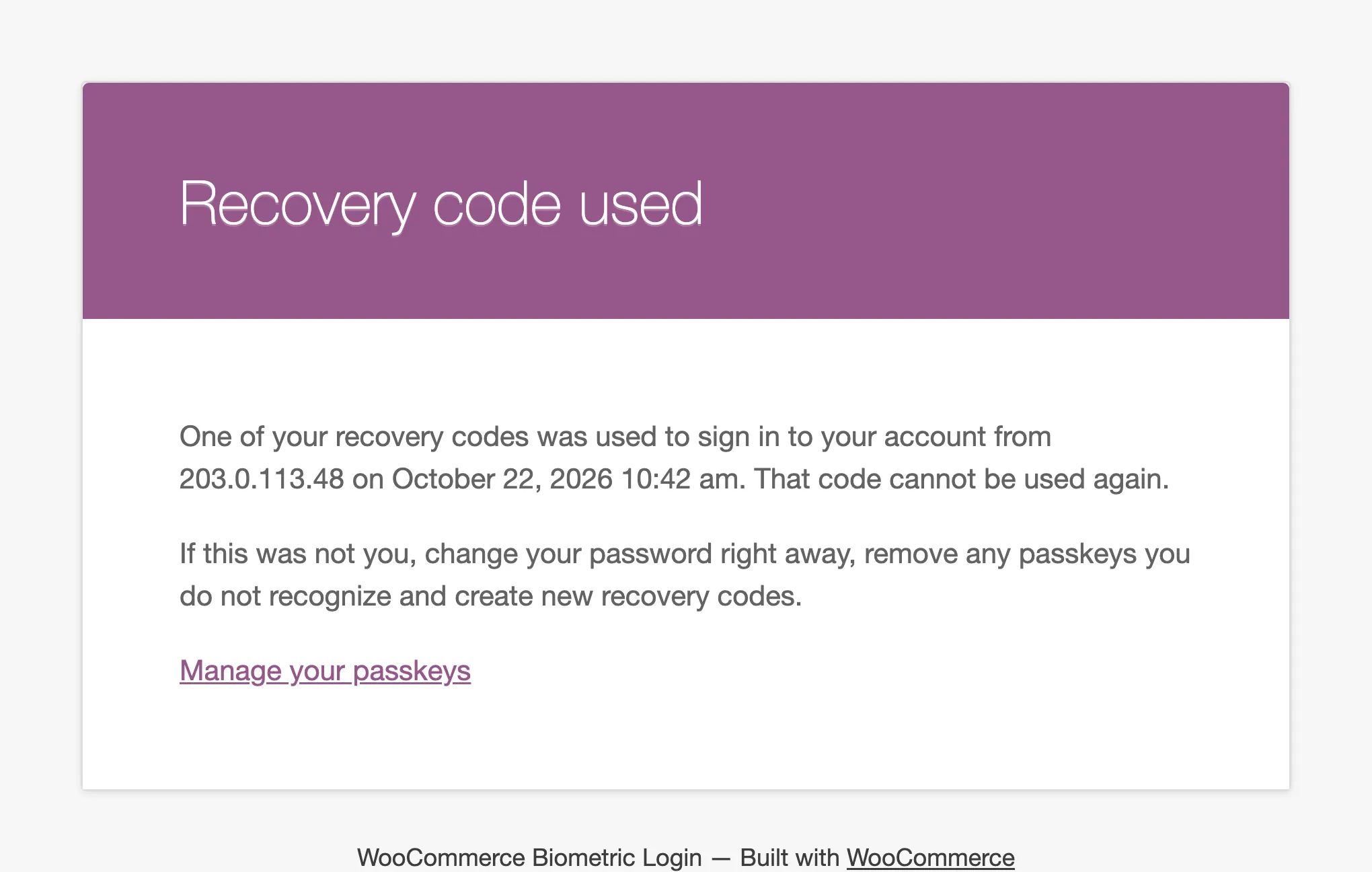
They also get an email, “A recovery code was used to sign in”, with the IP address and time.
Step 4: Tidy up
Section titled “Step 4: Tidy up”- Remove the lost device’s passkey, so whoever has it cannot use it.
- Add a passkey on the new device.
- Create new codes when only a few are left. The new set replaces the old one.
See How to Rename, Suspend or Remove a Passkey and How to Create New Recovery Codes.
Good to know
Section titled “Good to know”- Recovery codes work wherever the passkey button shows, including the WordPress login screen.
- With Recovery Codes unticked under Security, the link does not show and no codes are handed out.
- A user who has spent every code and lost every device signs in with their password, or asks you to remove their passkeys if passkey-only sign in is on for their role.