

How to Troubleshoot Passkey Sign In
Most passkey problems come from the site’s setup or from a passkey that belongs somewhere else. Work through these in order.
Step 1: Read the Environment Check
Section titled “Step 1: Read the Environment Check”The bottom of the Dashboard checks what passkeys need: HTTPS, a Domain name, OpenSSL, GMP or BCMath and Multibyte strings. Every row should say Ready.
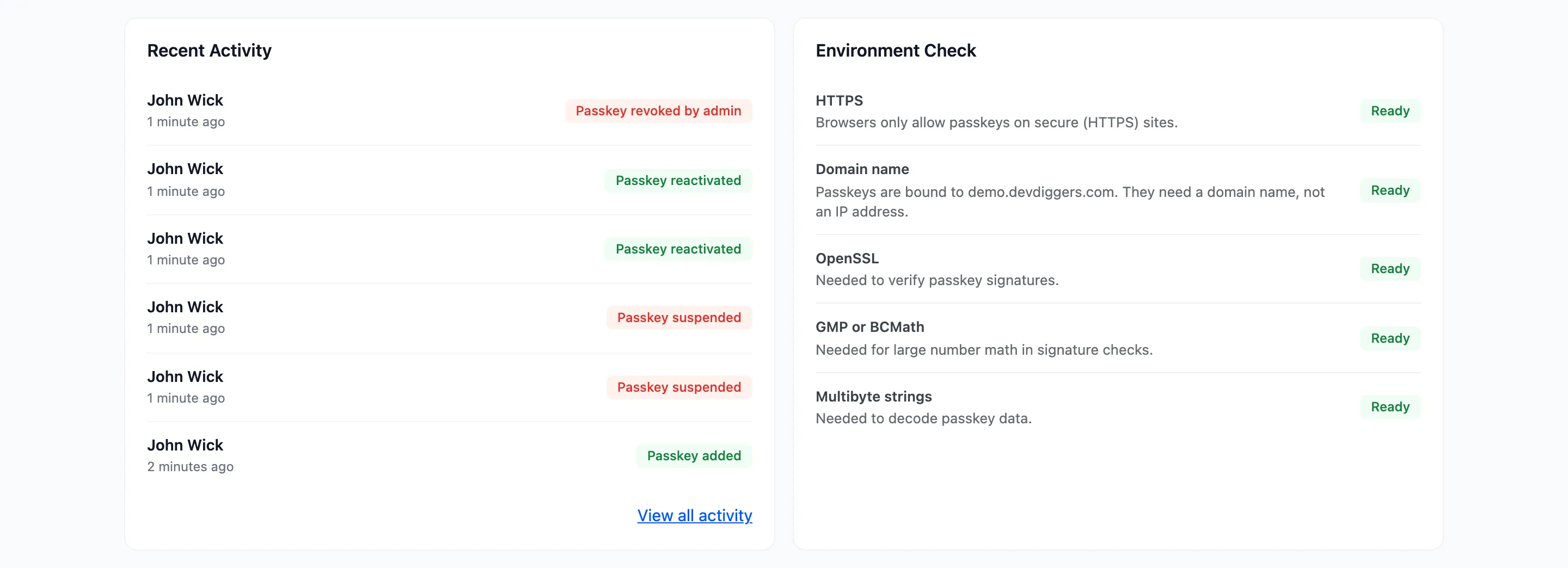
A failed row explains itself. Browsers refuse passkeys on plain HTTP and on an IP address. The PHP extensions are a request to your host.
Step 2: Read the customer’s message
Section titled “Step 2: Read the customer’s message”The line under the passkey button names the reason:
| Message | What to do |
|---|---|
| Passkeys are not supported on this browser or device. | Update the browser, or use another device. |
| The request was cancelled or timed out. | The device prompt was closed. Try again. |
| This passkey is not registered on this store. | It belongs to another site, or was removed. Sign in with the password and add it again. |
| This passkey is suspended. | Reactivate it from My Account, or from the Passkeys screen. |
| Passkey login is not available for your account. | The role is not under Allowed Roles. |
| Too many failed attempts. | The address is locked out. Wait, or see the lockout settings. |
| Security check failed! Please reload the page. | The page was open too long. Reload it. |
Step 3: Look in Activity
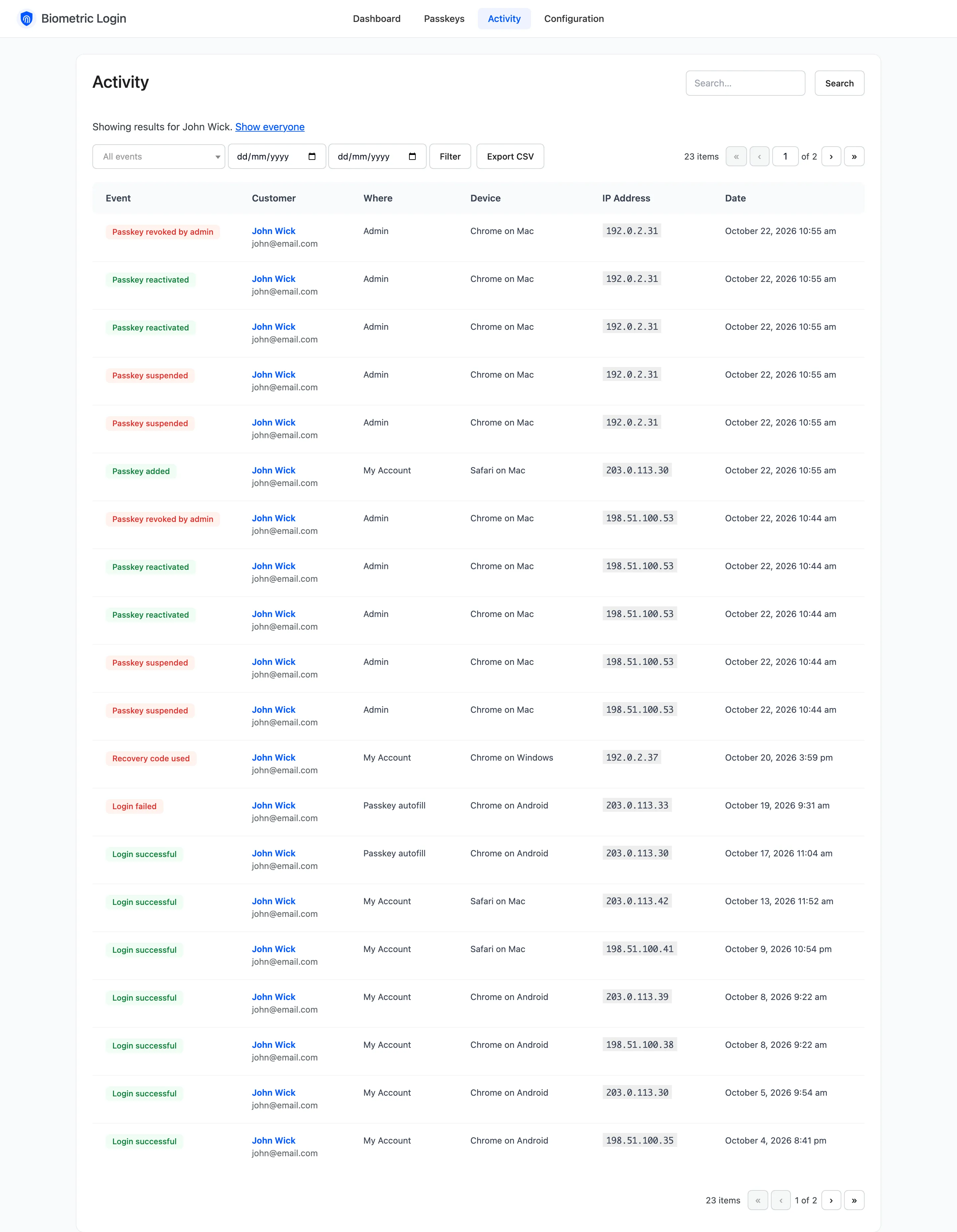
Section titled “Step 3: Look in Activity”Open Activity and click the customer’s name. Each attempt shows the event, the device, where it happened and the IP address.
Step 4: Turn on the debug log
Section titled “Step 4: Turn on the debug log”Under Configuration → Advanced, tick Debug Log and save. Try the sign in again, then open WooCommerce → Status → Logs and pick the ddwc-biometric-login source. A refused signature is logged with its reason.
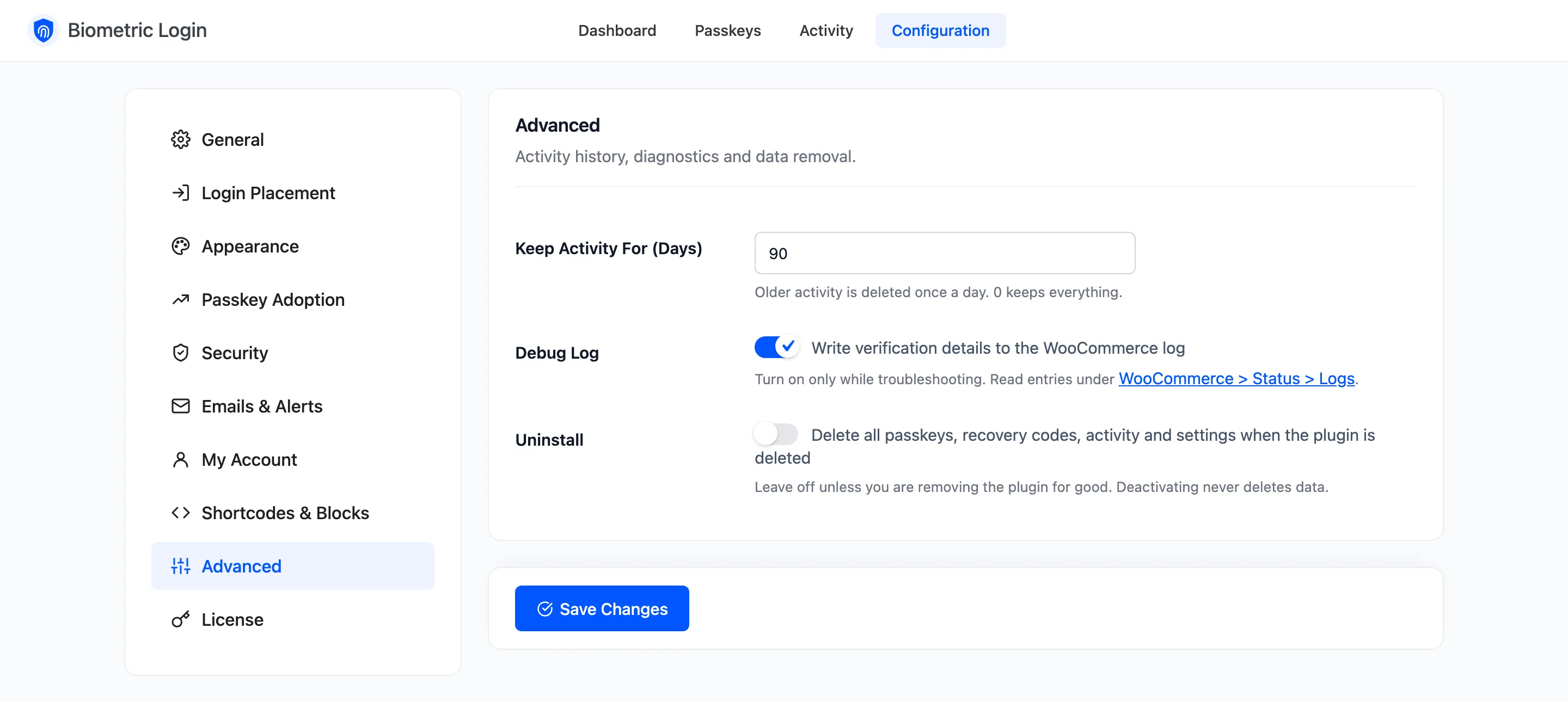
Turn it off when you are done.
No button at all
Section titled “No button at all”- The license is active and Passkey Login is ticked under General.
- The form is ticked under Login Placement: My Account, Checkout or WordPress Login.
- The visitor is signed out. The button never shows to someone already signed in.
- The checkout button needs WooCommerce’s “log into an existing account during checkout” setting.