

The Customer Experience
Customers meet the plugin in four places: the login forms, their Passkeys page in My Account, the invitations to add a passkey, and a few emails. This page walks through each one on the demo store.
On the login form
Section titled “On the login form”Signed out, the My Account login form shows Sign in with a passkey under the password form, after an OR divider. Customers do not type a username. They press the button and confirm on their device.
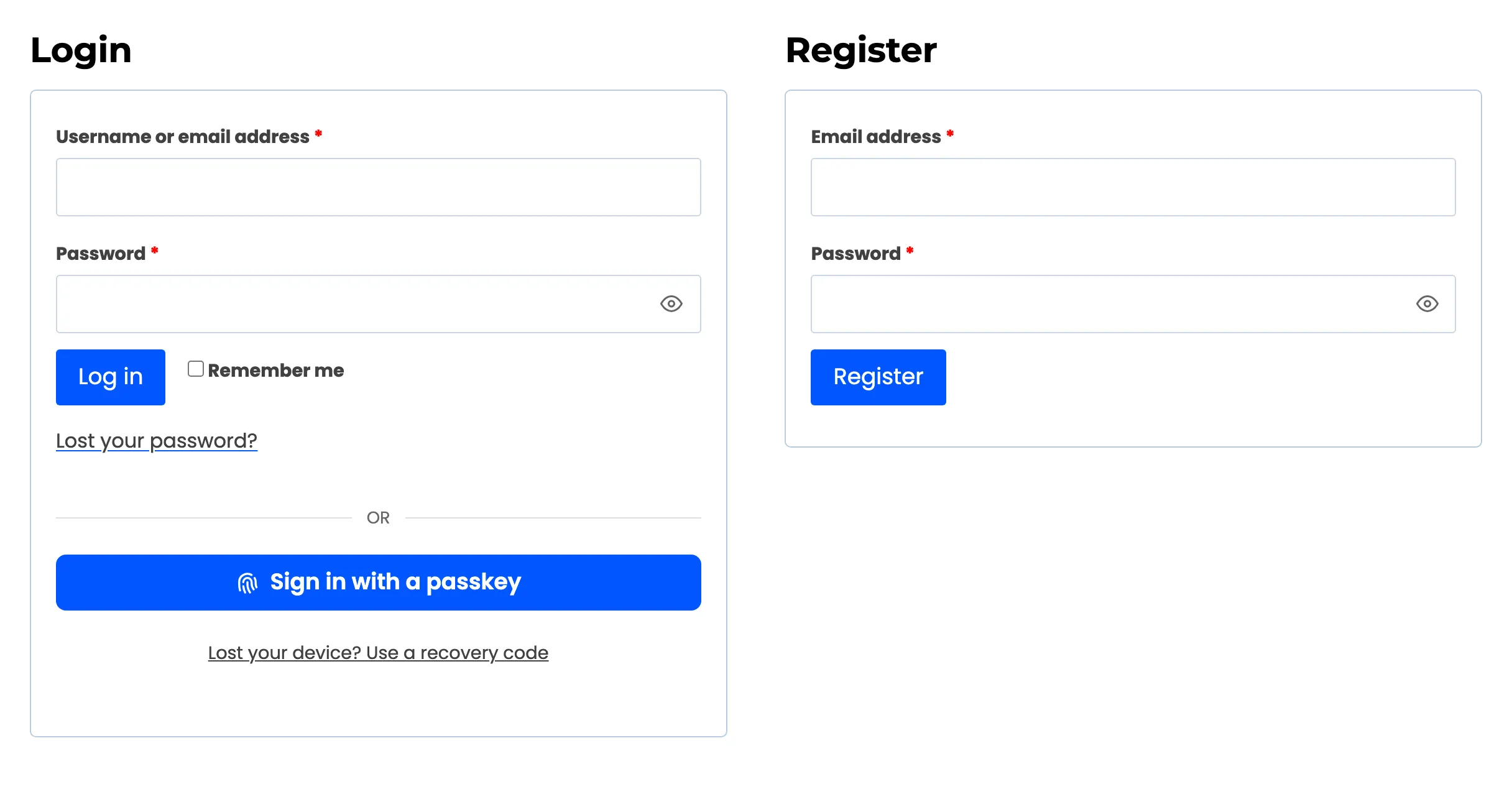
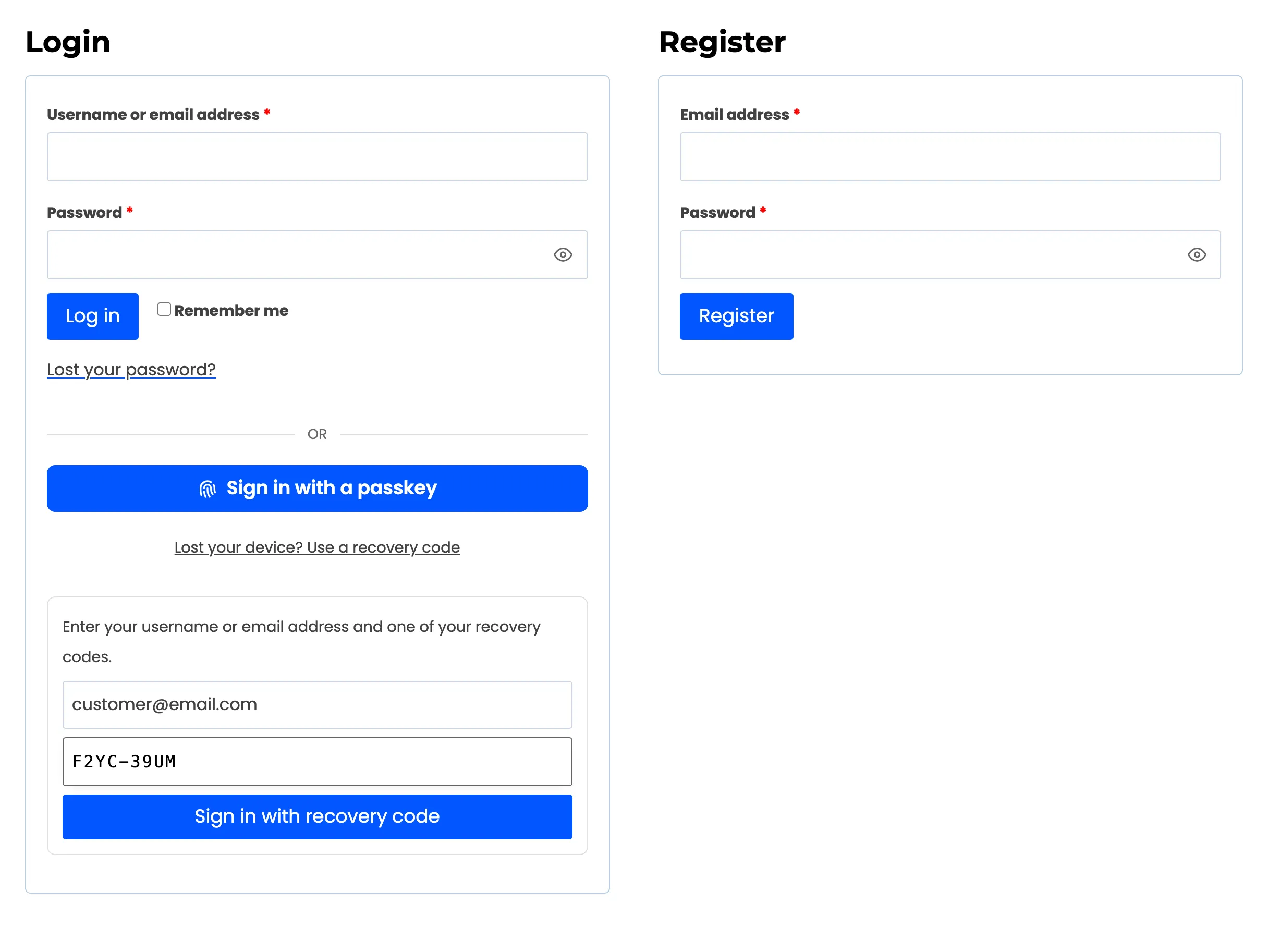
Under the button, Lost your device? Use a recovery code opens a small form for a username and a recovery code.
The same button can sit on the checkout’s “Returning customer?” form and on the WordPress login screen. See Login Placement.
On the Passkeys page
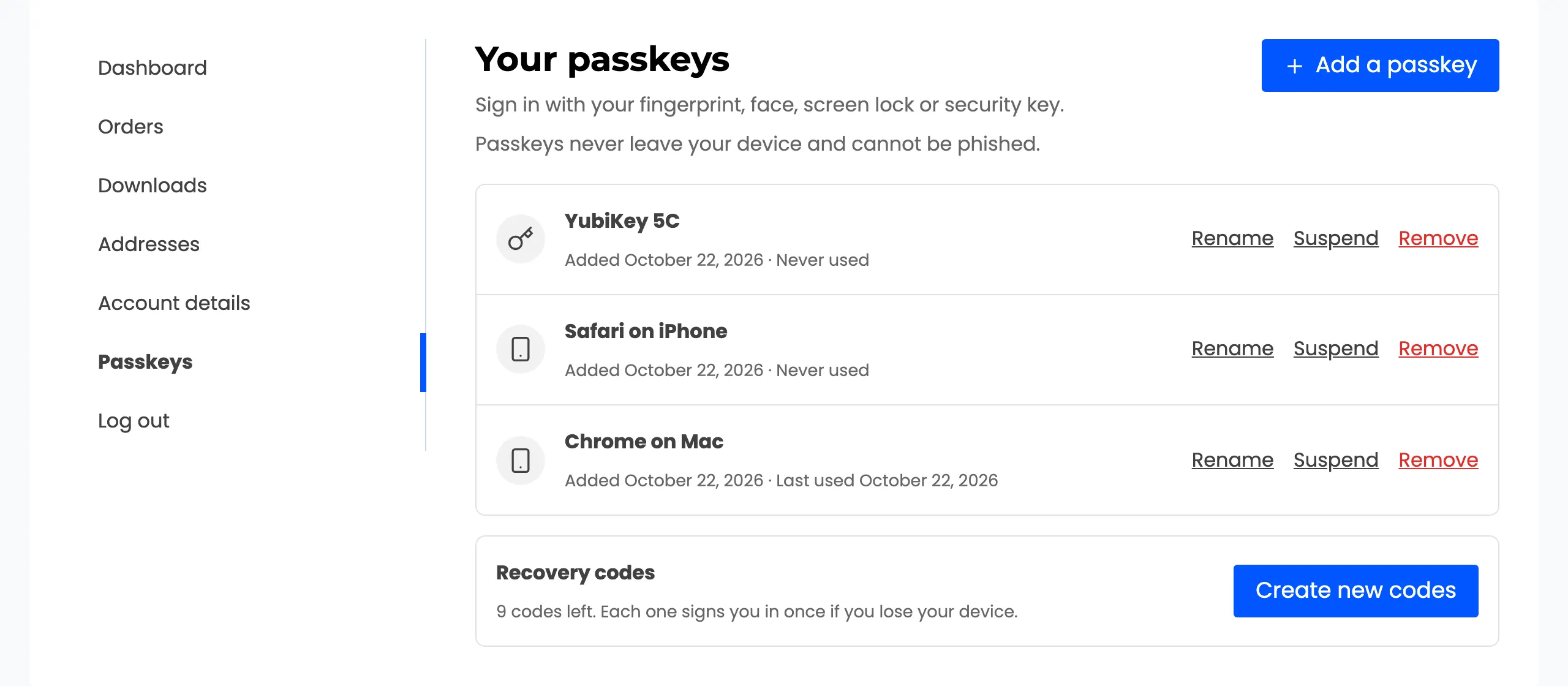
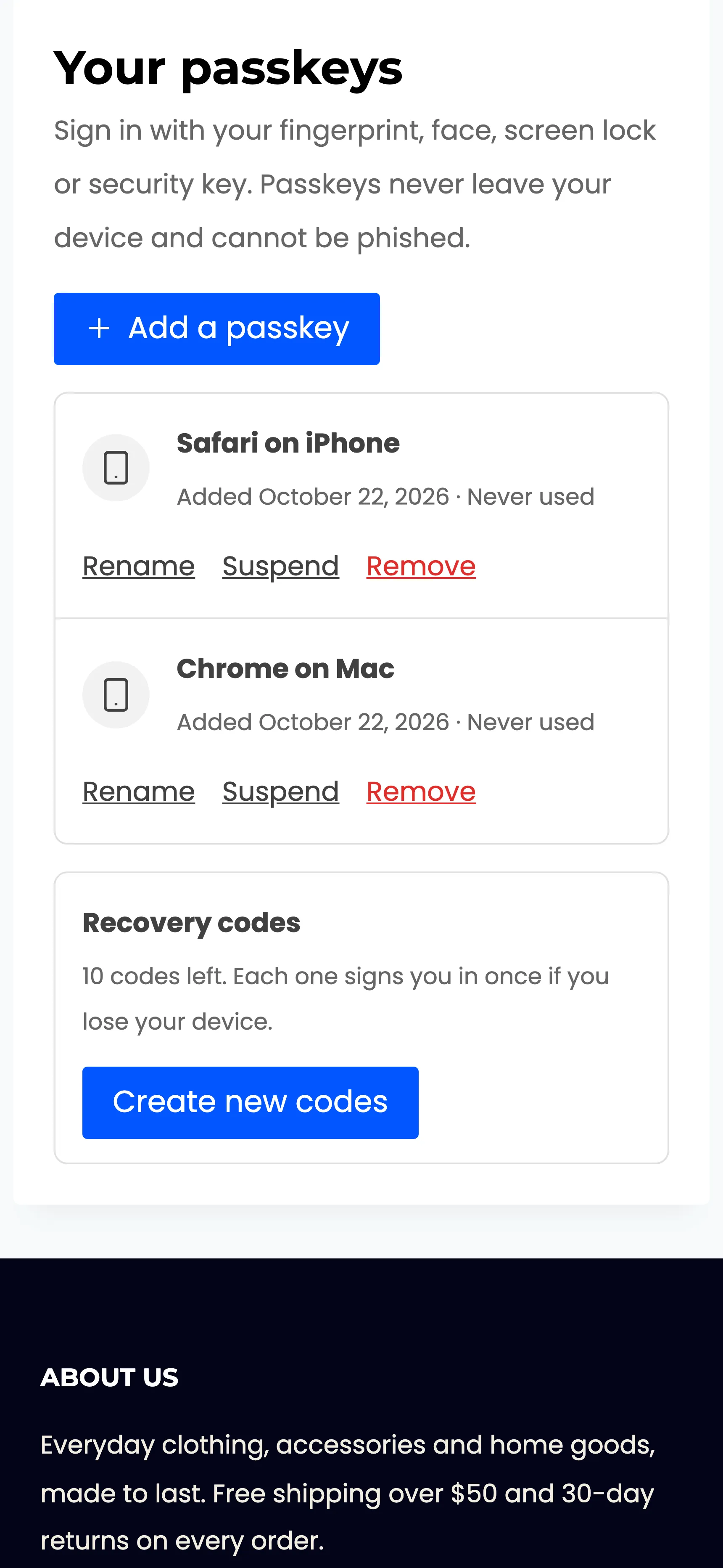
Section titled “On the Passkeys page”My Account → Passkeys lists every passkey on the account, with when it was added and last used. Each one can be renamed, suspended or removed. Add a passkey saves another device.
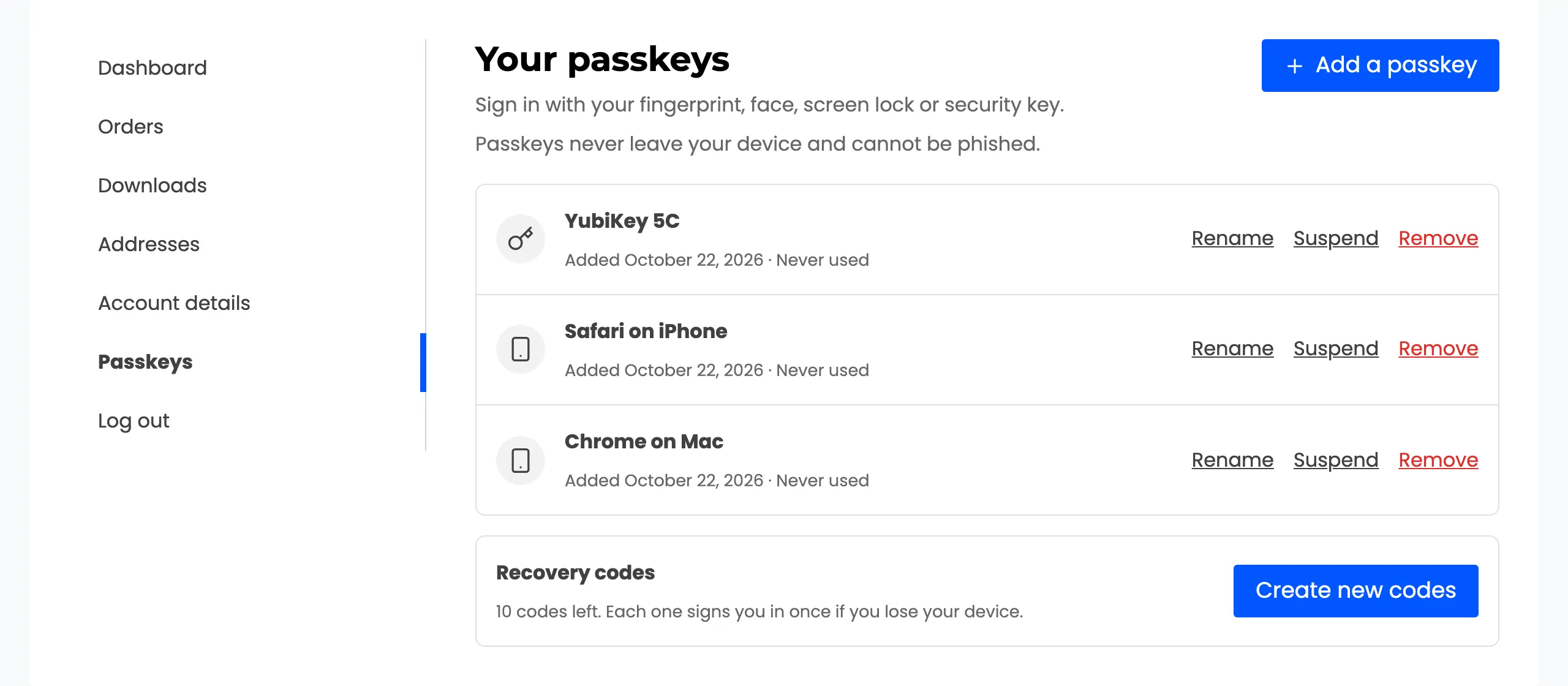
Below the list, Recovery codes says how many codes are left, with Create new codes for a fresh set.
Invitations
Section titled “Invitations”Customers without a passkey are invited at the moments they are most likely to say yes:
- A popup on the next page after they sign in with a password.
- A popup after they create an account.
- A card on the order received page.
- A card on the My Account dashboard.
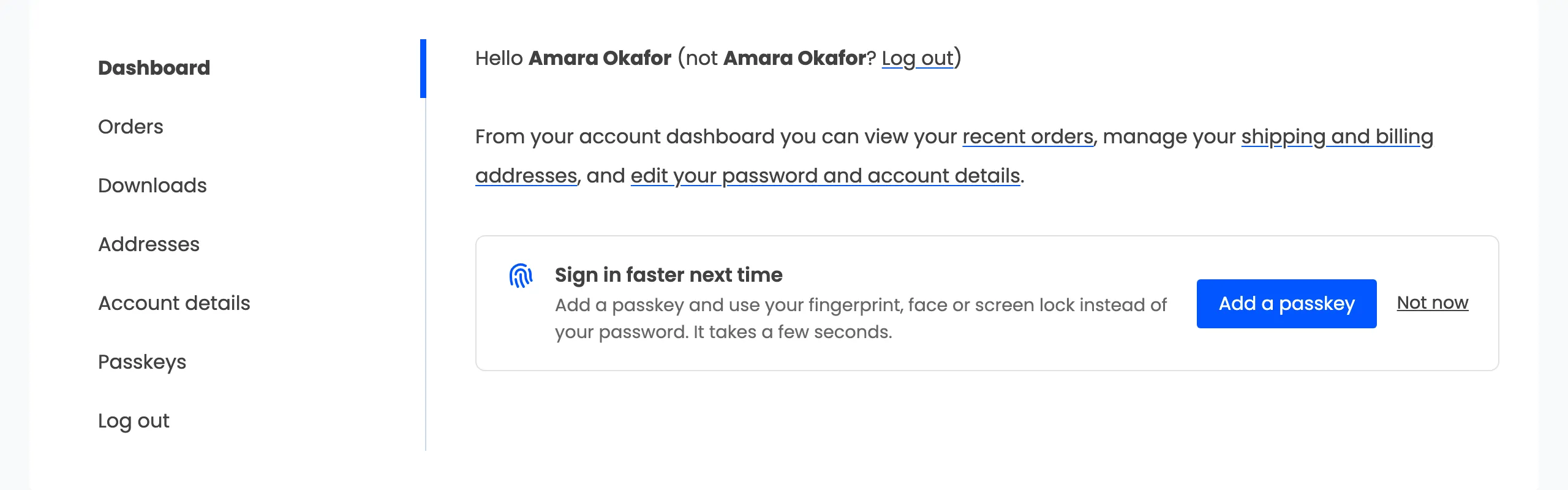
Not now hides all of them for 30 days. Adding a passkey ends them for good. See How to Invite Customers to Add a Passkey.
Emails
Section titled “Emails”Customers get a short email, in your WooCommerce email design, whenever:
- A passkey is added to their account.
- A passkey is removed, by them or by you.
- A recovery code signs them in.
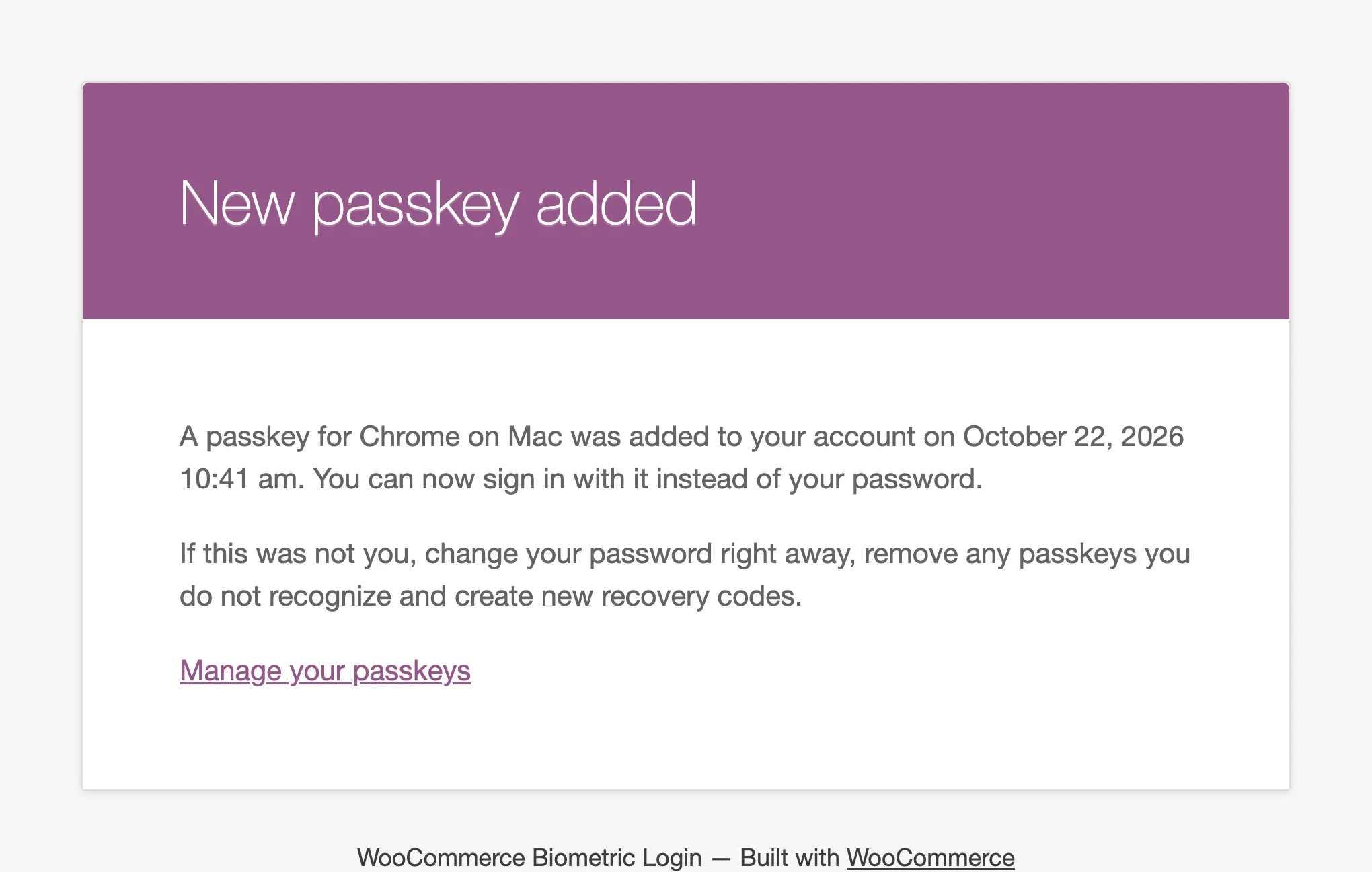
Each one ends with “If this was not you, change your password right away” and a Manage your passkeys link.
On a phone
Section titled “On a phone”The Passkeys page stacks on a narrow screen, with each passkey’s actions under its name.
Messages customers can see
Section titled “Messages customers can see”- Passkey added. The new passkey is saved.
- Signed in. Redirecting… The passkey was accepted.
- The request was cancelled or timed out. Please try again. They closed the device prompt.
- Passkeys are not supported on this browser or device. The browser has no passkey support.
- This passkey is not registered on this store. The passkey belongs to another site or was removed.
- This passkey is suspended. They suspended it, or you did.
- Too many failed attempts. Please try again later. Their address is locked out for a while.
- You can register up to 5 passkeys. Remove one to add another. They reached the limit.
None of these needs setting up. The button labels and the invitation text can be changed under Configuration.