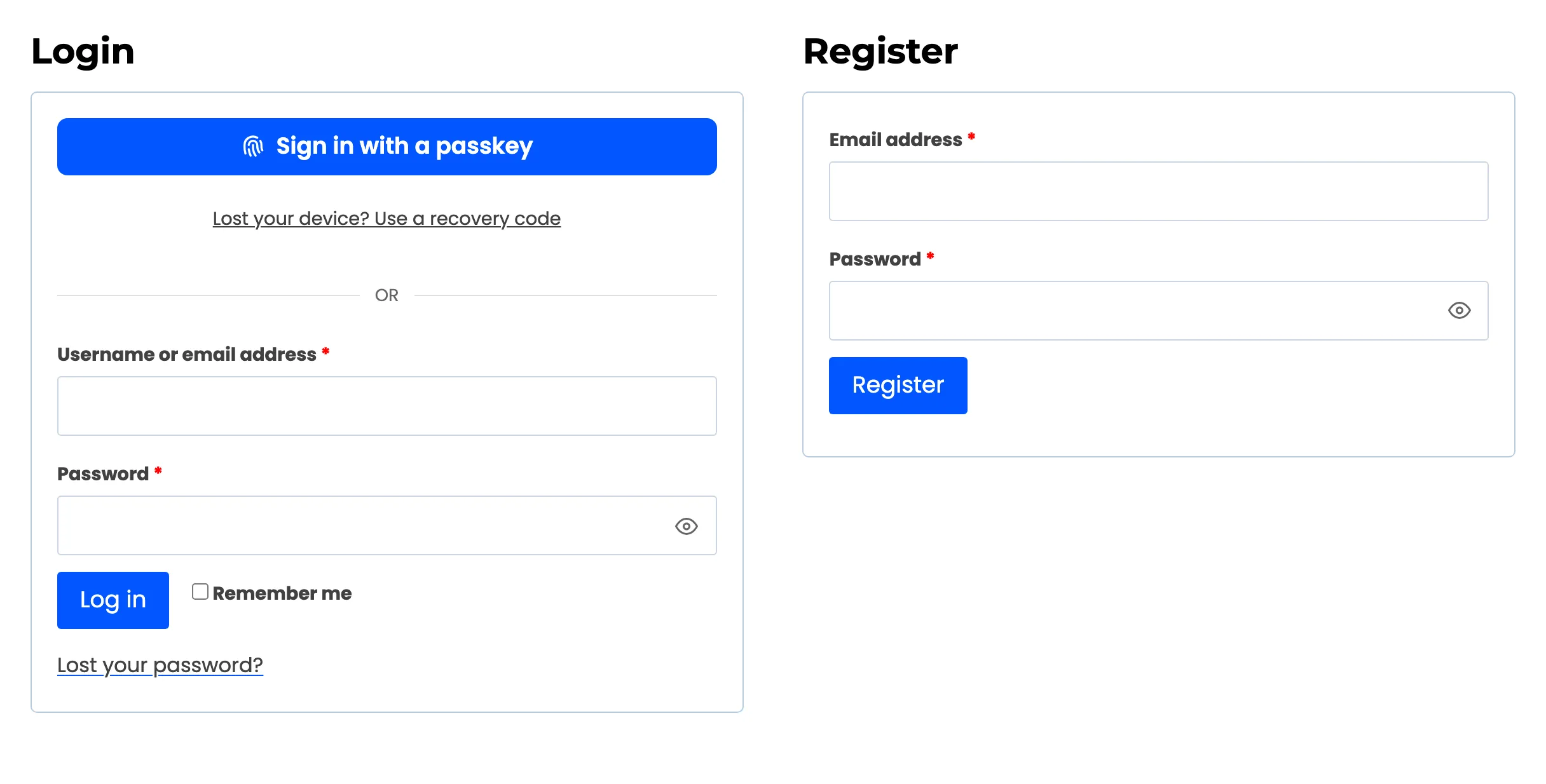
Login Placement Settings
The Login Placement tab decides where the passkey button appears and how it sits next to the password form. Open Configuration → Login Placement.
Fields
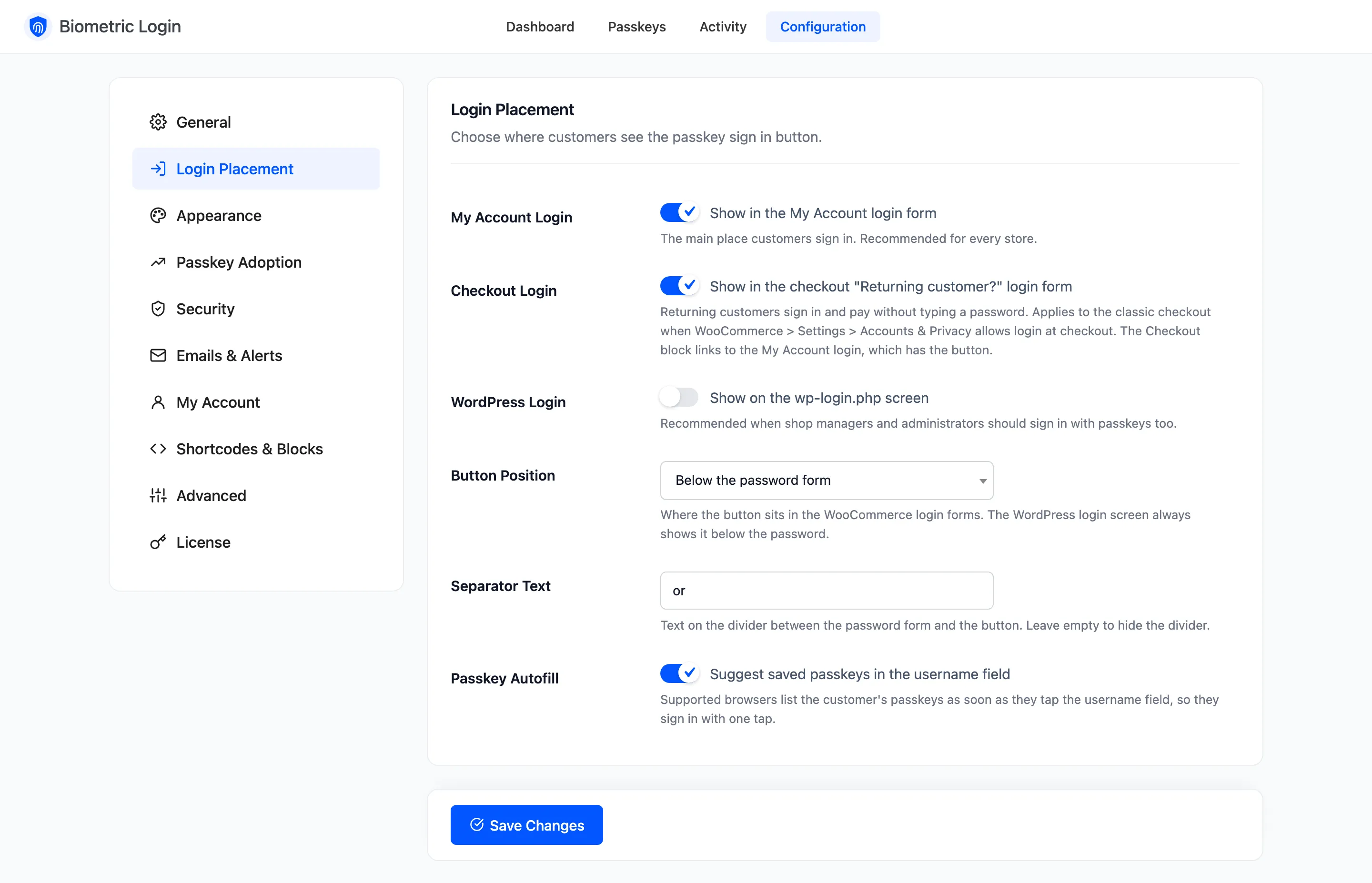
Section titled “Fields”- My Account Login: Ticked by default. Shows the button in the My Account login form, the main place customers sign in.
- Checkout Login: Ticked by default. Shows the button in the classic checkout’s “Returning customer?” form. That form only exists when WooCommerce → Settings → Accounts & Privacy allows customers to log in at checkout. The Checkout block has no login form; it links to My Account, which has the button.
- WordPress Login: Off by default. Shows the button on
wp-login.php, for shop managers and administrators who sign in there. - Button Position: Below the password form (default) or Above the password form, in the WooCommerce forms. The WordPress login screen always puts it below.
- Separator Text: The word on the divider between the password form and the button. Default: or. Empty hides the divider.
- Passkey Autofill: Ticked by default. Browsers that support it list the customer’s passkeys as soon as they tap the username field, so one tap signs them in.
Above the password form
Section titled “Above the password form”With Above the password form, the passkey button leads, and the divider sits between it and the username field.