

How to Require Passkeys for Staff
A stolen staff password is the most expensive kind. Requiring passkeys for staff roles closes that door, with a grace period so nobody is locked out by surprise.
Step 1: Add your own passkey first
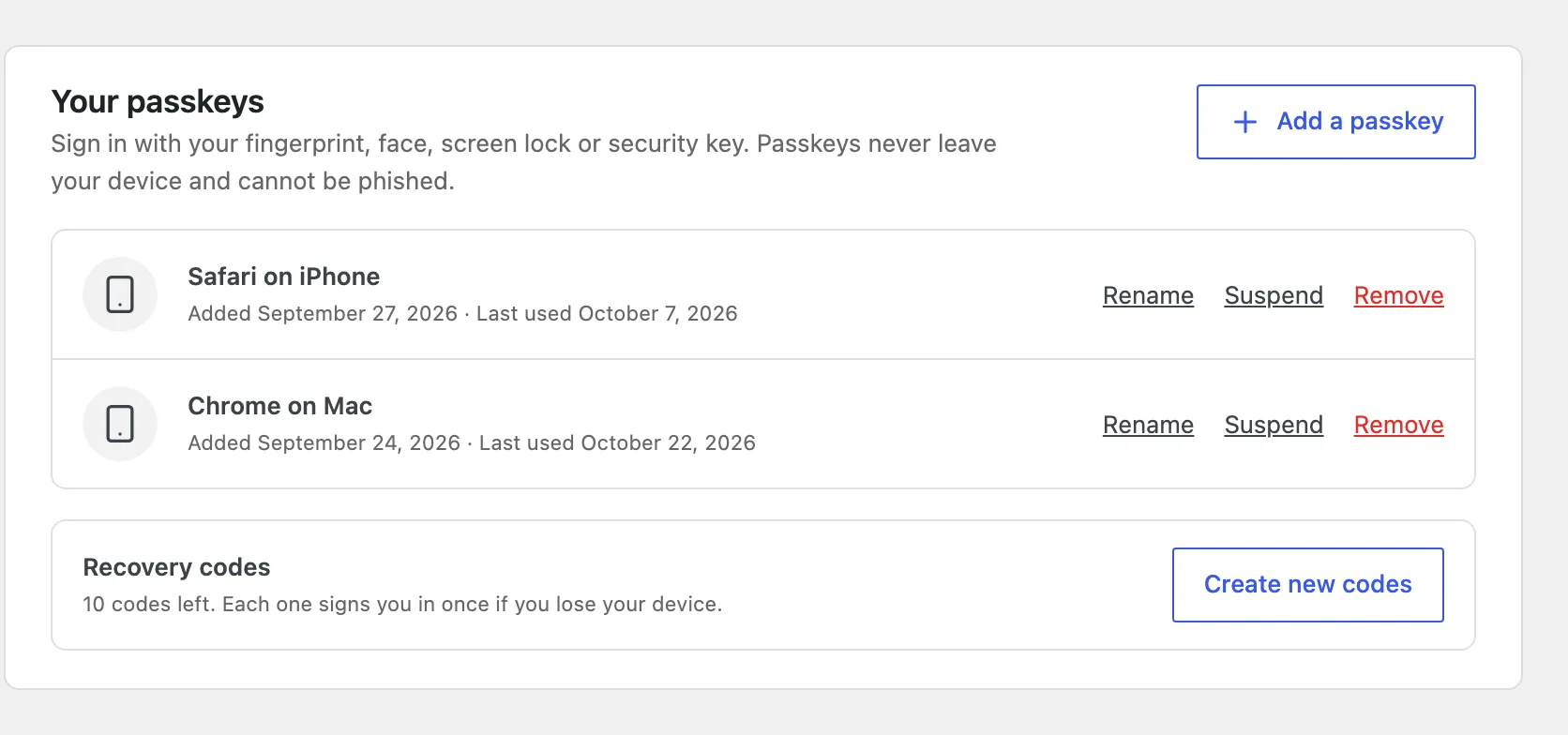
Section titled “Step 1: Add your own passkey first”Open Users → Profile, scroll to Passkeys and press Add a passkey.
Step 2: Pick the roles
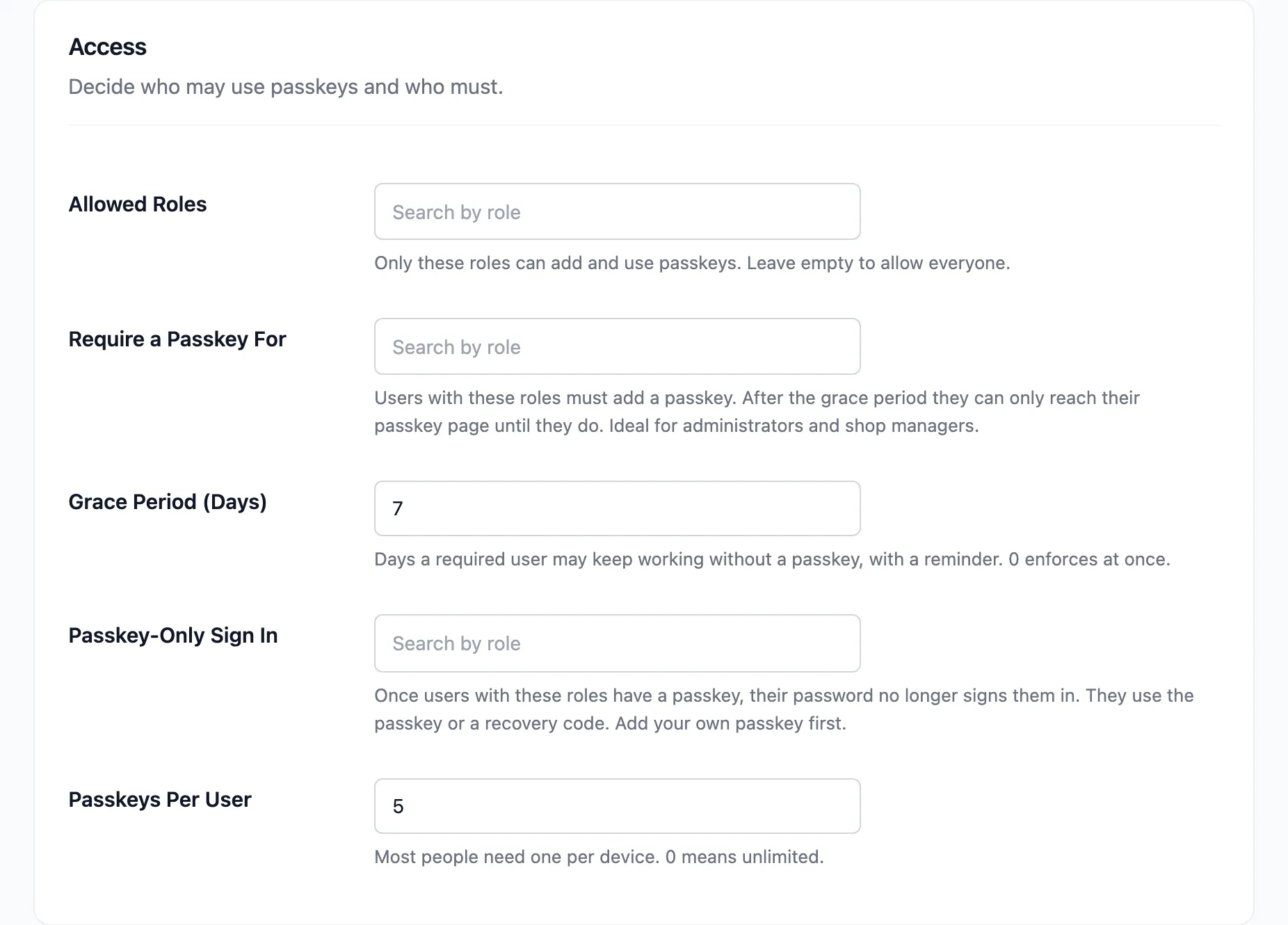
Section titled “Step 2: Pick the roles”Open Configuration → Security. Under Require a Passkey For, add Administrator and Shop manager.
Step 3: Set the grace period
Section titled “Step 3: Set the grace period”Grace Period (Days) is 7 by default. The clock starts the first time each user opens a page after you save, not when you save. 0 enforces at once.
Step 4: Check the reminder
Section titled “Step 4: Check the reminder”During the grace period, a staff member without an active passkey sees a reminder on every admin screen: “Your account requires a passkey. Please add one within 7 days.” Add a passkey opens their profile.

Step 5: After the grace period
Section titled “Step 5: After the grace period”Once it runs out, every admin screen sends them to their profile, with “Your account requires a passkey. Add one below to unlock the dashboard.” They add a passkey there and carry on.

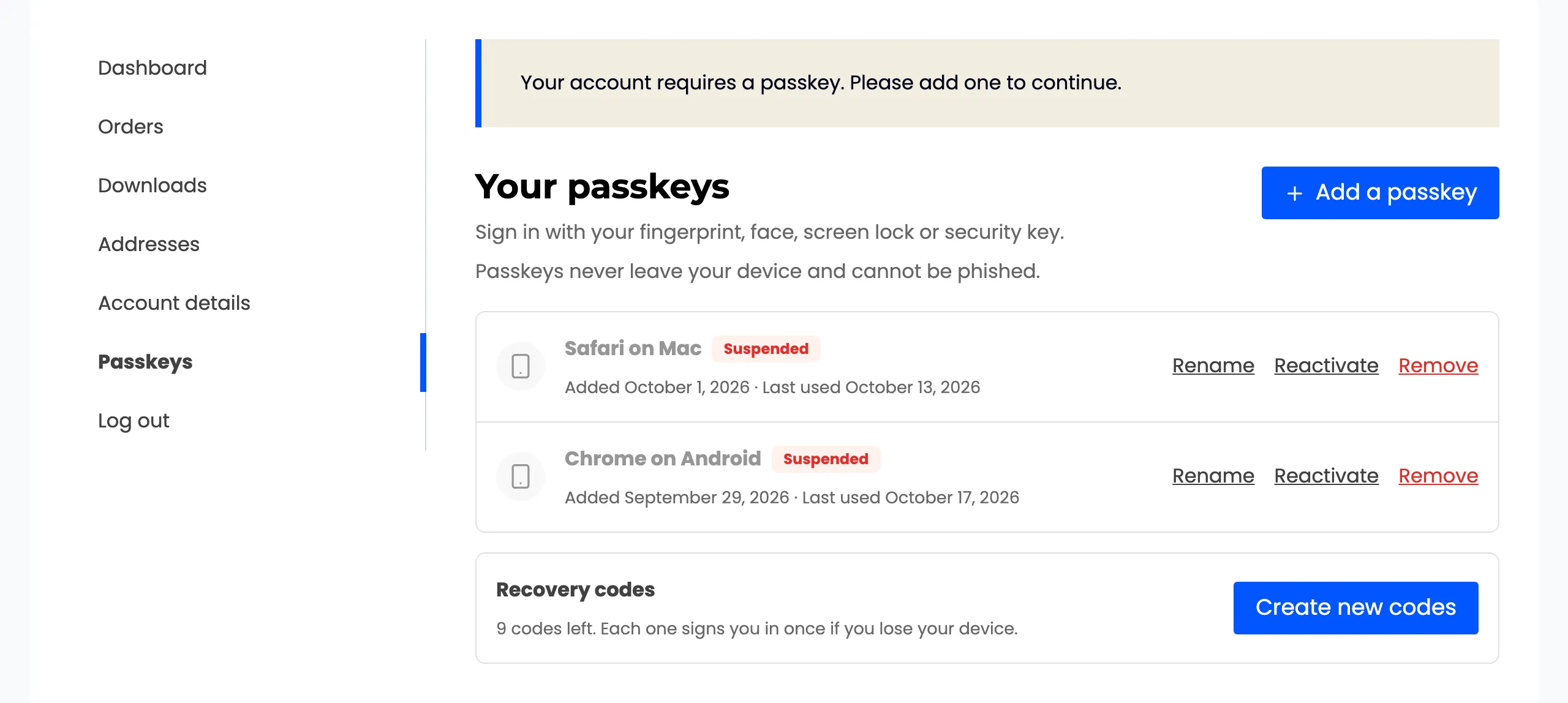
Add a passkey jumps to the Passkeys section further down the profile. On the demo, Tillie’s passkeys were suspended, so the section offered Reactivate as well as Add a passkey.
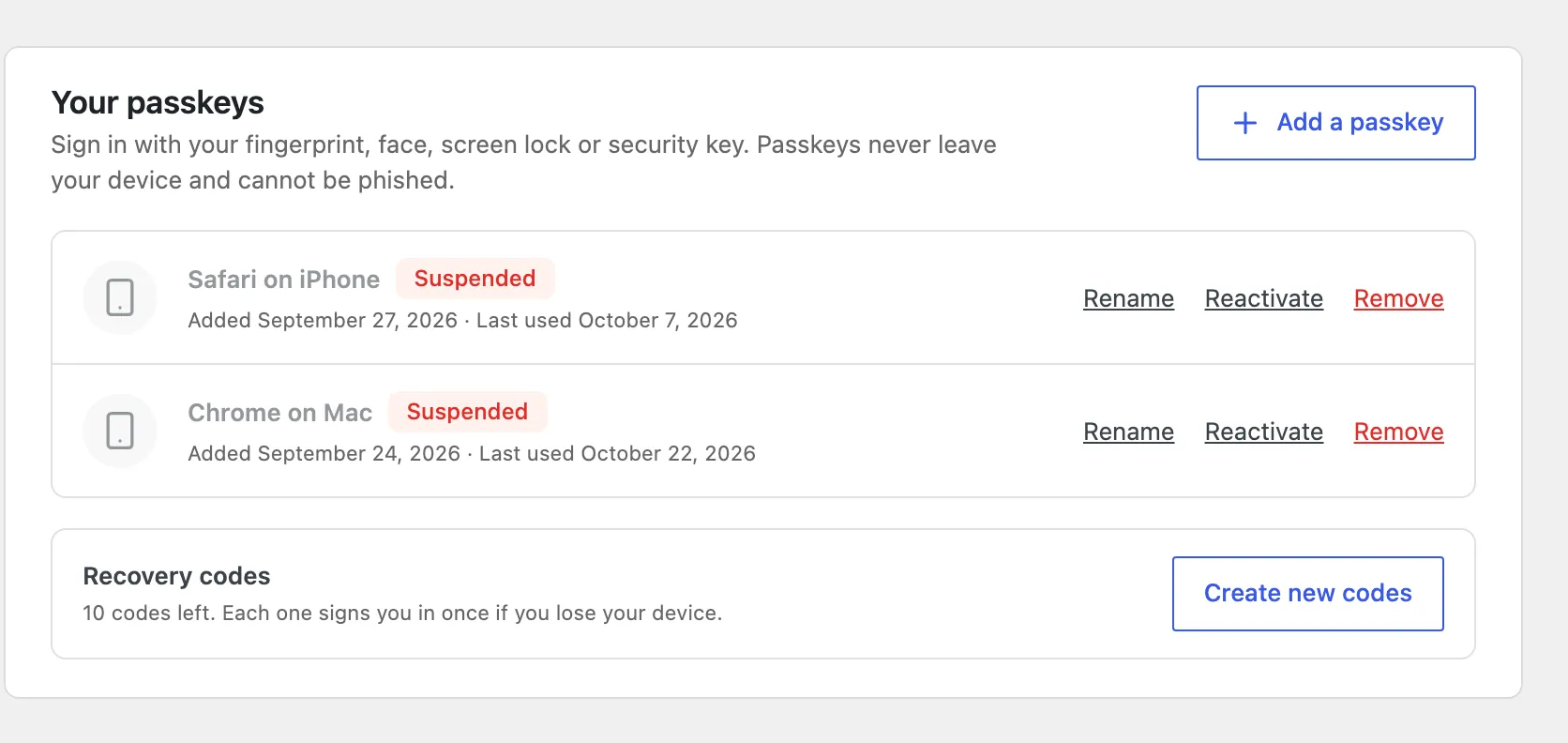
A suspended passkey does not count. Only an active one unlocks the dashboard.
Customers too
Section titled “Customers too”The same setting works for the Customer role. A customer without a passkey sees the reminder on the store, then is kept on My Account → Passkeys until they add one.
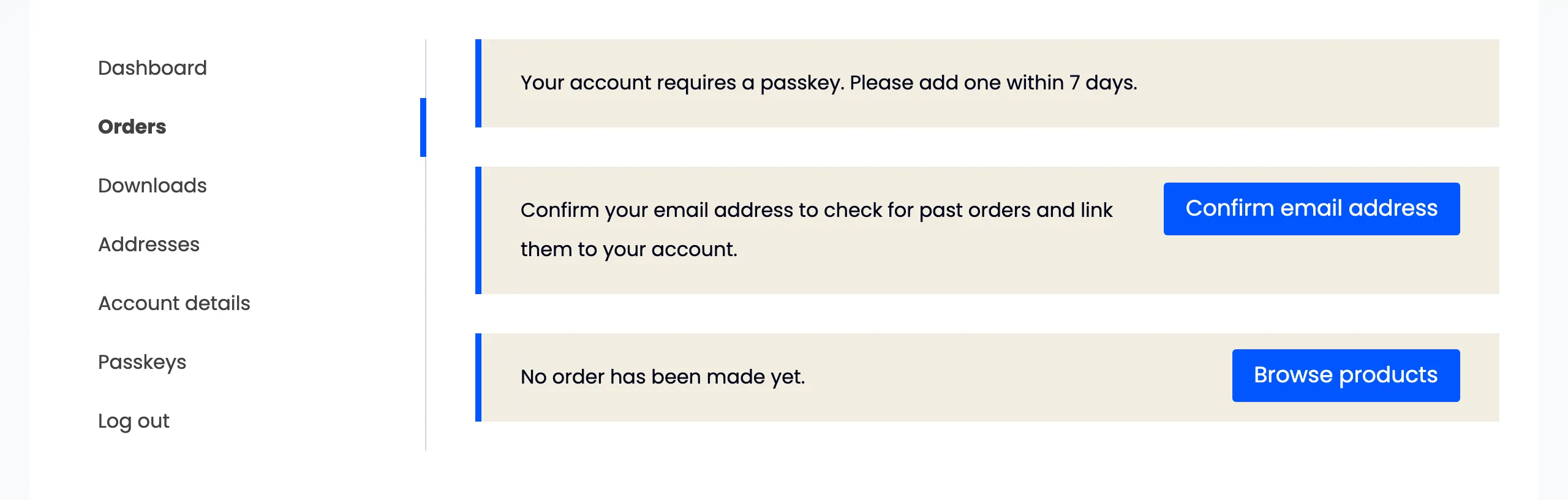
Logging out always works, so nobody is stuck.
Go further
Section titled “Go further”Passkey-only sign in stops the staff password from working at all once they have a passkey.