

How to Lock Out Repeated Failed Sign Ins
Passkeys cannot be guessed, but recovery codes are typed, and anyone can throw unknown passkeys at the form. The lockout stops one address after a few failures.
Step 1: Set the limits
Section titled “Step 1: Set the limits”Open Configuration → Security → Brute Force Protection. Failed Attempts Limit is 5 and Lockout Duration (Minutes) is 15 by default.
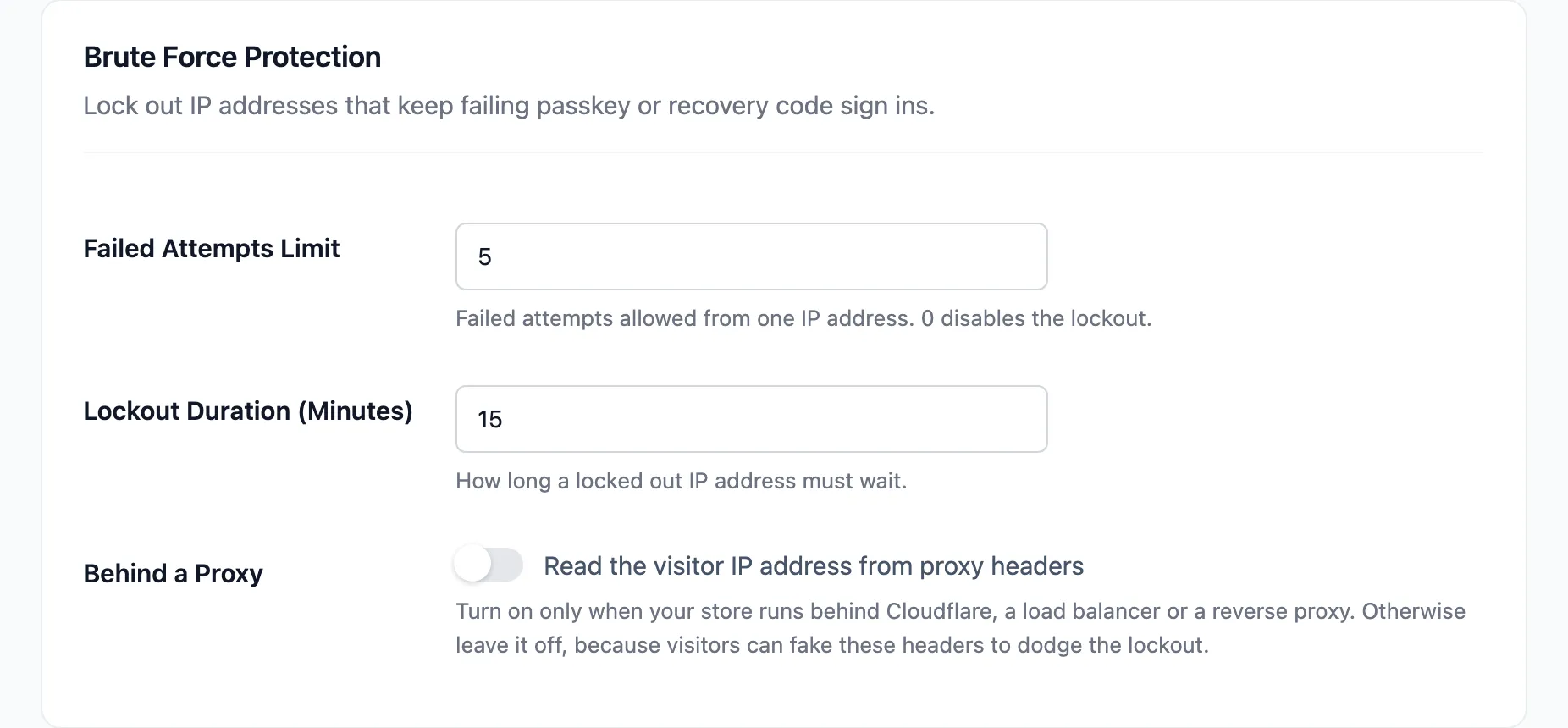
Leave Behind a Proxy off unless every row in Activity shows your proxy’s address. See the caution on Security.
Step 2: Turn on the alert
Section titled “Step 2: Turn on the alert”Open Emails & Alerts. IP Lockout is ticked by default. Alert Recipient is your site’s admin email unless you set another.
Step 3: Watch a lockout happen
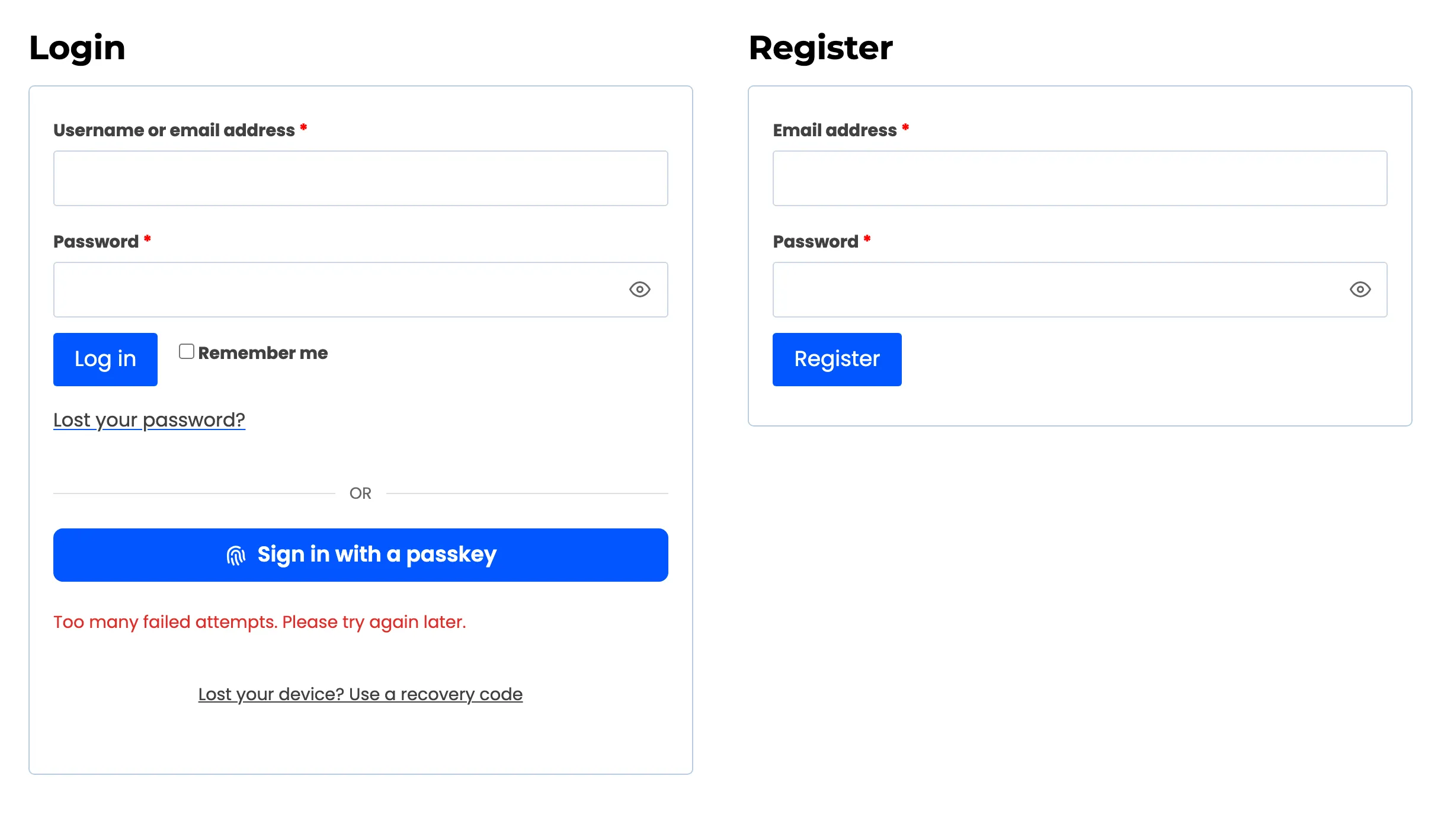
Section titled “Step 3: Watch a lockout happen”On the demo, one address tried five passkeys the store had never seen. Each was refused. The sixth attempt got:
The alert arrived when the fifth failure triggered the lockout:
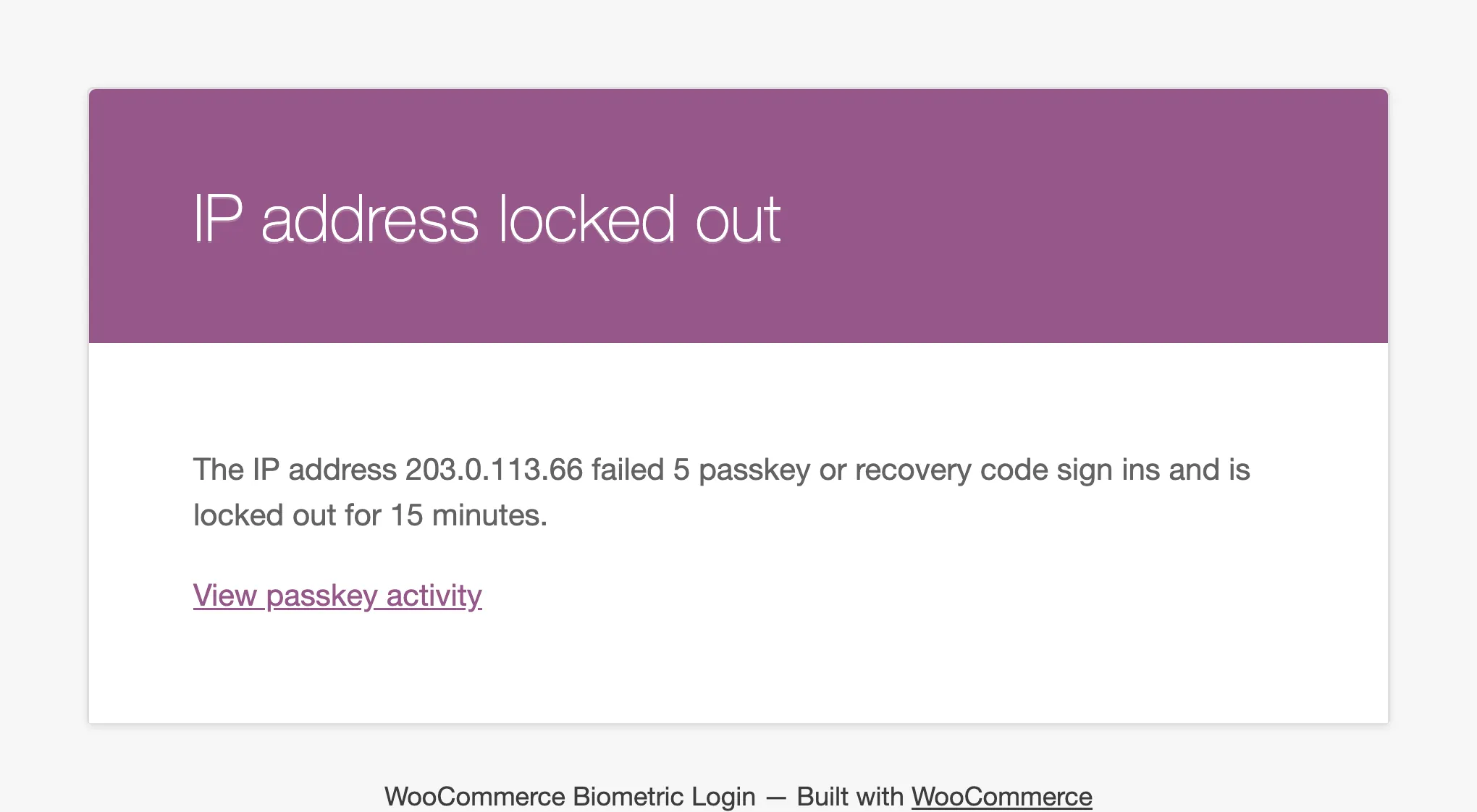
Wrong recovery codes count too. A successful sign in from that address clears its count.
Step 4: Review it
Section titled “Step 4: Review it”Activity filtered to Login failed shows each attempt, its device and its IP address. Login blocked rows are the attempts made during the lockout.
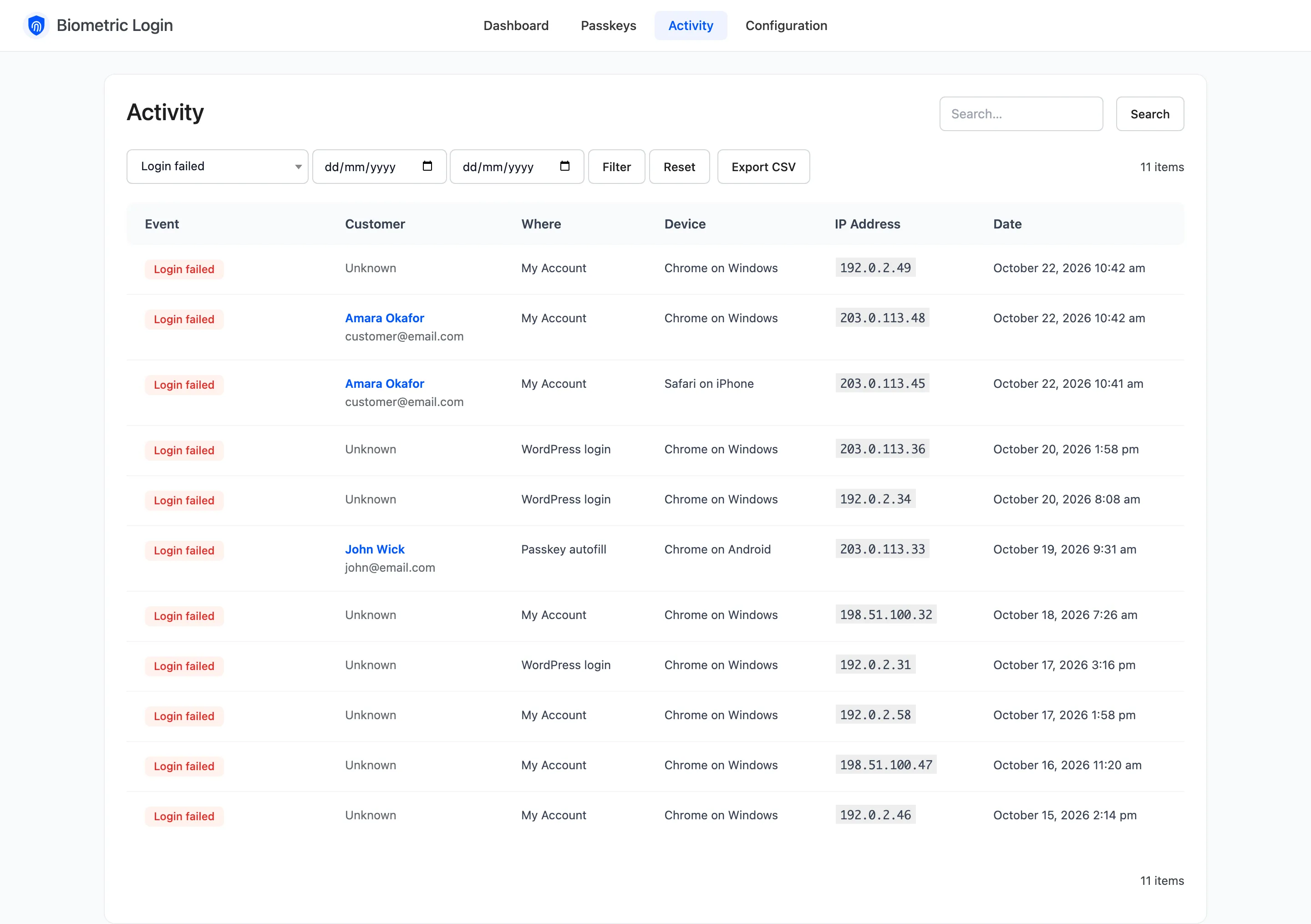
The dashboard’s Failed Attempts card counts both.
What a lockout does not cover
Section titled “What a lockout does not cover”The password form is WooCommerce’s and WordPress’s own, so the lockout does not count wrong passwords. A locked out address can still sign in with a password.