Shortcodes & Blocks Settings
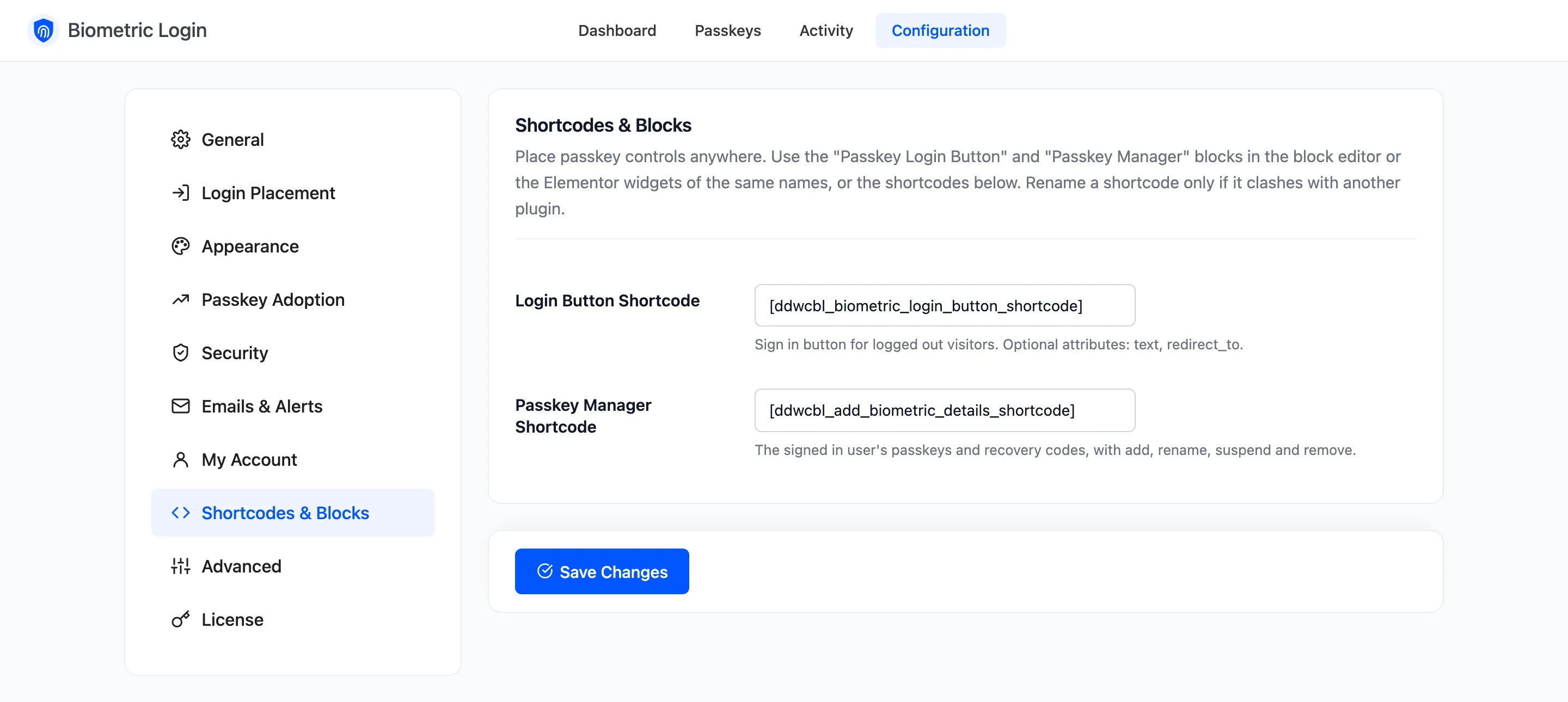
Two passkey controls can go on any page: the login button and the passkey manager. Each comes as a shortcode, a block and an Elementor widget. Open Configuration → Shortcodes & Blocks.
Fields
Section titled “Fields”- Login Button Shortcode: Default
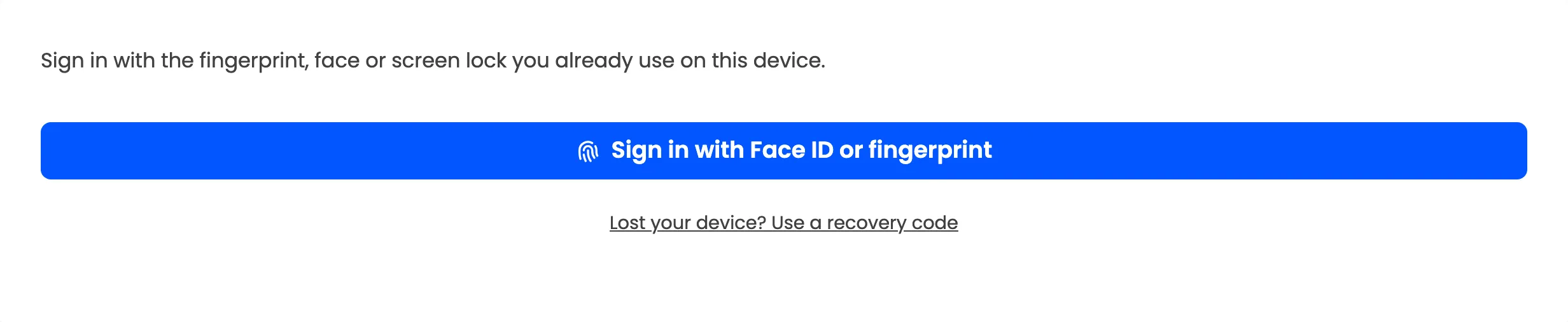
[ddwcbl_biometric_login_button_shortcode]. The sign in button, shown only to signed out visitors. Optional attributes:textfor the label andredirect_tofor where the customer lands. - Passkey Manager Shortcode: Default
[ddwcbl_add_biometric_details_shortcode]. The signed in user’s passkeys and recovery codes, with add, rename, suspend and remove. Nothing shows to a signed out visitor.
Rename a shortcode only when another plugin uses the same name. Type it with or without the brackets; it is
saved as [name].
The blocks
Section titled “The blocks”In the block editor, search for passkey. Passkey Login Button has Text and Redirect To settings. Passkey Manager has none.
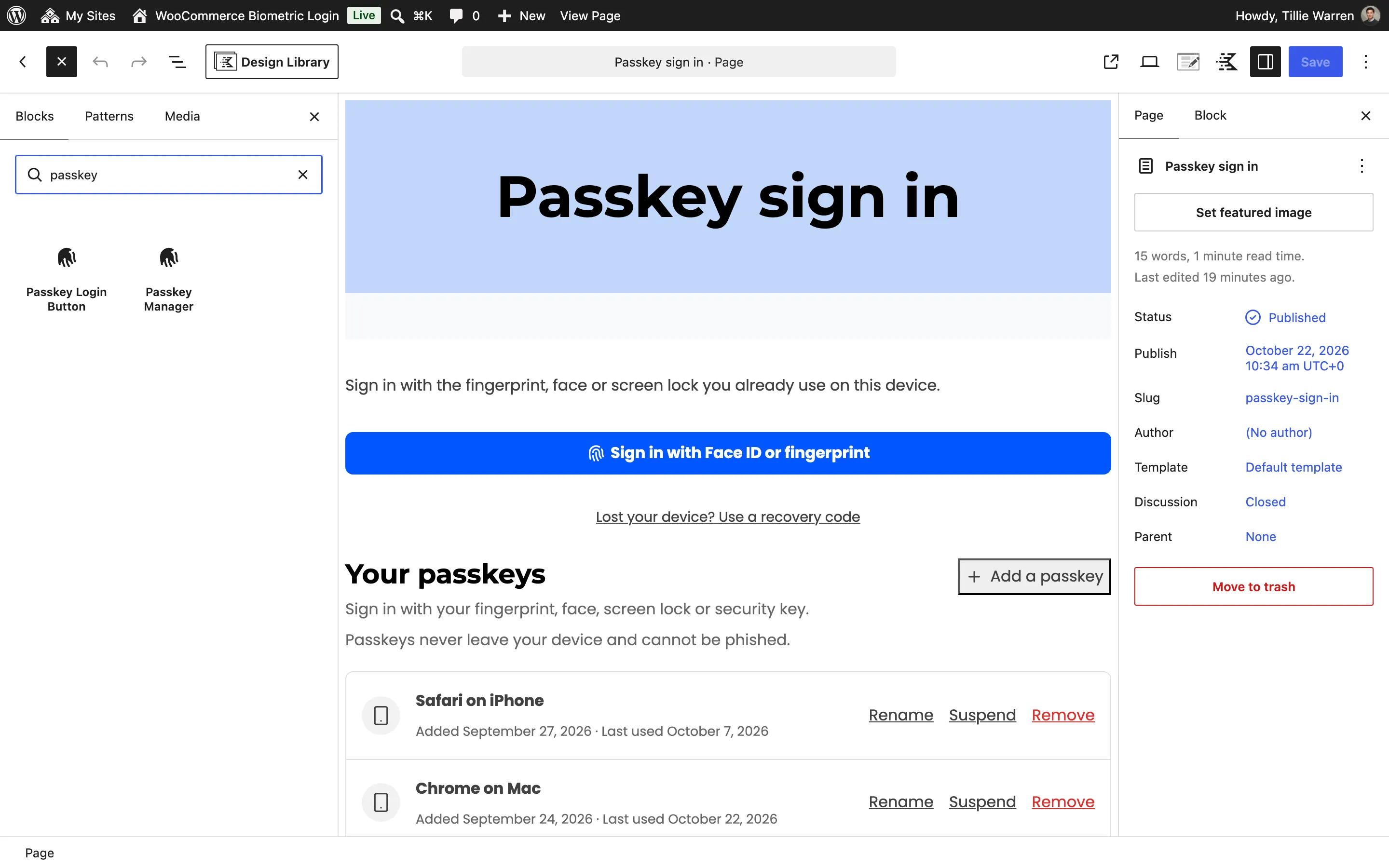
Elementor users find widgets with the same two names.
Example
Section titled “Example”[ddwcbl_biometric_login_button_shortcode text="Sign in with Face ID or fingerprint" redirect_to="https://example.com/shop/"]The login button from a shortcode or block has no OR divider, because there is no password form beside it.