

Introduction to Biometric Login
WooCommerce Biometric Login lets customers and staff sign in with a passkey instead of a password. A passkey uses what the device already has: Face ID, Touch ID, Windows Hello, an Android fingerprint or a security key. The customer presses Sign in with a passkey, confirms on the device, and is in.
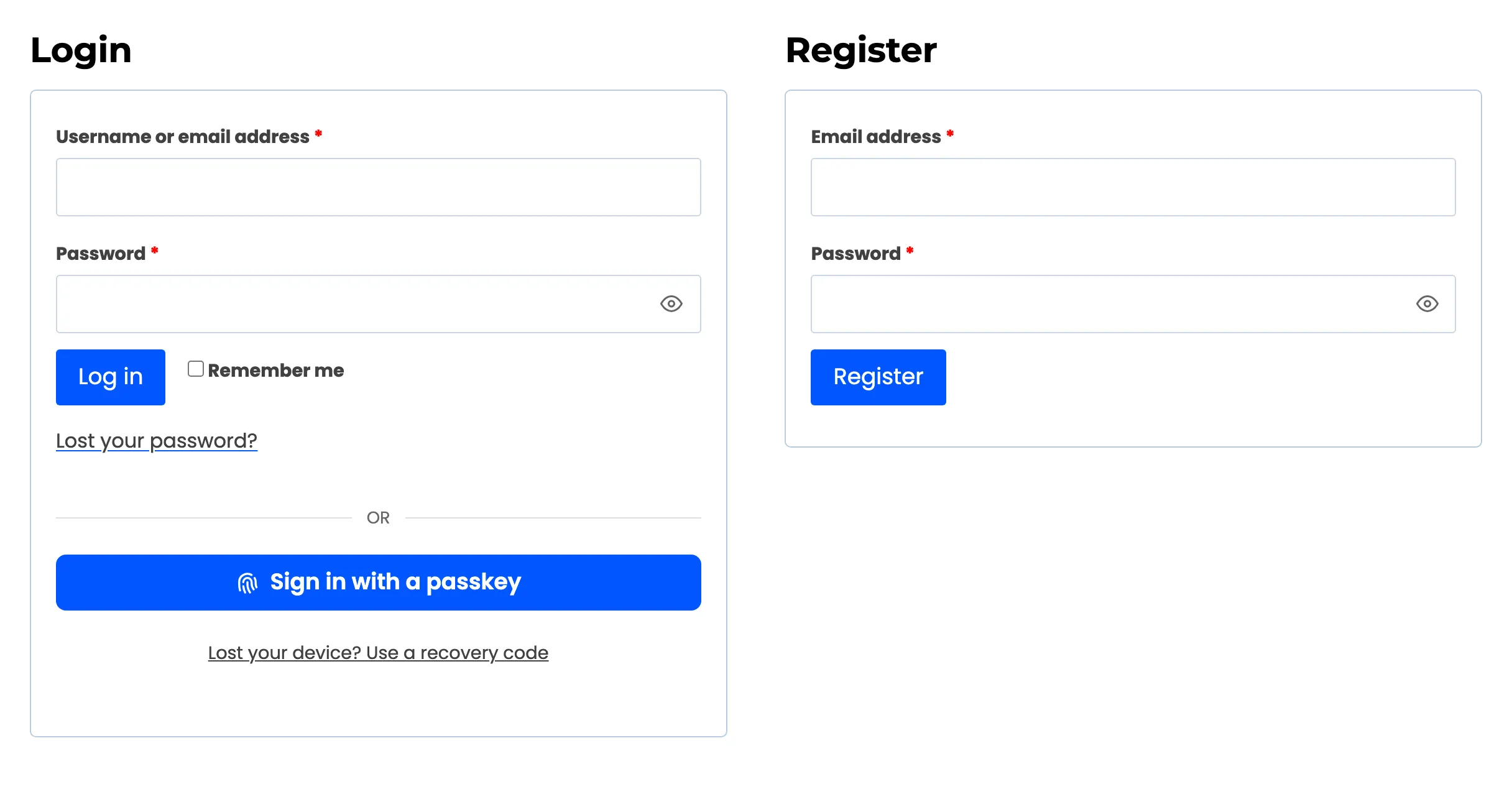
A passkey cannot be phished or reused on another site. It is bound to your store’s domain, and the private key never leaves the customer’s device. The store keeps only the public half.
It is a paid plugin with no free edition, so every feature on these pages is part of the one plugin.
What customers see
Section titled “What customers see”- A passkey button on the My Account login form, and on the checkout’s “Returning customer?” form.
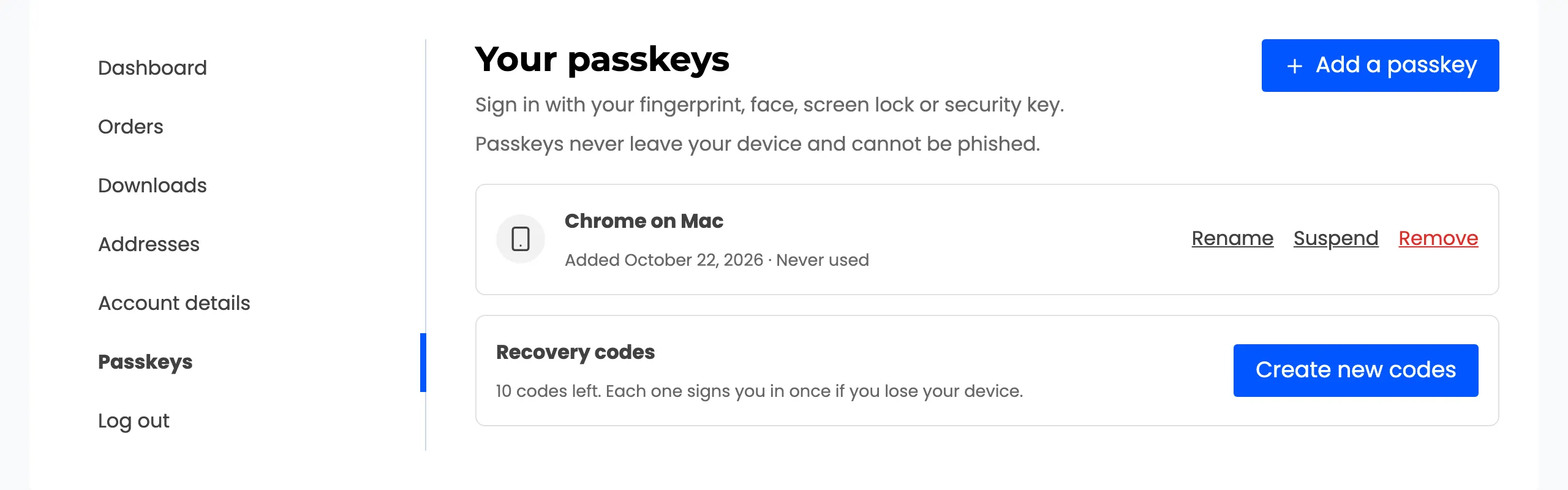
- A Passkeys page in My Account, where they add, rename, suspend and remove their passkeys.
- Recovery codes, shown once after their first passkey, for the day they lose their phone.
- Invitations to add a passkey: after a password sign in, after registering, on the order received page and on the My Account dashboard.
What you control
Section titled “What you control”- Where the button shows: My Account, checkout, the WordPress login screen, and anywhere else through a shortcode, a block or an Elementor widget.
- How it looks: five button styles, your own colours and an optional fingerprint icon.
- Who may use passkeys, who must, and who may sign in with nothing else.
- Protection: a lockout for addresses that keep failing, emails when an account’s sign in changes, and alerts for you.
Where things live
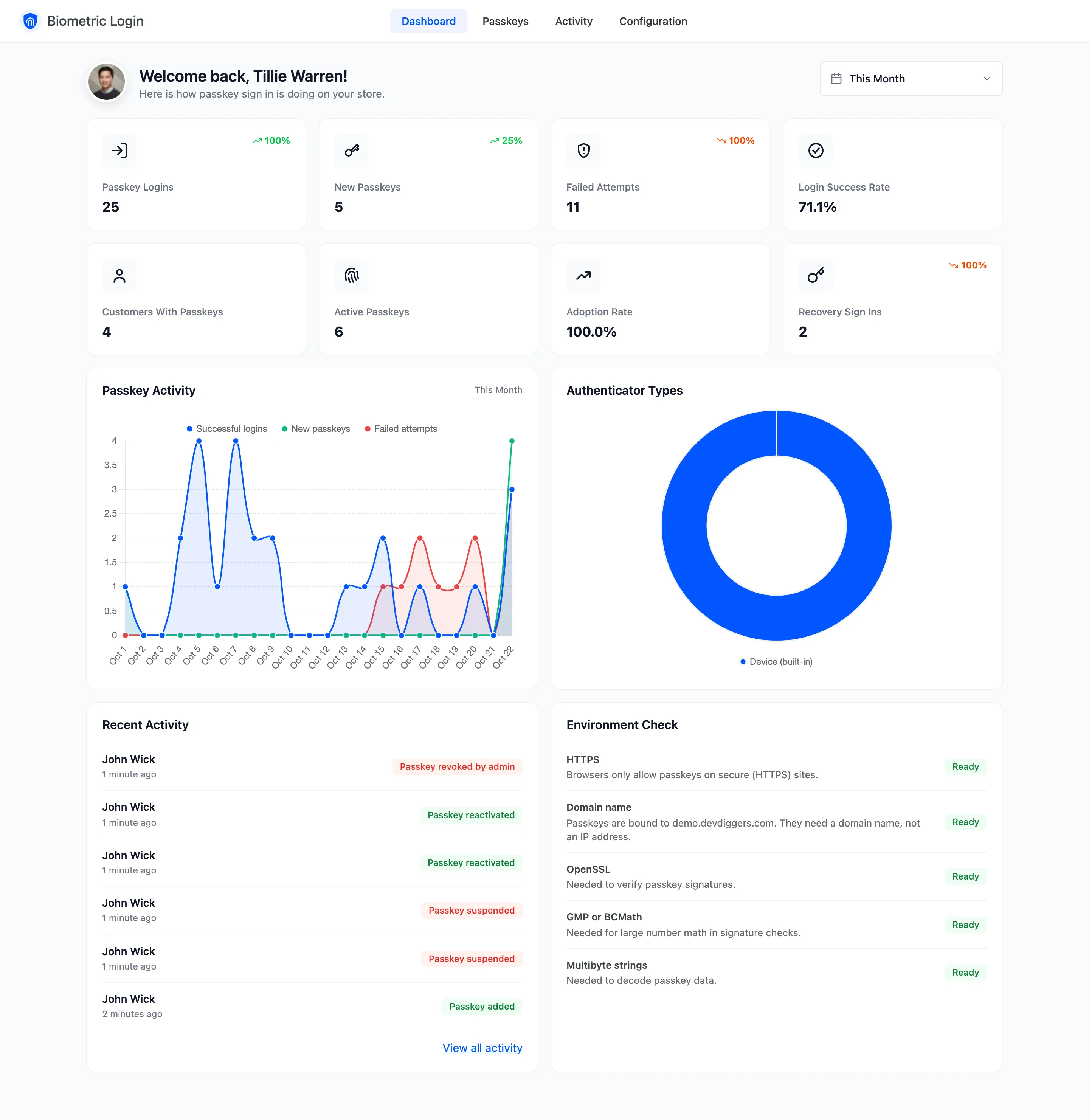
Section titled “Where things live”Everything is under DevDiggers Plugins → Biometric Login, in four menus: Dashboard, Passkeys, Activity and Configuration. Configuration has ten tabs: General, Login Placement, Appearance, Passkey Adoption, Security, Emails & Alerts, My Account, Shortcodes & Blocks, Advanced and License.
Each user’s profile in WordPress admin also gets a Passkeys section, and the Users list gets a Passkeys column. See Users and Profiles.
Requirements
Section titled “Requirements”- WordPress 6.0 or newer, WooCommerce 6.0 or newer and PHP 7.4 or newer.
- HTTPS and a domain name. Browsers refuse passkeys on plain HTTP and on an IP address.
- The PHP extensions OpenSSL, GMP or BCMath, and mbstring. The dashboard’s Environment Check lists them.
- An active license. Until it is active, customers see no passkey controls.
It works with the WooCommerce order tables (HPOS) and declares support for the Cart and Checkout blocks.
Where to go next
Section titled “Where to go next”- How Passkey Sign In Works follows one customer from first passkey to sign in.
- Installing and Activating gets the plugin running.
- How to Add a Passkey from My Account is the first thing to try.