How to Export Passkey Activity to CSV
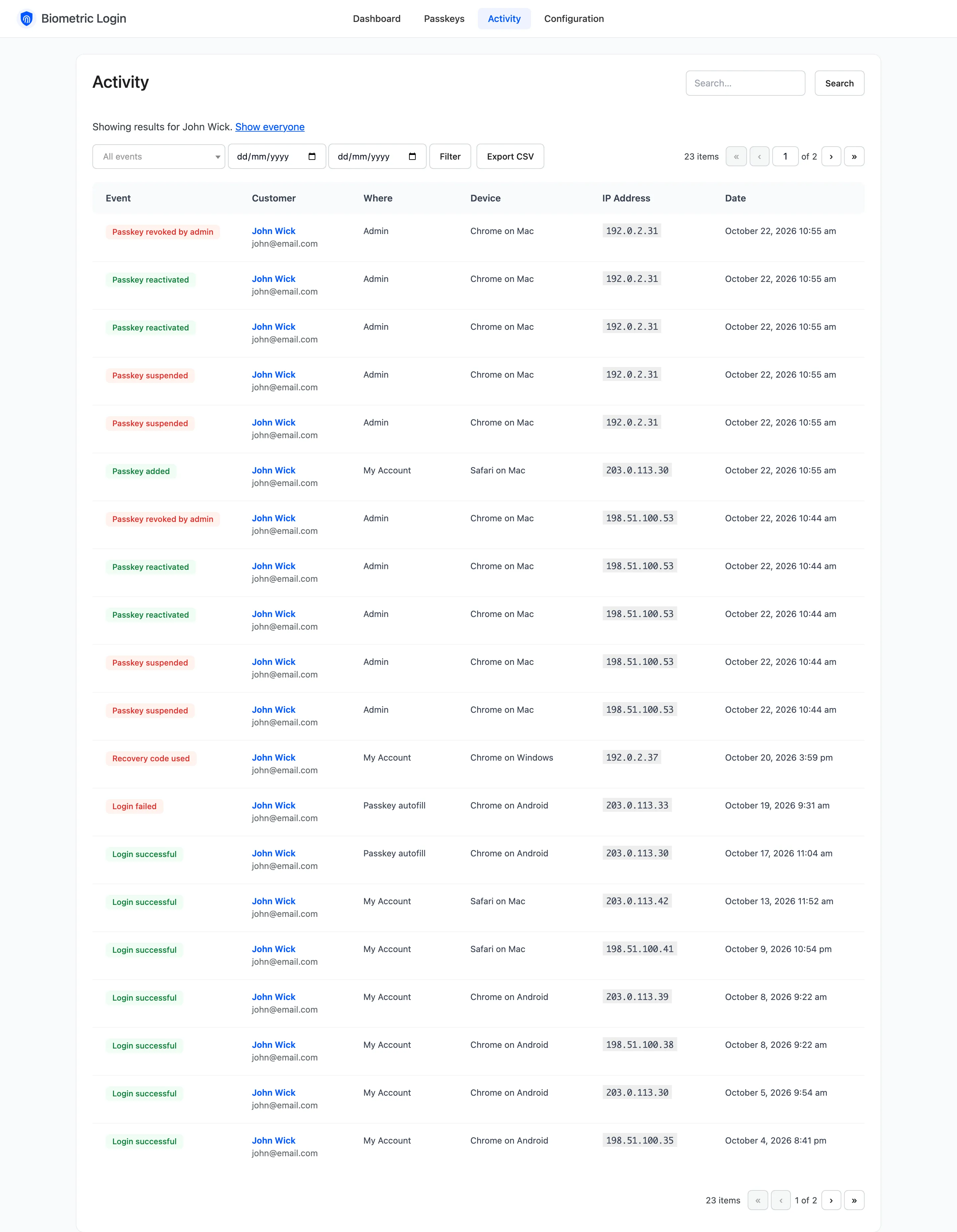
The Activity screen shows 20 rows a page. Export CSV takes all of them, or only the ones you filtered.
Step 1: Filter the Activity screen
Section titled “Step 1: Filter the Activity screen”Open DevDiggers Plugins → Biometric Login → Activity. Pick an event, dates or a customer, and click Filter. Leave everything empty for the whole log.
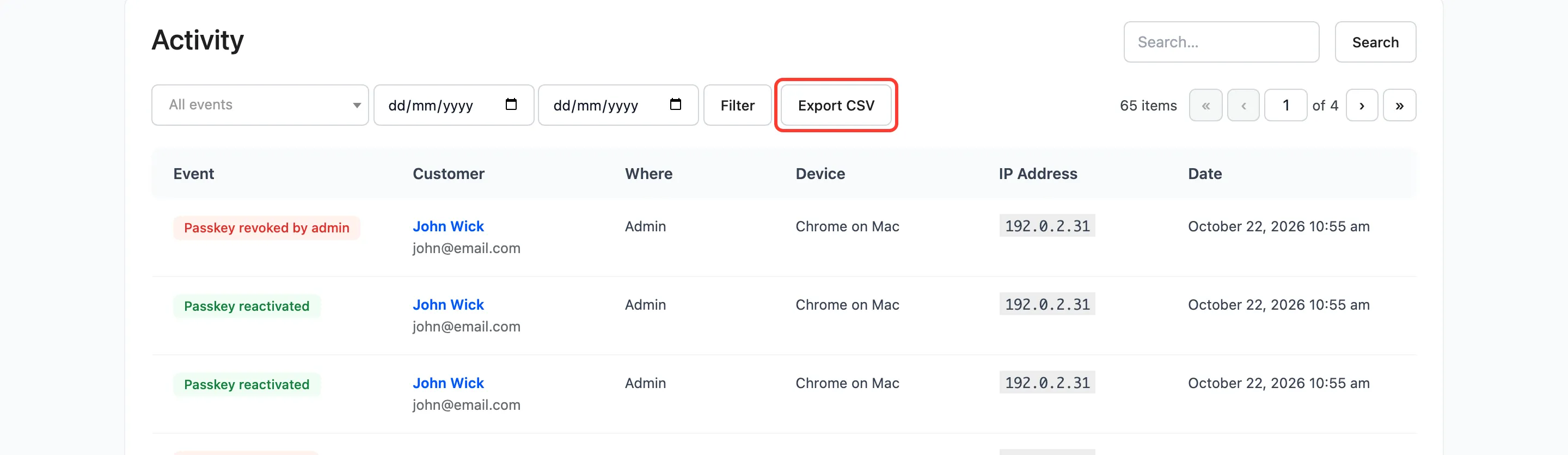
Step 2: Click Export CSV
Section titled “Step 2: Click Export CSV”Export CSV downloads every row the current filters match, across all pages, named
passkey-activity-<date>.csv.
Step 3: Open the file
Section titled “Step 3: Open the file”The columns are Date, Event, Customer, Email, Where, IP Address and Browser. Rows where nobody was matched have an empty customer and email.
A cell that starts with =, +, - or @ gets a leading apostrophe, so a spreadsheet shows it as text
rather than running it as a formula.
Who can export
Section titled “Who can export”Administrators and shop managers. The export keeps the same filters you see, so a support case can be one customer’s history: open their activity from the Customer link, then export.