The Passkeys Screen
The Passkeys screen lists every passkey on the store, newest first. Open DevDiggers Plugins → Biometric Login → Passkeys.
Columns
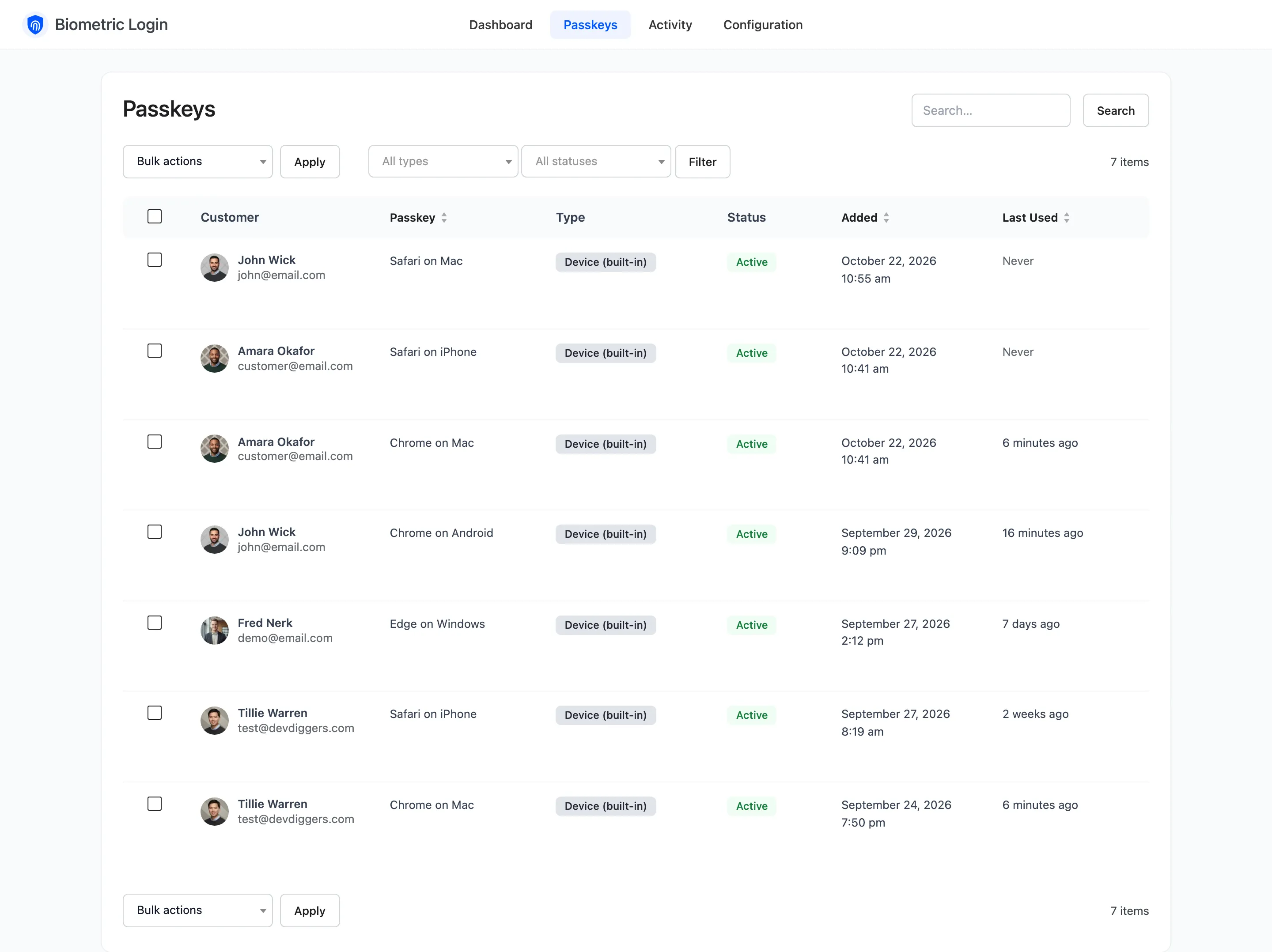
Section titled “Columns”- Customer: The account’s name and email.
- Passkey: The name the customer gave it, or the browser and device it was saved from, such as Safari on iPhone.
- Type: Device (built-in) for Face ID, Touch ID, Windows Hello or a phone’s fingerprint. Security key / phone for a USB key or a passkey on another phone. Unknown for passkeys moved over from 1.x.
- Status: Active or Suspended.
- Added and Last Used: Never when it has not signed anyone in yet.
Filters and search
Section titled “Filters and search”All types and All statuses narrow the list; Filter applies them and Reset clears them. The search box finds customers by name, username or email, and passkeys by name.
Row actions
Section titled “Row actions”Hover a row for four links:
- Suspend or Reactivate: A suspended passkey stays on the account but cannot sign in.
- Edit user: The customer’s profile, where their passkeys are listed too.
- Activity: The Activity log for that customer only.
- Revoke: Deletes the passkey after a confirmation. The customer gets a “passkey removed” email.

Bulk actions
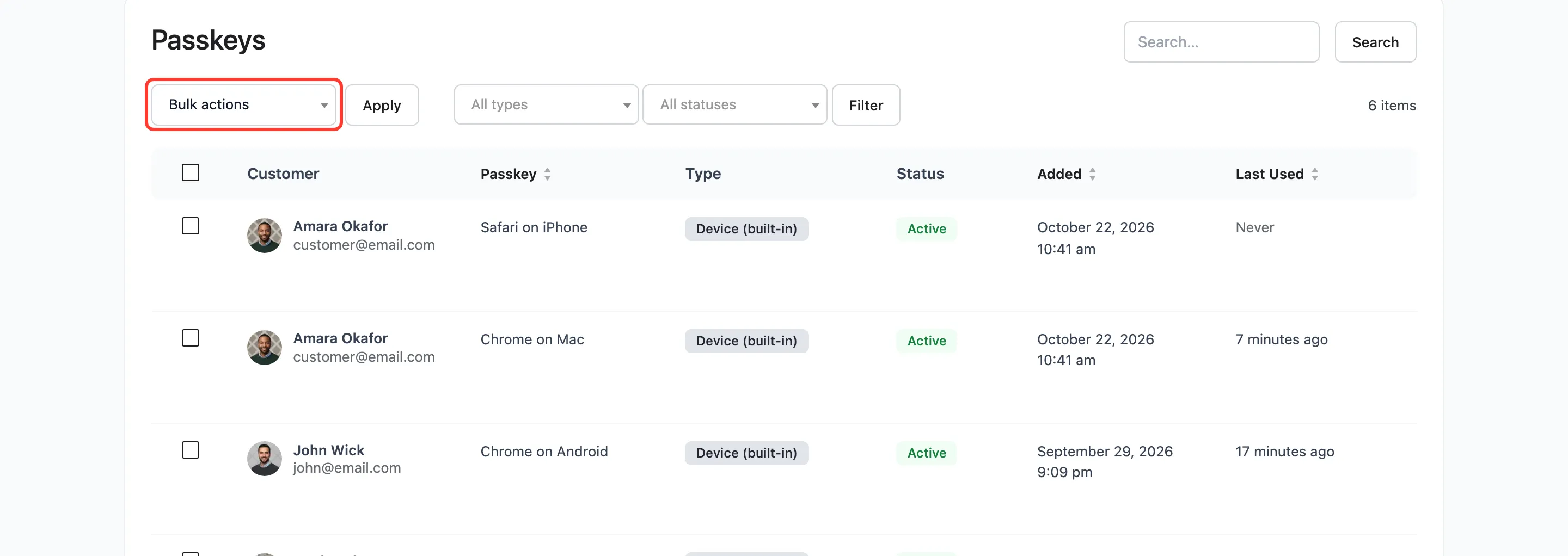
Section titled “Bulk actions”Tick passkeys, pick Suspend, Reactivate or Revoke under Bulk actions, and click Apply. A notice says how many changed, such as “2 passkeys suspended.”
A shop manager cannot suspend or revoke an administrator’s passkey. Those rows are skipped.
One customer’s passkeys
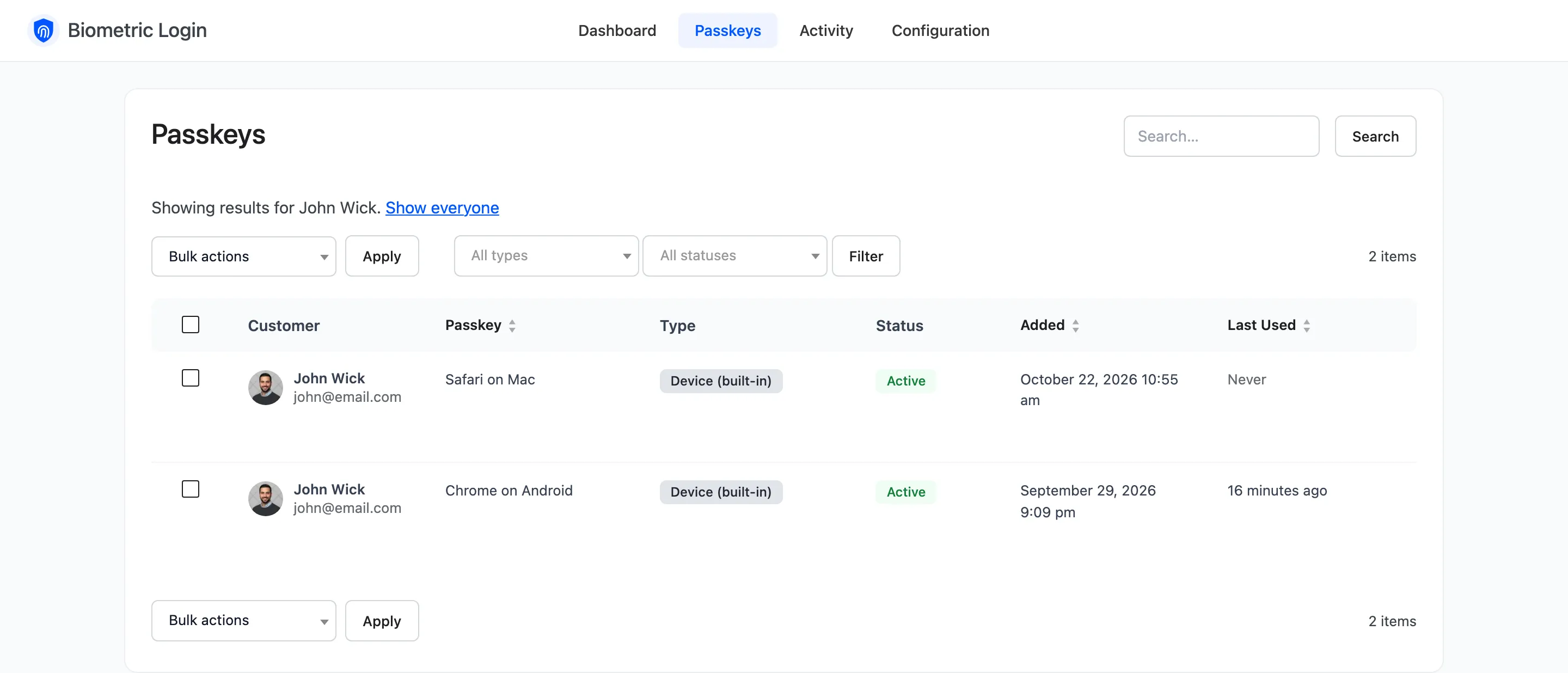
Section titled “One customer’s passkeys”The Passkeys number on the Users screen, and Activity’s customer links, open this screen for one customer, with Show everyone to go back.