

How to Revoke or Suspend a Customer's Passkey
A customer calls to say their phone was stolen. You can stop that phone’s passkey in a few clicks.
Step 1: Find the passkey
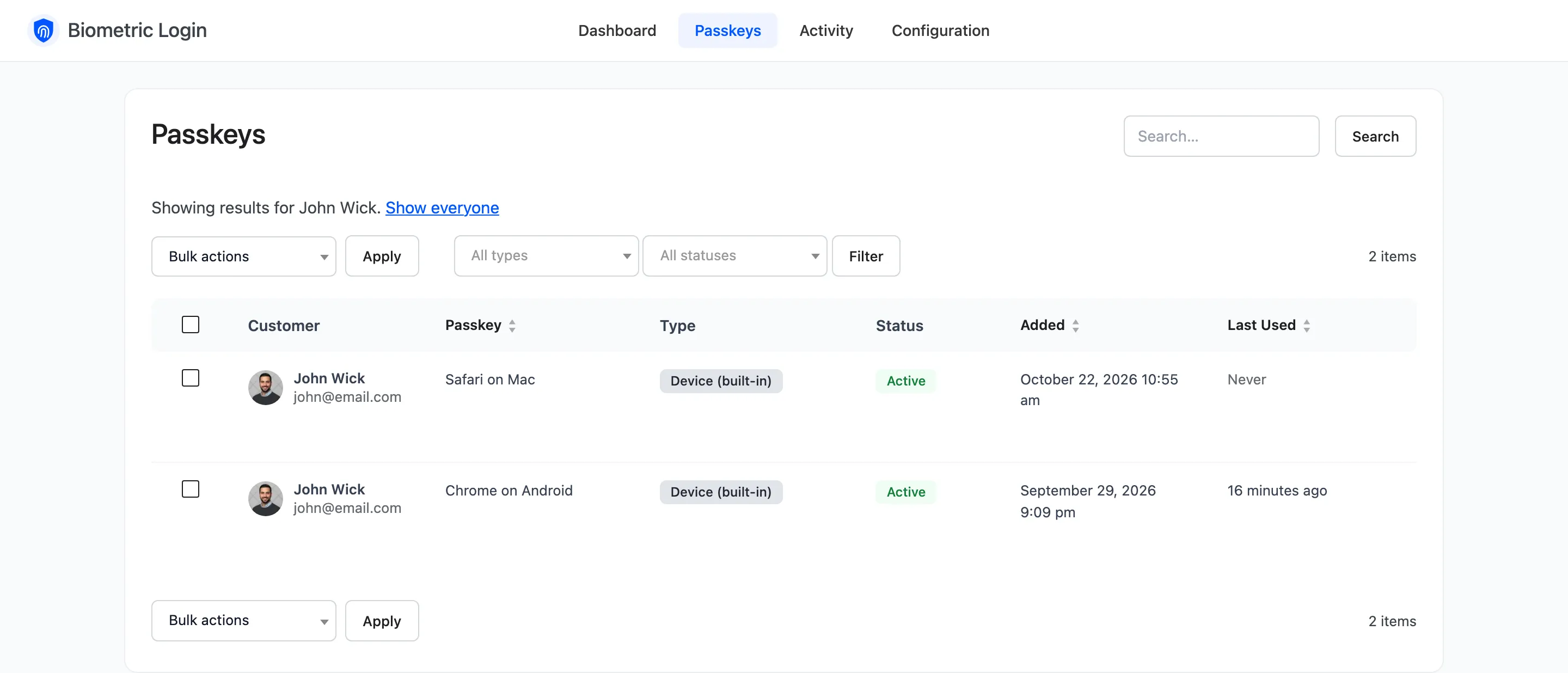
Section titled “Step 1: Find the passkey”Open DevDiggers Plugins → Biometric Login → Passkeys and search for the customer. The Passkeys count on Users → All Users opens their passkeys straight away.
Step 2: Suspend it
Section titled “Step 2: Suspend it”Hover the row and click Suspend. The passkey stays on the account, marked Suspended, and is refused at sign in. Reactivate brings it back. Use it when the phone may turn up.

Step 3: Or revoke it
Section titled “Step 3: Or revoke it”Click Revoke and confirm “Revoke this passkey? The customer will no longer be able to sign in with it.” The passkey is deleted, and a notice confirms it.
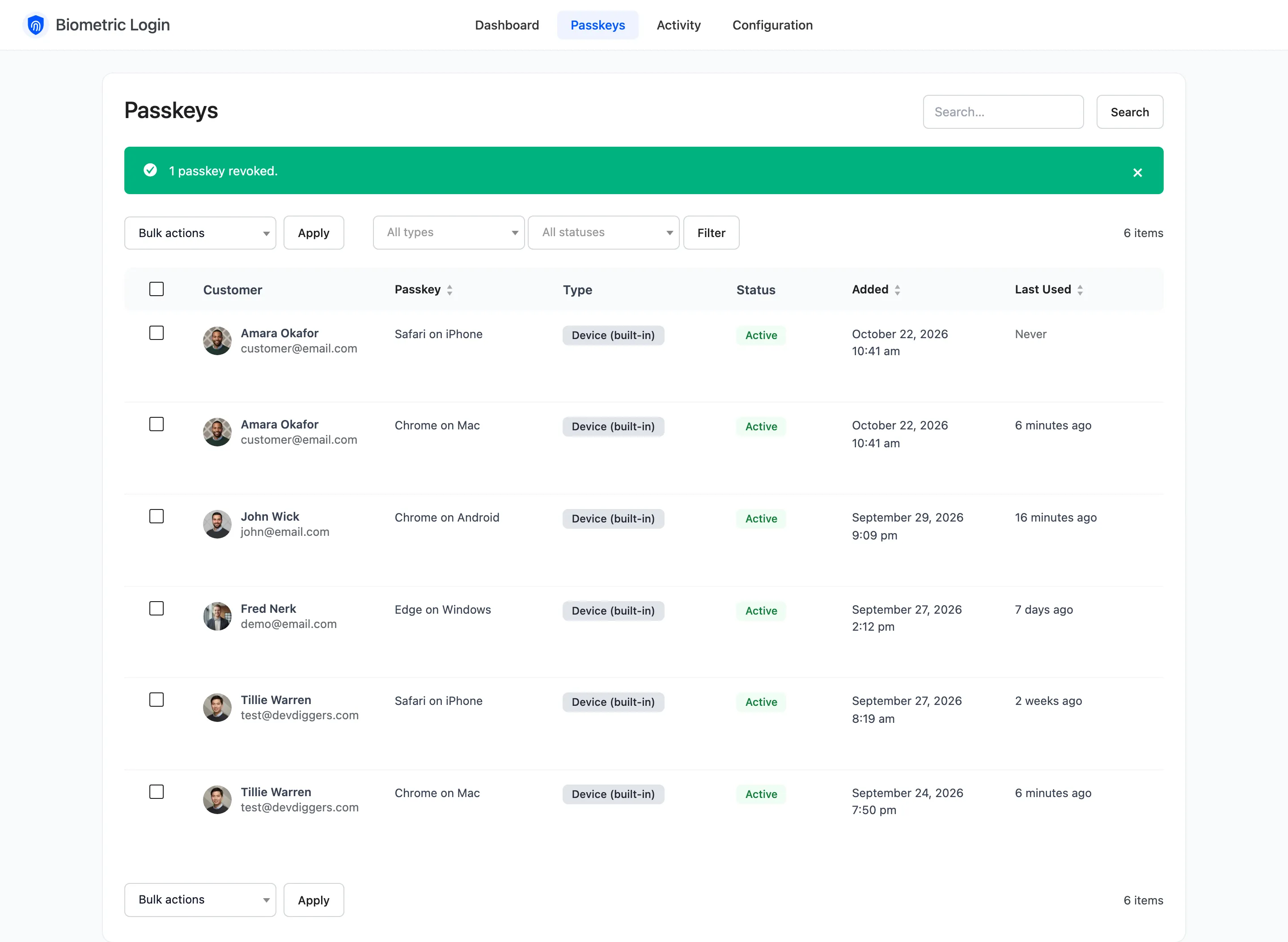
The customer gets the “passkey removed” email, and Activity records Passkey revoked by admin.
Step 4: In bulk
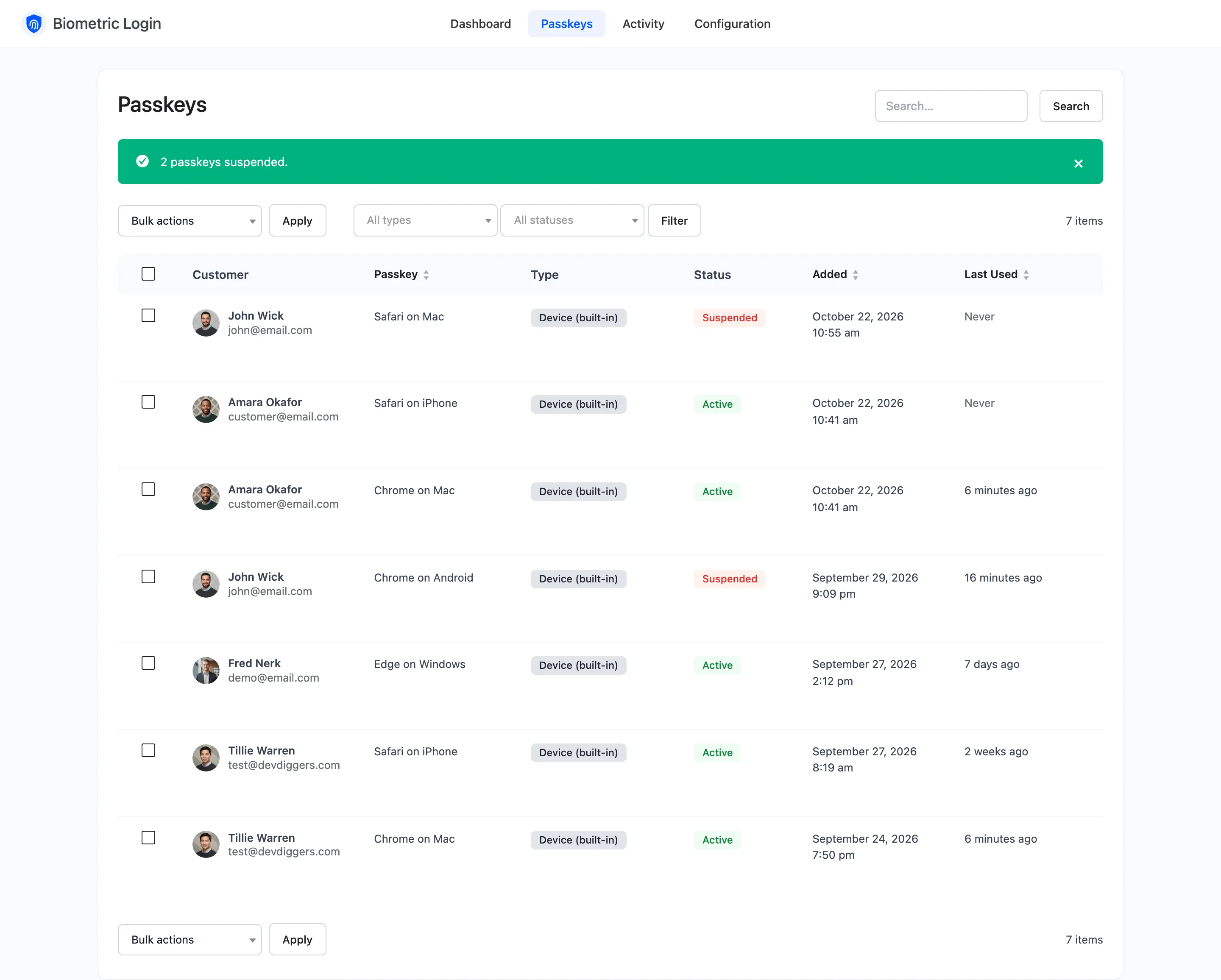
Section titled “Step 4: In bulk”Tick several passkeys, choose Suspend, Reactivate or Revoke under Bulk actions, and click Apply. On the demo, John’s two passkeys were suspended together:
From the customer’s profile
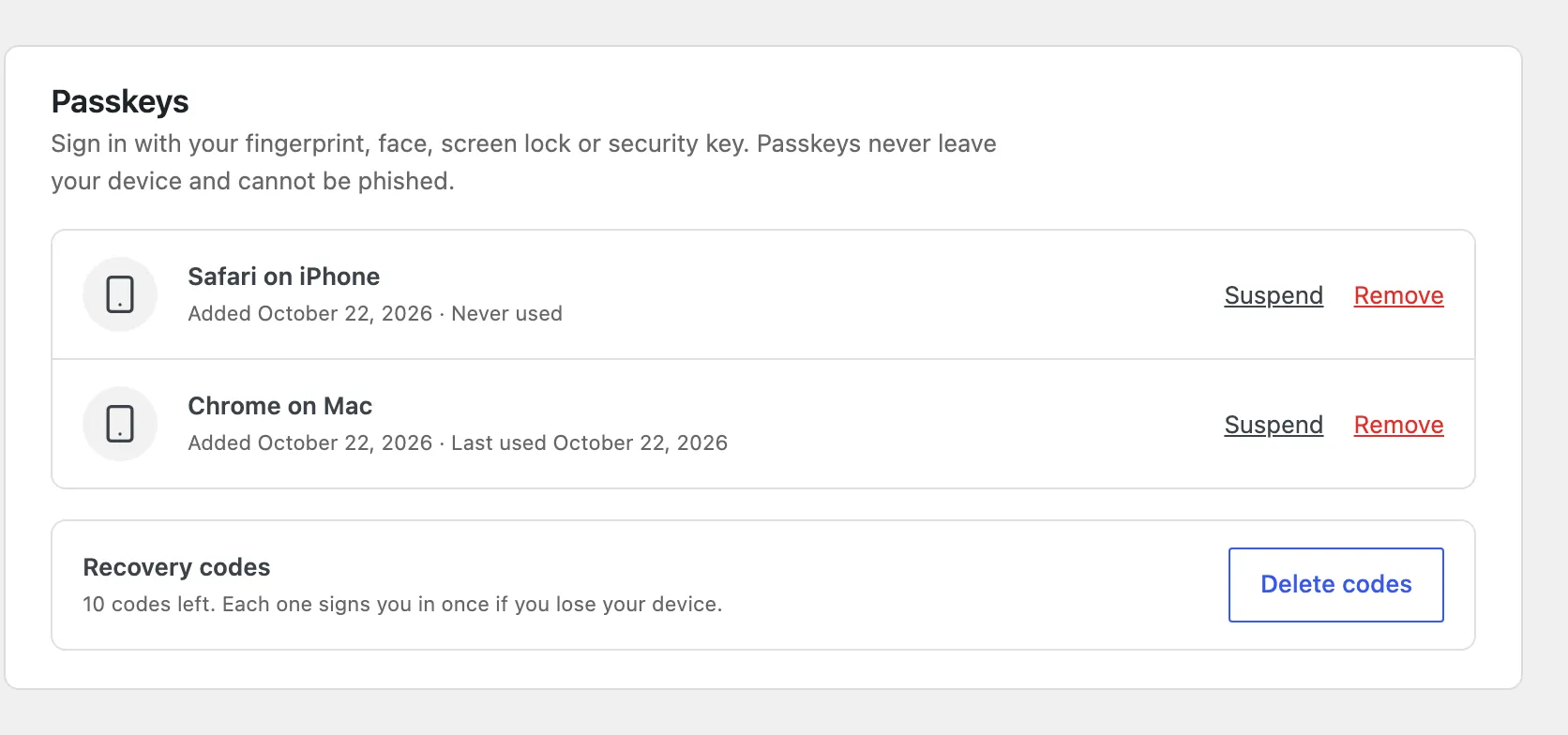
Section titled “From the customer’s profile”Open the customer under Users and scroll to Passkeys for the same Suspend and Remove links, and Delete codes for their recovery codes.
Good to know
Section titled “Good to know”- A shop manager cannot suspend or revoke an administrator’s passkey.
- Revoking does not sign the customer out of sessions already open. Change their password too if the account itself may be at risk.