

How Passkey Sign In Works
This page follows one customer on the demo store, Amara, from her first passkey to signing in with it. Each step shows what she sees and what the store records.
1. Amara is invited
Section titled “1. Amara is invited”Amara has always signed in with a password. After her next order, the order received page asks whether she would like to sign in faster next time.
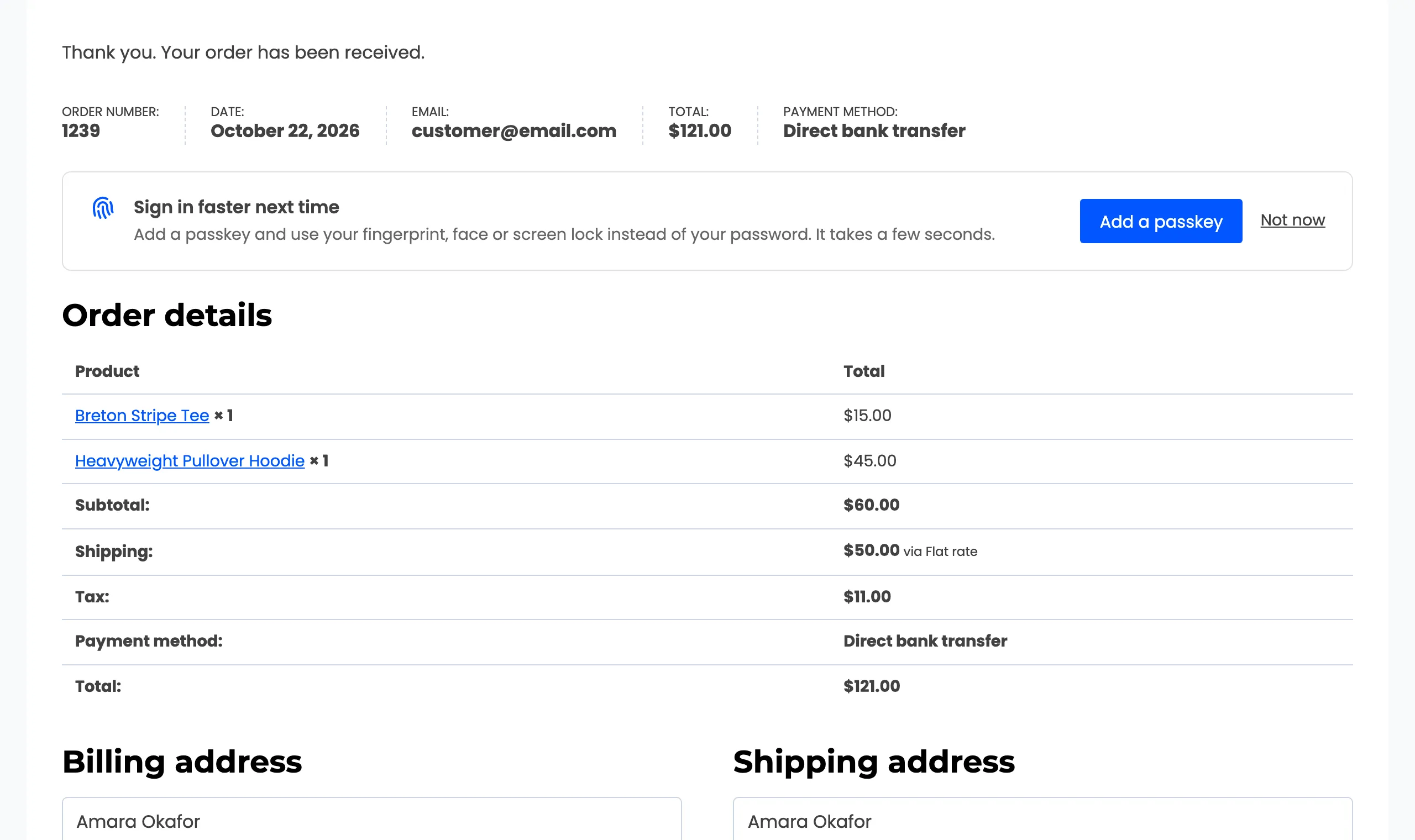
The same card sits on her My Account dashboard until she adds a passkey or presses Not now. Not now hides every invitation for 30 days.
2. She adds a passkey
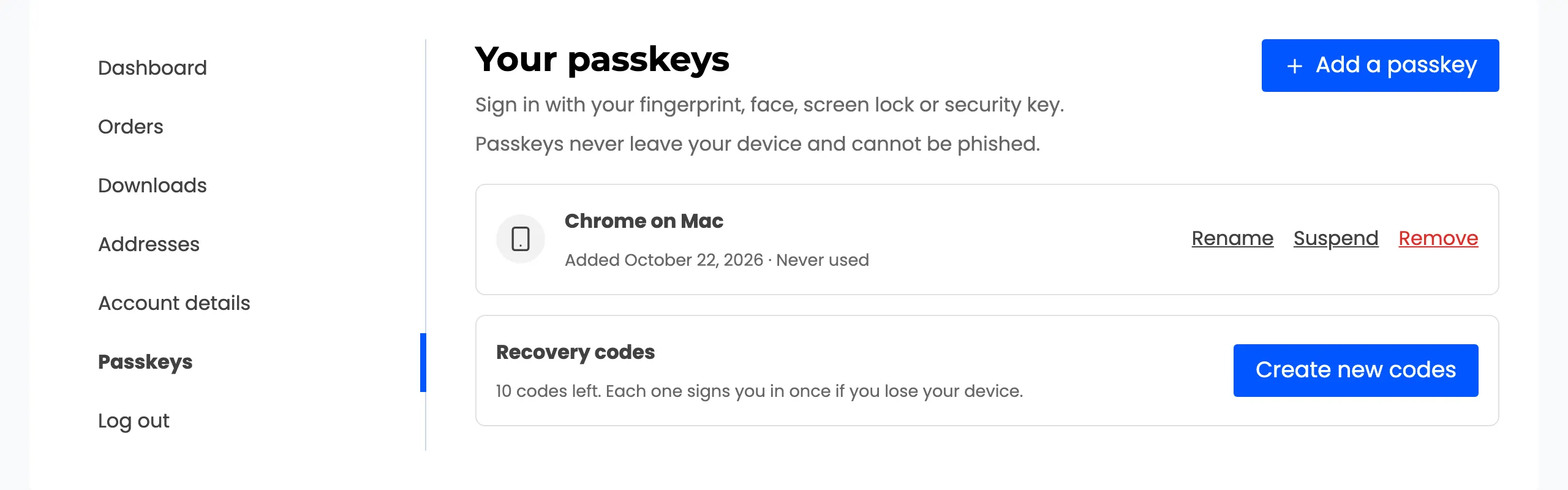
Section titled “2. She adds a passkey”She opens My Account → Passkeys and presses Add a passkey. Her browser asks her to confirm with Touch ID. The store sends a one-time challenge, the device signs it, and the store checks the signature before it saves anything.
The passkey is saved as Chrome on Mac, named from her browser and device. She can rename it.
3. She saves her recovery codes
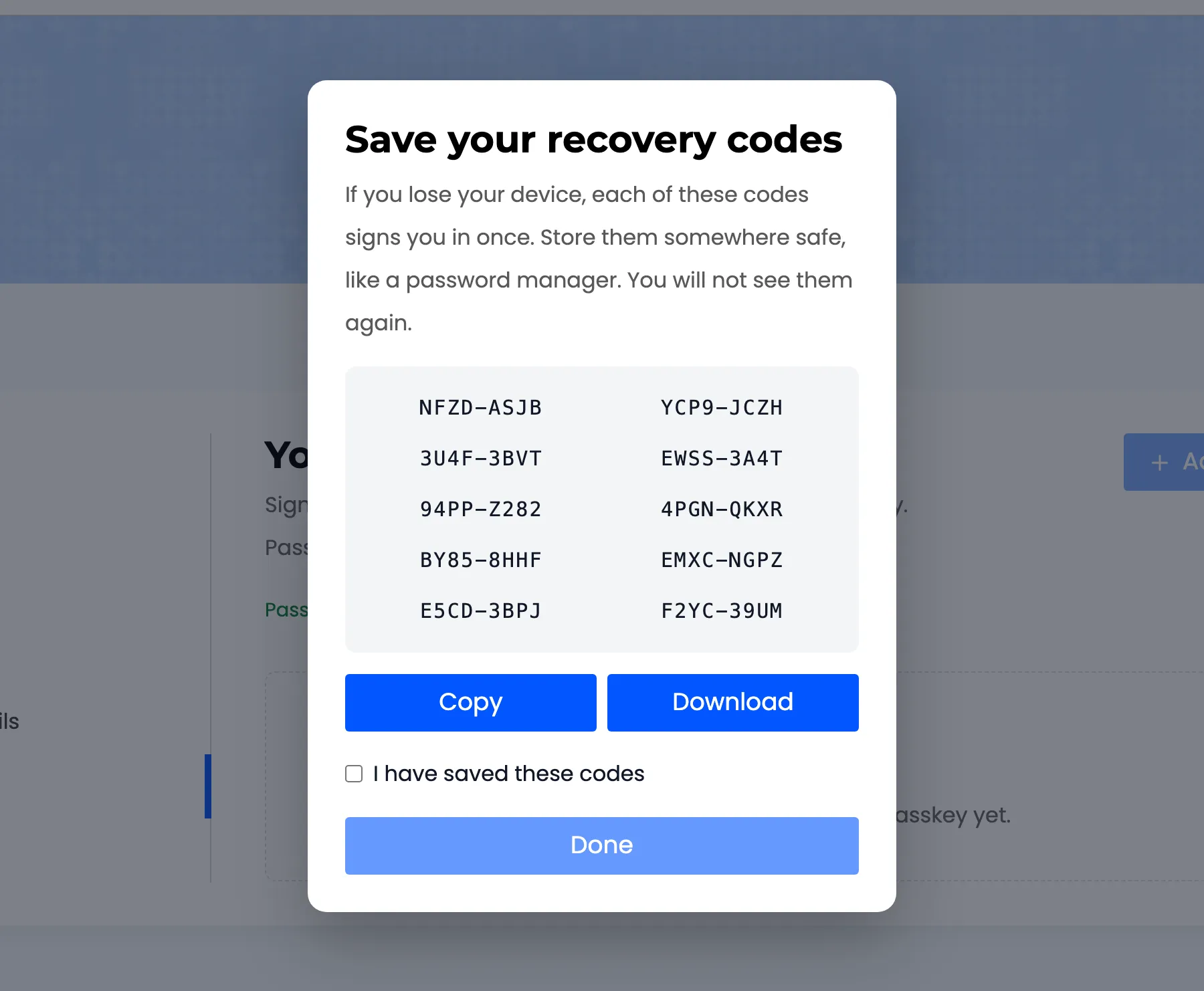
Section titled “3. She saves her recovery codes”Her first passkey comes with ten recovery codes, shown once. Done stays greyed out until she ticks I have saved these codes. The store keeps only a scrambled copy of each code, so nobody can read them back.
She also gets an email: “A new passkey was added to your account”, with the device name and time.
4. She signs in with it
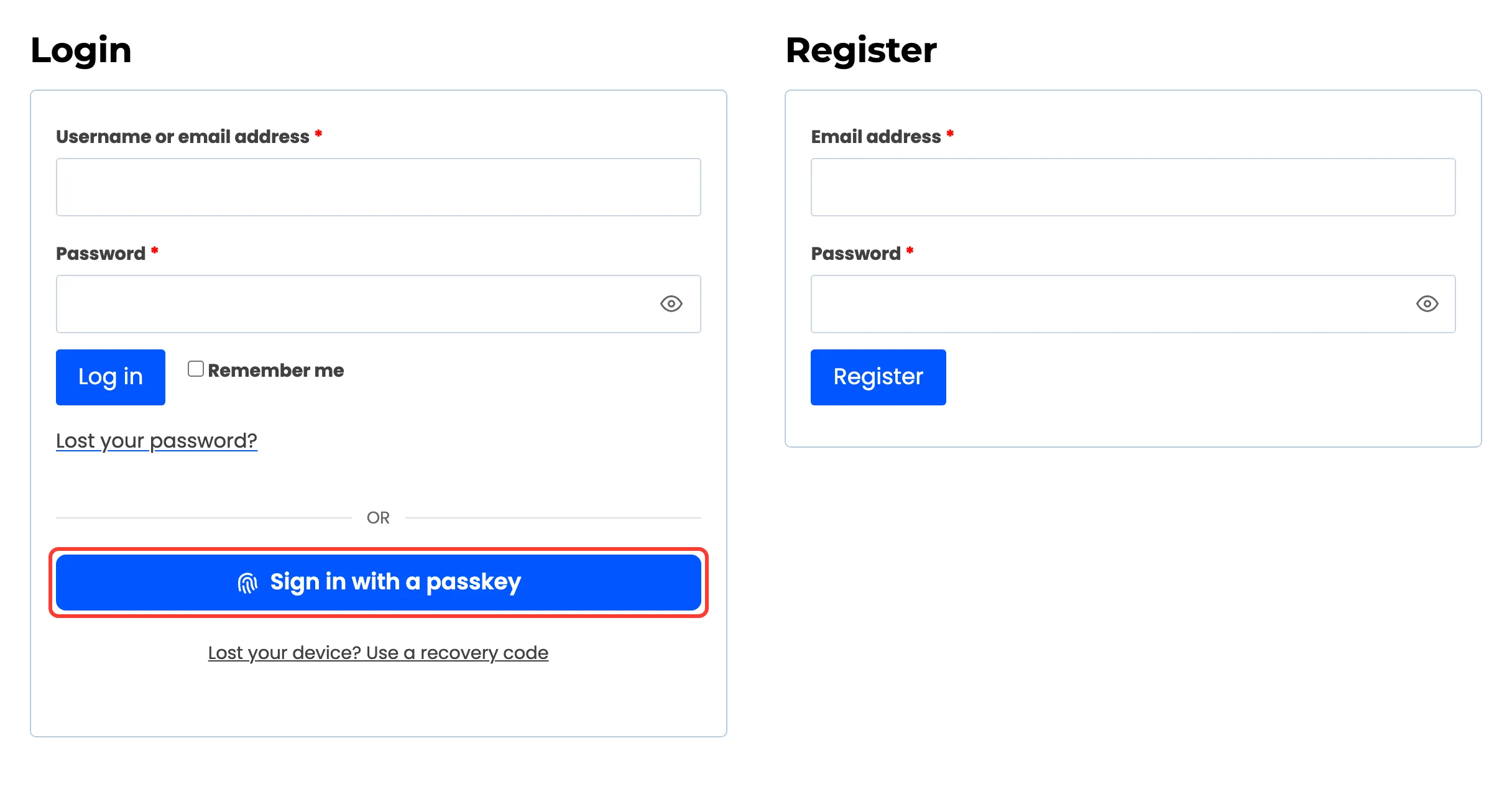
Section titled “4. She signs in with it”Next time, signed out, she presses Sign in with a passkey on the My Account login form. She does not type her username. The passkey tells the store who she is.
The store checks four things before she is in:
- The passkey is registered on this store and belongs to an account.
- The passkey is active, not suspended.
- Her role may use passkeys.
- The signature matches the passkey’s public key, and the one-time challenge has not been used before.
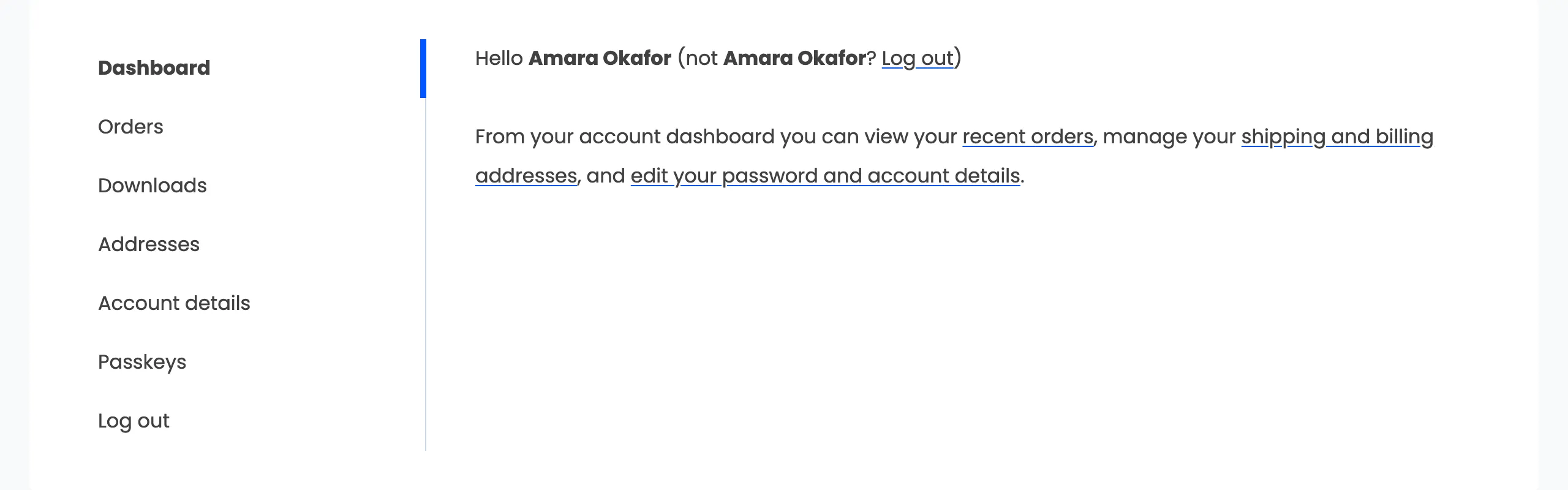
Then she is signed in, and the page she signed in on opens again, now as her account.
5. The store records it
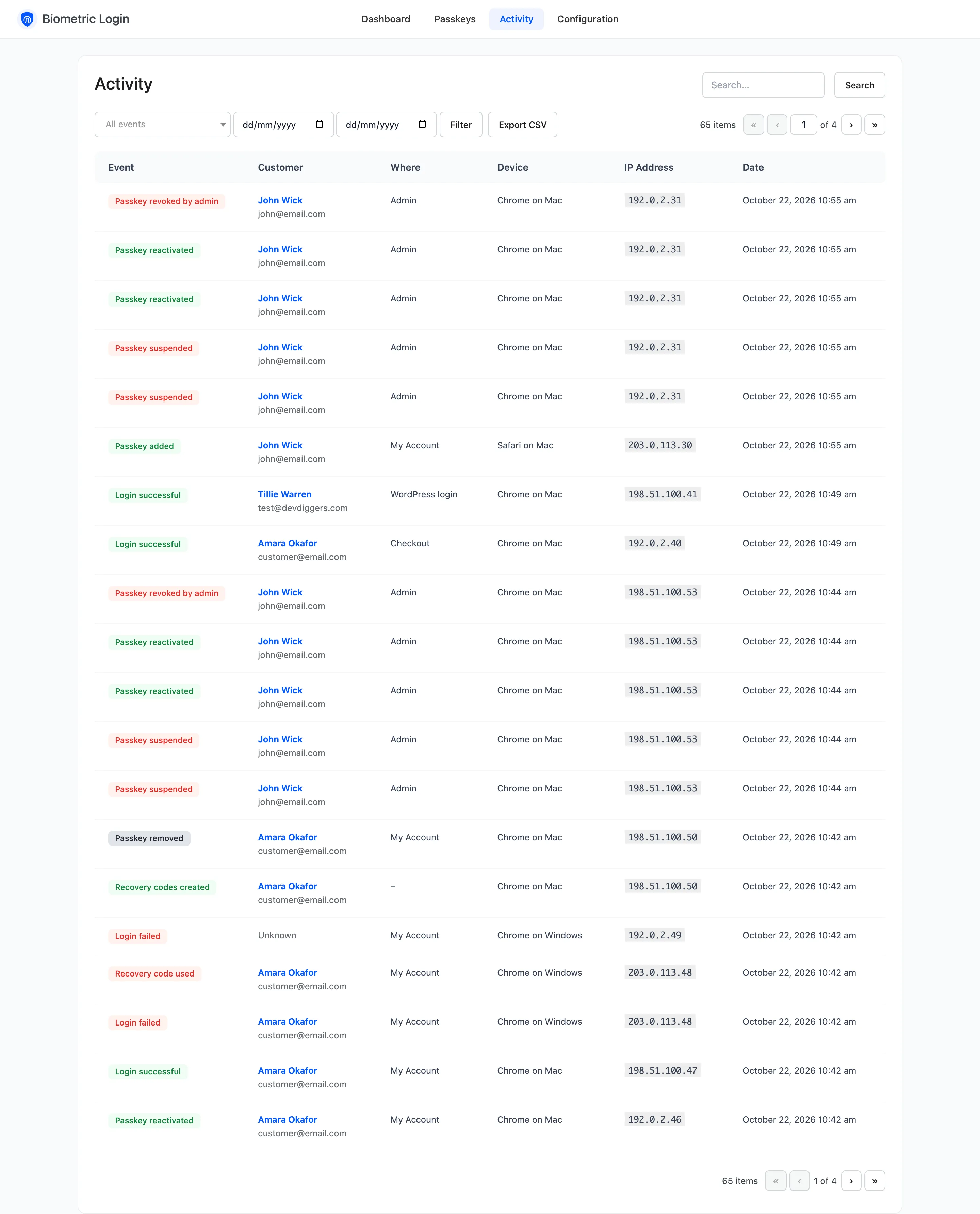
Section titled “5. The store records it”Every passkey added, every sign in and every failed attempt goes to the Activity log, with where it happened, the device and the IP address. The dashboard turns it into counts and a chart.
When something goes wrong
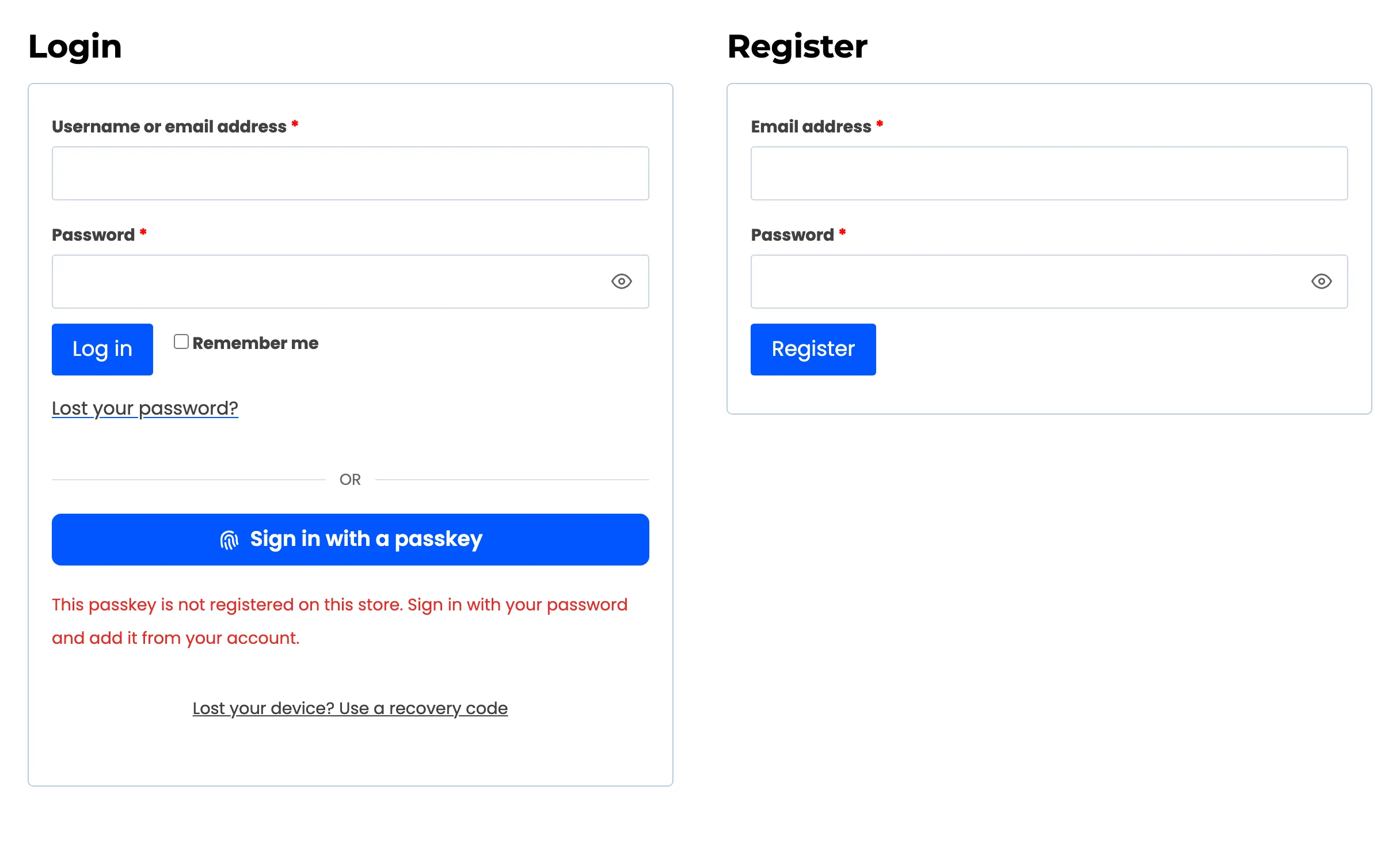
Section titled “When something goes wrong”- A passkey from somewhere else: “This passkey is not registered on this store. Sign in with your password and add it from your account.”
- A suspended passkey: “This passkey is suspended. Sign in another way and reactivate it from your account.”
- Too many failures from one address: “Too many failed attempts. Please try again later.”
- A lost device: a recovery code signs her in once. See How to Sign In with a Recovery Code.
What the store never sees
Section titled “What the store never sees”No fingerprint and no face ever reach the store. The device checks those itself and signs the challenge only when they match. The store holds a public key, which is useless to anyone who copies it.