

How to Rename, Suspend or Remove a Passkey
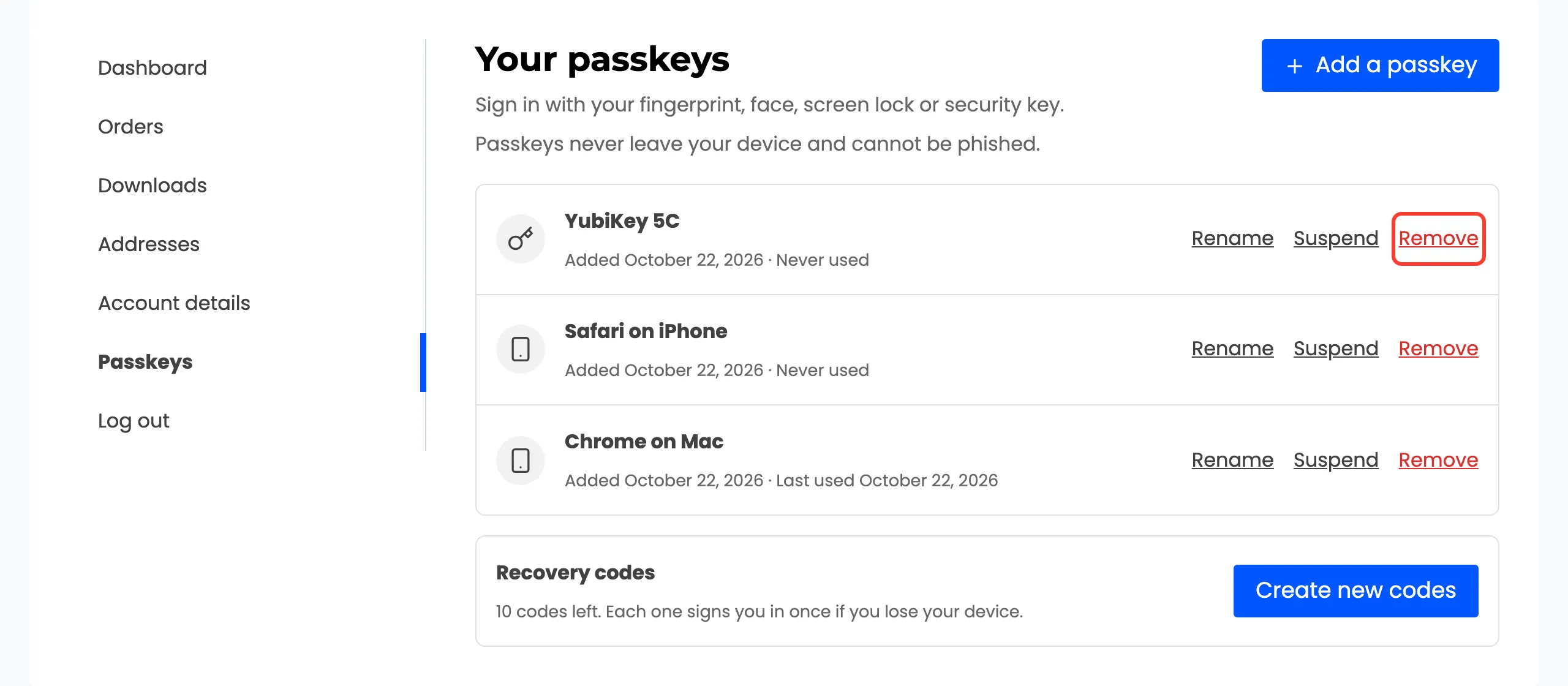
Each passkey on My Account → Passkeys has three links: Rename, Suspend and Remove.
Step 1: Rename a passkey
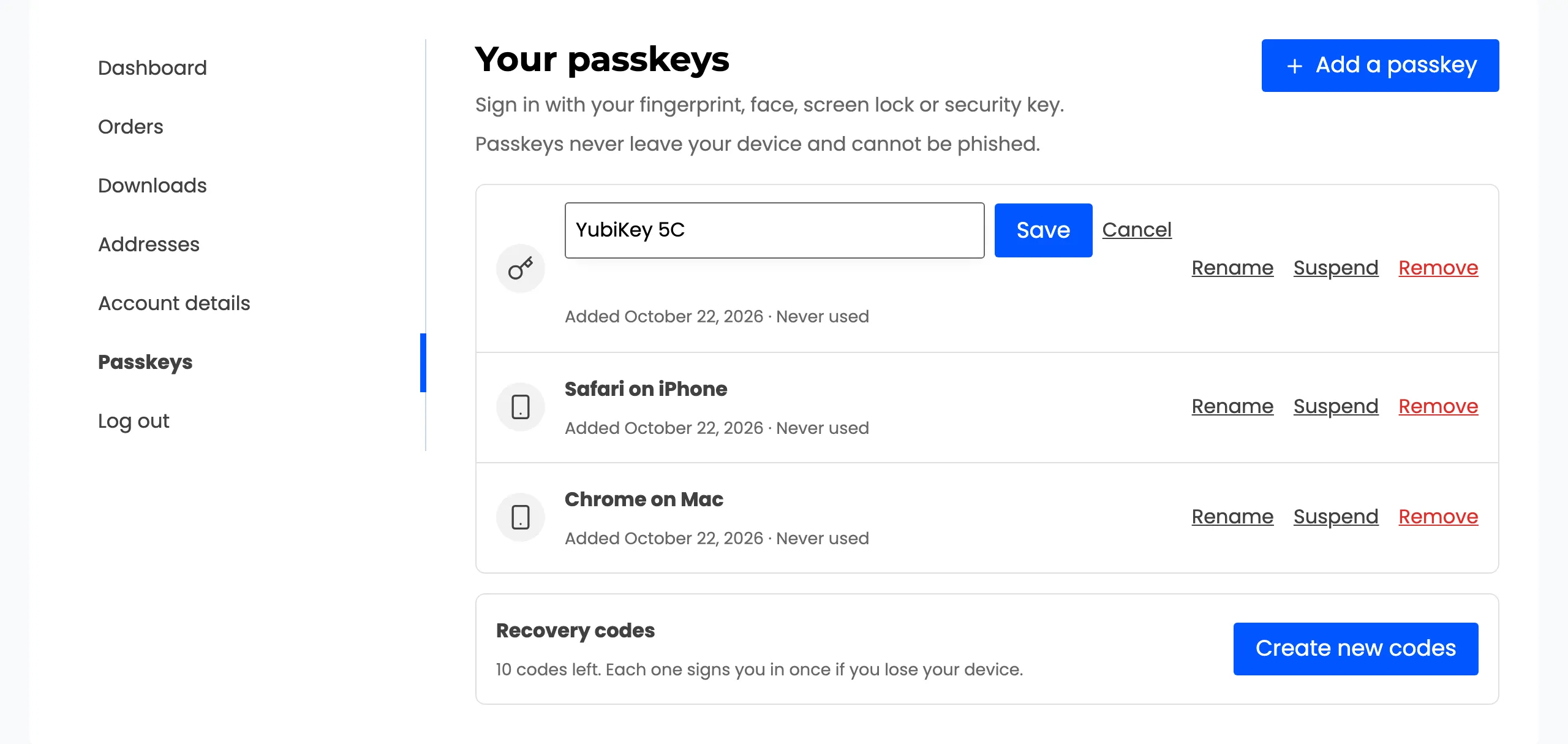
Section titled “Step 1: Rename a passkey”Passkeys are named after the browser and device they were saved on. A security key added from a Mac is also “Chrome on Mac”, so give it a name. Click Rename, type up to 100 characters, and click Save.
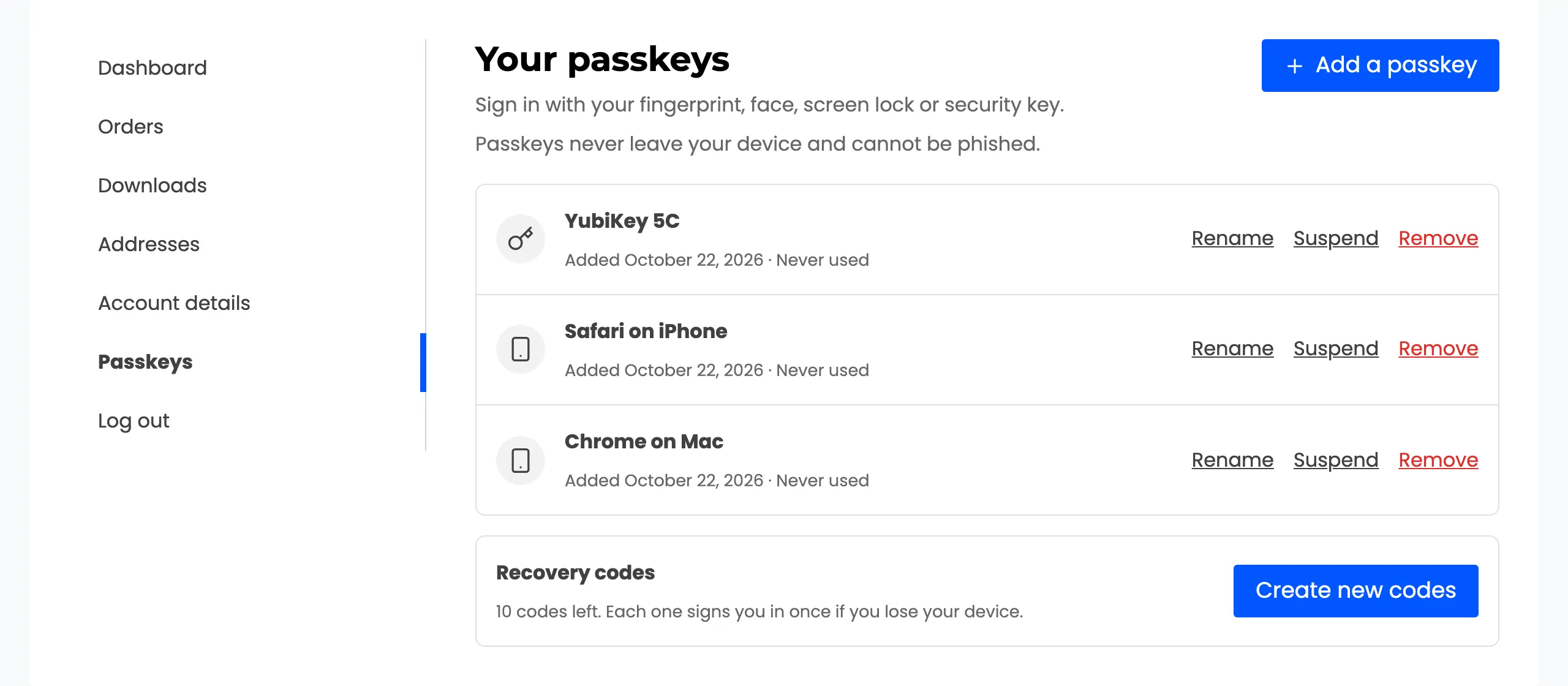
The key icon marks a security key or a passkey on another phone; the phone icon marks one built into the device.
Step 2: Suspend a passkey
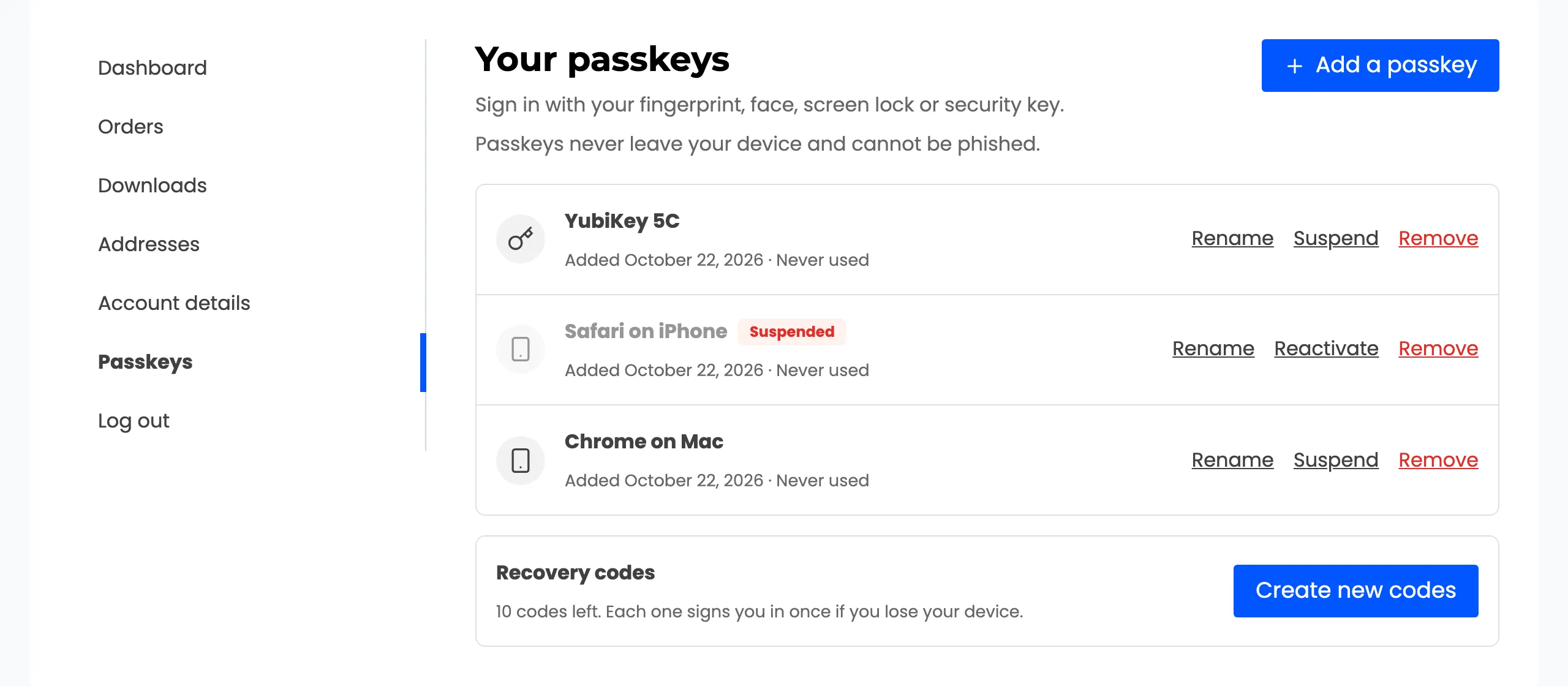
Section titled “Step 2: Suspend a passkey”Suspend keeps the passkey but stops it signing in, for example while a phone is being repaired.
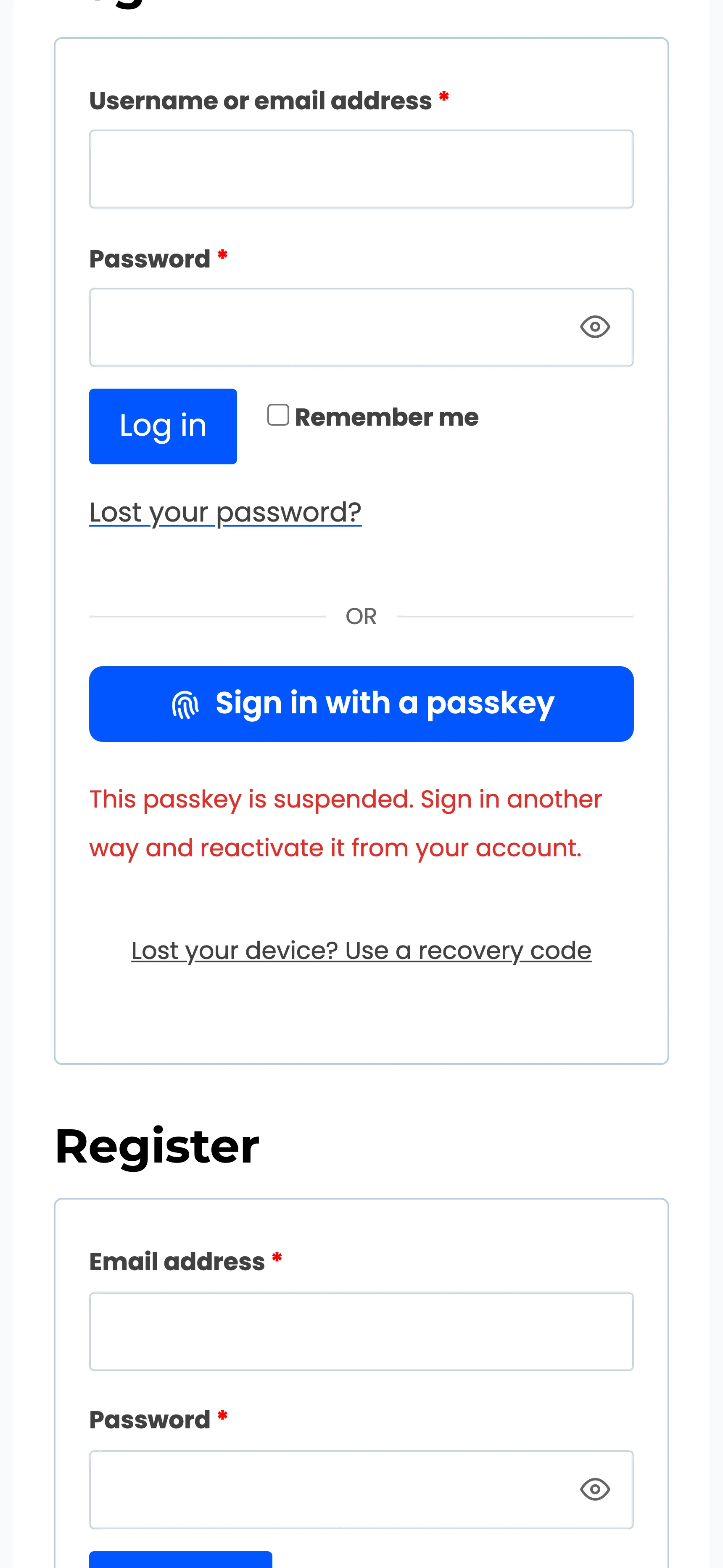
Signing in with it now gets “This passkey is suspended. Sign in another way and reactivate it from your account.”
Step 3: Reactivate it
Section titled “Step 3: Reactivate it”Reactivate lets it sign in again. Nothing else changes.
Step 4: Remove a passkey
Section titled “Step 4: Remove a passkey”Remove deletes it for good, after “Remove this passkey? It will no longer sign you in.” Use it for a lost, sold or replaced device.
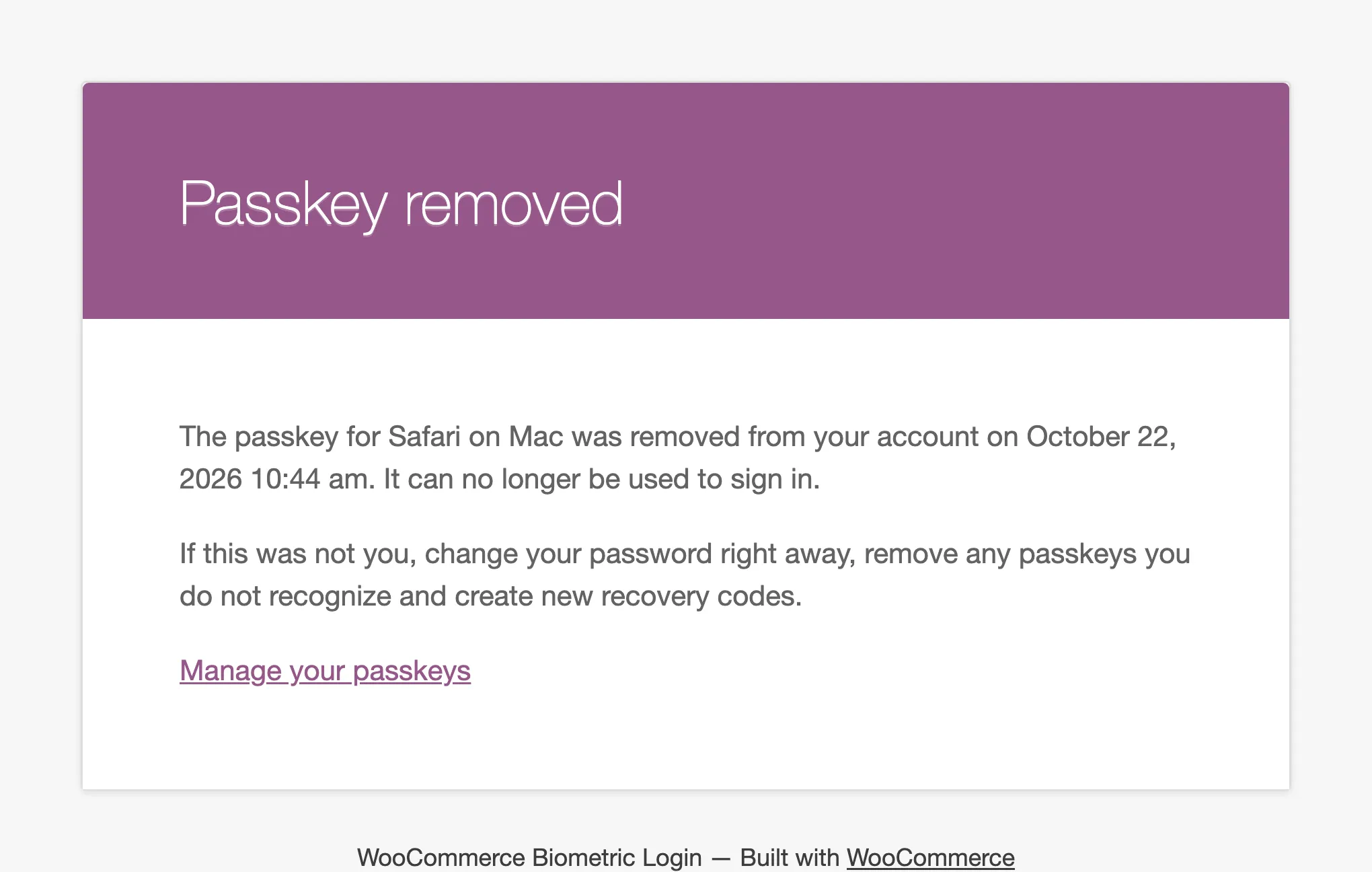
An email confirms it, so an unexpected removal is noticed.
Removing a passkey on the store does not delete it from the device. The device keeps offering it, and the store answers that it is not registered.