

How to Show Savings in the Cart
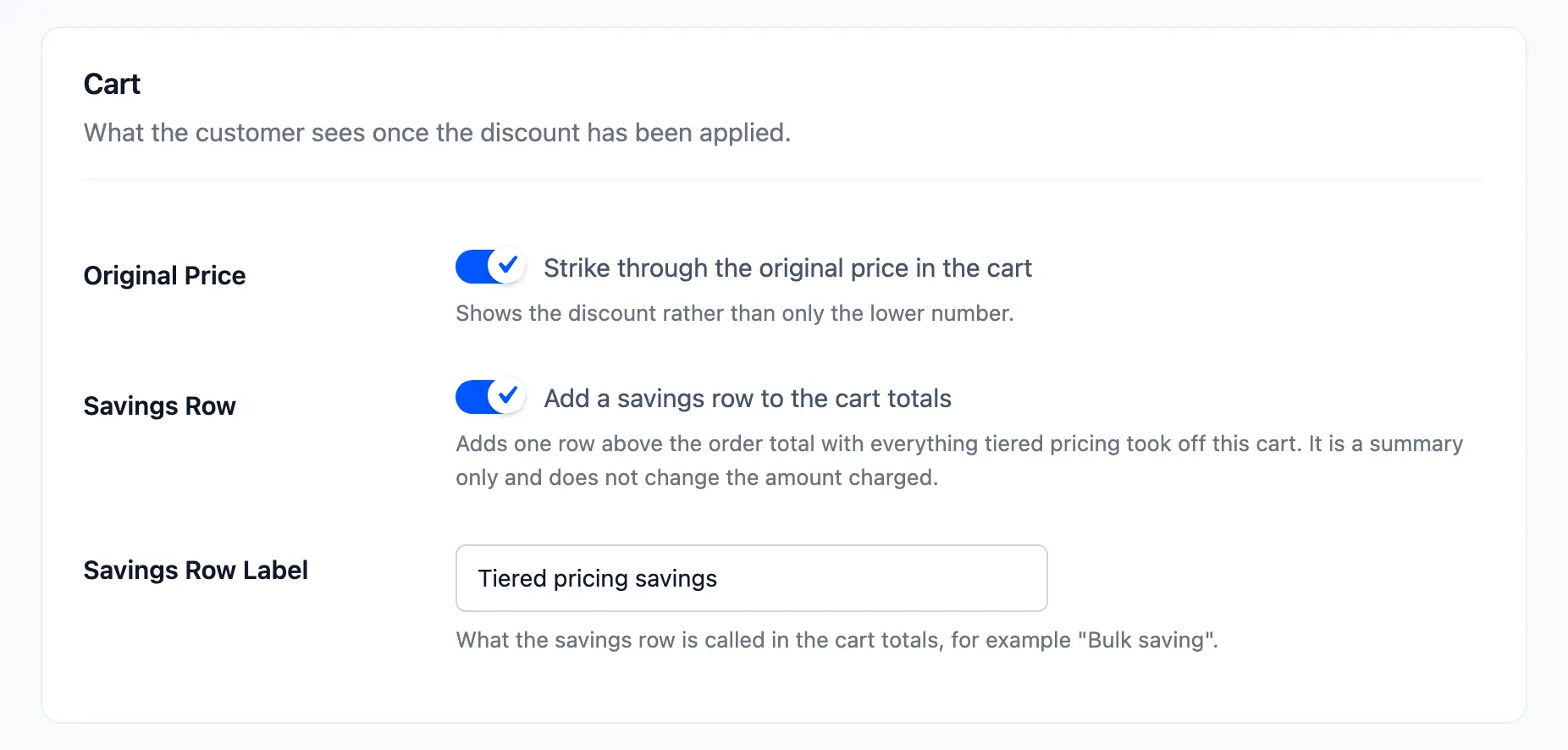
A lower number in the cart is easy to miss. A struck-through price beside it, and a line that says what the customer saved, make the discount feel real. Three settings control that.
They are all in the Cart section of the Display tab.
Step 1: Open the Cart section
Section titled “Step 1: Open the Cart section”Go to DevDiggers Plugins → Tiered Pricing → Configuration → Display and scroll to Cart.
Step 2: Show the original price
Section titled “Step 2: Show the original price”Tick Original Price, labelled “Strike through the original price in the cart”.
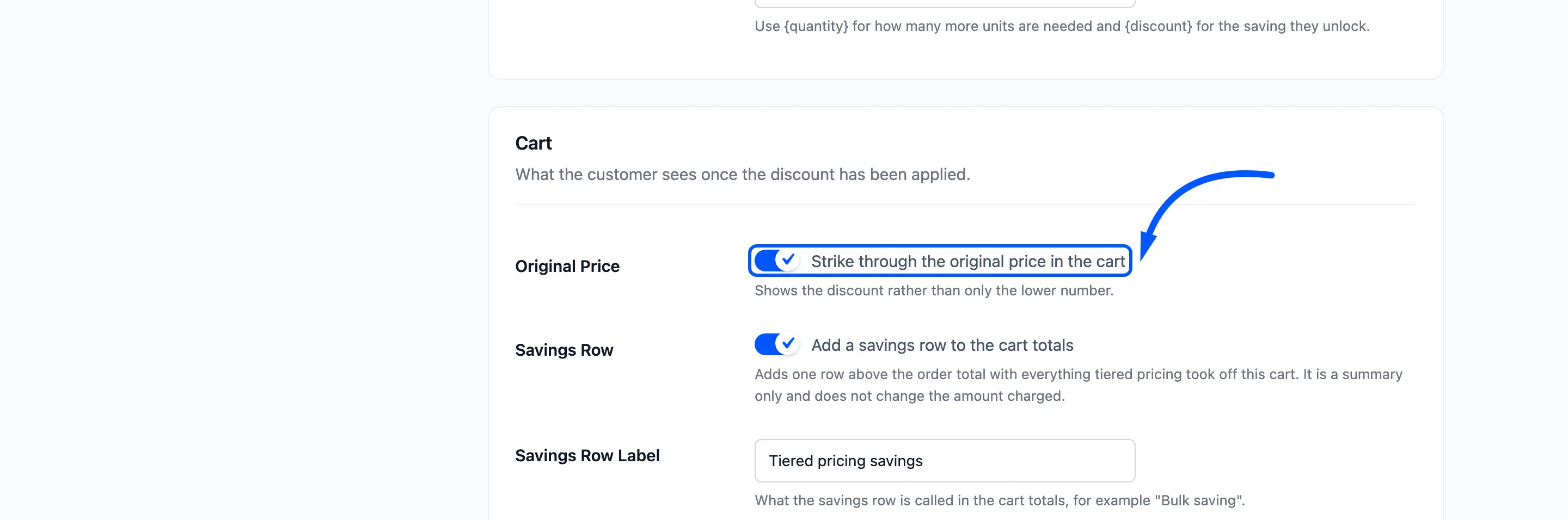
It is off after a fresh install. With it off, the cart shows only the tier price. With it on, the normal price is crossed out beside the tier price.
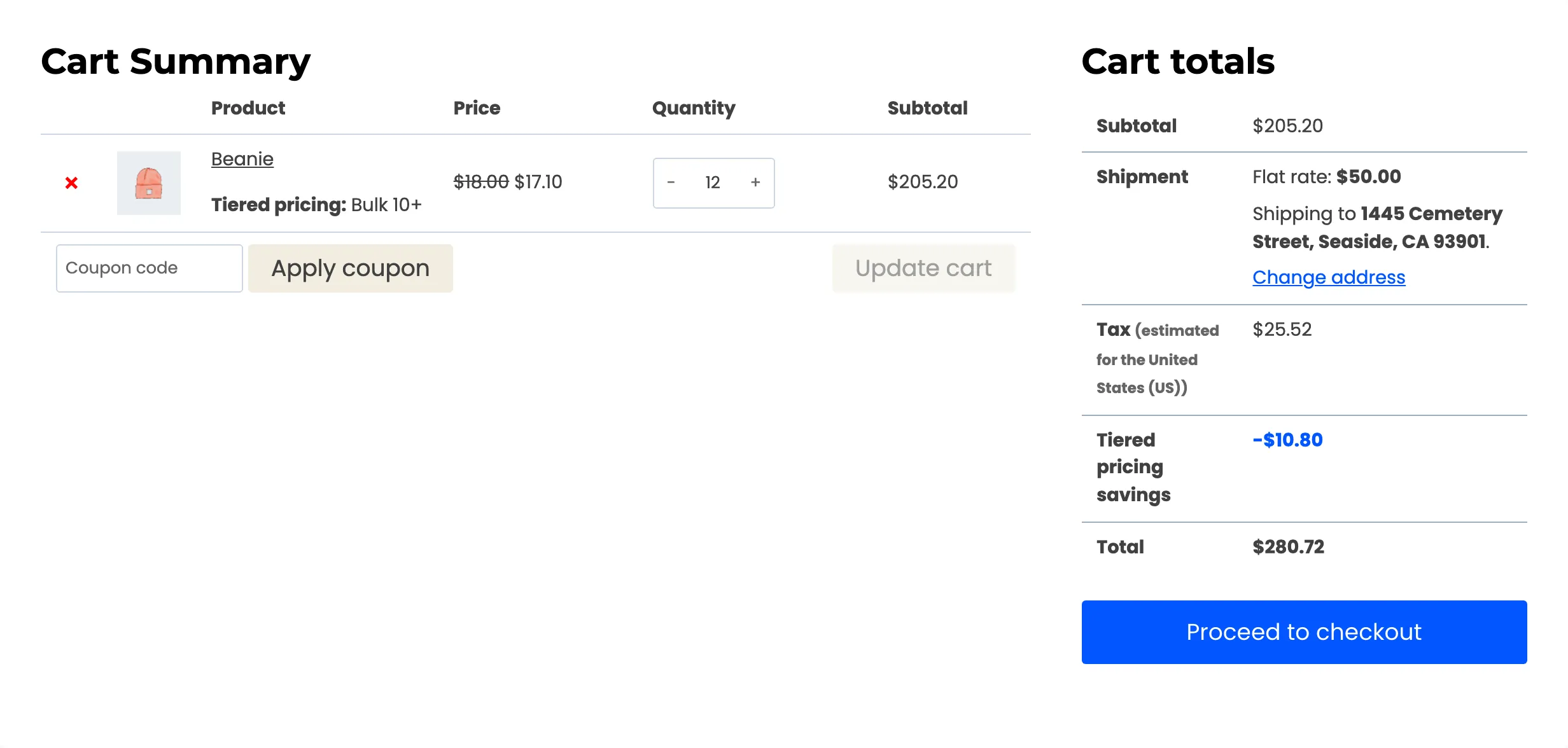
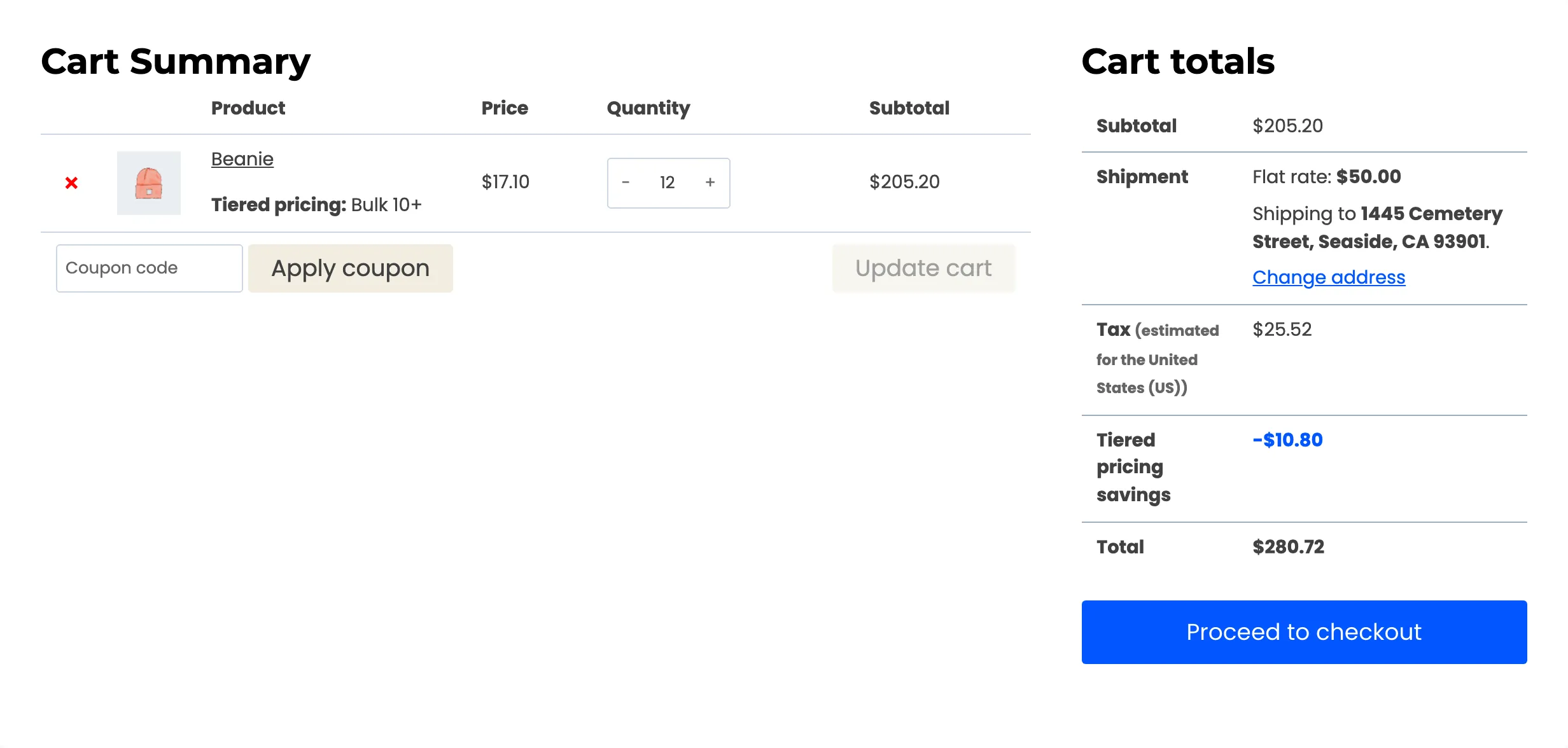
The crossed-out figure is the product’s current price. For a product on sale, that is the sale price, not the regular one. A Beanie on sale at $18.00 shows $18.00 crossed out, not $20.00.
Step 3: Add the savings row
Section titled “Step 3: Add the savings row”Tick Savings Row, labelled “Add a savings row to the cart totals”.
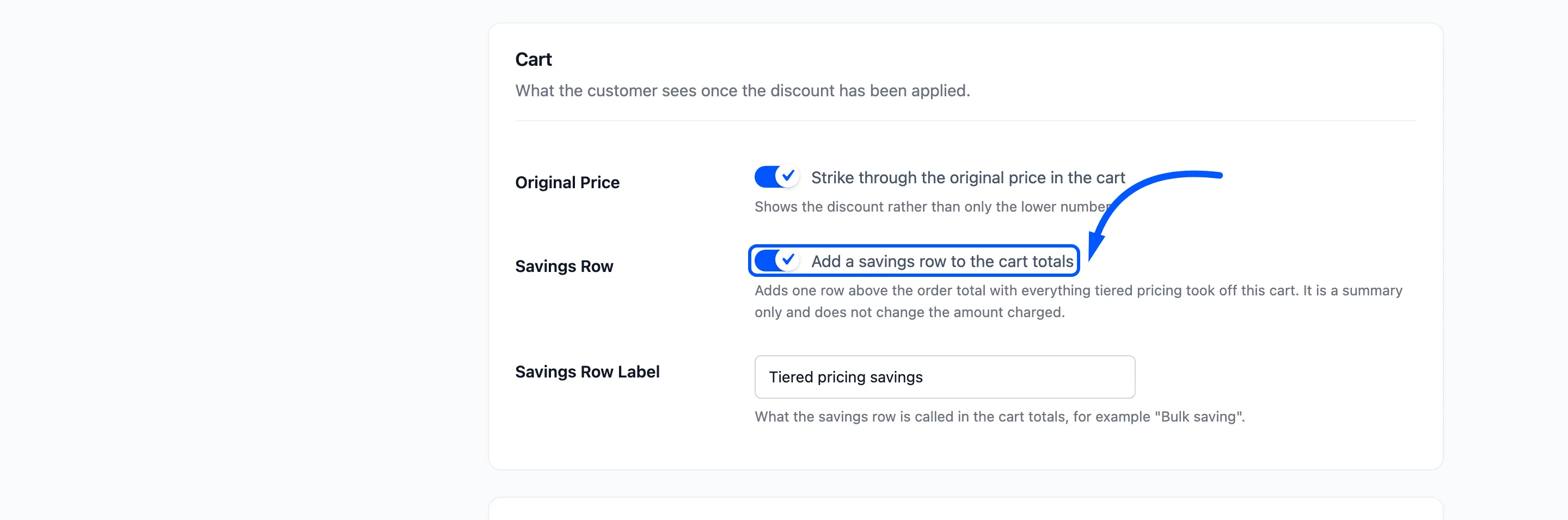
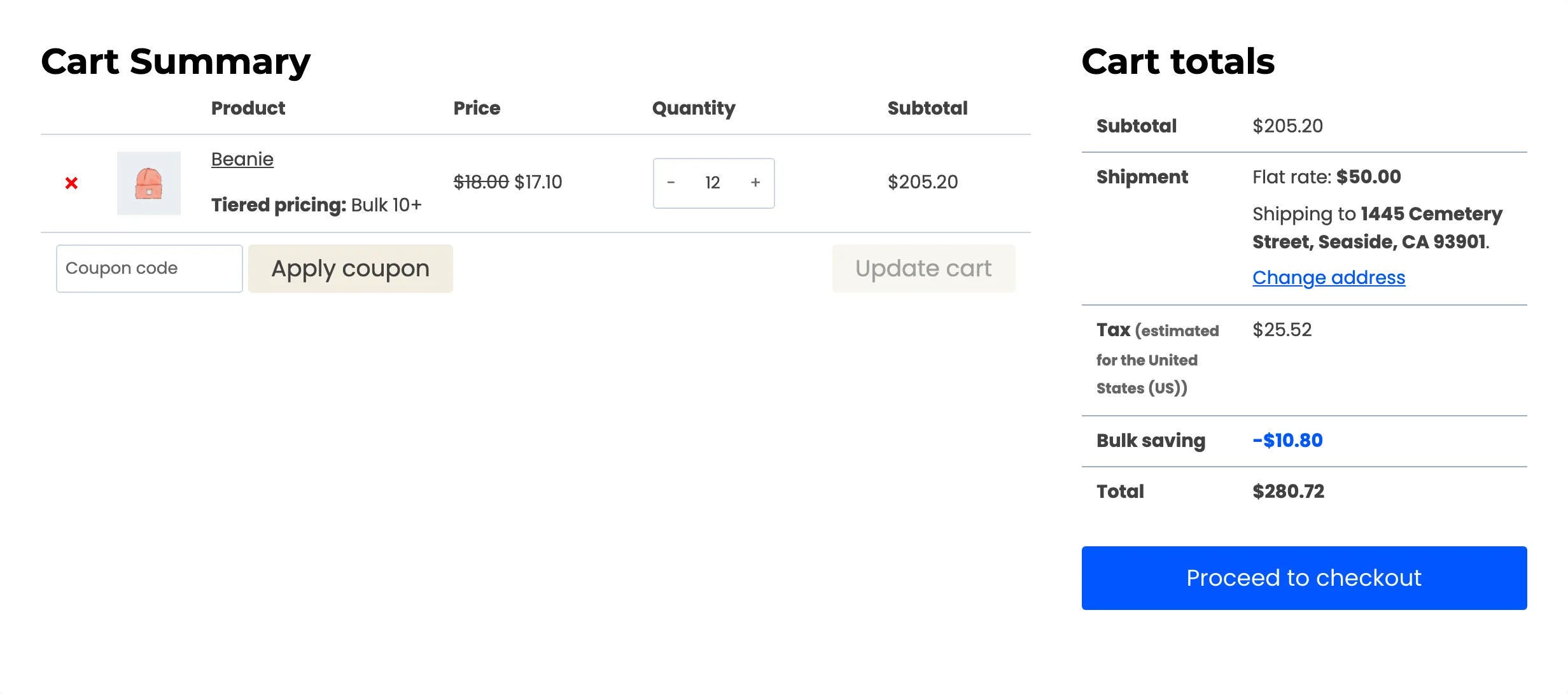
A row appears above Total in the cart totals, in bold, as a negative amount such as -$10.80. It adds up what tiered pricing took off every line.
The row is a summary. It does not change what is charged, because the tier prices are already in the lines. With the setting off, the row is gone and nothing else changes.
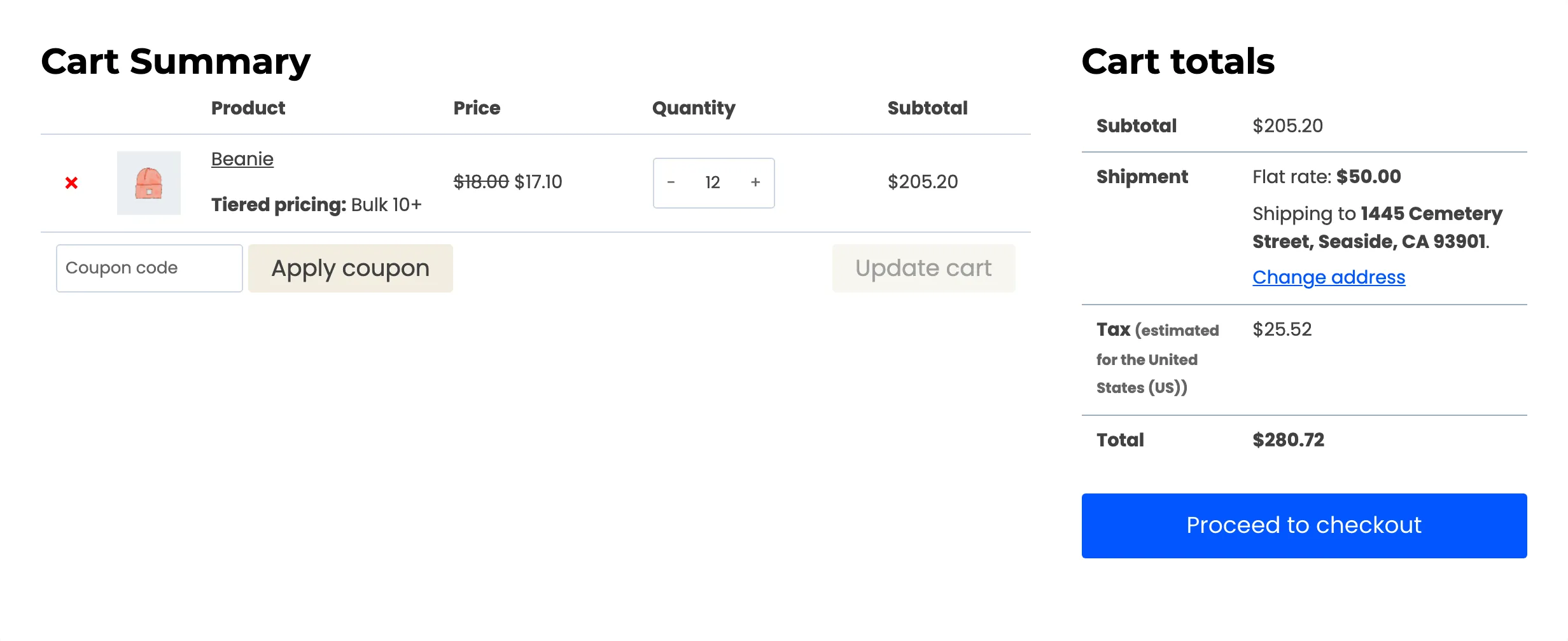
The row shows only while there is a saving. A cart with no tier prices has no row.
Step 4: Rename the row
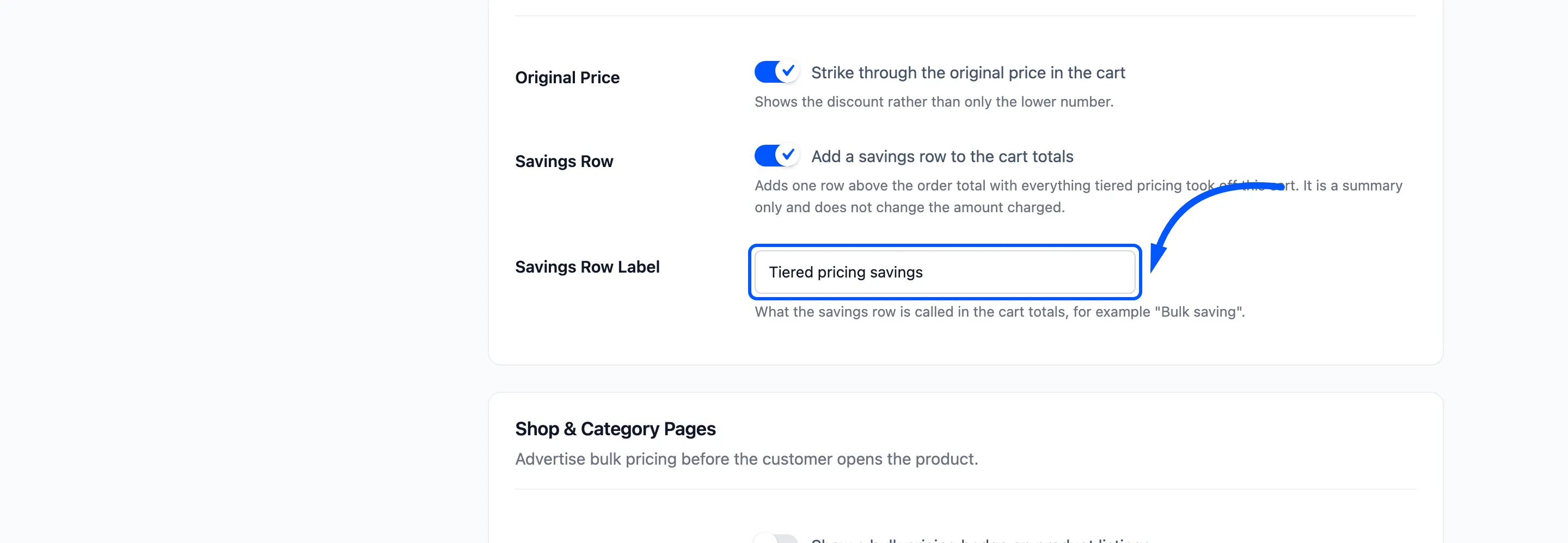
Section titled “Step 4: Rename the row”Savings Row Label is what the row is called. The default is Tiered pricing savings. Shorter words read better on a narrow cart, such as Bulk saving.
Step 5: Check the cart, the mini cart and checkout
Section titled “Step 5: Check the cart, the mini cart and checkout”The tier price and the rule name show in more than one place.
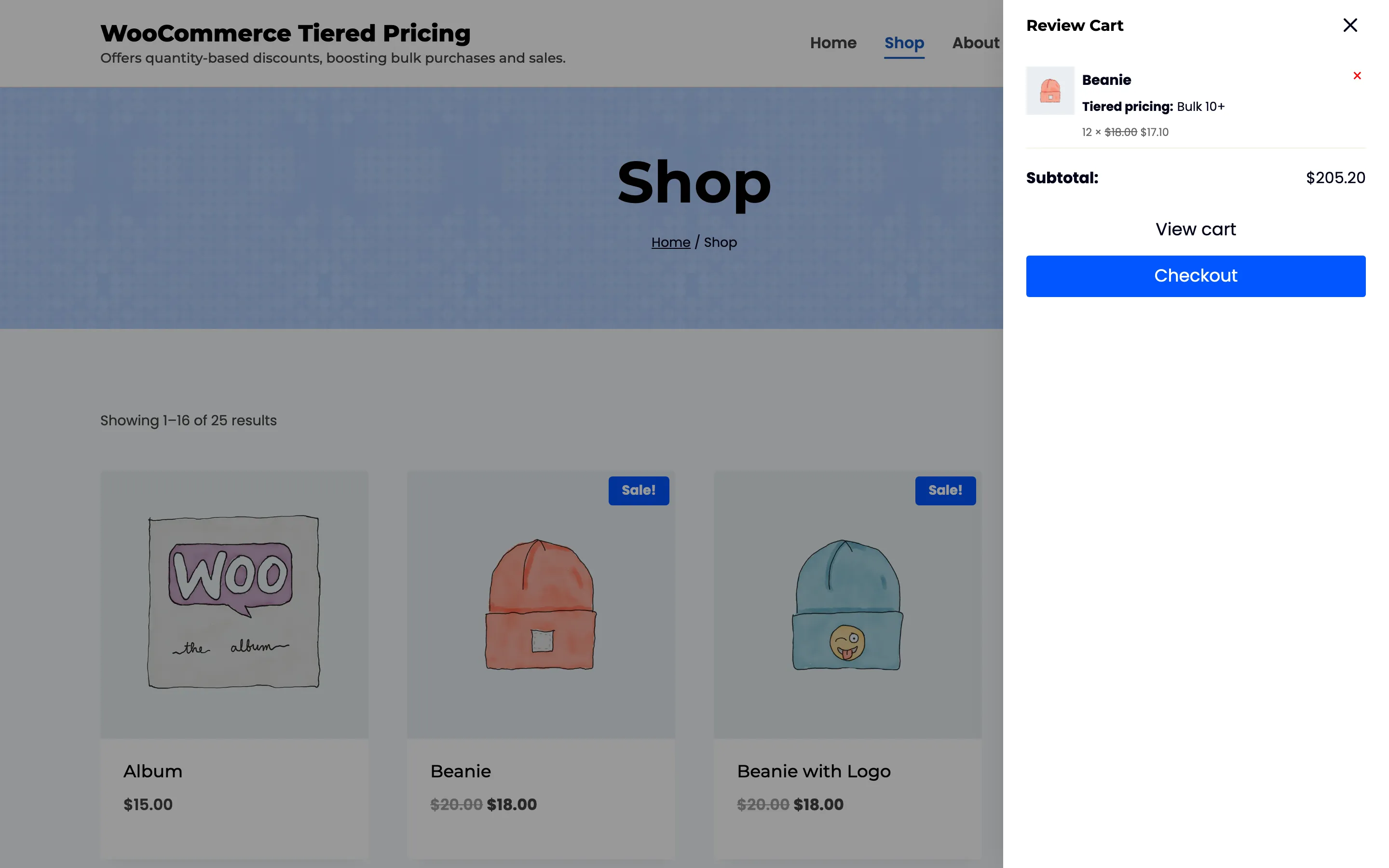
The mini cart. The theme’s cart drawer shows the line as quantity times the crossed-out price and the tier price, with the rule name under the product.
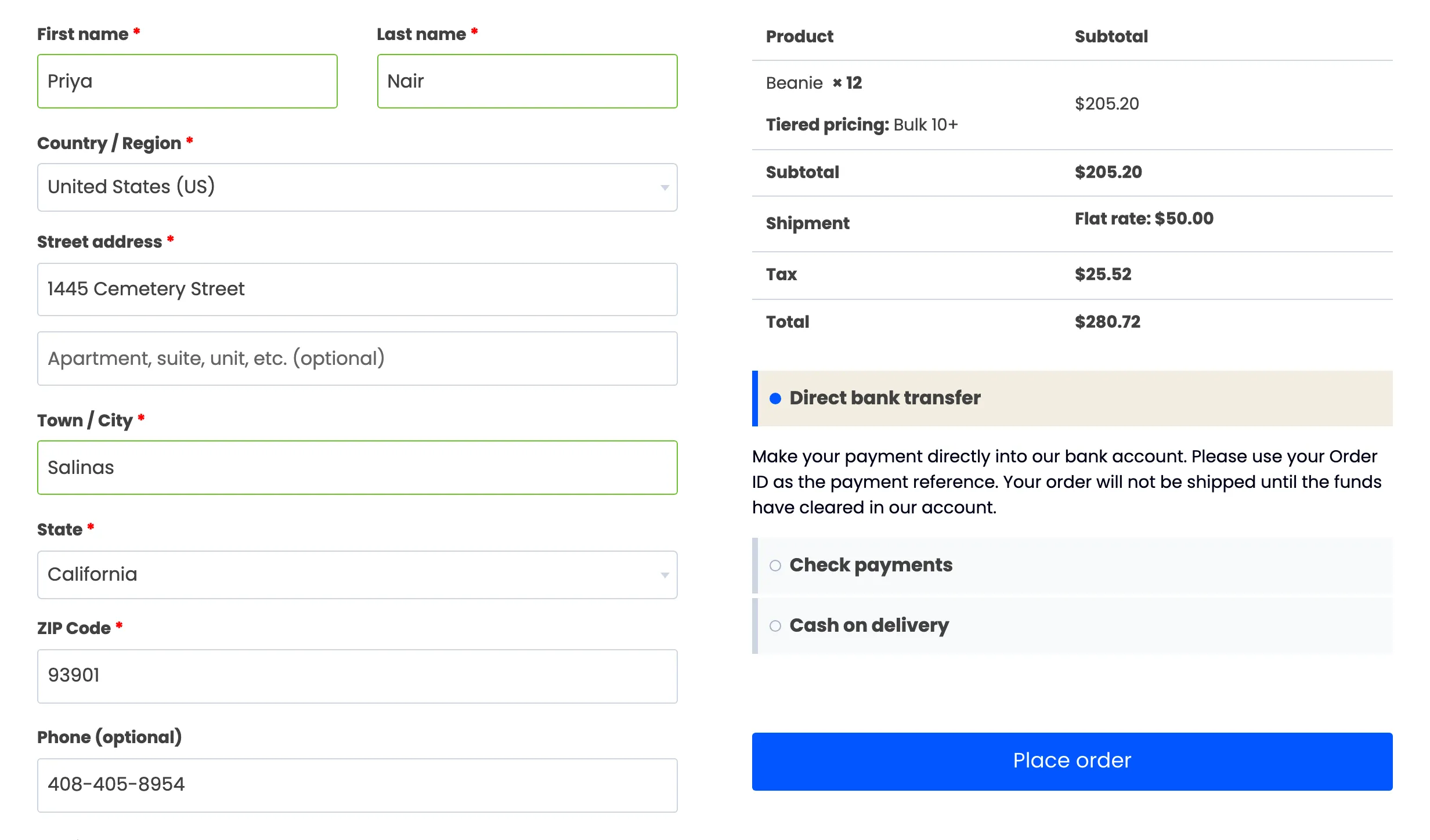
Checkout. The order review keeps the tier price and the rule name on the line. The classic checkout does not repeat the savings row.
The Cart and Checkout blocks. If your cart or checkout page uses the WooCommerce blocks, the same savings row appears in the totals under your label. It reads the figure from WooCommerce’s own store data and updates when the customer changes the quantity.
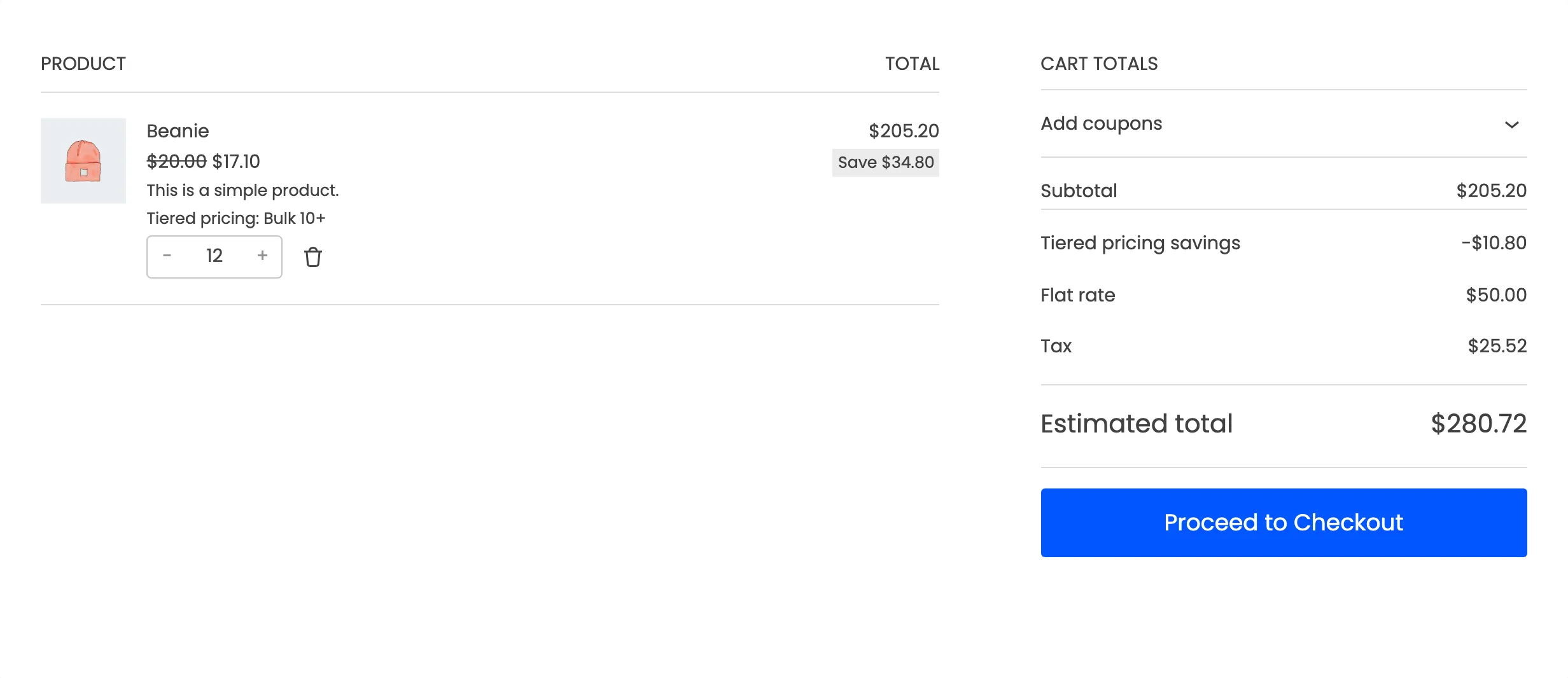
The rule name shows under the product, as it does on the classic pages. The block cart also adds its own Save badge, measured against the regular price. See The Customer Experience for why the two figures differ on a sale product.