

How to Fix a Tier That Does Not Apply
When a tier does not show or does not price, the cause is almost always one of a short list. This page walks the list in the order the plugin works through it, so the first thing that fails is the thing to fix.
1. The licence
Section titled “1. The licence”No licence, no storefront. Open Configuration → License. It should read License Active.
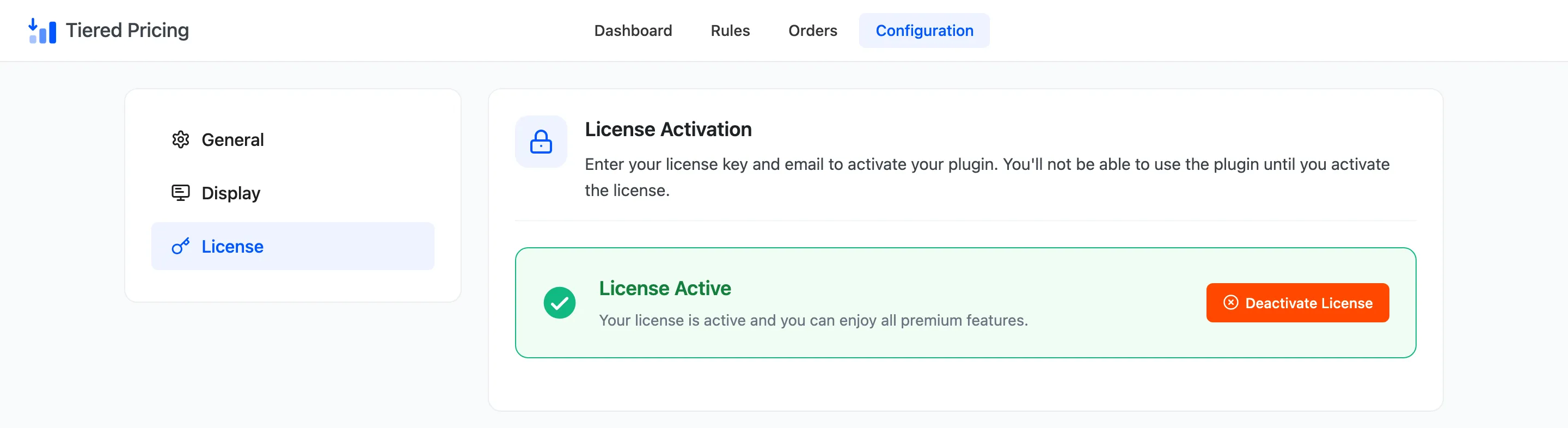
If it does not, activate it. See License Activation.
2. The master switch
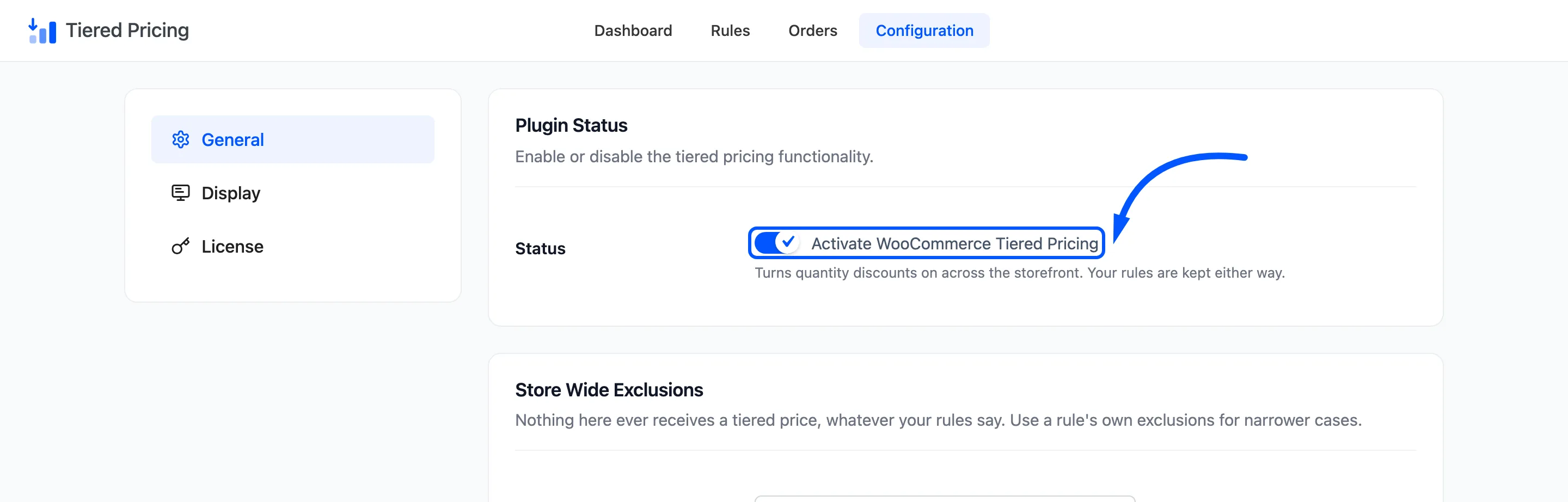
Section titled “2. The master switch”Open Configuration → General. Activate WooCommerce Tiered Pricing must be ticked.
3. The rule itself
Section titled “3. The rule itself”Open Rules and find the rule. Read its Status column.
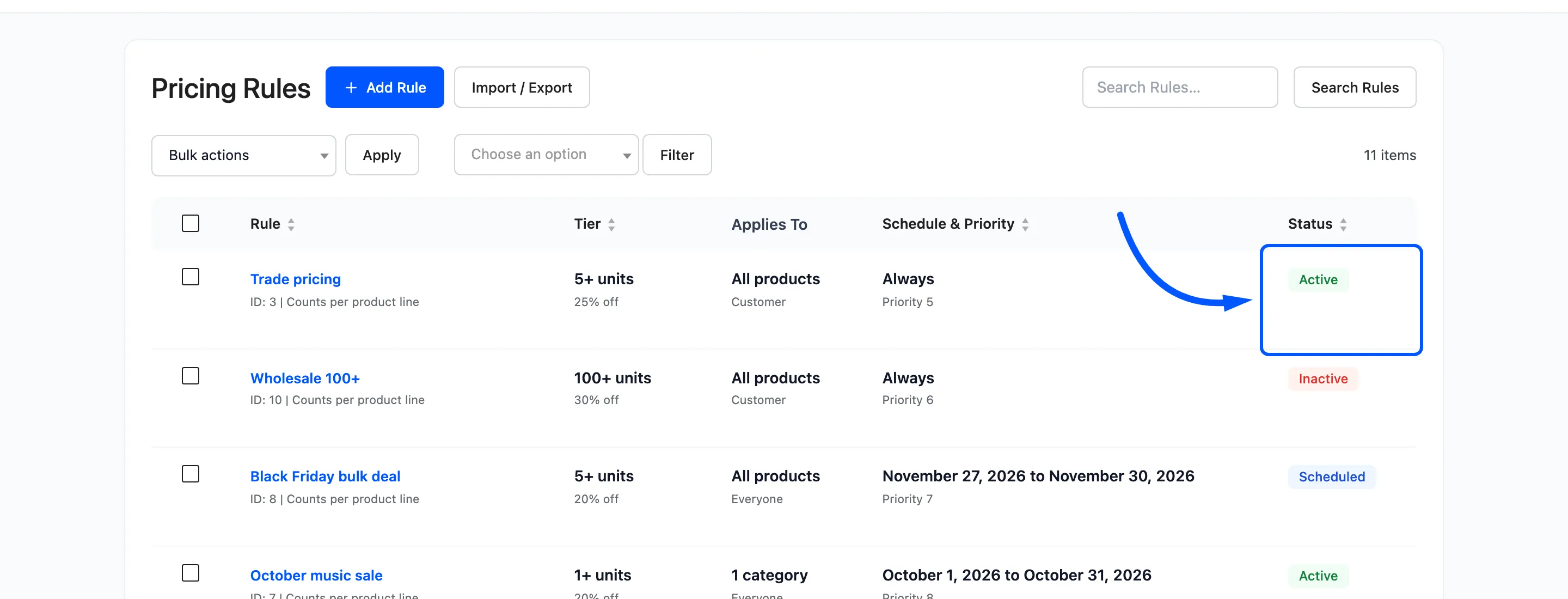
- Inactive: Switched off. Activate it.
- Scheduled: Waiting for its start date.
- Expired: Past its end date. Move the date or create a new rule.
- Active: Look further.
Then check Applies To. A rule for selected categories does nothing for a product in another one. Check the roles too: a rule limited to Customer shows nothing to a guest.
A quick test is to open the product in a private window and again while logged in.
4. The product
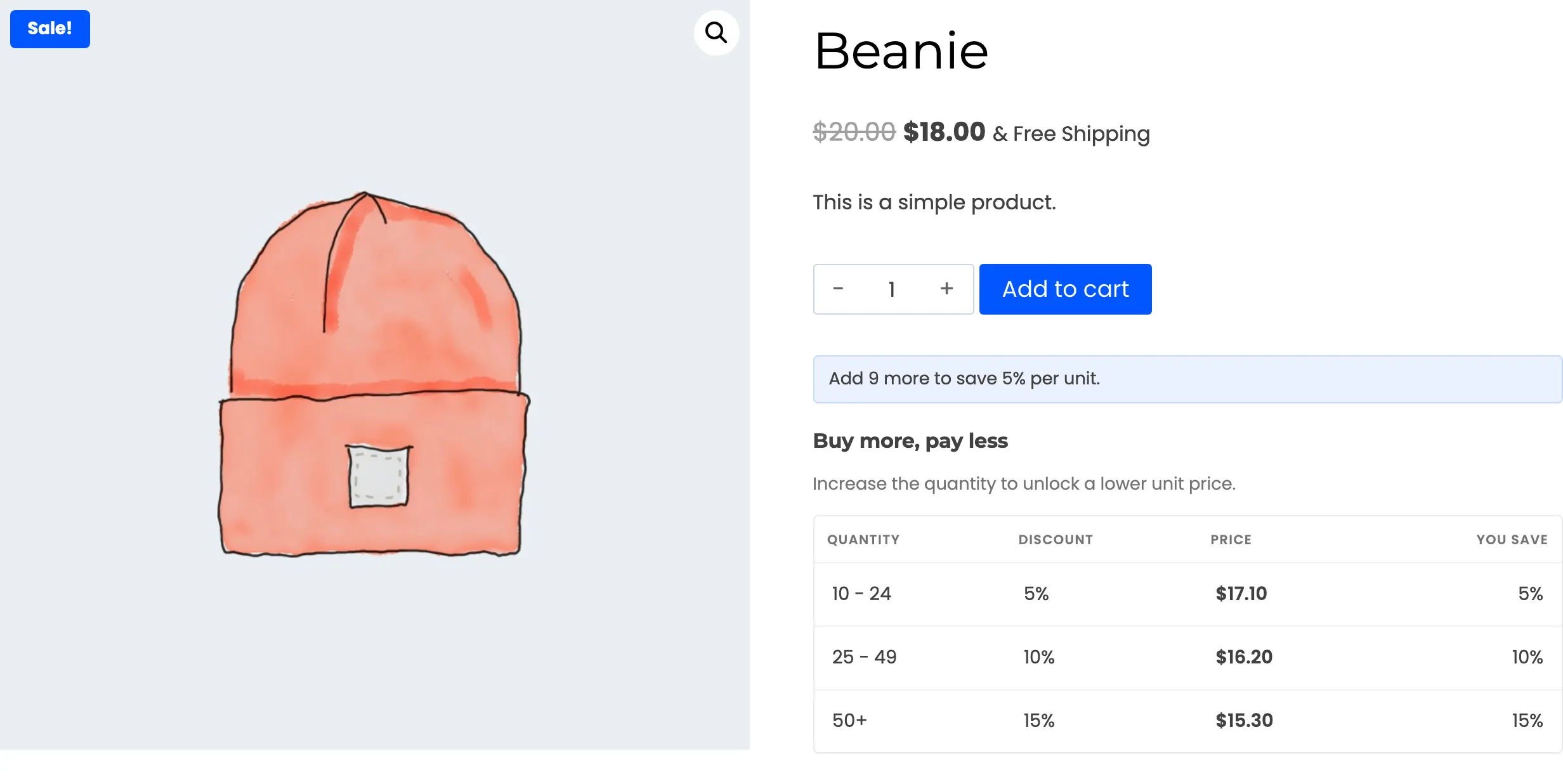
Section titled “4. The product”Three product facts can hide a tier.
A store wide exclusion. The product, or its category, is on the General tab’s exclusion lists. No rule can override it.
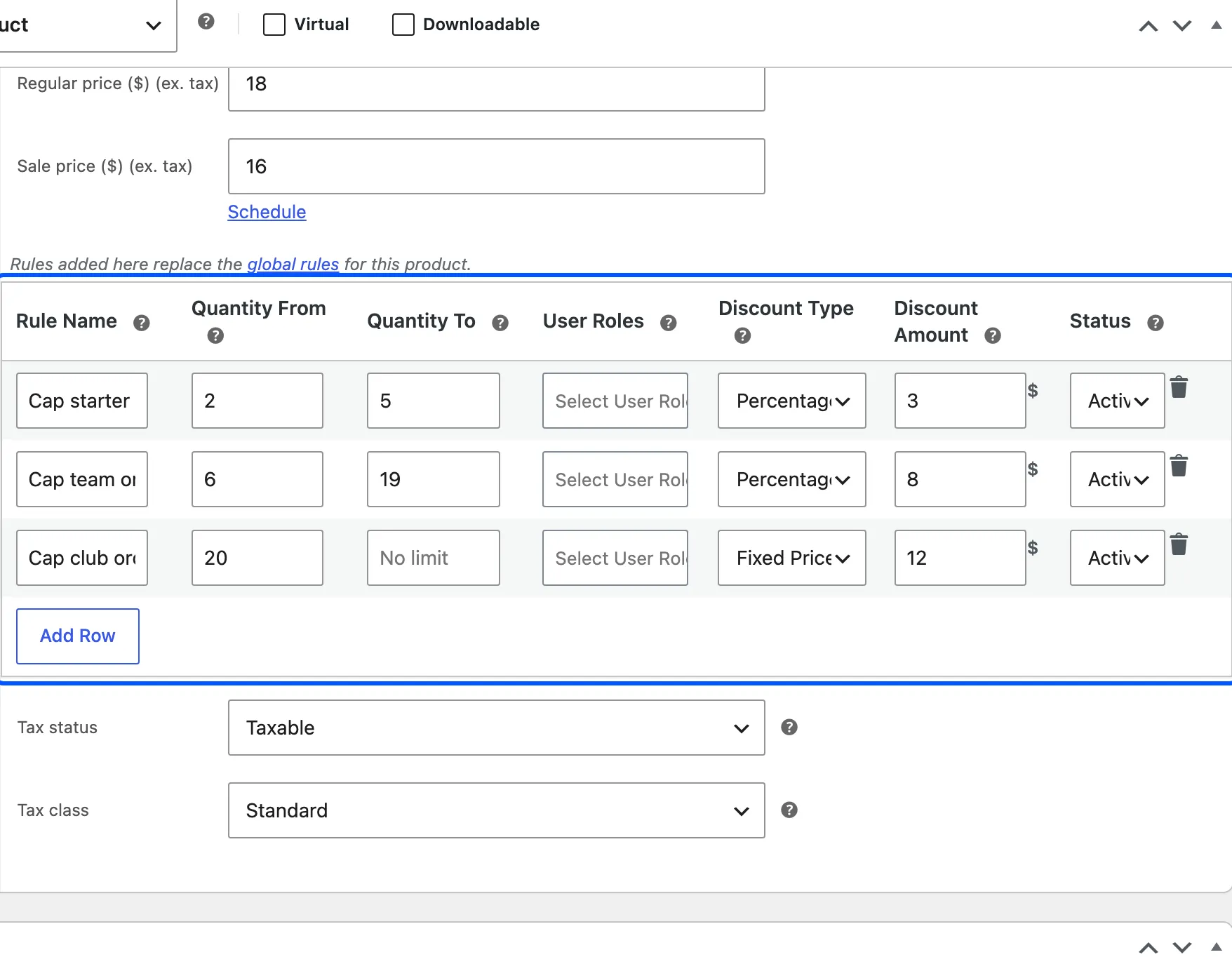
Rules of its own. A product with even one row in its editor ignores every global rule. A product whose only row is Inactive gets no tier at all.
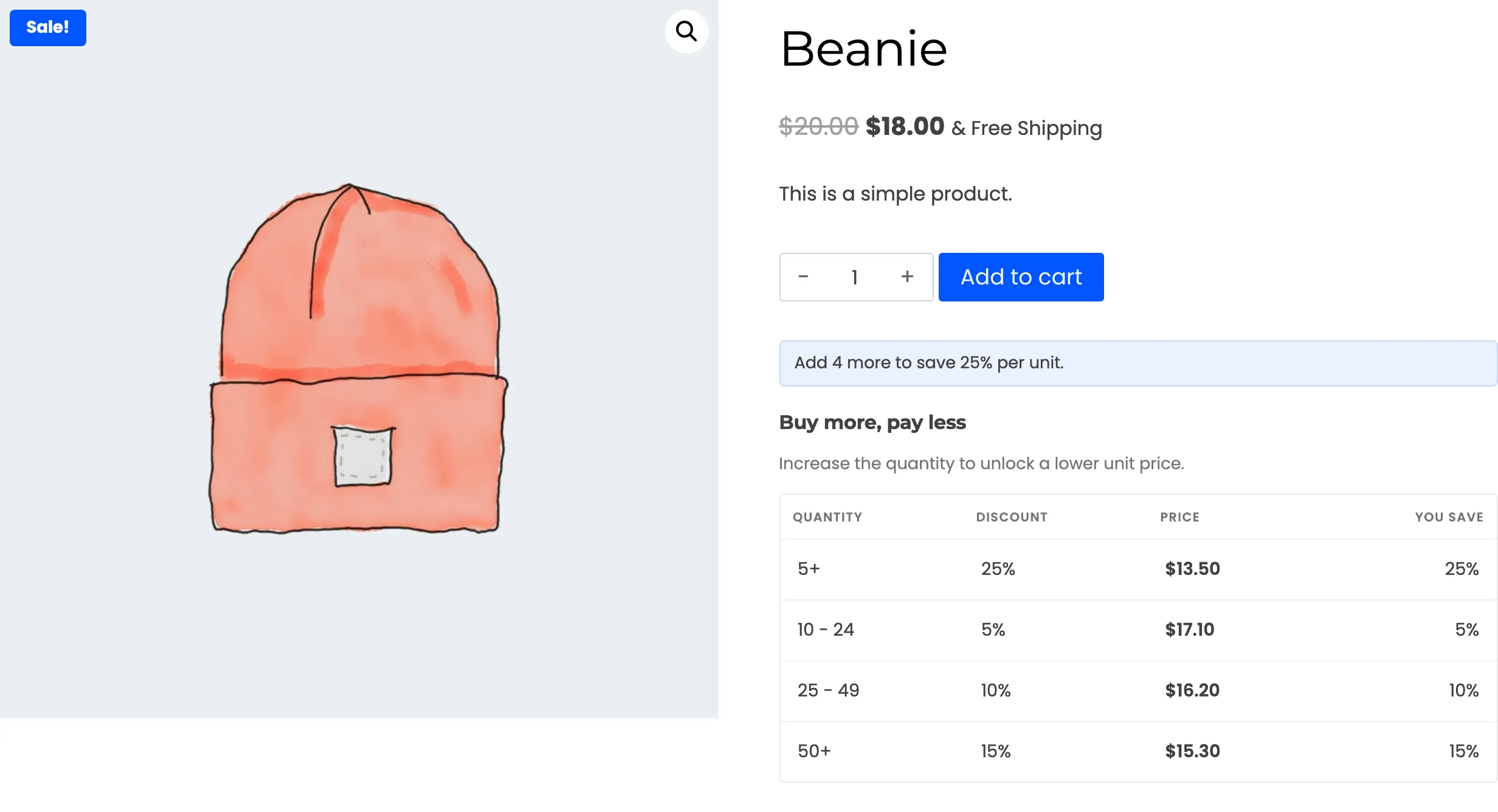
A variable product with nothing chosen. The table for a variable product appears only after the customer picks a variation. If every variation is not yet selected, there is nothing to show.
A grouped product. A grouped product’s own page shows no table. The products inside it are still priced when they are added to the cart.
5. The quantity and the order of rules
Section titled “5. The quantity and the order of rules”If the table shows but the cart does not match, compare the quantity with the ranges. Two cases catch people out.
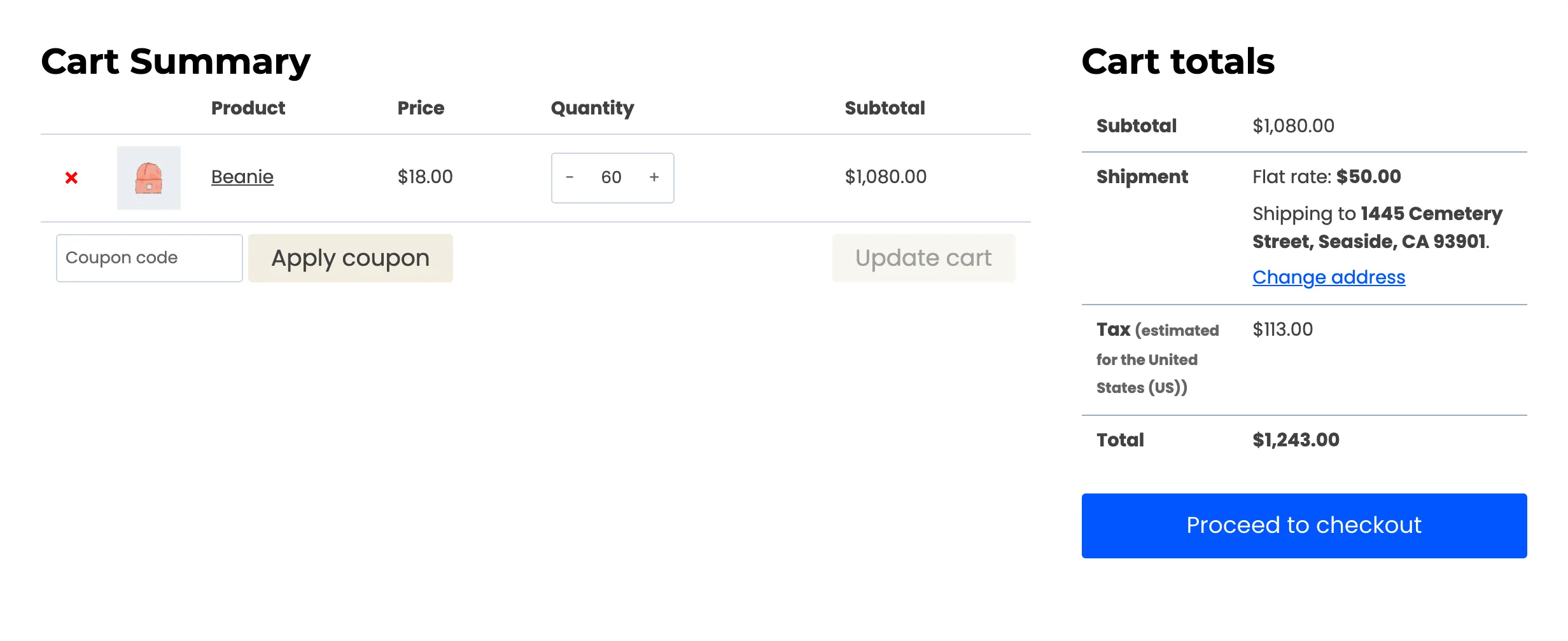
Above the top tier. A ladder that ends at 49 gives nothing at 50. The cart charges the normal price.
See How to Close the Top of Your Price Ladder.
Another rule wins first. The cart uses the first matching rule by priority, not the best price. A rule with a lower number can take over from a deeper tier.
Also check these:
- A fixed unit price above the normal price is skipped. It never lowers the price.
- A percentage of zero lowers nothing, so the rule never applies.
- Across the cart counting needs the right products in the basket. Excluded products do not count.
- The sale price is the starting point. A product already on sale is discounted from the sale price.
6. The cache
Section titled “6. The cache”The table is part of the product page. A page cache, a CDN, or your host’s cache can serve a copy from before you changed a rule. Purge it and reload.
Carts and checkouts are normally left out of page caches. If the cart is right and the table is stale, the cache is the cause.
7. The form refused the rule
Section titled “7. The form refused the rule”If you cannot find the rule at all, it may never have been saved. A red message at the top of the form names the cause. The messages are listed in The Rule Editor.
Still stuck
Section titled “Still stuck”Deactivate every rule except the one you are testing, reload the product, and add it to the cart. If the single rule works, switch the others back on one at a time. The one that breaks it is the rule that wins.