

How to Match the Pricing Table to Your Theme
The pricing table sits beside your theme’s buttons, prices and cards. A mismatch in colour or corners makes it look bolted on. Four settings fix that.
All four are in the Appearance section of the Display tab.
Step 1: Open the Appearance section
Section titled “Step 1: Open the Appearance section”Go to DevDiggers Plugins → Tiered Pricing → Configuration → Display and scroll to Appearance.
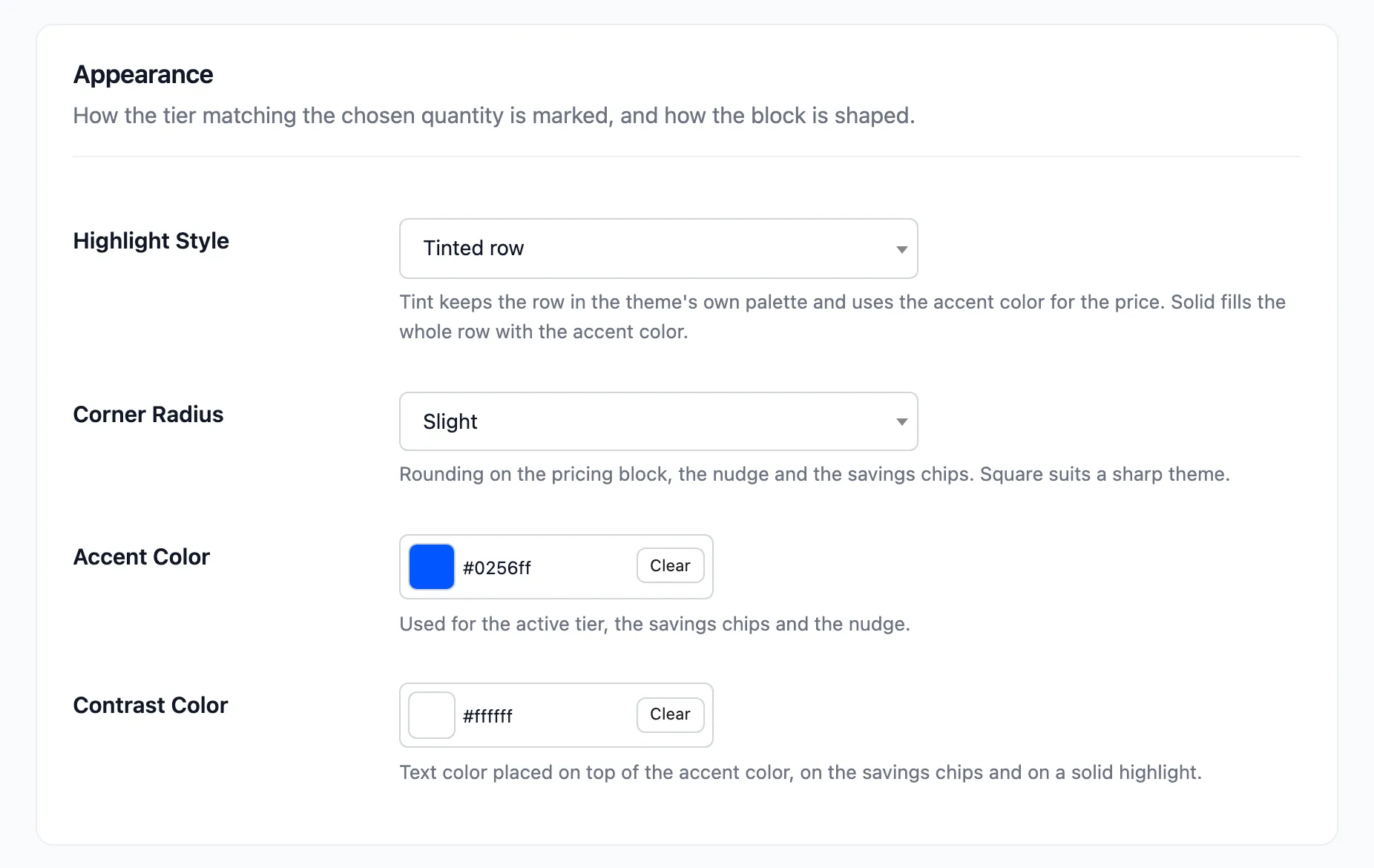
Everything here affects the table, the next tier hint and the saving chips together.
Step 2: Choose a highlight style
Section titled “Step 2: Choose a highlight style”Highlight Style decides how the tier matching the quantity is marked.
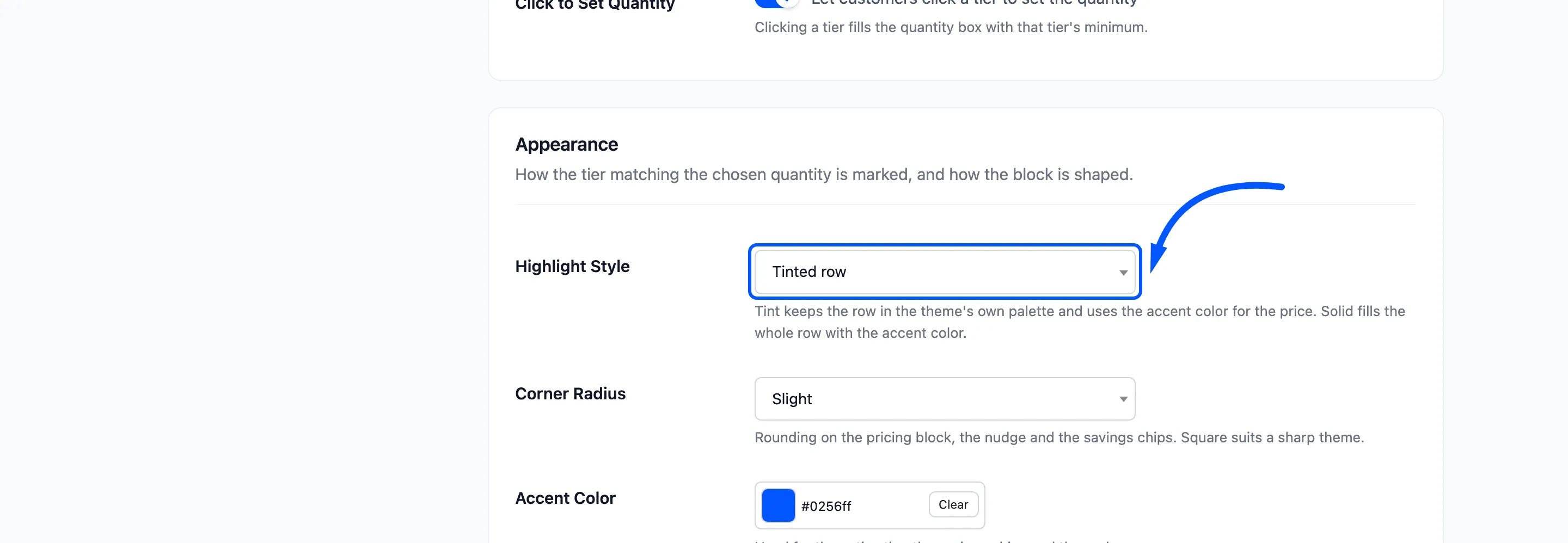
- Tinted row: A pale wash of the accent colour, with the price in the accent colour. It keeps the row in the theme’s palette. This is the default.
- Solid fill: The whole row in the accent colour, with text in the contrast colour.
The tinted row is quiet. The solid fill shouts.
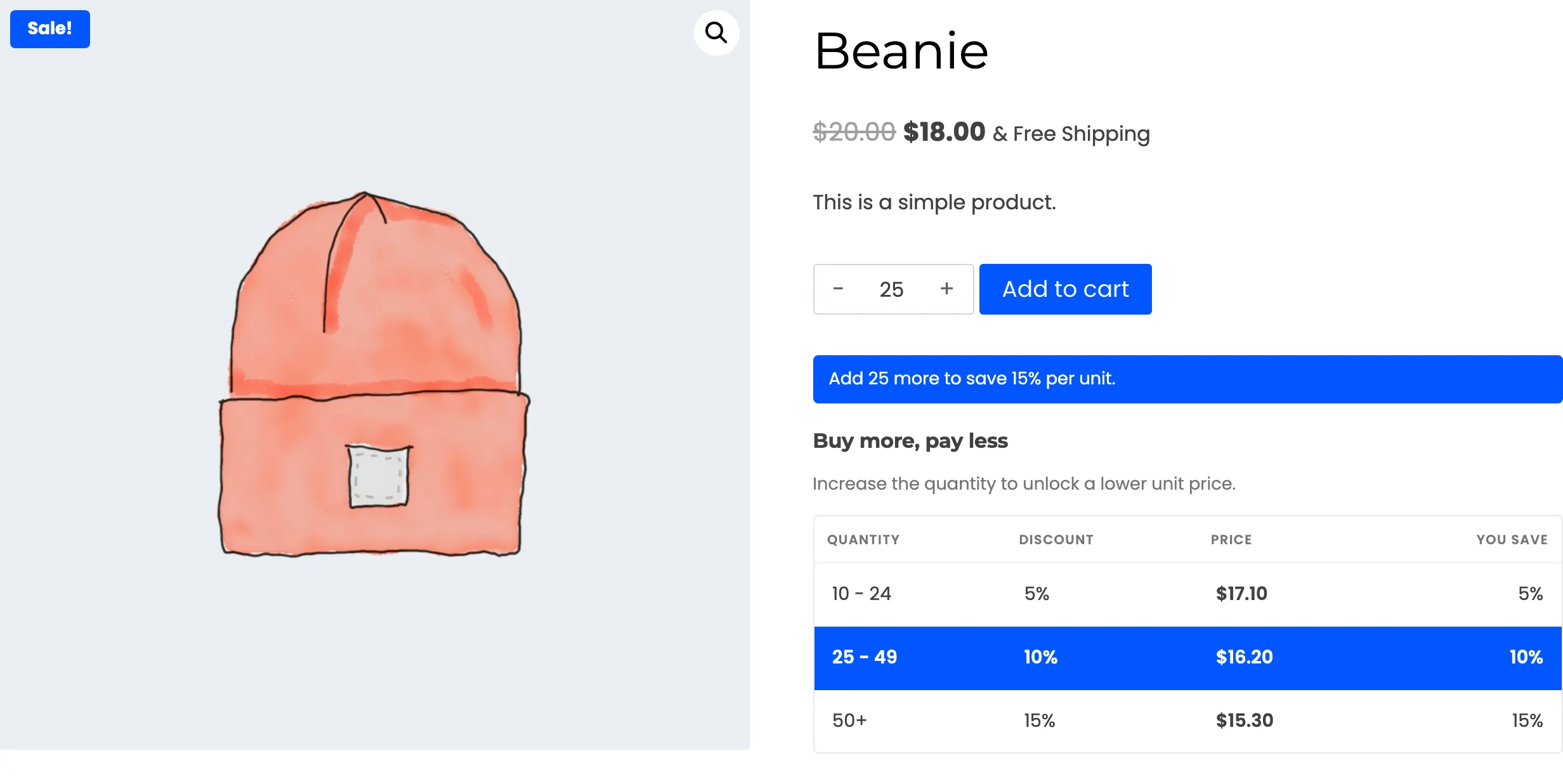
The next tier hint takes on the accent colour as well. In solid mode it fills with the accent colour and its text switches to the contrast colour, so it stays readable.
Step 3: Set the corner radius
Section titled “Step 3: Set the corner radius”Corner Radius rounds the table block, the hint and the saving chips.
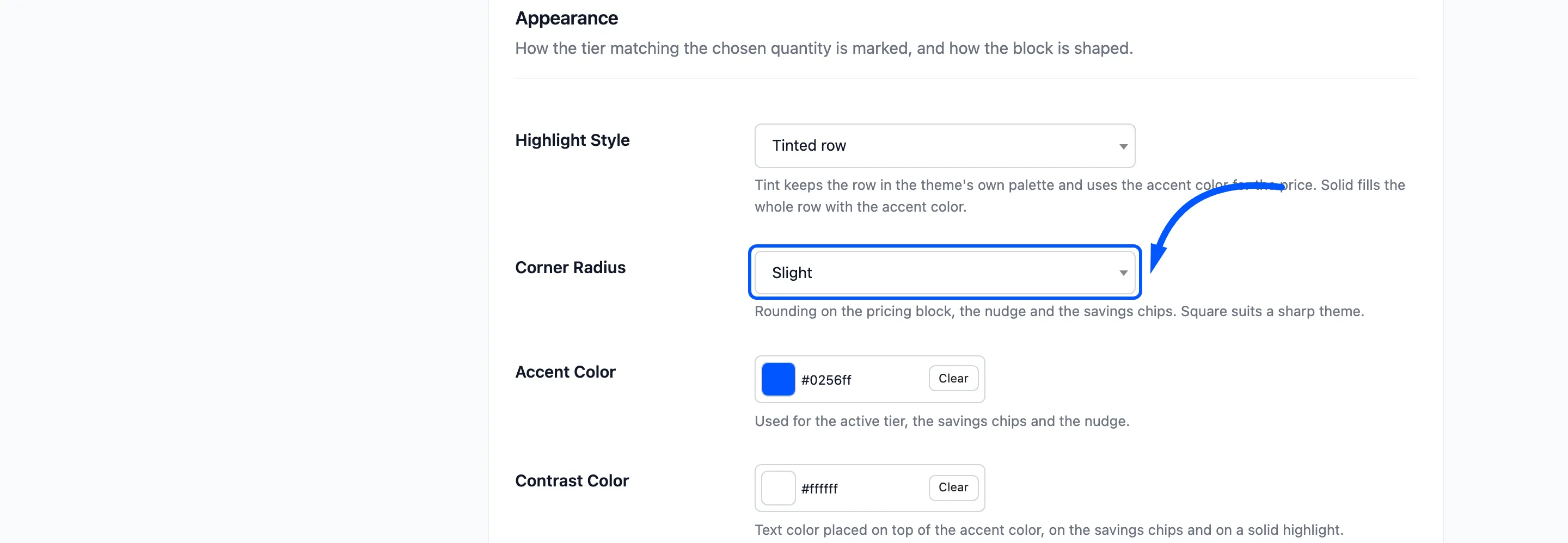
- Square: 0 pixels. It suits a sharp, flat theme.
- Slight: 4 pixels. This is the default.
- Rounded: 8 pixels.
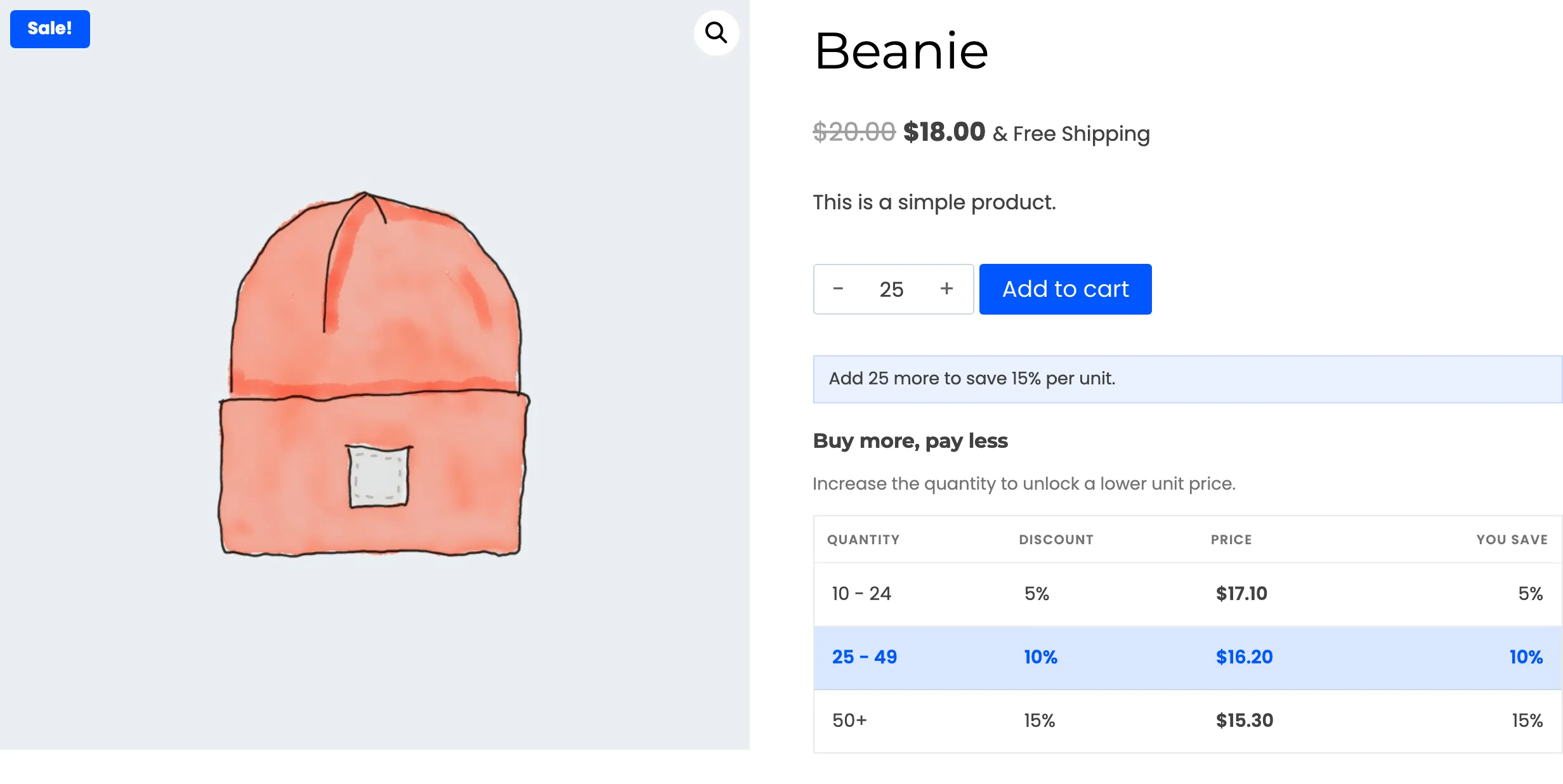
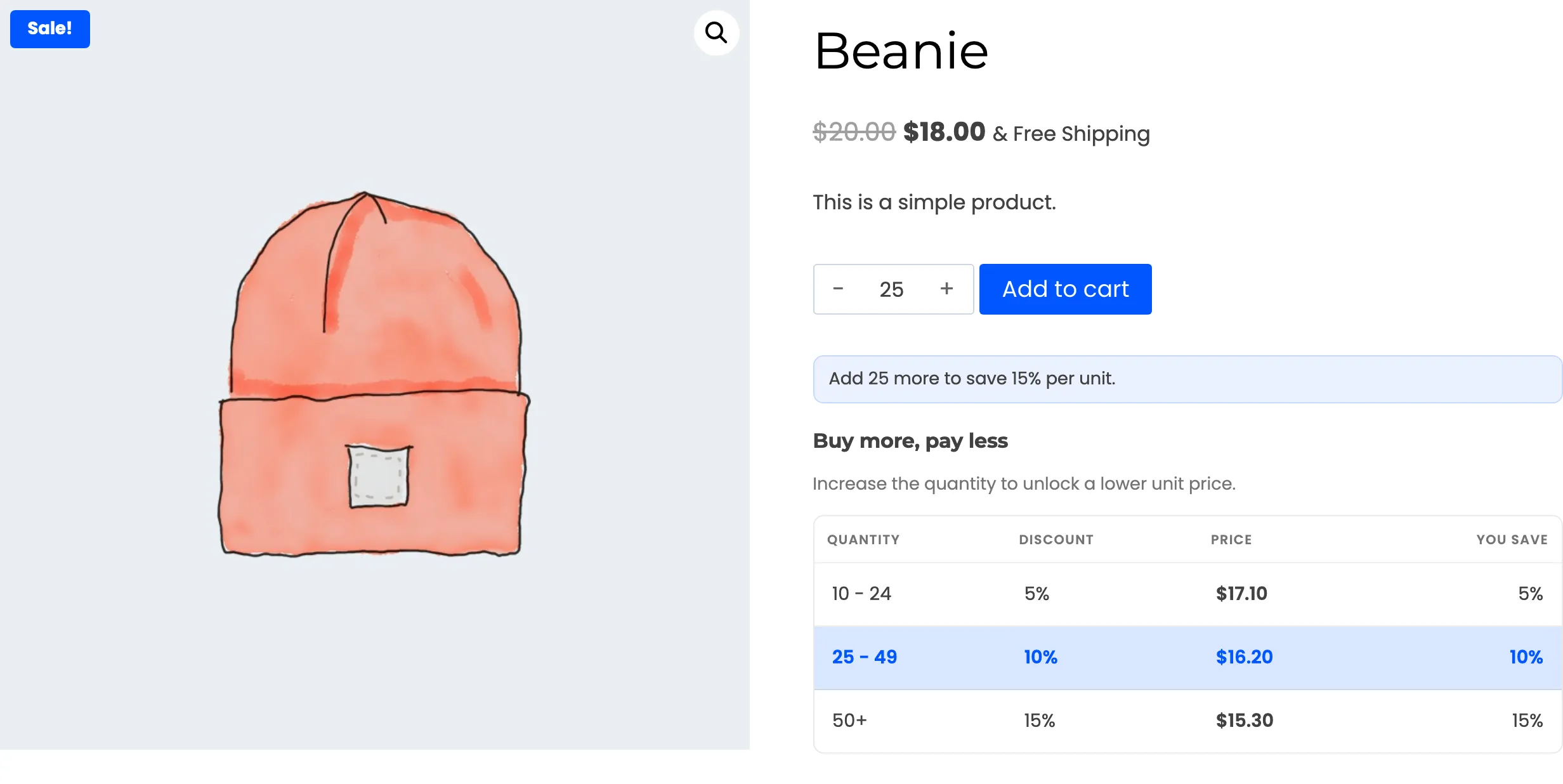
Match the setting to your theme’s buttons. A square table under rounded buttons looks like two different shops.
Step 4: Pick the accent and contrast colours
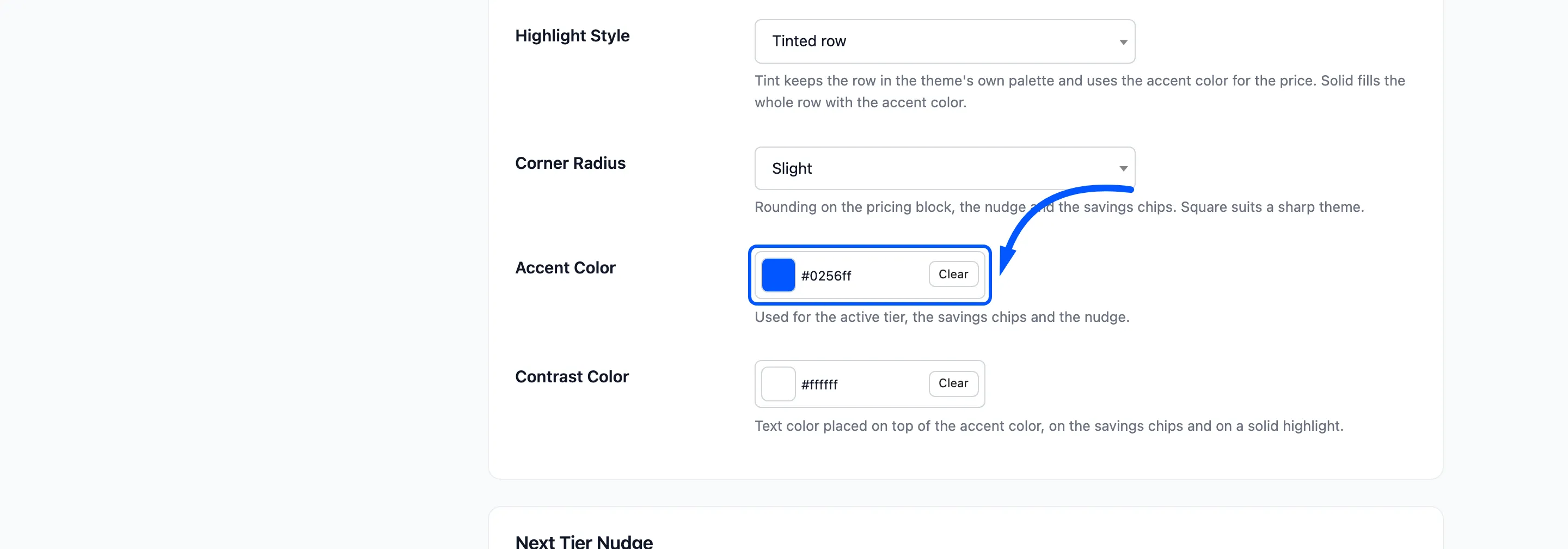
Section titled “Step 4: Pick the accent and contrast colours”Accent Color is used for the active tier, the savings chips and the hint. The default is the DevDiggers
blue, #0256ff.
Contrast Color is the text colour placed on top of the accent, on the chips and on a solid highlight. In solid mode the next tier hint uses it too. The default is white.
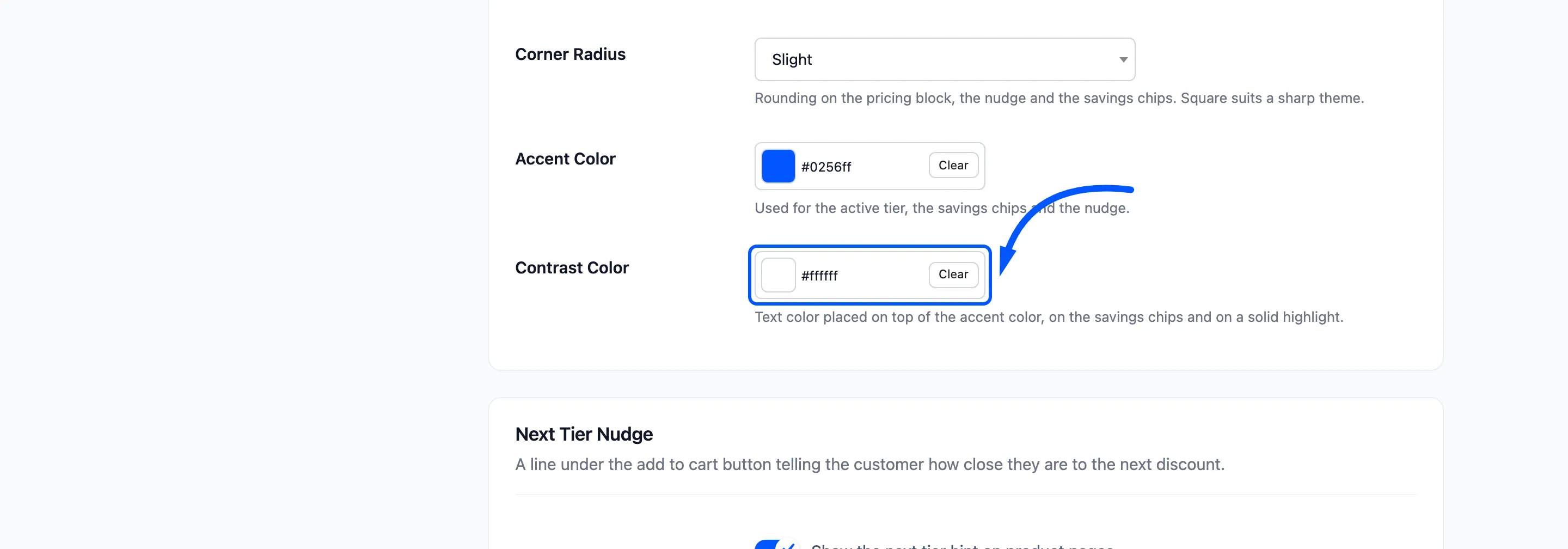
Click a swatch to open the picker, or type a hex code. Clear puts the box back to its default. The contrast colour must read on the accent.
White on a dark brand colour works, and dark text on a pale brand colour works. The rest of the page does not change.
Step 5: Reload a product page
Section titled “Step 5: Reload a product page”Save and reload. With a green accent, #15803d, the tinted row and the hint both turn green.
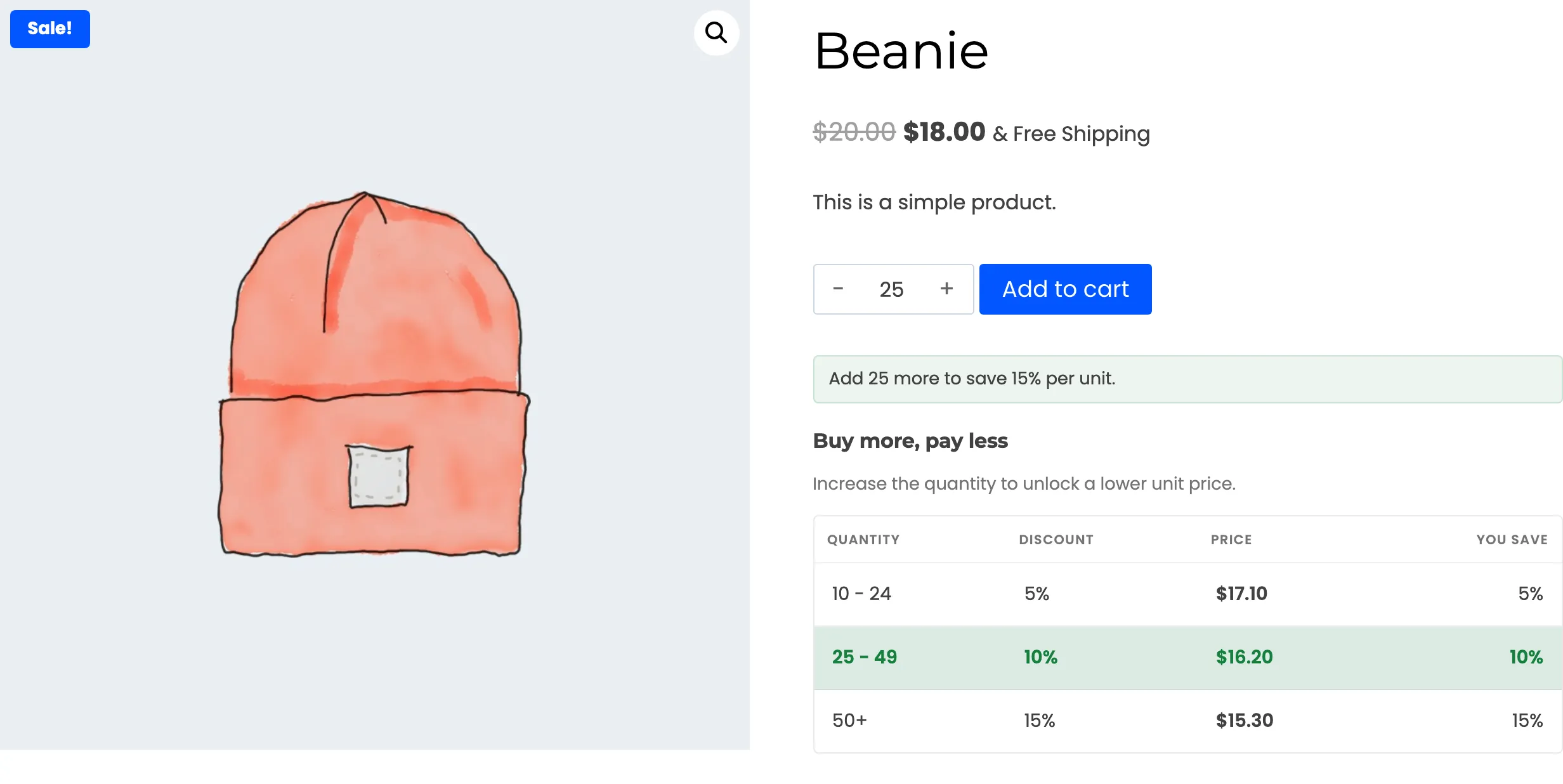
Your theme’s Add to cart button is not touched. If its colour clashes with the new accent, change the accent, since the button belongs to the theme.